
Sales platforms
Track Kirvano sales back to the ad
Link Kirvano sales to your Meta and Google ads: create the project in UTM Integrations and paste the webhook URL into Kirvano.
Quick answer
In UTM Integrations, create a project with Kirvano under Sales platform and the product ad accounts. Open Set up tracking, copy the URL from block 4 and register it in Kirvano, in the Webhooks area. Then add the UTMs to the campaigns and make a test sale.
Watch the walkthrough 0:26
Before you start
- Have admin access to Kirvano: that is where the webhook is registered.
- Tracking has three parts: the script on the sales page, the UTMs on the ads and the Kirvano webhook. This guide covers the script and the webhook; the UTMs are in Track digital product sales back to the ad.
- Old sales are not imported: only the ones Kirvano sends after setup come in.
Step by step
In this example, we link the sales of a fictitious product, the Home Garden Ebook, to the Meta campaigns.
- 1
Name and platform
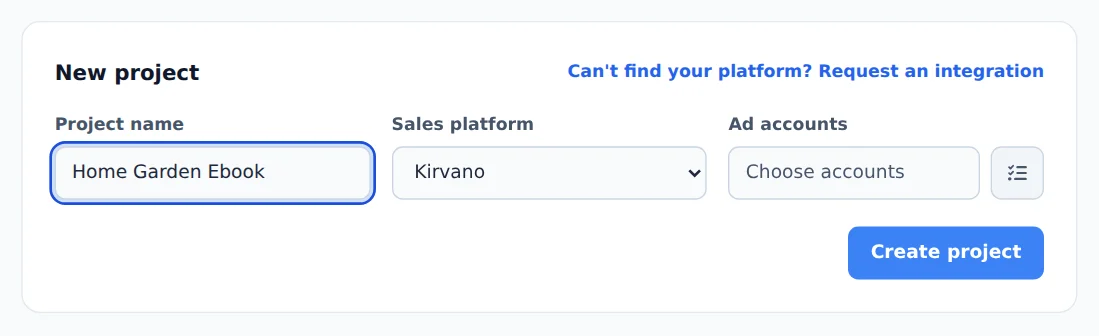
In the side menu, click UTM Integrations. Under New project, give it a name (the product name, for example) and choose Kirvano in Sales platform.
- 2
Accounts and creation
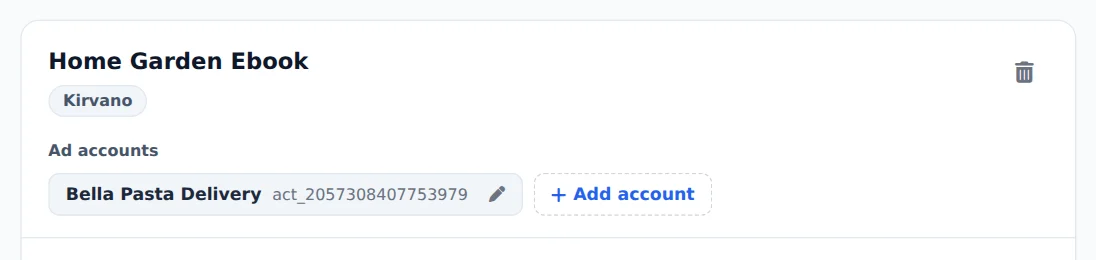
Click the list button next to Ad accounts, check the accounts that advertise the product, click Use checked accounts and then Create project.
- 3
Install the script on the site
In the project, open Set up tracking. In block 1, Install the script on the sales page, click Copy. Then paste the script straight into the sales page
<head>or install it with Google Tag Manager: click Open Tag Manager, create a new tag of the Custom HTML type, paste the script, pick the All Pages trigger, save and publish the container. The script keeps the click source until the purchase.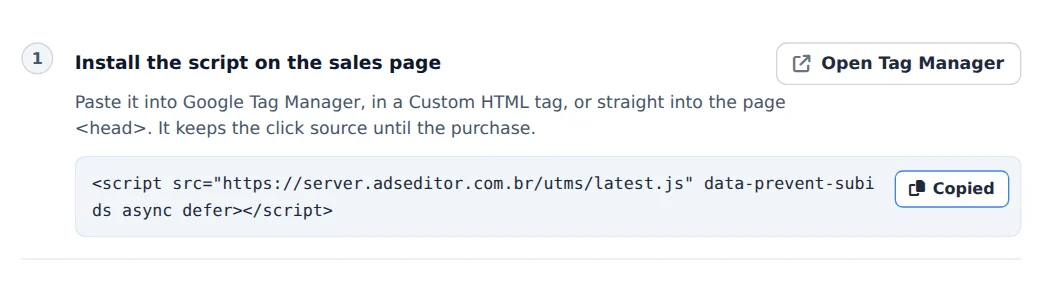
- 4
Copy the webhook URL
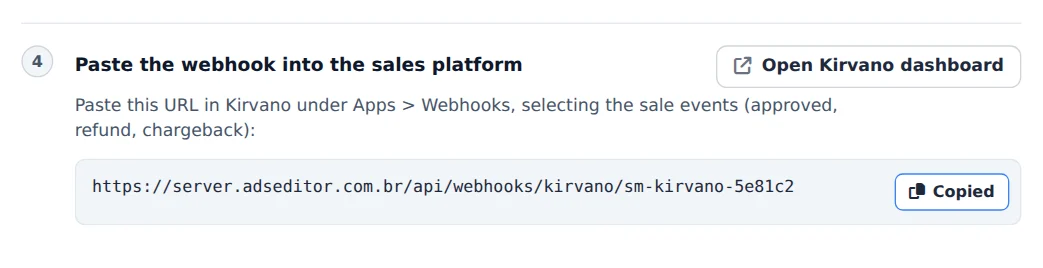
In the same panel, copy the URL from block 4, Paste the webhook into the sales platform. The Open Kirvano dashboard button, in the same block, opens the panel.
Where to paste the webhook in Kirvano
- In Kirvano, open the Webhooks area (the Open Kirvano dashboard button in the project takes you to the panel).
- Add a new webhook integration, give it a name and paste the Ads Editor URL.
- Pick all products and check the approved sale, refund and chargeback events. Save.
Script and UTMs
For each sale to come back with its campaign, the ad needs the project UTMs and the sales page needs the script. To write the UTMs on many campaigns at once, see Apply UTMs to your campaigns.
How to tell it worked
- Make a test sale on Kirvano. It shows up in Latest received events, in the project itself.
- In the Meta Ads manager, the sale goes into the UTM Purchases and UTM Revenue columns, on the row of the campaign that brought it.
If something goes wrong
| Symptom | Likely cause | What to do |
|---|---|---|
| No sale shows up in Latest received events | The URL was not registered, or was pasted only in part | Copy the URL from block 4 again and check the setup in Kirvano |
| The refund is not taken off the revenue | Only the approved sale event was checked | Edit the webhook in Kirvano and also check refund and chargeback |
| The sale arrives without a campaign | The ad has no UTM or the page drops the parameters | Use Add to campaigns and install the script on the sales page |
Frequently asked questions
Where do I find the webhook URL and where should I paste it on my sales platform?
Open the UTM Integrations page, find your project under My projects and click How to integrate. The Webhook section shows your project's unique URL with a copy button, and the instructions change depending on the platform. Examples: in Hotmart, paste it in the approved purchase webhook field (version 2.0) for all products in the account; in Kirvano, go to Apps, then Webhooks, and select the sales events; in Cakto, go to Integrations and Webhooks; in Ticto, go to Tools and Webhooks using JSON format, version 2.0; in Monetizze, go to Tools and Postback; in Perfect Pay and Lastlink, setup is per product. Always select the approved sale, refund and chargeback events so your numbers are correct. Many platforms have a shortcut button in the Ads Editor panel that opens the right page.
Which sales platforms does Ads Editor integrate with?
The UTM Integrations selector includes: Hotmart, Braip, Kiwify, Eduzz, Guru, Hubla, Kirvano, Cakto, Ticto, Perfect Pay, Monetizze, Greenn, Pepper, Lastlink, Payt, and CartPanda. Choose yours in the Platform field when you create the integration. If yours isn't on the list, click Request integration on the same page and tell us which platform you use: the team decides what to add based on requests.
See also
Track digital product sales back to the adApply UTMs to your campaignsA sale that does not show up