
Google Ads
Edit Google ad headlines and descriptions
Change the headlines, descriptions and final URL of the responsive ad without opening Google Ads, with AI suggestions and bulk editing.
Quick answer
In Google Ads, open the Ads tab and click Edit below the ad. Change the headlines, descriptions and Final URL, or use Generate with AI to get suggestions from the website, and click Save. For several ads at once, check the ads and use Bulk Edit.
Watch the walkthrough 0:25
Before you start
- The responsive search ad (RSA) takes 3 to 15 headlines, up to 30 characters each, and 2 to 4 descriptions, up to 90 characters.
- Display ads and the internal ads of Performance Max cannot be edited through the Google API. In PMax, edit the asset group.
- Saving changes the text of the existing ad, without creating another one, and Google reviews the ad again.
Step by step
In this example, we replace a headline of the dental implant ad with an offer.
- 1
Open the ad
Click the Ads tab. Each row shows the headlines, the link and the ad type. Click Edit, below the ad text.
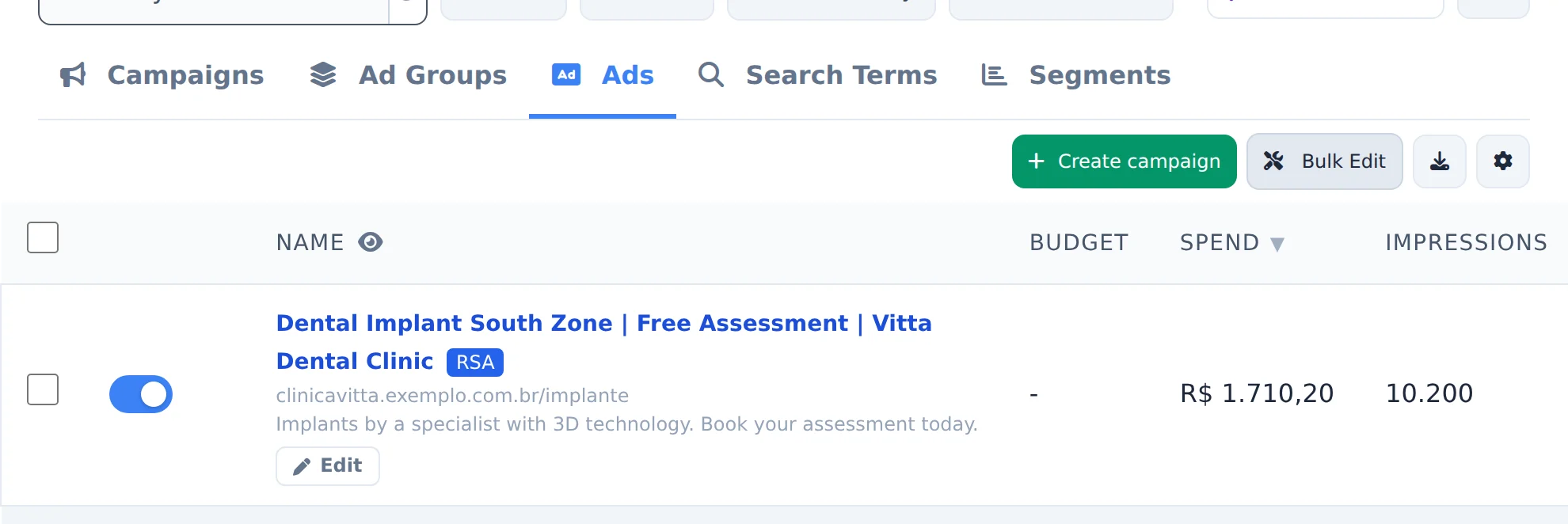 12
12- 1Ads tab
- 2Edit
- 2
Change the text
Edit right in the Headlines and Descriptions fields: the number next to each one shows how many characters are left. + Add creates a new field, and the trash can deletes it. Generate with AI reads the website and suggests new headlines and descriptions, which you check and add. The Final URL sits below.
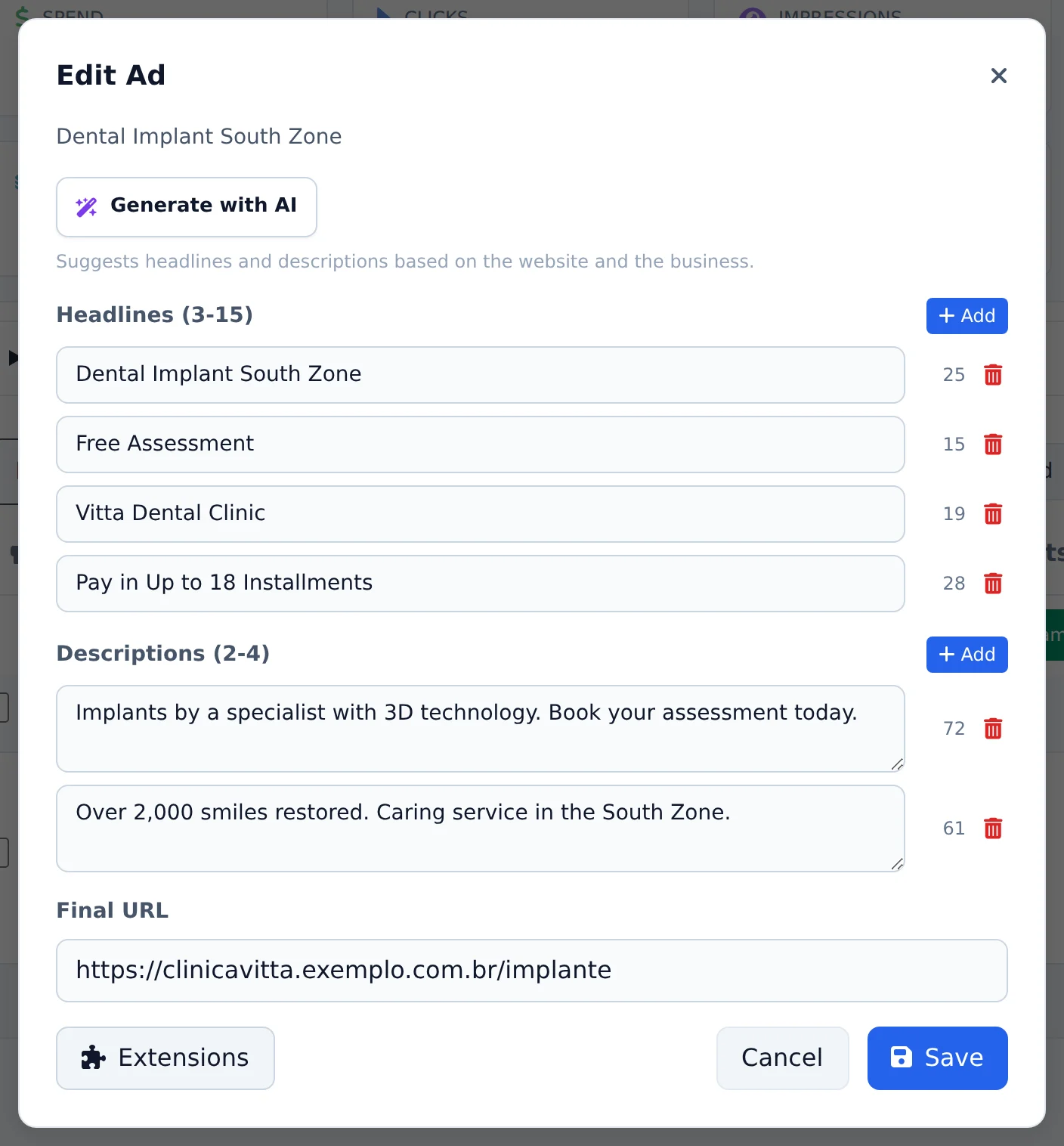 1234
1234- 1Headlines
- 2Generate with AI
- 3Descriptions
- 4Final URL
- 3
Save
Click Save. The new text goes to Google Ads right away and the ad goes back to Google review, as with any edit.
Several ads at once
In the Ads tab, check the ads, click Bulk Edit and pick Edit ads in the bottom bar. Only the headlines and descriptions they have in common show up, and what you change applies to all of them. What exists in a single ad stays untouched.
How to tell it worked
- The window closes with an ad saved notice.
- The ad row shows the new text in the Ads tab.
- The ad status may show as under review for a few hours.
If something goes wrong
| Symptom | Likely cause | What to do |
|---|---|---|
| Landing page error when saving | Google tested the final page and it did not respond | Check that the website is up and the address is right, then save again |
| The window says the ad cannot be edited | It is a Display or Performance Max ad | In PMax, edit the campaign's asset group |
| The Save button does not save | A field is over the character limit or headlines are missing | Check the counter of each field and the minimum of 3 headlines and 2 descriptions |
Frequently asked questions
How do I edit the titles and descriptions of a Google Ads ad?
In the Ads view, click the Edit ad button on the ad's row. For responsive search ads (RSAs), you can edit the headlines (minimum 3, maximum 15) and descriptions (minimum 2, maximum 4), keep or adjust the pinned position of each text, and change the final URL. For Demand Gen video ads, the modal shows Headlines (1 to 5), Long headlines (1 to 5) and Descriptions (1 to 5). Click Save and the change is applied directly to the existing ad, without creating a new one. Other ad formats (such as Display ads or the ads inside Performance Max campaigns) can't be edited through the Google API, and the modal tells you when an ad isn't editable. Tip: each field has a character counter so you can stay within Google's limits.
How do I use AI to generate headlines and descriptions for my Google Ads?
Open a responsive search ad (RSA) for editing and click the Generate with AI button in the modal. The AI analyzes the ad's website and your business context to suggest new headlines and descriptions within Google's character limits. The suggestions appear in a list with checkboxes: select the ones you like and add them to the ad with one click. You can still edit the text before saving. You stay in control: nothing is published until you click Save in the edit modal. This feature only works on RSAs, the editable format in Search campaigns.
How do I edit several Google ads at once (headlines, descriptions, link)?
In Google Ads:
- Turn on Bulk edits and go to the Ads tab.
- Select the ads you want to change and click Edit Ads in the bottom bar.
- Only the headlines and descriptions that the selected ads have in common appear: whatever you edit replaces them in all of the selected ads.
- You can also change the final URL of all of them at once.
Text that isn't shared by all the ads stays untouched in each ad. You never lose a variation that exists in only one ad.
What does the destination URL error mean when I save changes to a Google Ads ad?
The message saying the ad's destination URL is down or unavailable comes from a check by Google itself. Before accepting the edit, Google tests the ad's landing page, and if the page doesn't respond, it returns a policy error (destination not functional). Check that the site is up, that the final URL has no typos, and that the page doesn't block bots or redirect to a broken address. After fixing the site, try saving again. The same kind of block can happen when you duplicate campaigns whose ads point to pages that are down. If the site is working normally and the error persists, wait a few minutes (it may be temporary instability) and try again.