
Google Ads
Create a Google Ads campaign
A six step wizard creates Search, Display, Performance Max, Demand Gen and Shopping campaigns, always paused for review.
Quick answer
In Google Ads, pick the account and click the green Create campaign button. In Basics, choose the Campaign type, name, website, daily budget and what you want. Go through Conversion, Targeting, Keywords and Ad and, in Extensions and review, check everything and click Create campaign. If you are in a hurry, use Create with AI in one step.
Watch the walkthrough 0:31
Before you start
- At the top, select only the account where the campaign will be created.
- For the campaign to optimize for results, the account needs an active conversion. You can create the conversion in the wizard itself, in the Conversion step.
- Video (YouTube) campaigns are not on the list: Google does not allow creating that type through the API. For video with conversions, use Demand Gen.
Step by step
In this example, we create a Search campaign for the clinic, with a budget of R$ 80 per day.
- 1
Open Create campaign
In the Campaigns tab, click the green Create campaign button, above the table. The wizard opens over the screen.
 1
1- 1Create campaign
- 2
Fill in the basics
The six steps sit at the top, clickable to go back and forth. Create with AI in one step builds everything from the website, budget and city; here we go step by step. Under Campaign type, choose Search. Fill in Campaign name, the website, the Daily budget and What do you want?, which sets the bid strategy. Under Start from, you can begin from a template or an existing campaign.
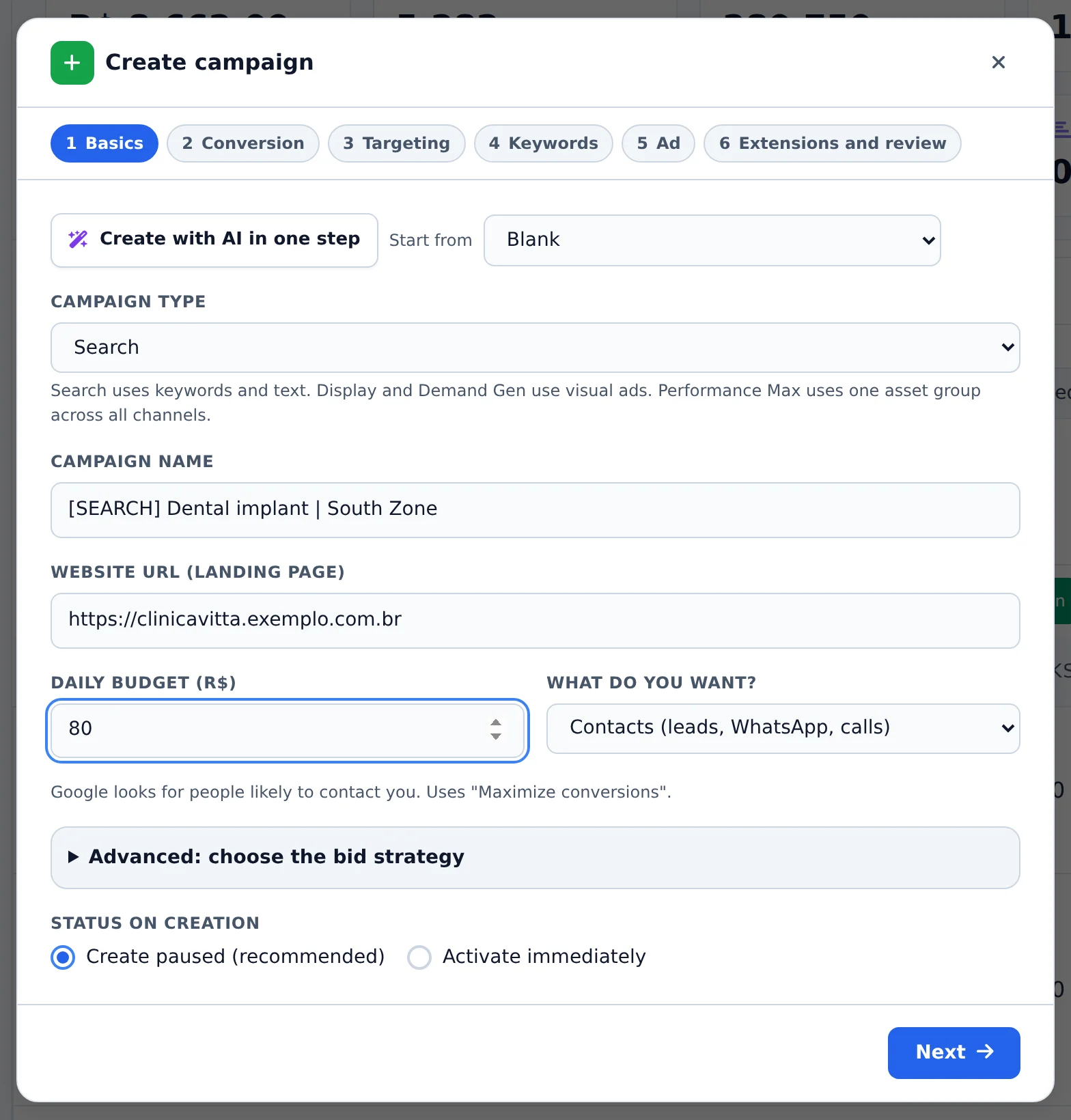 1234
1234- 1The six steps
- 2Create with AI in one step
- 3Campaign type
- 4Campaign name
- 3
Move through the steps
Click Next. In Conversion, pick or create the conversion. In Targeting, the locations and language. In Keywords, type the terms or use Generate with AI. In Ad, the headlines and descriptions. In Extensions and review, check the summary and click Create campaign. The draft is saved if you close the window halfway.
It starts paused
By default the campaign is created with Create paused (recommended). Check the ad groups, ads and budget in the table and turn on the row switch when everything is right.
How to tell it worked
- The wizard closes with a campaign created notice and a list of what was built.
- The new campaign shows up in the table with the switch off.
- When you open the campaign, the ad groups, keywords and ad are there.
If something goes wrong
| Symptom | Likely cause | What to do |
|---|---|---|
| The wizard does not let me move on | A required field of the step is missing, such as the website or budget | The missing field is highlighted. Fill it in and click Next again |
| The new campaign gets no conversions | It optimizes for conversions, but the account has no active conversion | Create the conversion and install the tag on the website, or use Maximize clicks |
| Shopping shows as blocked | There is no Merchant Center linked to the account | Link the Merchant Center in Google and open the wizard again |
Frequently asked questions
How do I create a campaign from scratch on Google Ads?
To create a campaign from scratch in Google Ads using Ads Editor, follow the steps below. Items 1 to 3 (open, choose the account and click Create campaign) apply to all five campaign types. From item 4 on, the wizard has six steps (Step 1 to Step 6), described here for the Search flow, with notes for Display and Performance Max.
- Open Google Ads from the side menu.
- Select the Google account you want to create it in.
- Click the green Create campaign button.
- Step 1: Basic: choose the Campaign Type (Search, Responsive Display, Performance Max, Demand Gen or Shopping), campaign name, website URL, daily budget, bidding strategy and whether it starts paused (recommended) or active.
- Step 2: Conversion: choose (or create) the conversion the account uses for optimization. This step is optional and you can skip it.
- Step 3: Targeting: location (city, state, country or radius around an address), language and, optionally, Google search partners. If you don't choose a location, the campaign targets Brazil.
- Step 4: Keywords (Search): add seed terms, use Generate with AI (analyzes the site) or Check search volume, and add negative keywords if you want.
- Step 5: Ad: for Search, headlines (minimum 3, maximum 15) and descriptions (minimum 2, maximum 4) of the responsive ad, with AI generation. For Display, responsive text and images. For Performance Max, the asset group (headlines, descriptions, images and logo).
- Step 6: Assets and review: sitelinks and callouts (optional), check the summary and click Create campaign.
For Display, Performance Max, Shopping and Demand Gen, see the articles «Can I create a Display campaign through Ads Editor?», «Can I create a Google Ads Performance Max (PMax) campaign through Ads Editor?» and «Can I create a Google campaign with AI in one step or from a template?» (the latter covers all five types, including Shopping, which requires a linked Merchant Center).
Video campaigns (YouTube) aren't on the list: Google only lets this type be read through the API, so Ads Editor shows the metrics but can't create or edit it.
If you prefer AI commands, ask for the campaign to be created through AI Copilot (inside the app) or MCP (Claude, Telegram, Cursor, etc.).
The wizard also offers Create with AI in One Step and Start from a template or an existing campaign, and the steps at the top are clickable.
What are the steps in the Create Google Ads Campaign wizard in Ads Editor?
The wizard starts with choosing the type: Search, Display, Performance Max, Demand Gen, or Shopping. The steps below apply to Search, Display, and Performance Max.
For Display, you enter the website, name, budget, conversion, location, and strategy. Then you build the responsive ad with a headline, long headline, description, business name, and images. A 1.91:1 landscape image and a 1:1 square image are required; the logo is optional. Display does not use keywords.
For Search, the flow includes keywords, a responsive ad, and extensions. For Performance Max, it includes search themes and an asset group. These types have a review step before creation and an automatic draft. The campaign is created paused.
Can I create a Google campaign with AI in one step or from a template?
Yes. Click the green Create campaign button in Google Ads.
Create with AI in one step: you enter the website, budget, and city, and the AI fills in keywords, negative keywords, headlines, descriptions, and extensions. You just review. Nothing is created in Google before that. It uses 1 AI credit.
Start from: blank, from a saved template, or from a campaign that already exists in the account (the assistant reads the campaign and fills in the fields). Templates belong to the account owner (up to 50 per account), and team members use the owner's templates.
The wizard supports Search, Display, Performance Max, Demand Gen, and Shopping (Shopping requires a linked Merchant Center account). The steps at the top are clickable, so you can go back or forward. You can also set the country, languages, schedule, dates, device bid adjustments, audiences, and negative keyword lists during creation. The campaign is created paused.
Can I create a Google Ads Performance Max (PMax) campaign through Ads Editor?
Yes! Go to Google Ads in the side menu, click the green Create campaign button, and choose the Performance Max type in the first step.
The wizard asks for: website, budget, strategy (Maximize conversions or Maximize conversion value), search themes, text assets (3 to 15 headlines, 1 to 5 long headlines, 2 to 5 descriptions, and the business name), and images and logo. You can upload the image right there in the wizard, without needing the account's image library.
Reminder: Performance Max has no ad groups. The assets live in the asset group, which is what you see when you expand the campaign in the manager. If a required asset is missing (for example, the logo), the wizard warns you before creating the campaign.
Google AI Optimization also tells you when the account is ready for a PMax campaign and opens the wizard already filled in.
Can I create a Display campaign through Ads Editor?
Yes. Go to Google Ads in the side menu, click Create campaign, and choose Display in the first step.
You'll need a final URL, budget, location, at least one short headline, one long headline, one description, a business name, a 1.91:1 landscape image, and a 1:1 square image. A logo is optional. You don't need to enter keywords, because Display campaigns use audiences and visual assets.
Ads Editor creates the budget, campaign, ad group, and responsive ad in a single flow. The campaign is created paused so you can review it.