
Audiences and UTM Integrations
Delete audiences
Delete several audiences from the account at once, from the Audiences in this account list, with a confirmation first.
Quick answer
In Create Audiences, pick the account and scroll to Audiences in this account. Search by name, check the audiences (Shift checks a range) and click Delete selected. Confirm: deleting happens in Meta and cannot be undone.
Watch the walkthrough 0:27
Before you start
- Deleting happens straight in the Meta account and cannot be undone.
- Meta may refuse to delete an audience used by an active ad set; the reason shows in the list.
Step by step
In this example, we delete two old audiences of a delivery business.
- 1
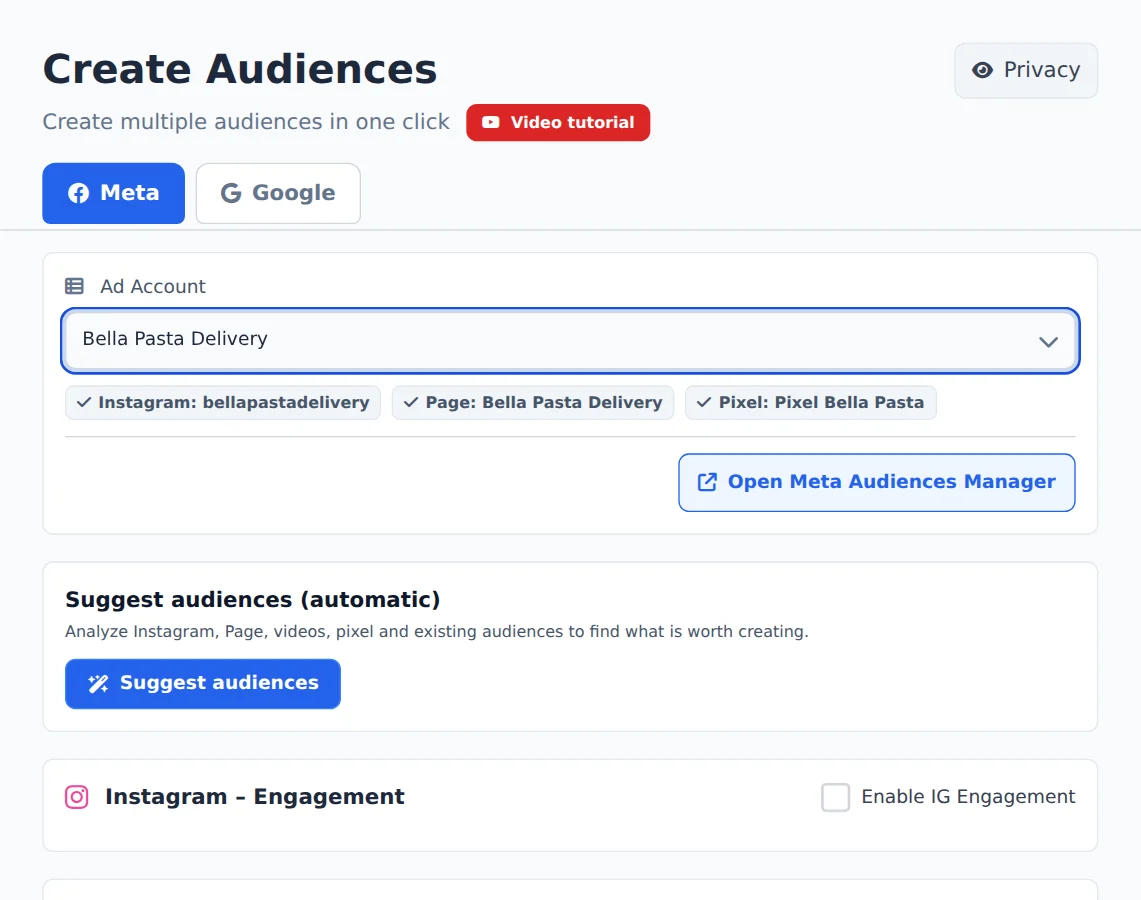
Pick the account
Open Create Audiences in the side menu and, on the Meta tab, pick the ad account in the selector at the top. Ads Editor finds its Instagram, Page and Pixel on its own.
- 2
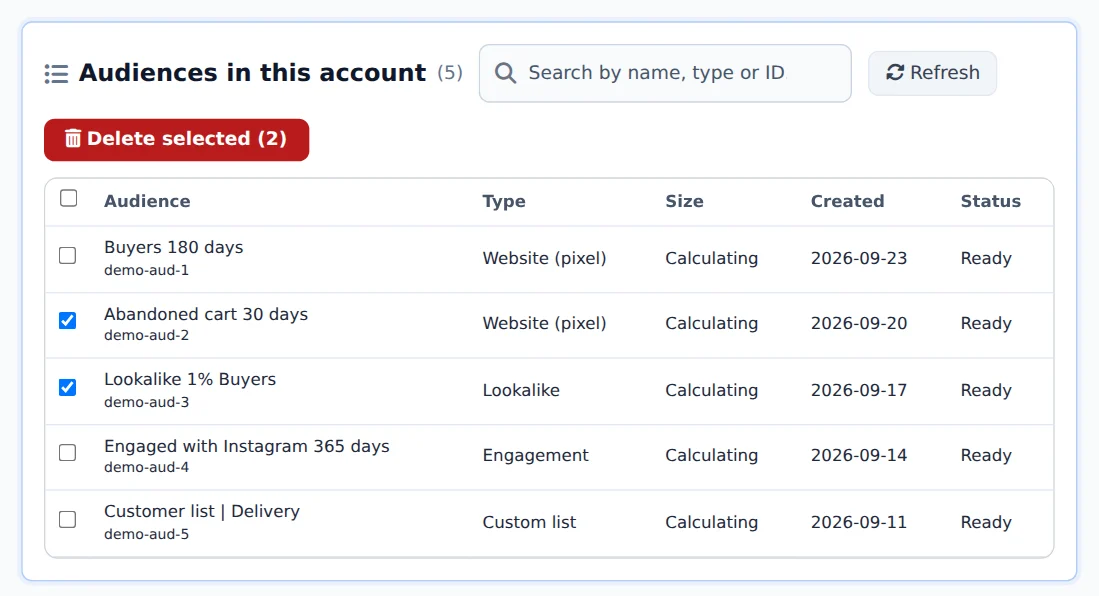
Check the audiences
Under Audiences in this account, search by name and check the ones to delete. Hold Shift to check a range at once.
- 3
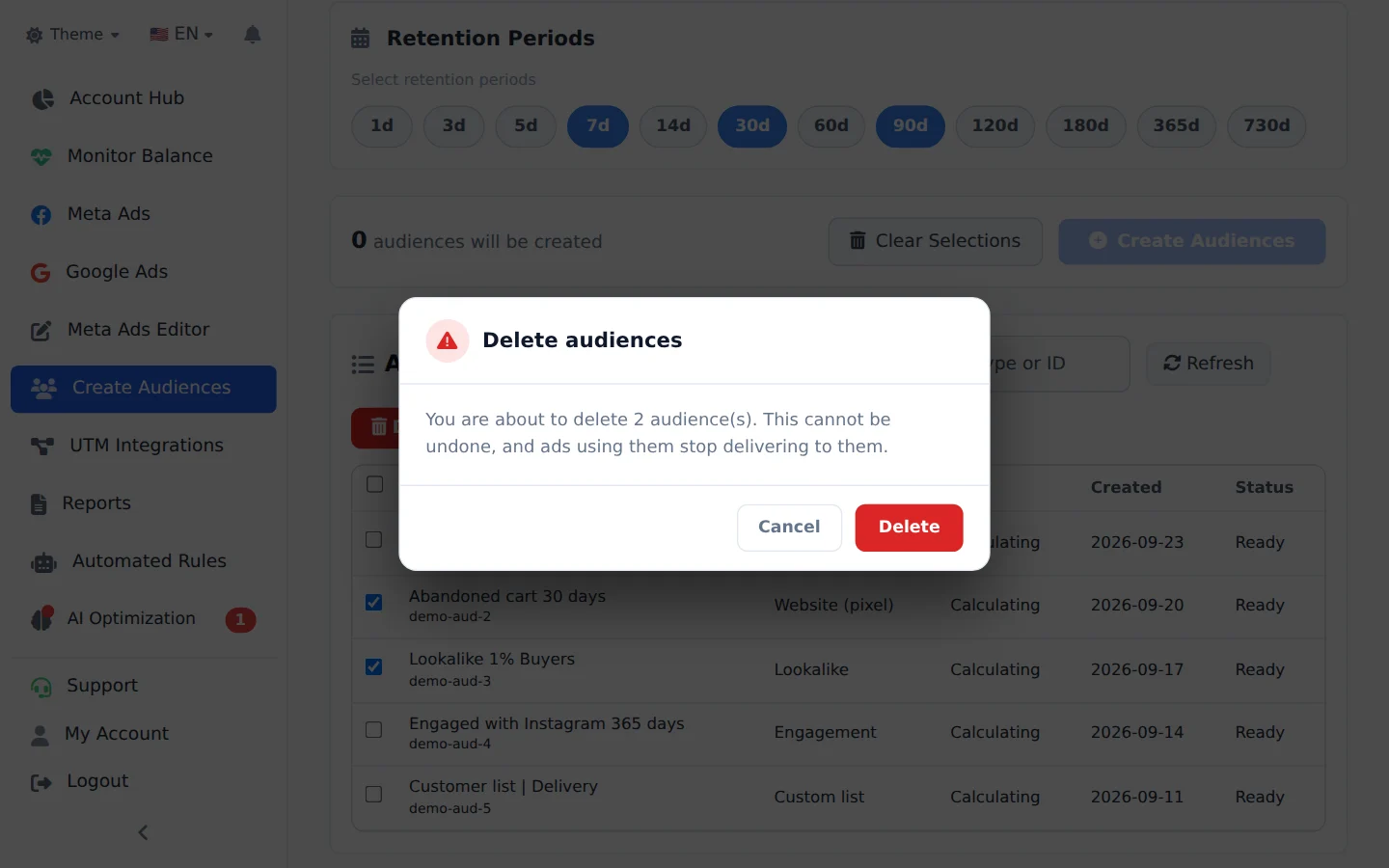
Delete and confirm
Click Delete selected and confirm in the window. The progress shows how many were deleted and the reason for each refusal.
Audience in use
Before deleting, remove the audience from the ad sets that use it: Meta refuses to delete an audience of an active ad set.
How to tell it worked
- The progress shows the deleted audiences.
- The audiences disappear from the Audiences in this account list.
If something goes wrong
| Symptom | Likely cause | What to do |
|---|---|---|
| An audience was not deleted | It is used by an active ad set | Remove the audience from the ad set and delete it again |
| The Delete selected button stays disabled | No audience is checked | Check at least one audience in the list |
Frequently asked questions
How do I delete audiences I created? Can I delete several at once?
Yes. In the progress list, each audience you created has a trash button for deleting it individually and a checkbox on the left. To delete in bulk, select the audiences you want (hold Shift and click to select a range, or use Select All) and click Delete Selected. A confirmation window appears first, because the deletion happens directly in your Meta account and can't be undone. Important: Meta may refuse to delete an audience that an active ad set is using. In that case, the error message explains why, and you need to remove the audience from those ad sets first.