
Meta Ads
Manager filters
Filter by name with tags that add up, switch the operator and use the Active, Had delivery and Filter selected shortcuts.
Quick answer
In Meta Ads, type part of the name in the filter field above the table and press Enter: the term becomes a tag. Stack as many as you want (all of them apply together), click the tag operator to switch between contains, starts with and is, and use Clear all to see everything again.
Watch the walkthrough 0:40
Before you start
- Inside a term, + means any of them (or) and ; means all of them (and): black + white brings items with either one.
- The tag level follows the open tab. For another level, use a prefix: campaign:, adset: or ad: (for example, adset:lookalike).
- Tags are saved per account and also apply to exports and Copy Report.
Step by step
In this example, we filter a delivery business campaigns by name.
- 1
Create a filter
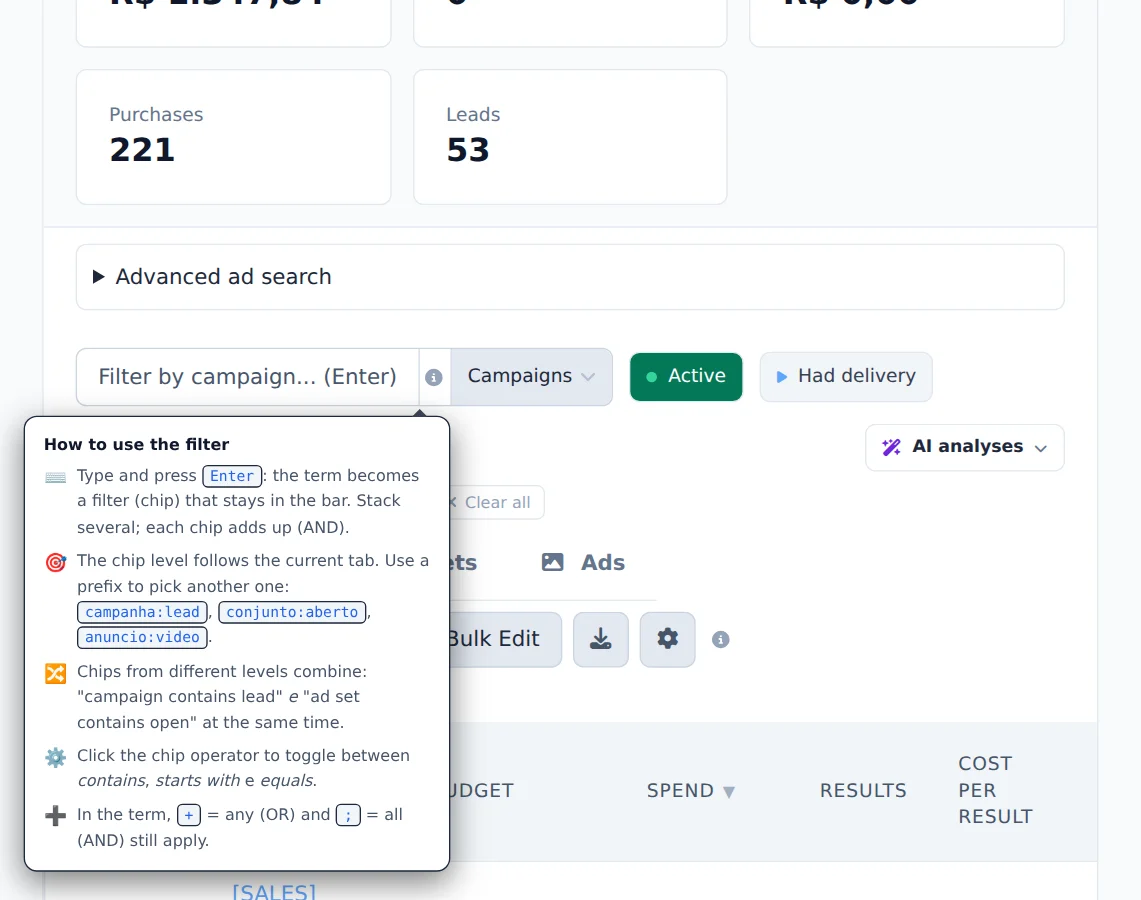
Type part of the name in the filter field and press Enter. The term becomes a tag and the field is free for the next one.
- 2
One term or another
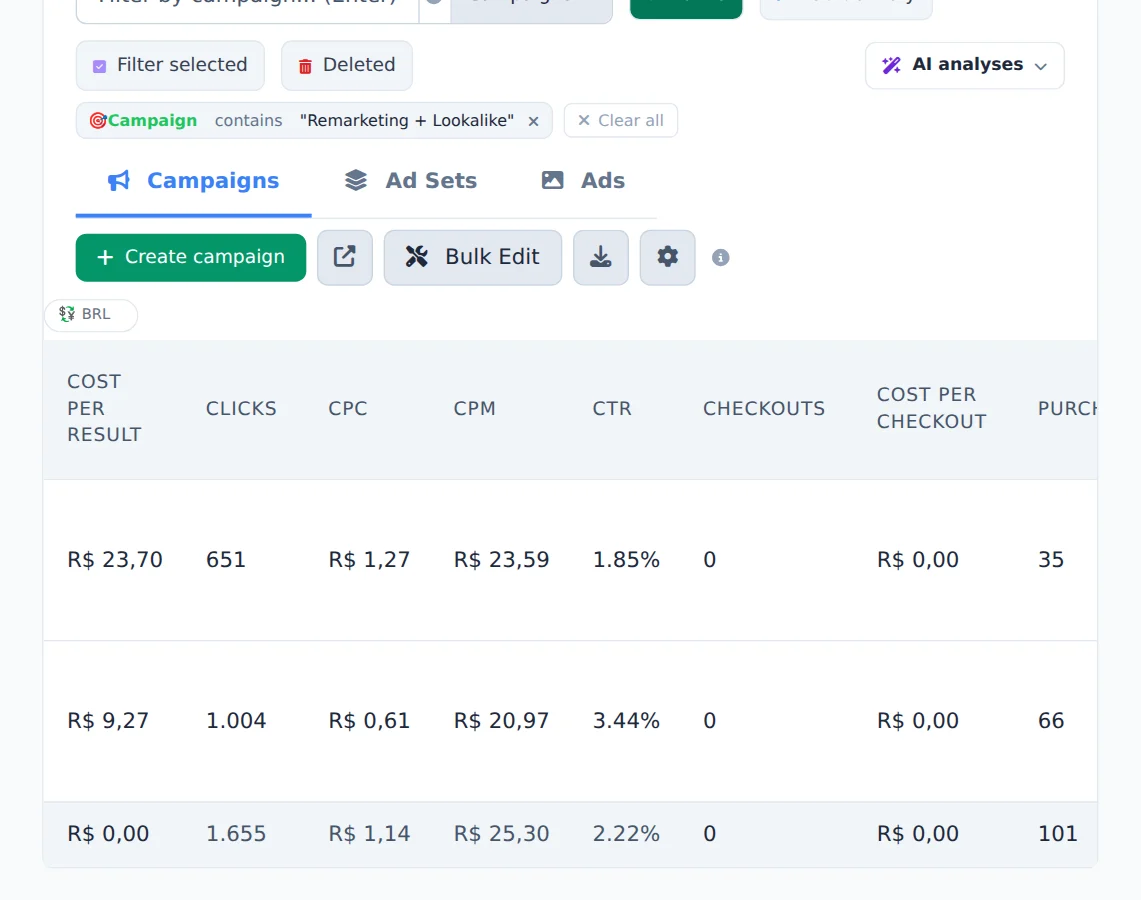
The x removes the tag. To bring one name or another, join the terms with +, as in Remarketing + Lookalike.
- 3
Switch the operator
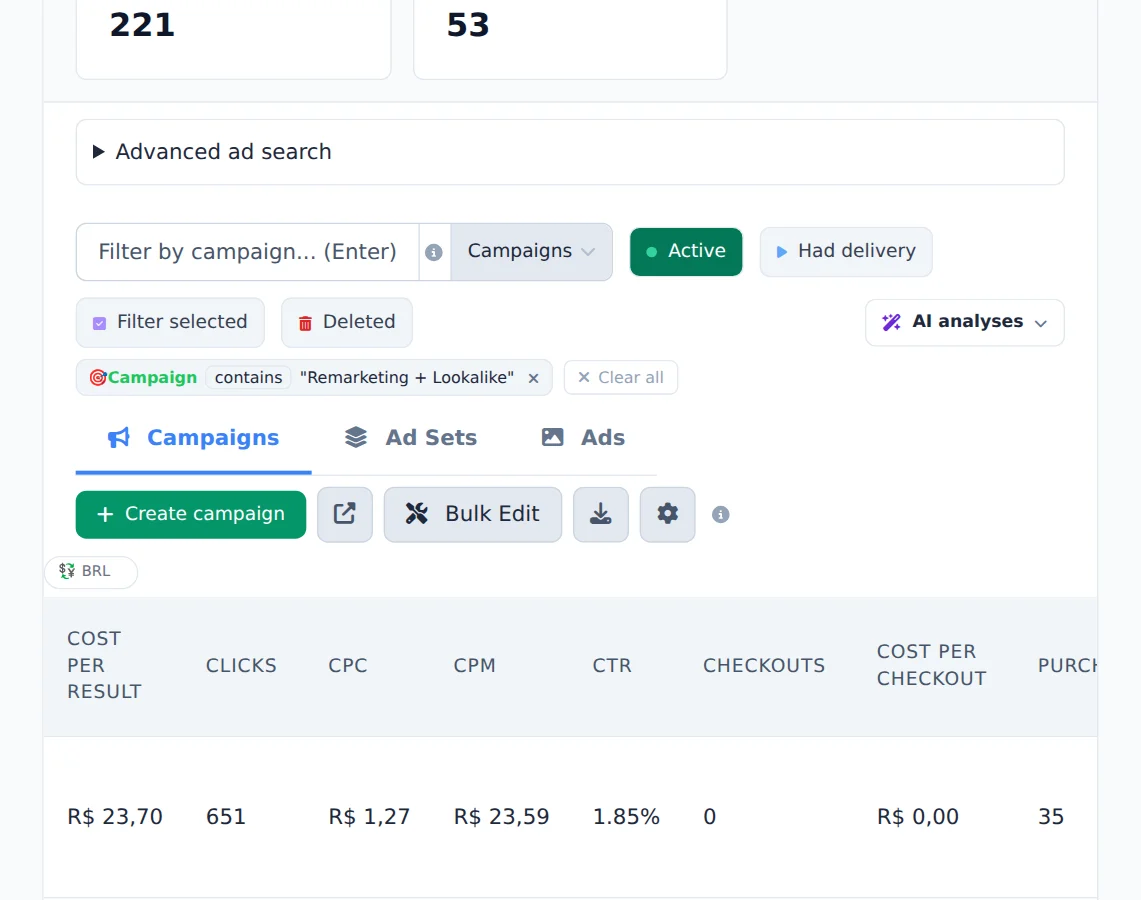
Click the tag operator to switch between contains, starts with and is.
- 4
Use the shortcuts
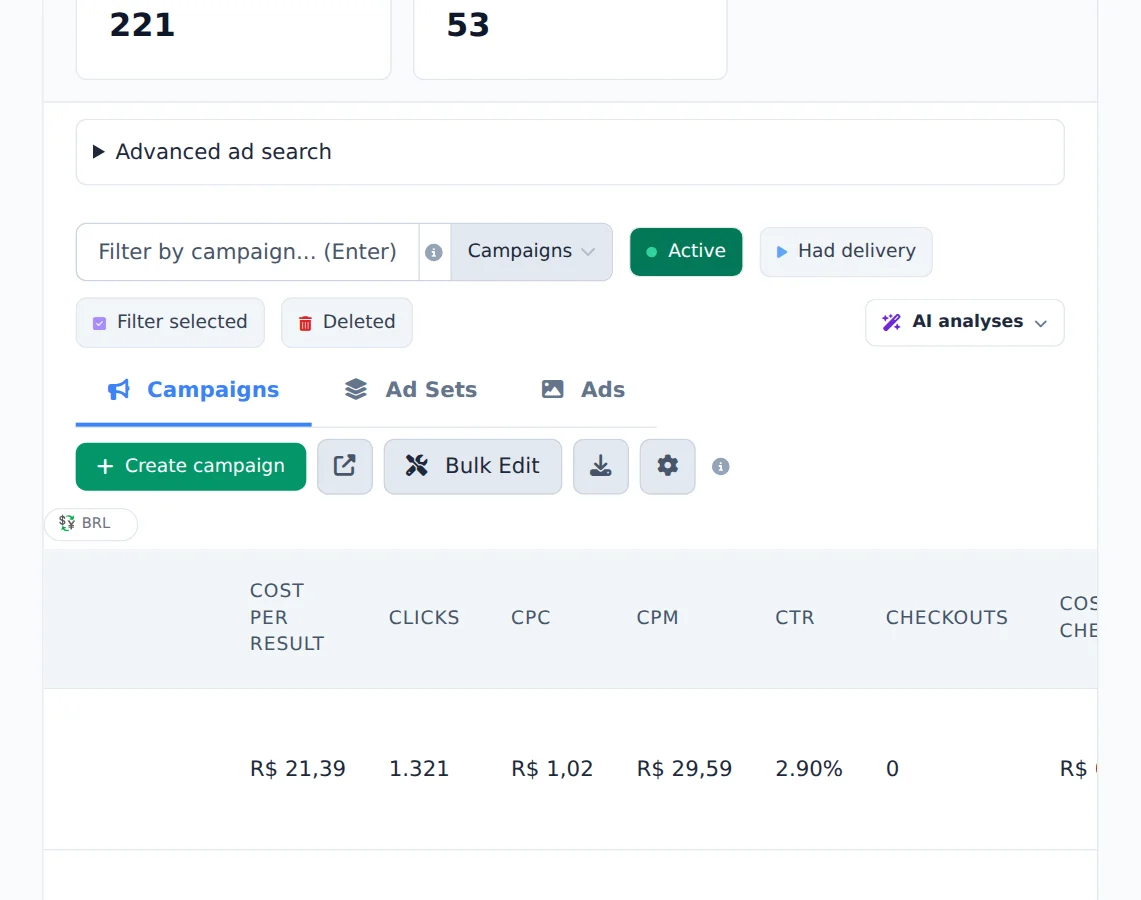
Active shows only what is on, Had delivery only what spent in the period and Filter selected only the checked rows. Clear all removes every tag.
Two level filter
Tags from different levels add up: campaign:sales and adset:open together show only the open ad sets of the sales campaigns.
How to tell it worked
- The tag shows above the table, with the level, the operator and the term.
- The table and the Period Summary show only what matches the filters.
If something goes wrong
| Symptom | Likely cause | What to do |
|---|---|---|
| The table went empty | Two tags that never match together, or the operator is set to is | Remove a tag or switch the operator back to contains |
| The filter came back on its own | Tags are saved per account | Use Clear all when you no longer want the filter |
Frequently asked questions
How do the Meta Ads chip filters work?
Meta Ads filters work like they do in Meta Ads Manager:
- Type a term and press Enter: it becomes a visible chip and the field is free for the next filter.
- Stack several filters at once, even across different levels. For example: campaigns that contain "Lead" AND ad sets that contain "open".
- Click a chip to switch between contains, starts with and equals.
- Filters are saved per account: if you leave and come back, your chips are still there.
- The Active, Had delivery and Selected buttons keep working alongside the chips.
How do I filter campaigns, ad sets, or ads by name in Meta Ads and Google Ads?
Above the table, in the Filter by name... field:
- Type a term and press Enter. It becomes a filter (chip) in the bar. You can stack several chips, and they all apply at the same time.
- In a term, + means any of them (OR) and ; means all of them (AND). Example: black + white matches names with either term; black ; video matches only names with both.
- The chip's level follows the current tab. For another level, use a prefix: in Meta Ads, campaign:, adset:, and ad: (example: campaign:lead); in Google Ads, campaign:, group:, and ad:.
- In Meta Ads, click the chip's operator to switch between contains, starts with, and equals.
Next to the field are the shortcuts Active, Had delivery, and Filter selected (select rows, then click to see only those).
What are the Active, Had delivery, and Filter selected buttons for?
These are quick filters next to the search field. Active shows only campaigns, ad sets, or ads with an active status and hides paused ones. Had delivery shows only items with spend or impressions above zero in the period, which is useful for clearing everything that didn't run. Filter selected shows only the rows you checked, which helps you review a large selection before applying a bulk action. Click any of them again to turn it off. These filters also affect exports and Copy report, which work from what is visible on screen.