
Meta Ads
Bulk rename
Replace part of the name of several campaigns, ad sets or ads at once, with a preview before saving.
Quick answer
In Meta Ads, check the items, click Bulk Edit and Edit Name. Under Find and replace, type the text that goes out and the text that comes in, and click Replace in names. Check the preview, adjust a name by hand if you want and click Save changes.
Watch the walkthrough 0:34
Before you start
- It works on all three tabs: campaigns, ad sets and ads.
- Renaming does not affect delivery or reset metrics.
- For a single item, hover over the name in the table and click the pencil.
Step by step
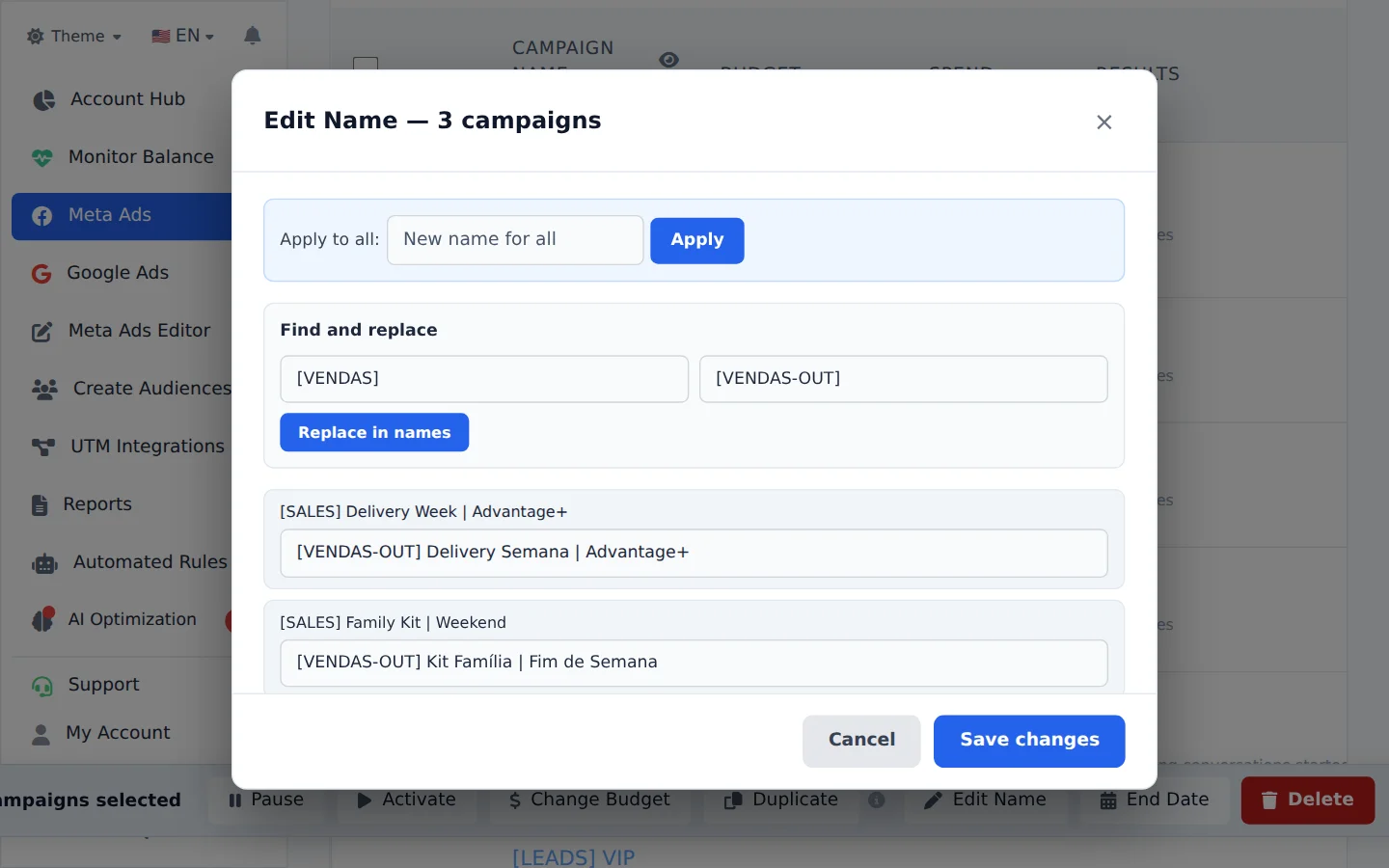
In this example, we replace [SALES] with [SALES-OUT] in the name of three campaigns.
- 1
Select the campaigns
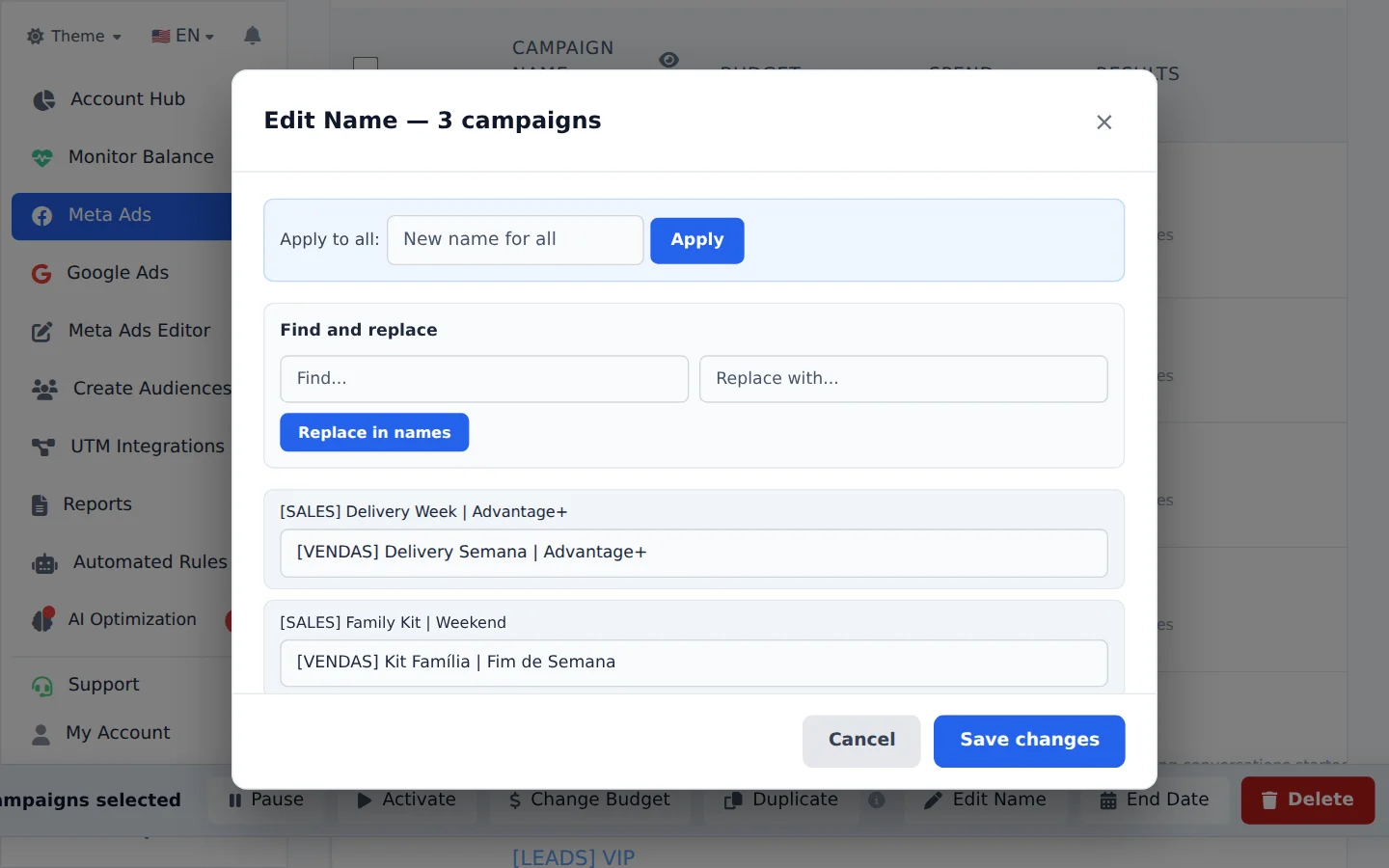
Check the campaigns, click Bulk Edit and, in the action bar, Edit Name.
- 2
Find and replace
In Find, type the part that will change; in Replace with, the new text. Click Replace in names and check the preview in the list. Each name can also be adjusted by hand, and Apply to all replaces the whole name at once, with a number at the end.
- 3
Save
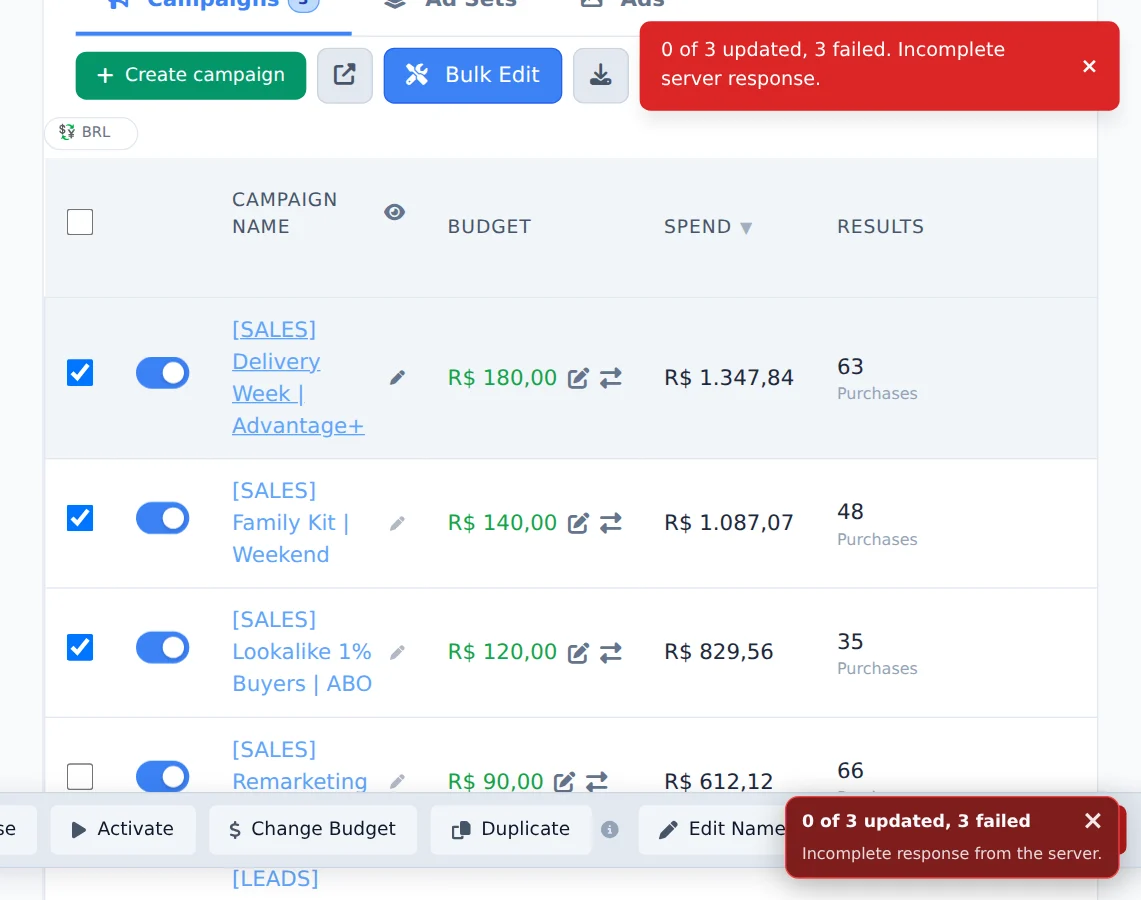
Click Save changes. The progress shows in the window itself, and the table shows the new names.
One naming pattern for the whole account
Names that follow the same pattern (objective in brackets, audience, creative) make the manager name filter much more useful: [SALES] finds every sales campaign at once.
How to tell it worked
- The window shows the progress until the end, with no error.
- The table shows the new names, and so does Meta Ads Manager.
If something goes wrong
| Symptom | Likely cause | What to do |
|---|---|---|
| Nothing changed in the preview | The text in Find is not in the names exactly as typed | Copy the text from a name in the list and try again |
| An item was not renamed | Meta refused the change for that item | See the reason in the window and rename that item with the table pencil |
Frequently asked questions
How do I rename multiple campaigns or ads at once? Can I find and replace text in their names?
Select the items, open Bulk edits, and click Edit Name. In the window, you can edit each name individually, use the Apply to all field to set the same value for all of them, or use the Find and replace section: enter the text to find and the replacement text, then click Replace in names to change all the names at once. When you're done, click Save changes and follow the progress in the same window. To quickly rename a single item, hover over its name in the table and click the pencil icon that appears. Renaming doesn't affect delivery or reset metrics, so it's a safe change.