
Google Ads
Add keywords in Google Ads
Turn the searches that convert into keywords, or paste a list into several ad groups at once, without leaving Ads Editor.
Quick answer
In Google Ads, open Search Terms, find the search that converts and click the green Add as keyword button. Pick the match type and click Add Keyword: it goes into the same ad group as the term. To paste a list, check the ad groups in the Ad Groups tab and use Bulk Edit.
Watch the walkthrough 0:32
Before you start
- Keywords apply to Search campaigns. Performance Max does not use keywords: it works with search themes in the asset group.
- Exact only triggers the same search or a very close one, Phrase triggers searches containing the idea, and Broad is the most open.
- Every keyword you add goes straight to Google Ads, active.
Step by step
In this example, the search "dental implant south zone price" brought conversions and becomes a keyword.
- 1
Find the search that converts
Click the Search Terms tab. Each row is a real search that triggered the ad, with spend, clicks and conversions. In the Actions column, the green button adds the term as a keyword and the red one, as a negative.
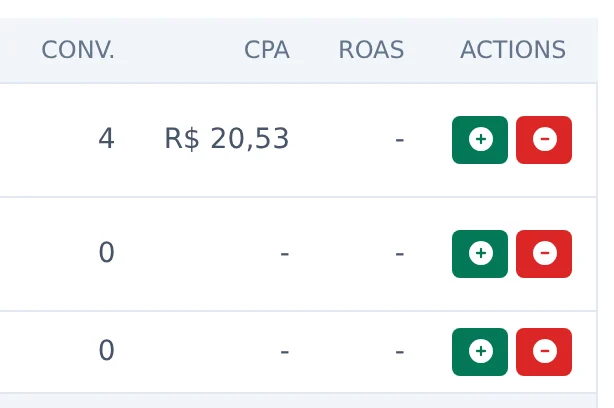 12
12- 1Add as keyword
- 2Add as negative
- 2
Add it as a keyword
Click the green button on the term. Under Match Type, pick Exact, Phrase or Broad. The keyword goes into the same ad group where the term showed up, shown under Ad Group. Click Add Keyword.
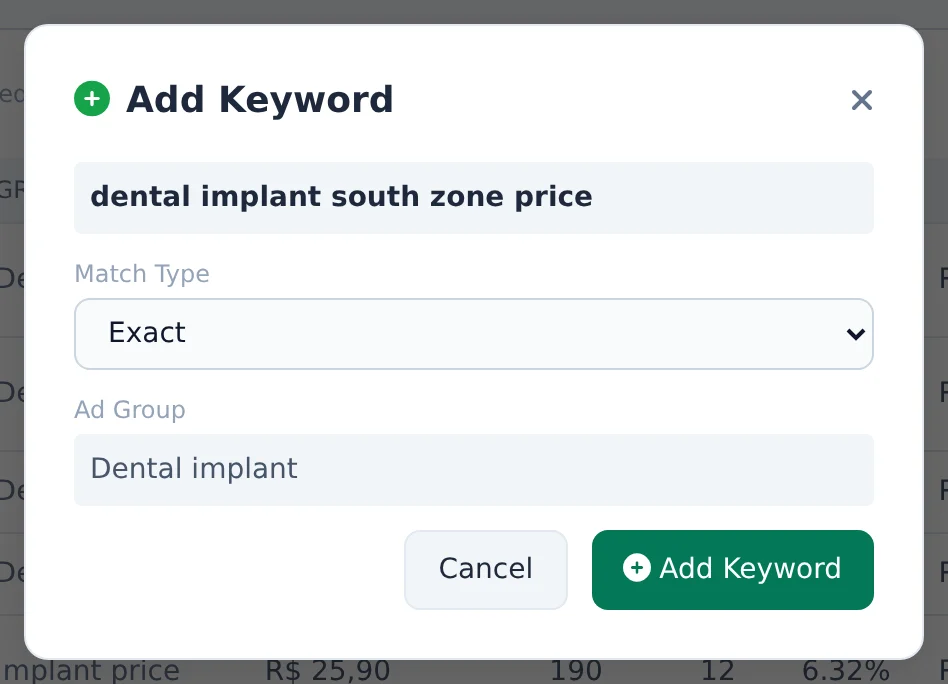 123
123- 1Match type
- 2Ad group of the term
- 3Add Keyword
- 3
Several at once
To paste a list, open the Ad Groups tab, check the ad groups and click Bulk Edit. In the bottom bar, open Edit ad groups and pick Keywords. Write one keyword per line, pick the match type and click Apply: they go into every checked ad group.
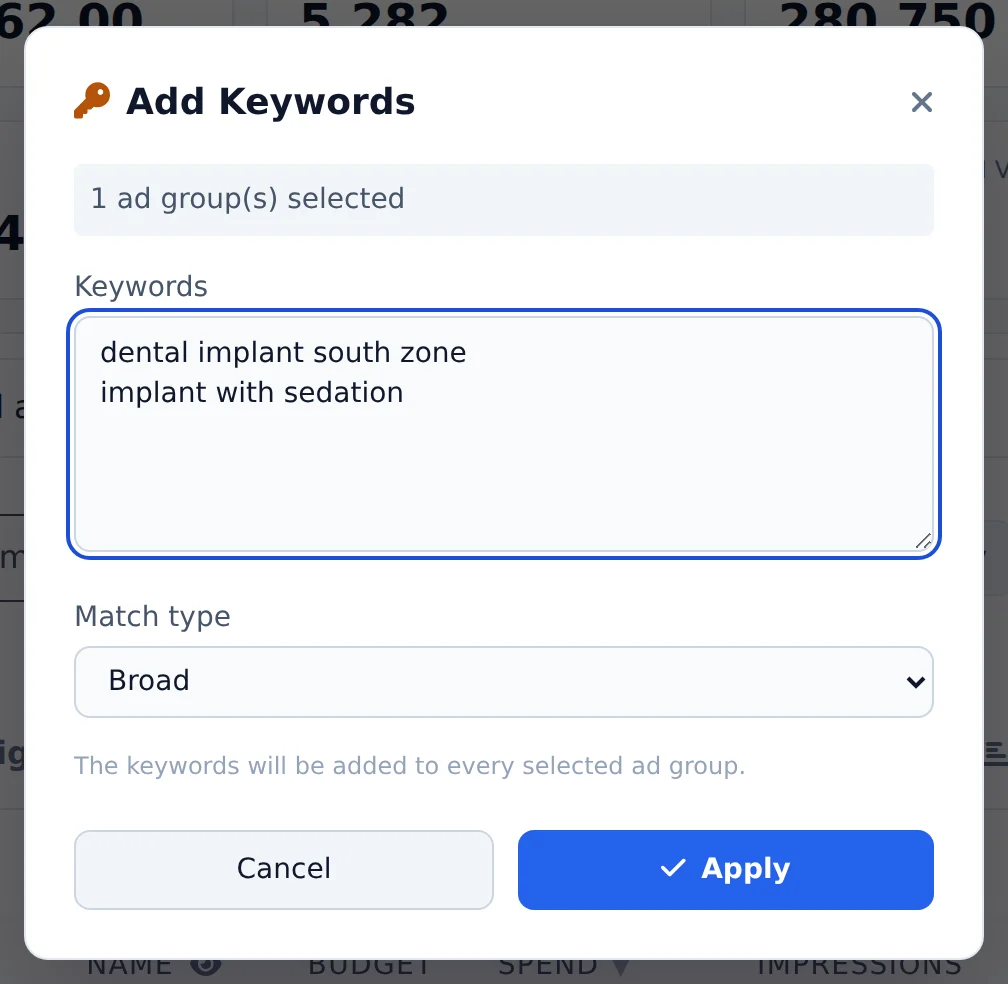 123
123- 1One keyword per line
- 2Match type
- 3Apply
Let AI do the sorting
In Search Terms, Suggest with AI checks the terms that were not added yet and proposes which to turn into keywords and which to negate, with the suggested match type. You review the list and apply only what you check.
How to tell it worked
- The notice in the corner confirms the keyword was added.
- The Keywords button on the ad group row, in the Ad Groups tab, lists the new keyword with the match type you chose.
- There you can also pause, activate or remove each keyword.
If something goes wrong
| Symptom | Likely cause | What to do |
|---|---|---|
| Error when adding the keyword | Google rejected the text by policy, or it has symbols Google does not accept | Adjust the keyword text and try again |
| The keyword does not show in the PMax campaign | Performance Max does not use keywords | Use the search themes in the PMax asset group |
| The Keywords option is missing from the bar | You are on the Campaigns or Ads tab | Open the Ad Groups tab and check the ad groups |
Frequently asked questions
How do I manage keywords in an ad group?
In the Ad Groups view, click the Keywords button on the group's row. The modal lists all keywords with match type, status, Quality Score (QS), clicks, impressions, cost, CTR, CPC and conversions. To add a keyword, enter it in the Keyword field, choose the match type (Broad, Phrase or Exact) and click Add. For each keyword you can Pause, Activate or Remove it using the row's action buttons. Changes are applied to Google Ads immediately. This feature is for Search campaigns; Performance Max campaigns don't use traditional keywords.
How does AI help me decide which search terms to add as keywords or negatives?
On the Search Terms tab, click Suggest with AI. The AI reviews the terms that have appeared and haven't been added yet (prioritizing the 50 with the most clicks), checks the campaign's landing page when available, and classifies each term: add it as a positive keyword or as a negative, with a suggested match type. The suggestions appear in a list where you can review them, change the action or match type for each item, and then click Apply selected. Positive keywords go into the ad group where the term appeared, and negatives are added at the campaign level. At the end, the system shows how many were applied successfully.
Error: Failed to change keywords (Google Ads)
Couldn't add, edit, or remove a keyword. This is usually caused by missing data (ad group, client account, or keyword text) or by a Google policy rejection.
How to fix it:
- Check that the ad group and account are selected and that the keyword text is valid.
- Resubmit.
If Google rejects it for policy reasons, adjust the keyword. If the error is generic and persists, contact support and include the ad group and the keyword text.