
Google Ads
Sitelinks, callouts and snippets in Google Ads
Extra links, callouts and snippets make the ad bigger and bring more clicks. Create them by hand or with AI, at the account, campaign or ad group level.
Quick answer
In Google Ads, click Edit on the campaign and pick Extensions. Under Apply to, choose the whole account, the campaign or the ad group. In the Sitelinks, Callouts and Snippets tabs, fill in the form and click Add, or use Generate with AI to get suggestions from the website. For several campaigns, check them and use Bulk Edit, Edit campaigns, Extensions.
Watch the walkthrough 0:30
Before you start
- Google recommends at least 4 sitelinks. With fewer than 2, they do not show.
- A sitelink has link text of up to 25 characters, a final URL and two optional descriptions of up to 35 characters. A callout has up to 25 characters.
- A snippet uses an official Google header, such as Services, Brands or Types, and values of up to 25 characters each.
Step by step
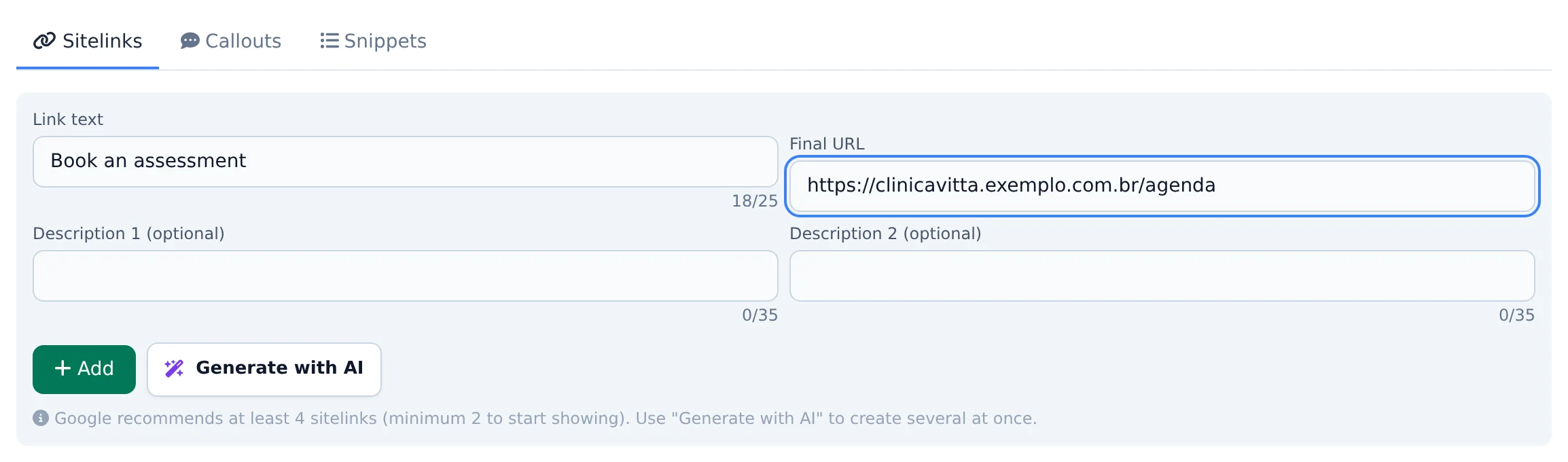
In this example, we create the "Book an assessment" sitelink in the dental implant campaign.
- 1
Open Extensions
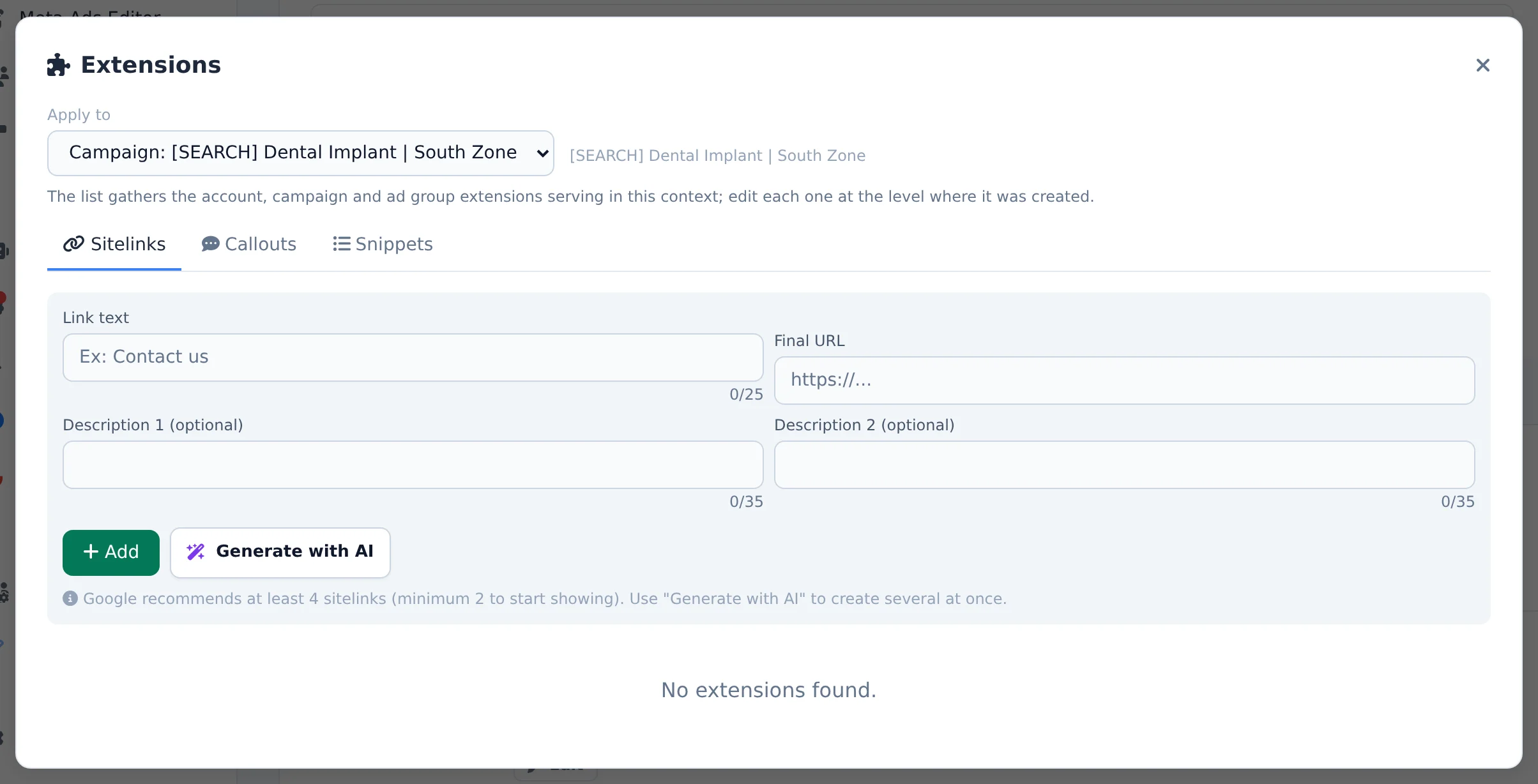
Click Edit, below the campaign name, and pick the Extensions card. Under Apply to, check the level: the whole account, the campaign or an ad group. The tabs split Sitelinks, Callouts and Snippets, and the extensions already in place there show below the form.
 123
123- 1Apply to
- 2Extension types
- 3Extension form
- 2
Create the sitelink
In the Sitelinks tab, write the link text and the URL of the page it leads to. The two descriptions are optional. Click Add.
 123
123- 1Link text
- 2Final URL
- 3Add
- 3
Callouts and snippets
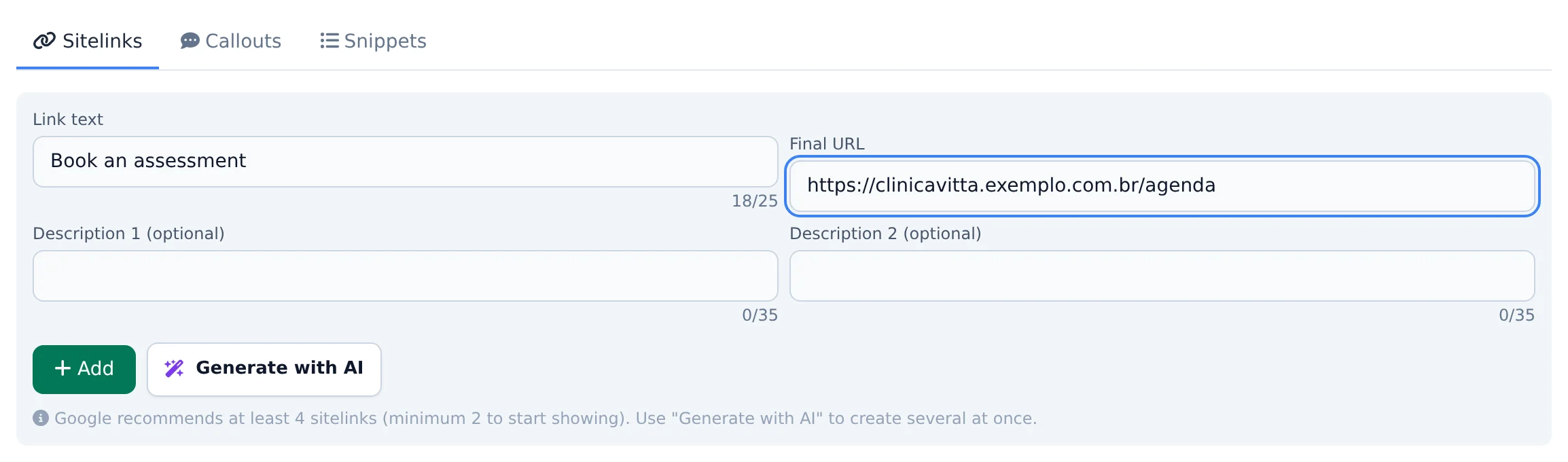
Generate with AI reads the website pages and suggests several sitelinks at once, with the URLs filled in. Review them, keep only the suggestions you want checked and click Add selected. The Callouts and Snippets tabs work the same way.
 12
12- 1Generate with AI
- 2Callouts
Whole account for what always applies
Phone, address and callouts like "Open on Saturdays" fit every campaign: create them at the Whole account level and every campaign inherits them. Keep only campaign specific extensions on the campaign.
How to tell it worked
- The new extension shows in the modal table, at the chosen level.
- In the table, Edit and the trash can on each row change or remove the extension.
- Google reviews the extension before showing it, as it does with ads.
If something goes wrong
| Symptom | Likely cause | What to do |
|---|---|---|
| Sitelinks do not show on the ad | The campaign has fewer than 2 sitelinks, or Google has not approved them yet | Create at least 4 and wait for Google review |
| The AI suggestion cannot be added | A checked suggestion is missing its URL | Fill in the URL or uncheck the suggestion |
| I cannot find an extension I see in Google | It was created at another level | Change the level under Apply to and edit it where it was created |
Frequently asked questions
How do I add sitelinks, callouts, and snippets to my Google Ads campaigns?
Click the Extensions button on the campaign or ad group row (or select items in bulk and use Extensions in the bottom bar). In the modal, pick a level under Apply to: Entire account, Campaign or Ad group. Then go through the Sitelinks, Callouts and Snippets tabs. Sitelinks need link text (up to 25 characters), a final URL and optional descriptions (up to 35 characters). Callouts accept up to 25 characters. Snippets use an official Google header (such as Services, Brands or Types) and values of up to 25 characters each. Google recommends at least 4 sitelinks, and at least 2 are needed for them to start showing. The table in the modal lists the existing extensions at the chosen level, with Edit and Remove options.
Can I generate sitelinks and callouts with AI?
Yes. In the Extensions modal, click Generate with AI on the tab you want. For sitelinks, the system detects the website from the campaign's ads, and the AI reads real pages on the site to suggest sitelinks with the correct URLs already filled in. You'll see a notice with how many pages were read. For callouts and snippets, the AI generates suggestions based on your business and campaign context. Review the list, keep only the suggestions you want selected and click Add selected. For sitelinks, each selected suggestion must have a URL before you add it. If any URLs are duplicated, the system automatically makes them distinct so Google accepts them.