
Automation and AI
Analyze creatives with AI
The AI reads the account ads and tells you which to keep, refresh or pause, what to shoot next, and hands you a client-ready report.
Quick answer
In the Meta Manager, click AI analyses and choose Analyze account creatives. Check the Ad account, pick the Period and the Depth (Quick or Full) and click Analyze creatives. The result tells you what to do with each ad, with the number behind it, brings ideas for the next creatives and a For the client tab with a ready message and a PDF. Nothing is changed in the account.
Before you start
- The ad account must be connected through the Meta connection and have ads with spend in the chosen period.
- The analysis uses the plan’s AI credits, which renew every day. On a team, the credits are the account owner’s.
- The analysis only reads. It does not pause, edit or create anything in the account: you decide and apply.
Step by step
In this example, we analyze the last 30 days of ads of a restaurant delivery account.
- 1
Open the analysis in the Manager
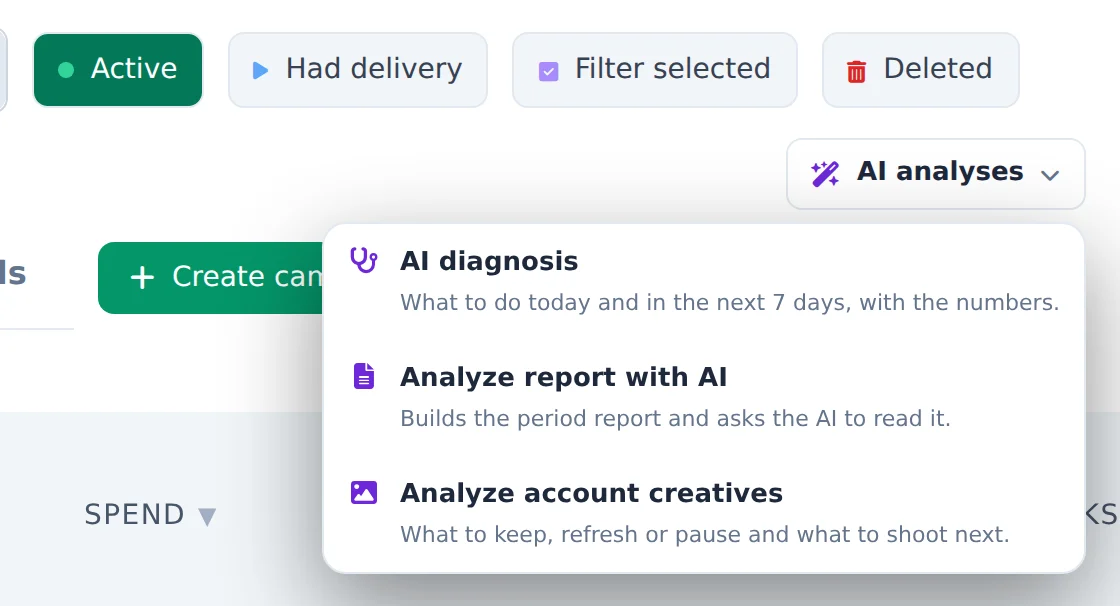
In the Meta Manager, on the filters row, click AI analyses and choose Analyze account creatives. The same analysis also opens from the Analyze creatives button on the AI Optimization screen.
 12
12- 1AI analyses
- 2Analyze account creatives
- 2
Choose the account, period and depth
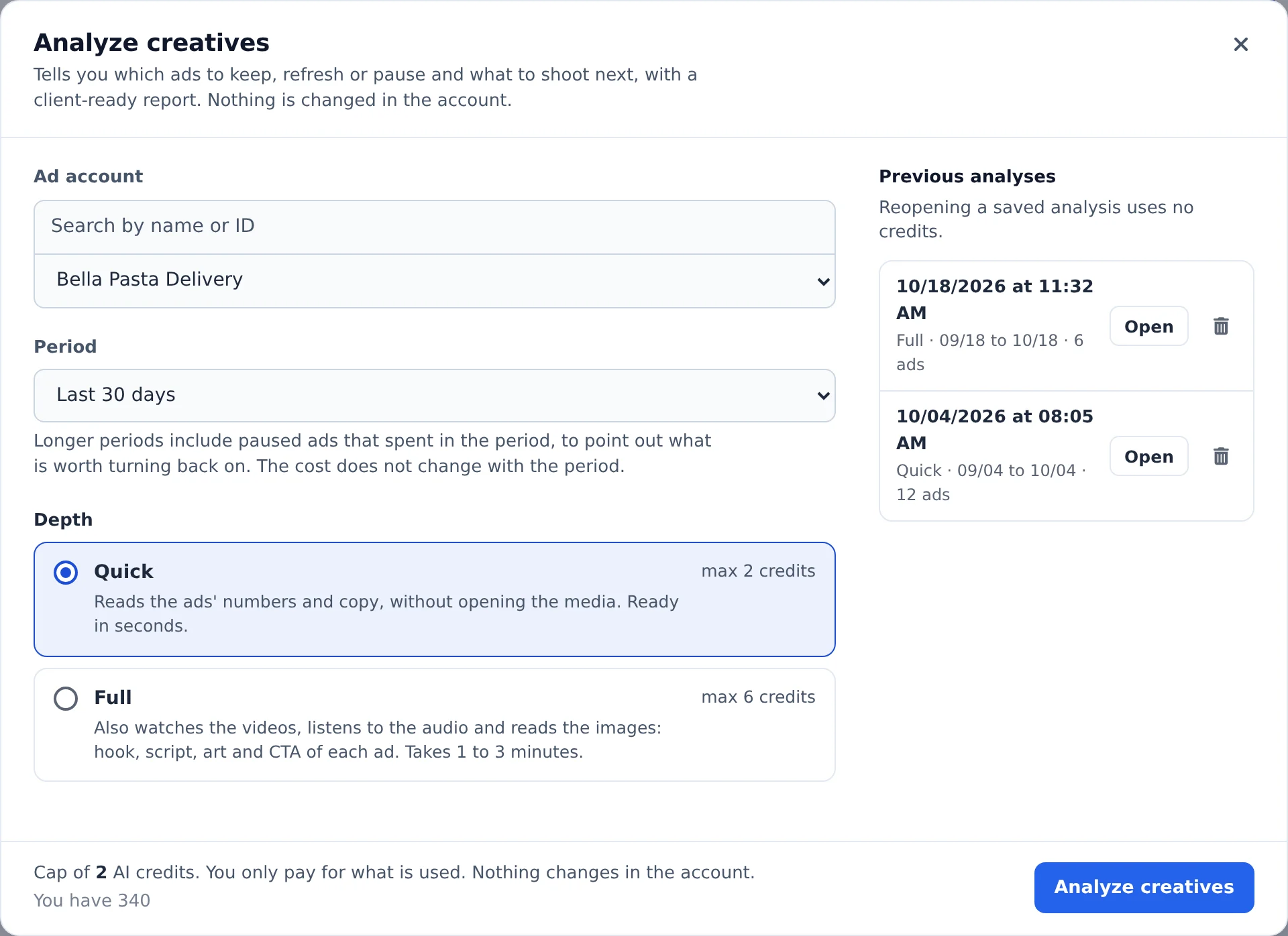
The account open in the Manager comes selected; to switch, search by name or ID. Under Period, go from Last 30 days up to Maximum (last 24 months): longer periods include paused ads that spent, to point out what is worth turning back on, and the cost does not change with the period. Under Depth, Quick reads the ads’ numbers and copy and is ready in seconds. On the right, Previous analyses keeps everything already run for this account.
 1234
1234- 1Ad account
- 2Period
- 3Quick or Full
- 4Previous analyses
- 3
On Full, choose which creatives and check the cost
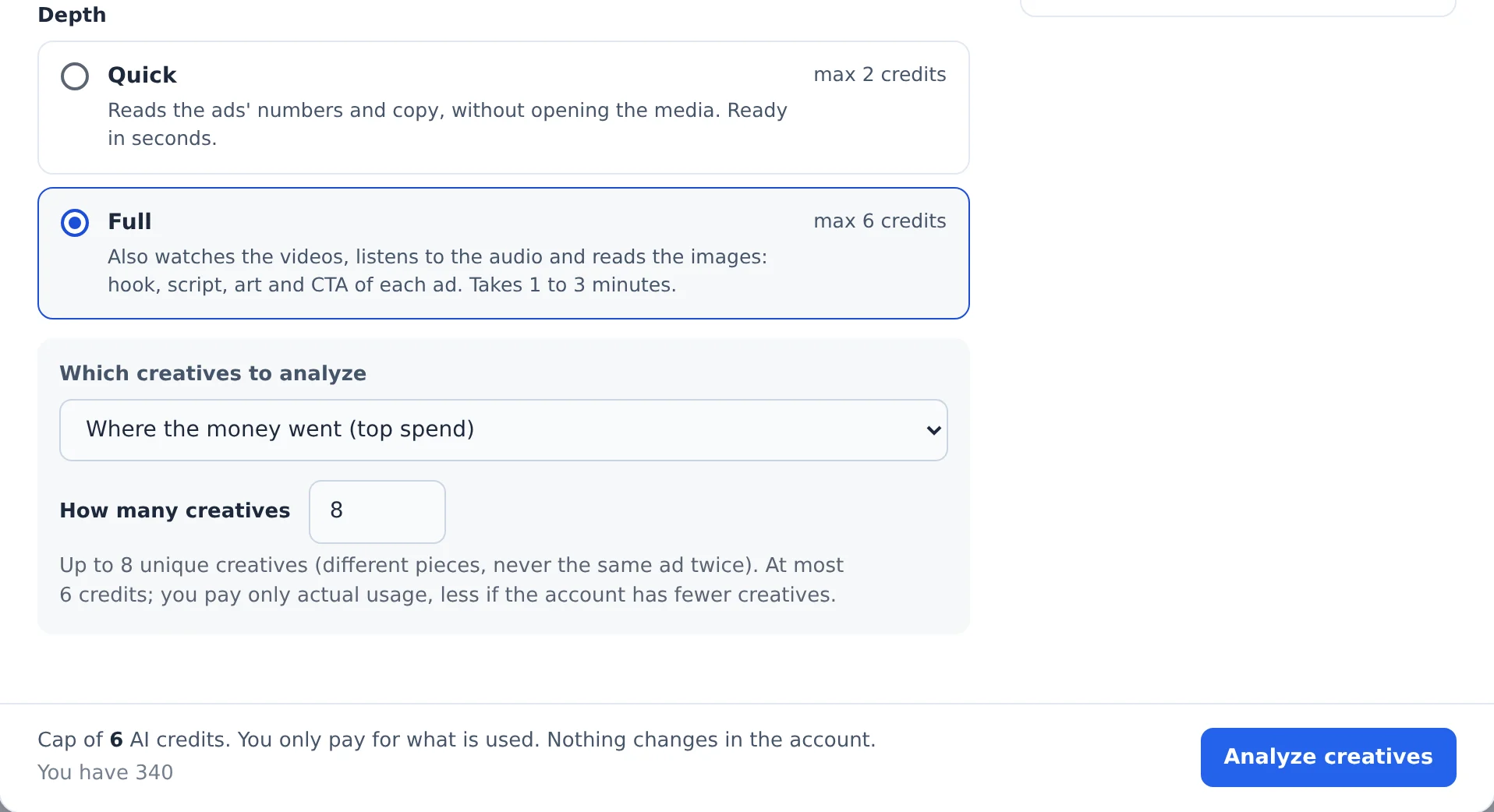
Full also watches the videos, listens to the audio and reads the images: hook, script, art and CTA of each ad. Under Which creatives to analyze, choose Where the money went (top spend), The ones that drove the most results or Every unique creative in the account, and how many (up to 40). The footer shows the credit cap and your balance. You only pay for what is used, which is usually below the cap. Click Analyze creatives.
 1234
1234- 1Full
- 2Which creatives and how many
- 3Credit cap and your balance
- 4Analyze creatives
- 4
Follow along while the AI works
Quick finishes in seconds. Full takes 1 to 3 minutes and runs in the background: you can close the window and keep using the app, because a card in the corner tracks progress and the result opens when it is done. If you change your mind, click Stop.
- 5
Read the conclusion
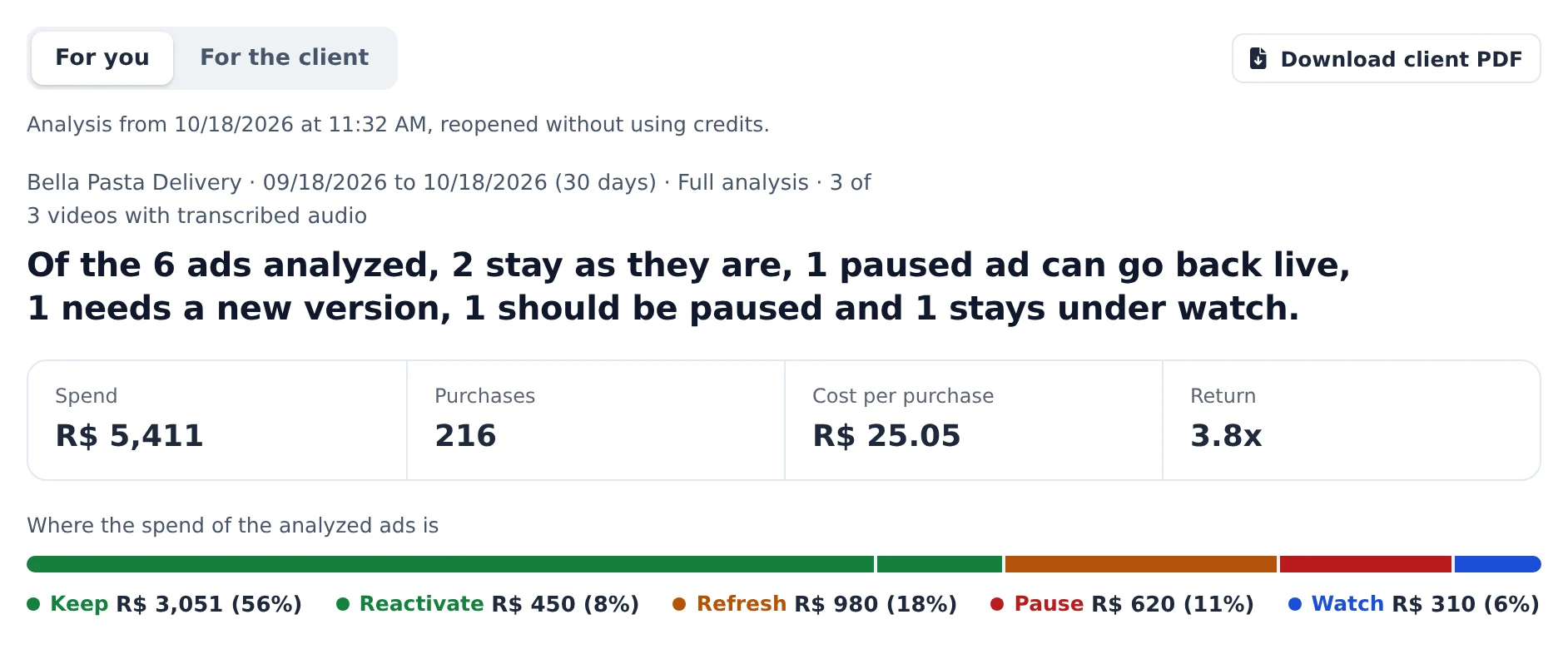
The result opens with one sentence summing up the decision for every ad, the period’s key numbers (spend, results, cost per result and return) and a bar showing where the spend is in each decision: Keep, Refresh, Pause, Watch or Reactivate.
 123
123- 1The conclusion in one sentence
- 2Period numbers
- 3Where the spend is
- 6
See what to do now
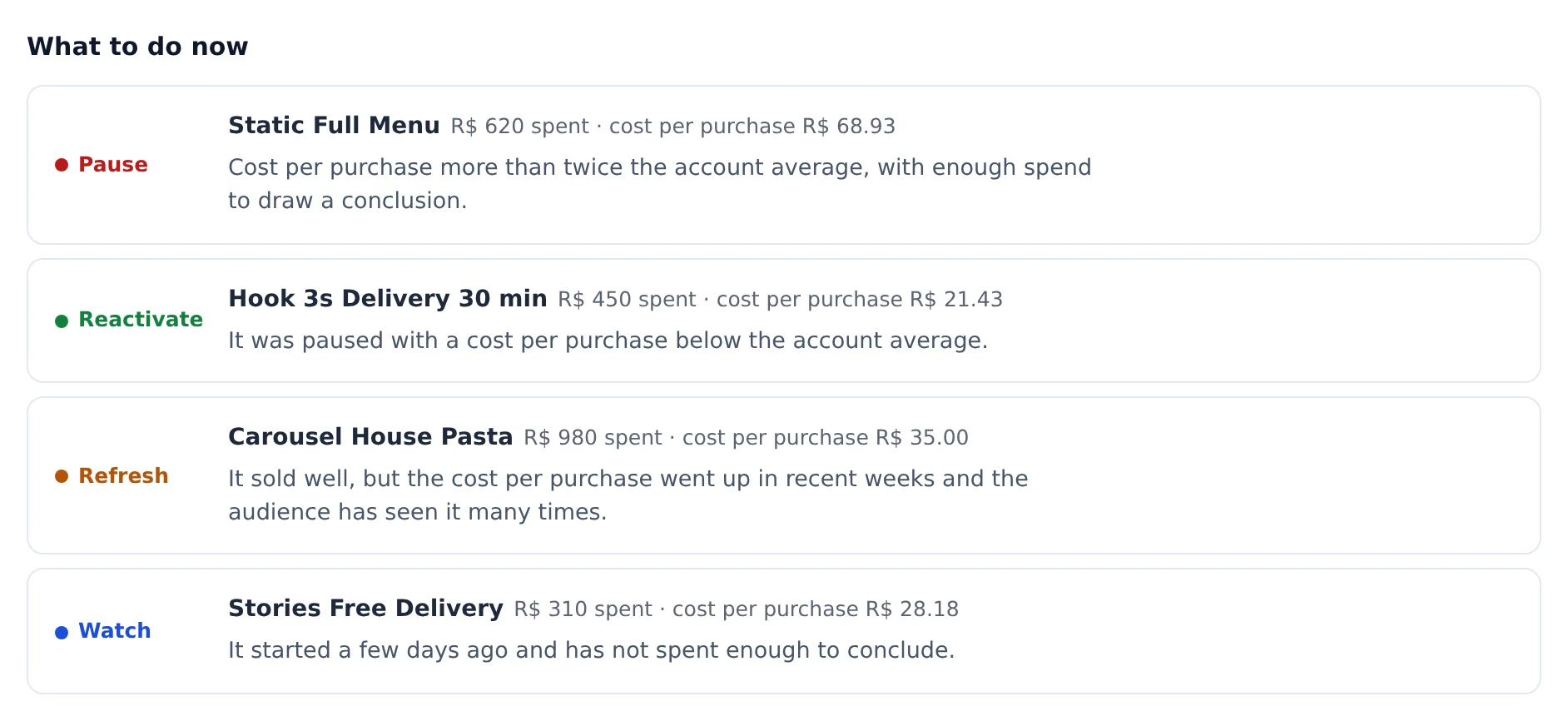
What to do now lists only the ads that need action, most urgent first: what to pause, then what to reactivate, refresh and watch. Each one comes with its spend, cost per result and the reason.
 1
1- 1Ad, decision and the reason
- 7
Open an ad to see the evidence
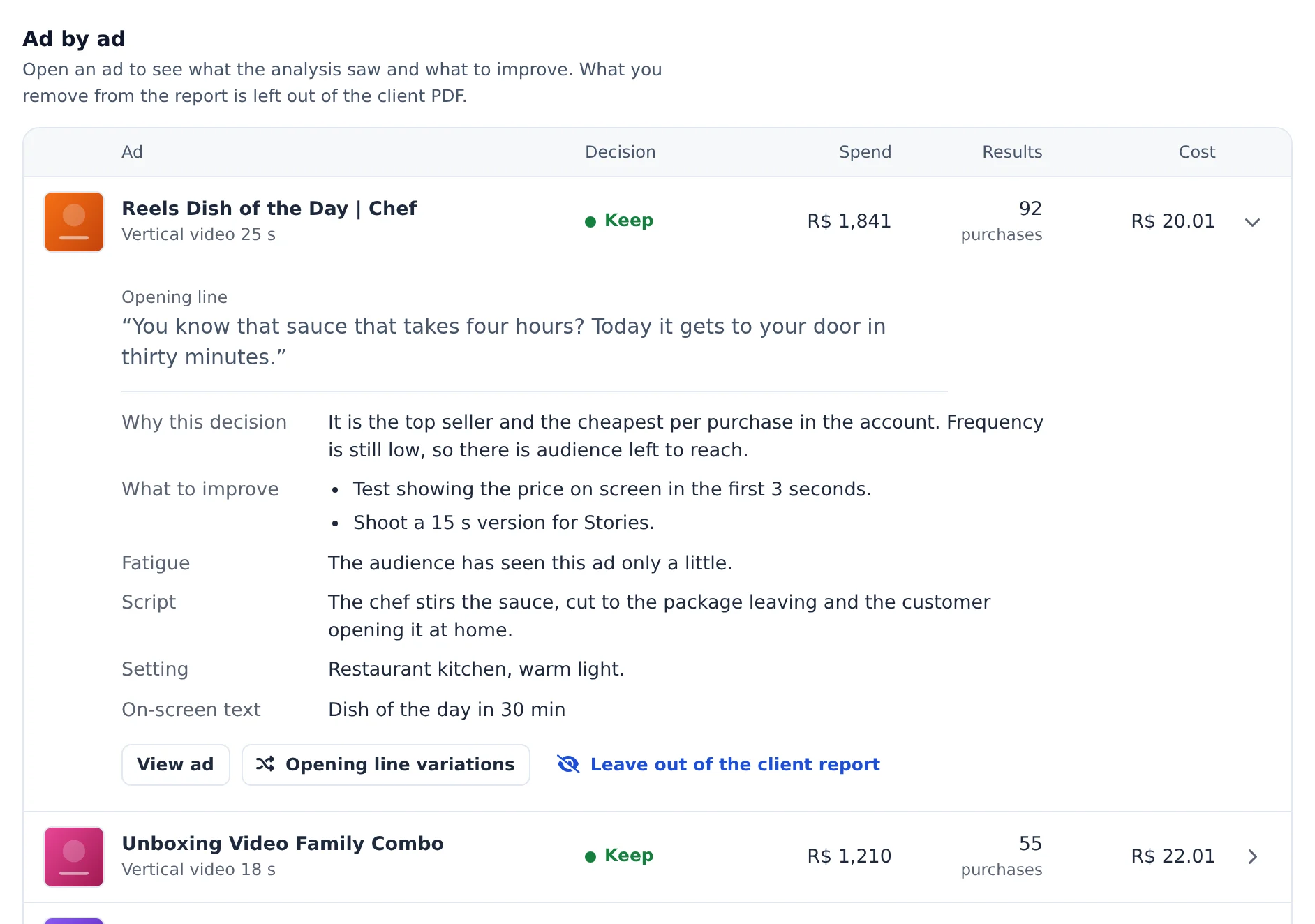
Under Ad by ad, click a row to open Why this decision, What to improve and the audience Fatigue with the ad. On Full you also get the Opening line, the script and the on-screen text. Disagree with an ad? Click Leave out of the client report and it stays out of the PDF.
 123
123- 1Ad decision
- 2Why, what to improve and fatigue
- 3Leave out of the client report
- 8
Use the patterns and the ideas
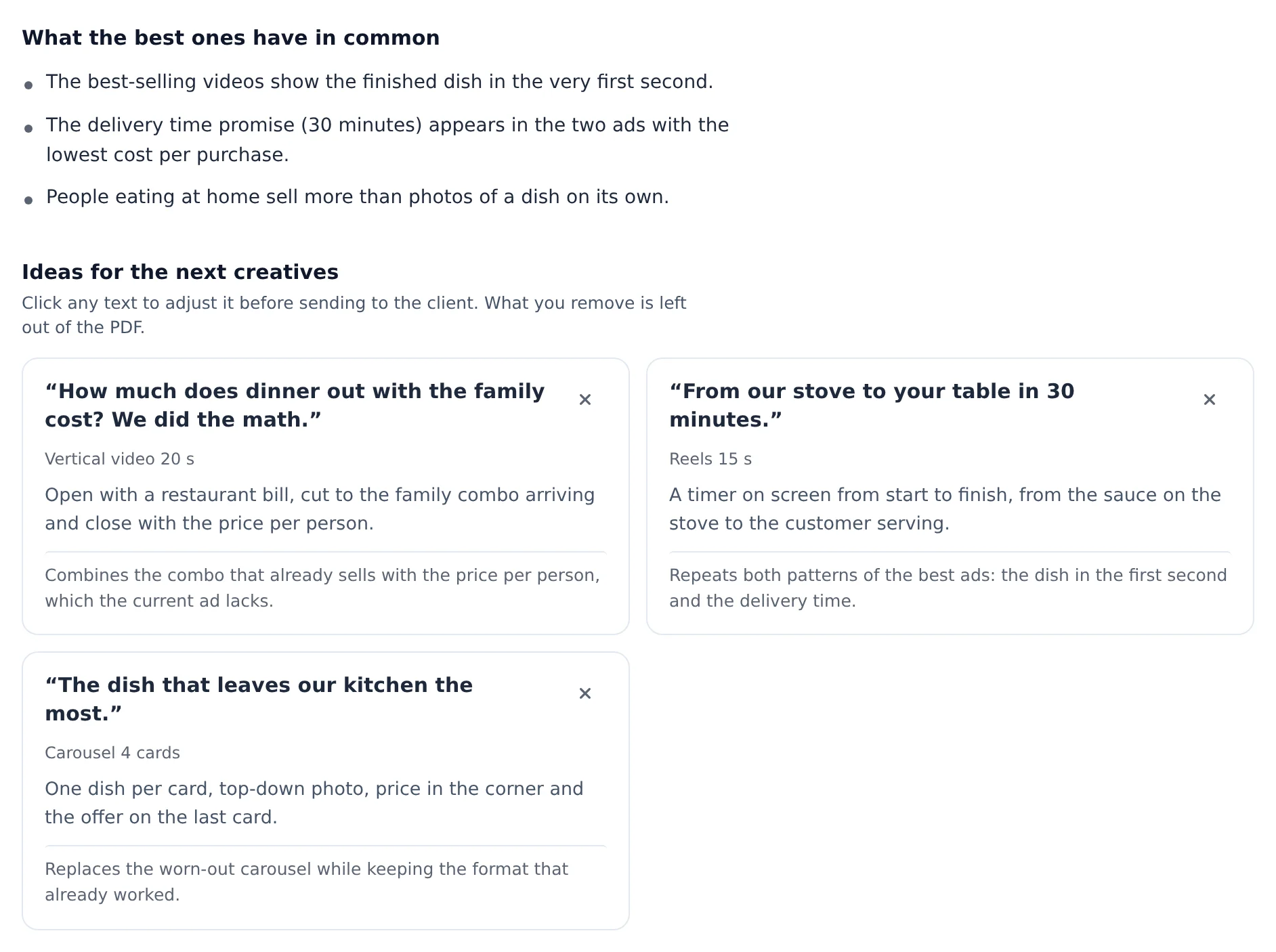
What the best ones have in common shows what repeats across the ads that deliver the most. Ideas for the next creatives brings the opening line, format, script and the reason behind each idea. Click any text to adjust it before sending it to the client; what you remove is left out of the PDF.
 12
12- 1What the best ones have in common
- 2Next creative idea
- 9
Send it to the client
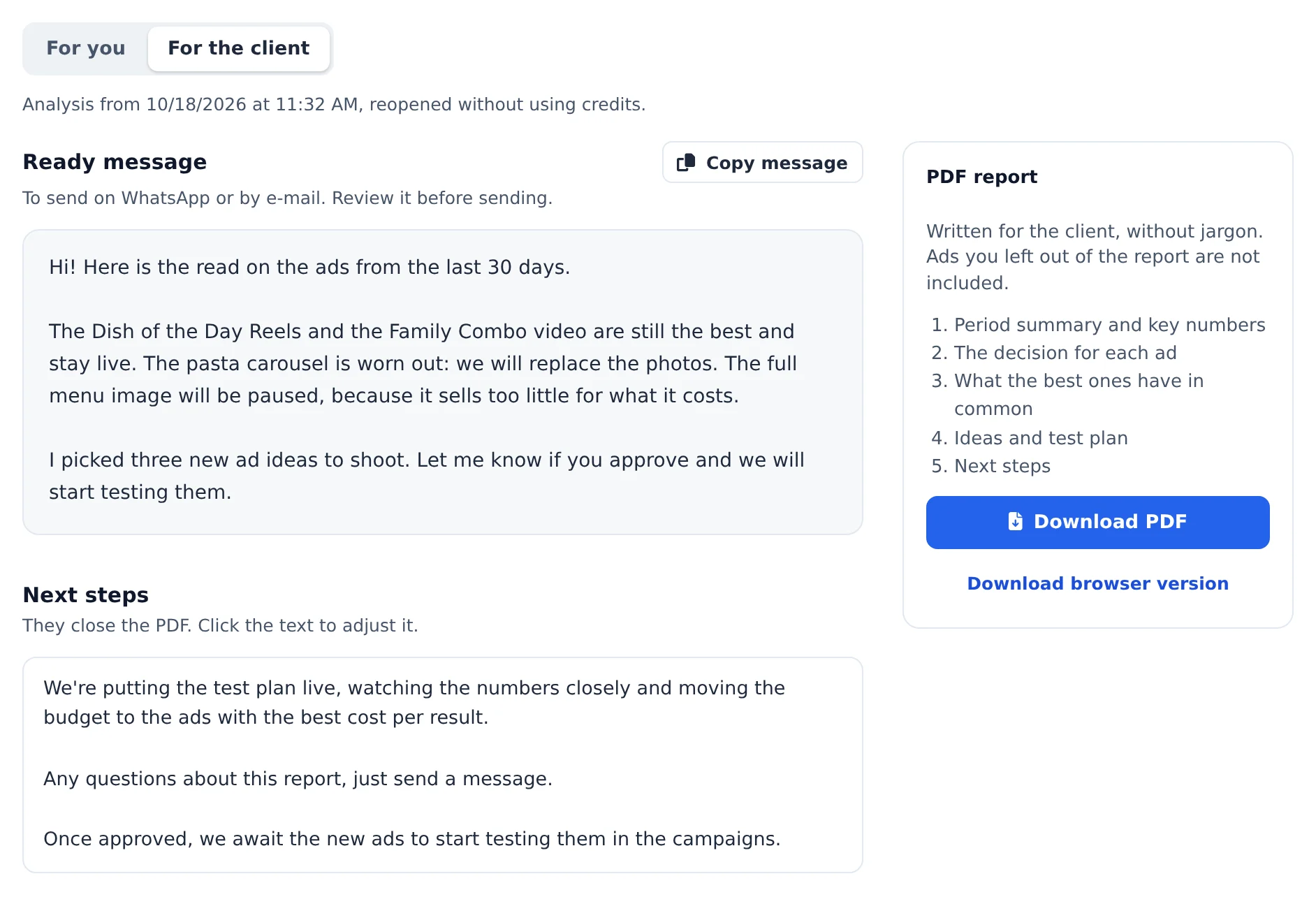
The For the client tab has a Ready message for WhatsApp or e-mail, the Next steps that close the document (click to adjust) and the PDF report, written without jargon. Click Copy message and Download PDF.
 123
123- 1For the client
- 2Copy message
- 3Download PDF
Reopening is free
Every analysis is saved under Previous analyses, in the same window. Click Open to see the report again, with the PDF and the message, without using credits. Team members can also reopen the analyses of the accounts they can see.
Quick or Full?
| Quick | Full | |
|---|---|---|
| What it reads | The ads’ numbers and copy | Also watches the videos, listens to the audio and reads the images |
| Time | Seconds | 1 to 3 minutes, in the background |
| Credit cap | Up to 2 | Grows with the number of creatives (6 for the default 8) |
| When to use | Quick weekly read | Before shooting new creatives or sending the report |
If something goes wrong
| Symptom | Likely cause | What to do |
|---|---|---|
| The Analyze creatives button is disabled | Today’s credit balance does not cover the analysis cap | Use Buy credits or See plans, which show up right there, or analyze fewer creatives |
| The result says Incomplete analysis: credits ran out | Credits ran out in the middle of a Full analysis | What is there applies to the creatives that were read. Top up credits and run it again to read the rest |
| Full shows as unavailable | Media reading is down for a few minutes | Use Quick or try again in a few minutes |
| I closed the window and the result was gone | Nothing was lost: the analysis was saved | Open the analysis again and click Open under Previous analyses |
Frequently asked questions
What is Creative Analysis and where can I find it?
Creative Analysis is in AI Optimization (side menu) and also in Meta Ads, through the Analyze creatives button. It analyzes the account's creatives and returns, for each ad, a verdict in plain language, what the best ones have in common, a comparison with the market, and suggestions on what to test. It also generates hooks (openings), copy, and variations, each with the thumbnail and link of the reference ad.
Go deeper and create ads (optional): based on the analyses you select, the AI builds a strategic study (what your results show and opportunities to test). If you fill in the Business Briefing (product, audience, offer, differentiators, goal) and choose the format (video, image, or mixed), it generates ad suggestions with a hook, a script to record, text, headline, CTA, visual direction, and a test hypothesis. These are text and production instructions: they do not generate the video or image file. The screen shows the cost in credits before you generate.
At the end you can Export PDF (designed for clients to read on their phone), view the analysis history, and find the account by name in the selector.
Can I edit the text that the AI generated in Creative Analysis before sending it to the client?
Yes, and it doesn't cost credits again. All generated text (analyses, hooks, copies, new creative suggestions, and the Next steps section of the document) is editable in place: click the text and type.
Your edits carry through to everything exported from there: the Copy and Download PDF buttons already use your edited version. One awkward sentence doesn't force you to generate everything again.
I ran out of AI credits. What appears and what do I do?
When AI credits run out (in AI Copilot, Period Analysis, Rewrite with AI or another AI feature), a notice appears with the next step:
- Free plan (trial): the View plans button takes you to the plans page. Subscribing to a plan unlocks the daily credit quota.
- Paid plan: the Buy credits button opens the one-time credit packages. A package is only used after the plan's daily quota runs out, and it's valid for 12 months.
The plan's daily quota renews every day. Only the account owner can buy credits; team members need to ask the owner. In the iPhone app, purchases are made in the browser.
How do AI credits work when I have a team?
AI credits are a single pool that belongs to the subscription owner and is shared by all team members. The daily limit is that of the owner's plan, and every message sent by any member draws from that same total. Members don't have a separate quota and can't buy credits on their own: they use the owner's pool. This keeps control centralized, while the history of who used what is still recorded per user. If your team uses AI heavily, the owner can raise the limit by upgrading the plan or by buying one-time credit packages.