
Audiences and UTM Integrations
People who watched your videos
Create audiences of people who watched 3 seconds, ThruPlay or a share of the videos you choose.
Quick answer
In Create Audiences, pick the account and turn on Enable Video View. Check how much they watched (3 seconds, 10 seconds ThruPlay, 25%, 50% or 75%), click Select Videos, check the videos and confirm. Pick the periods and click Create Audiences.
Watch the walkthrough 0:46
Before you start
- Videos can come from Instagram, the Page or the account campaigns.
- Each checked level becomes one audience per period, with every chosen video inside the same audience.
Step by step
In this example, we create audiences of people who watched a delivery business dish videos.
- 1
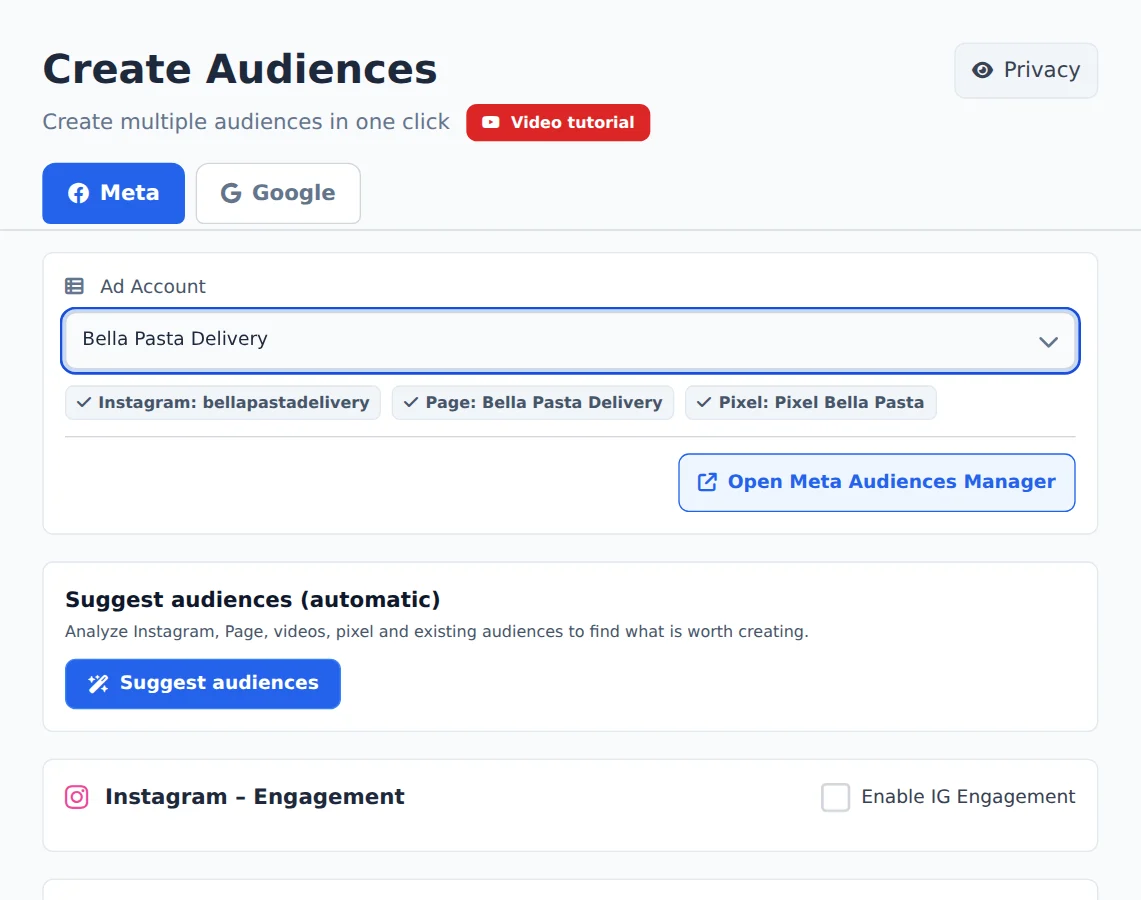
Pick the account
Open Create Audiences in the side menu and, on the Meta tab, pick the ad account in the selector at the top. Ads Editor finds its Instagram, Page and Pixel on its own.
- 2
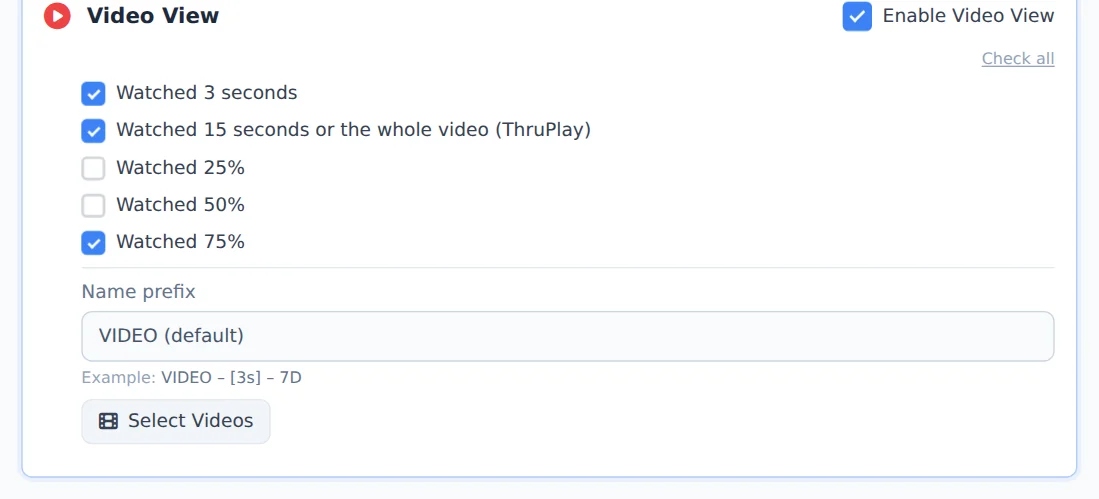
Turn on Video View
Turn on Enable Video View and check the view levels. Under Name prefix, change the start of the name if you want (the default is VIDEO); the preview shows how the name will look.
- 3
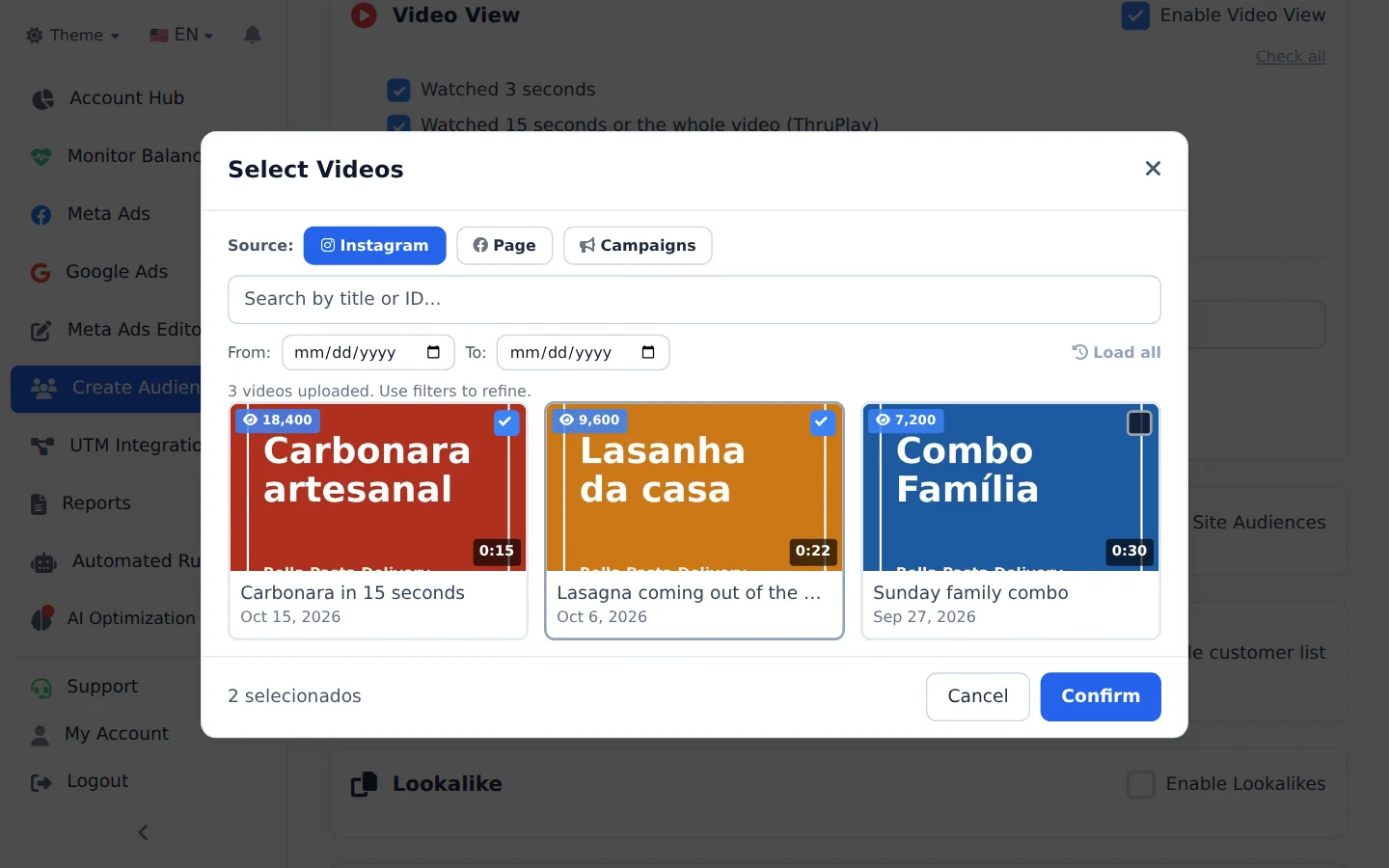
Pick the videos
Click Select Videos. Pick the source (Instagram, Page or campaigns), check the videos and confirm. The chosen videos show as tags in the section.
- 4
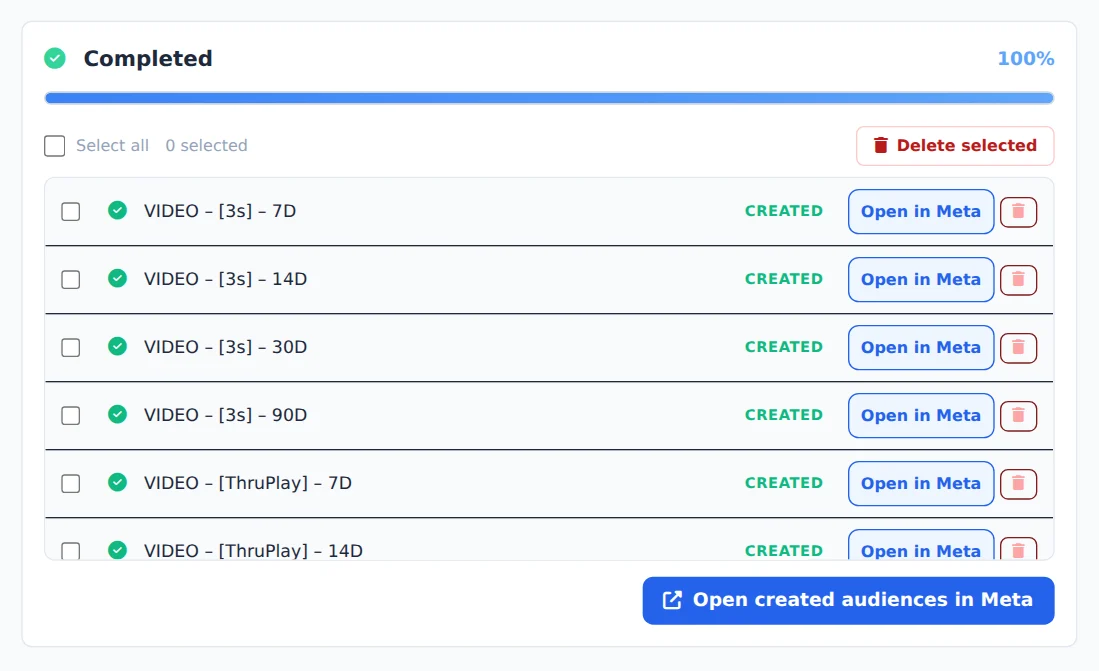
Periods and creation
Pick the Retention Periods and click Create Audiences. The progress panel shows each audience created.
Campaign videos
The Campaigns source brings the videos used in the ads: great for retargeting people who watched the creative and did not buy.
How to tell it worked
- The chosen videos show as tags in the Video View block.
- The progress panel ends in Completed, with one audience per level and period.
If something goes wrong
| Symptom | Likely cause | What to do |
|---|---|---|
| The video list came back empty | The profile or Page has no videos, or another source is selected | Switch the source to Campaigns or Page and search again |
| The Video View block does not turn on | The account has no linked Instagram or Page | Link the profile or Page to the ad account and pick the account again |
Frequently asked questions
How do I create audiences of those who watched my videos (Video View)?
Activate the Video View section with the Enable Video View button. Select the desired viewing levels: Watched 3 seconds, Watched 10 seconds (ThruPlay), Watched 25%, Watched 50% and Watched 75%. Then click Select Videos: in the modal you choose the video source: Instagram, Page, or Campaigns. Select one or more videos, confirm, and the chosen videos appear as tags in the section. Each checked level generates an audience per retention period, including all selected videos within the same audience. You can also customize the Name Prefix (default is VIDEO), and the page shows an example of what the name will look like, for example VIDEO - [3s] - 7D.
How are the audiences named? Can I customize the names?
Names follow a fixed pattern that identifies the type and period, for example: IG - [VISITARAM] - 30D, FB - [MENSAGEM] - 7D, VIDEO - [ThruPlay] - 90D, View Page - SITE - 30D, SITE - [Purchase] - 30D and Lookalike - SourceName - 1%. Two customizations are available: for Video View you can change the name Prefix (the default is VIDEO), and for Instagram there is the option Add @instagram to the audience name, which appends the profile's @ at the end (for example IG - [SEGUIDORES] - Todos - @seuperfil). We recommend keeping the generated names, because the system uses them to recognize existing audiences and avoid creating duplicates later.