
Google Ads
Search terms and negative keywords
See what people searched before clicking the ad and cut, in one click, the searches that spend and don't bring customers.
Quick answer
In Google Ads, click Search Terms. Find the search that spent without converting and click the red Add as negative button. Pick the match type and the level (Campaign or Ad Group) and click Add Negative. Suggest with AI sorts all the terms, and Negative lists keeps words for several campaigns.
Watch the walkthrough 0:28
Before you start
- The terms follow the period and accounts chosen at the top of the manager.
- A negative at the Campaign level blocks the search in the whole campaign. At the Ad Group level, only in that group.
- The negative goes straight to Google Ads. To undo it, remove the word in Google Ads or in the negative list.
Step by step
In this example, the search "free dental implant" spent and did not convert for a private clinic.
- 1
Open Search Terms
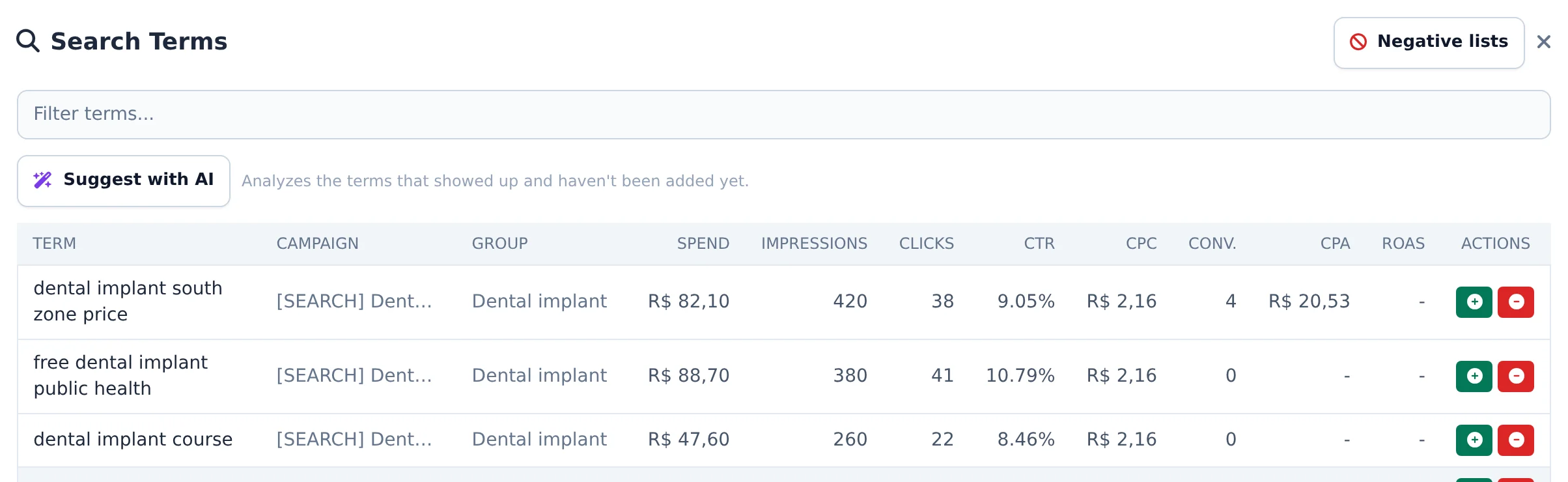
Click the Search Terms tab. Each row is a real search that triggered the ad, with campaign, ad group, spend, clicks, conversions and CPA. Use Filter terms... to find a word.
 12
12- 1Filter terms
- 2Search that triggered the ad
- 2
Negate what does not sell
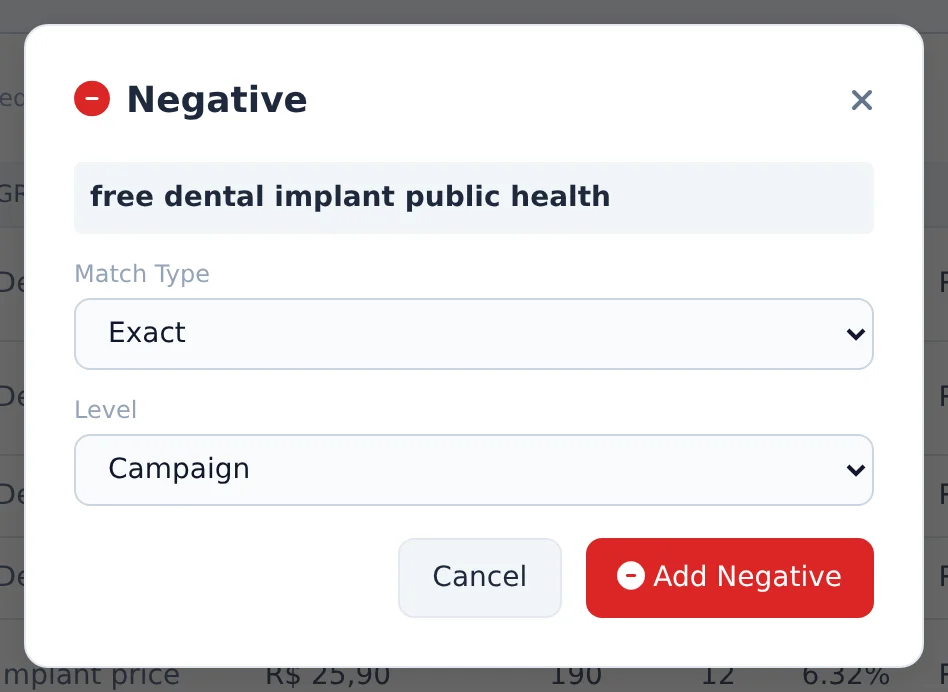
Click the red button on the row. Under Match Type, Exact blocks only that search and Phrase blocks every search containing the term. Under Level, pick Campaign or Ad Group. Click Add Negative.
 123
123- 1Match type
- 2Negative level
- 3Add Negative
- 3
Use AI help
Suggest with AI checks the terms that were not added yet, reads the landing page and proposes which to negate and which to turn into keywords. You review, change what you want and click Apply selected. Negative lists opens the shared lists of the account, which apply to several campaigns at once.
 12
12- 1Suggest with AI
- 2Negative lists
One list for every campaign
Terms that never fit the client, such as "free", "course" or "job", work best in a negative list applied to every campaign. A word added to the list applies to all of them at once.
How to tell it worked
- The notice in the corner confirms the negative was added.
- From then on, the blocked search stops showing up in the terms of the following days.
- In the negative list, the word shows up with the word count and the campaigns using the list.
If something goes wrong
| Symptom | Likely cause | What to do |
|---|---|---|
| The terms list is empty | The campaign is Performance Max or the period has little traffic | Widen the period at the top and check that Search campaigns are open |
| The negated search keeps showing up | Exact match only blocks the identical search | Negate it again with Phrase to block the variations |
| I cannot create another negative list | Google allows 20 lists per account | Add the words to a list that already exists |
Frequently asked questions
How do I view search terms and add negative keywords in Google Ads?
Open the Search Terms tab in Google Ads. It shows the actual terms people searched that triggered your ads in the selected period, with spend, impressions, clicks, CTR, CPC, conversions, CPA and ROAS for each term, plus a search field to filter. Each row has two buttons: the plus button (green) adds the term as a keyword in an ad group and lets you choose the match type (Exact, Phrase or Broad); the minus button (red) adds the term as a negative keyword. When adding a negative, you choose the match type and the level: Campaign (blocks it across the whole campaign) or Ad Group. It's one of the most efficient routines for cutting spend on irrelevant searches.
Shared negative keyword lists are also here: the Negative Lists button inside the Search Terms tab.
How does AI help me decide which search terms to add as keywords or negatives?
On the Search Terms tab, click Suggest with AI. The AI reviews the terms that have appeared and haven't been added yet (prioritizing the 50 with the most clicks), checks the campaign's landing page when available, and classifies each term: add it as a positive keyword or as a negative, with a suggested match type. The suggestions appear in a list where you can review them, change the action or match type for each item, and then click Apply selected. Positive keywords go into the ad group where the term appeared, and negatives are added at the campaign level. At the end, the system shows how many were applied successfully.
Where are the Google Ads negative keyword lists in Ads Editor?
The Negative Lists modal opens in two ways: from the campaign's Edit screen (Negative Lists card) or from the Search Terms tab, using the Negative Lists button.
It opens with the account's lists, each showing its number of keywords and the campaigns that use it. When you come from a campaign, the lists applied to it have the In this campaign badge.
To create a list: click Create new list. The form opens with name, keywords (optional, one per line), match type, and the campaigns where it applies. Nothing is saved until you click Save list. Cancel exits without saving.
To edit a list: click it. There you can add and remove keywords, apply the list to campaigns or remove it from them (Save campaigns), and go back with Back to lists.
A list applies to every campaign that uses it, so adding or removing a keyword changes all of them at once. Google limits: 20 lists per account and 5,000 keywords per list.
When you create a new campaign, the keywords step also lets you select the account's negative lists. They are applied right after the campaign is created. If one fails, the campaign is still created and a warning tells you which list to apply later.