
Meta Ads
Budget and status in bulk
Raise or lower the budget of several campaigns at once, by amount or by percentage, and pause or activate in bulk.
Quick answer
In Meta Ads, check the campaigns, click Bulk Edit and then Change Budget. Type a new amount or use the + and - buttons to raise or lower by a percentage, and click Save. In the same bar, Pause and Activate change every checked item at once.
Watch the walkthrough 0:36
Before you start
- On the Campaigns tab, bulk budget works for campaigns with the budget on the campaign (CBO). On the Ad Sets tab, for ad sets with a daily or lifetime budget.
- An ad has no budget of its own on Meta: the Ads tab only shows Pause and Activate.
- To check a range of rows, check the first one, hold Shift and click the last one.
Step by step
In this example, we raise the budget of three delivery campaigns by 15%.
- 1
Select the campaigns
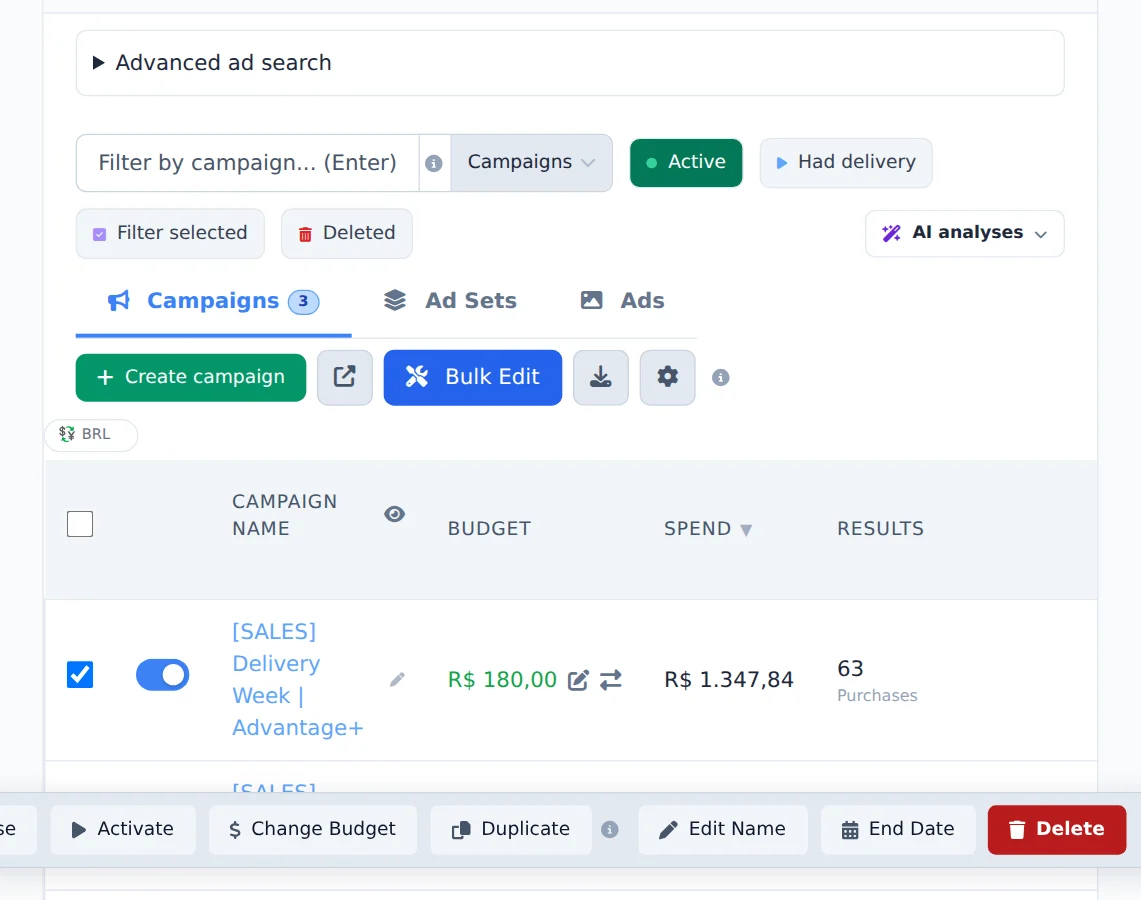
Check the box of each campaign that will change and click Bulk Edit, above the table. The action bar shows how many items are checked.
- 2
Change the budget
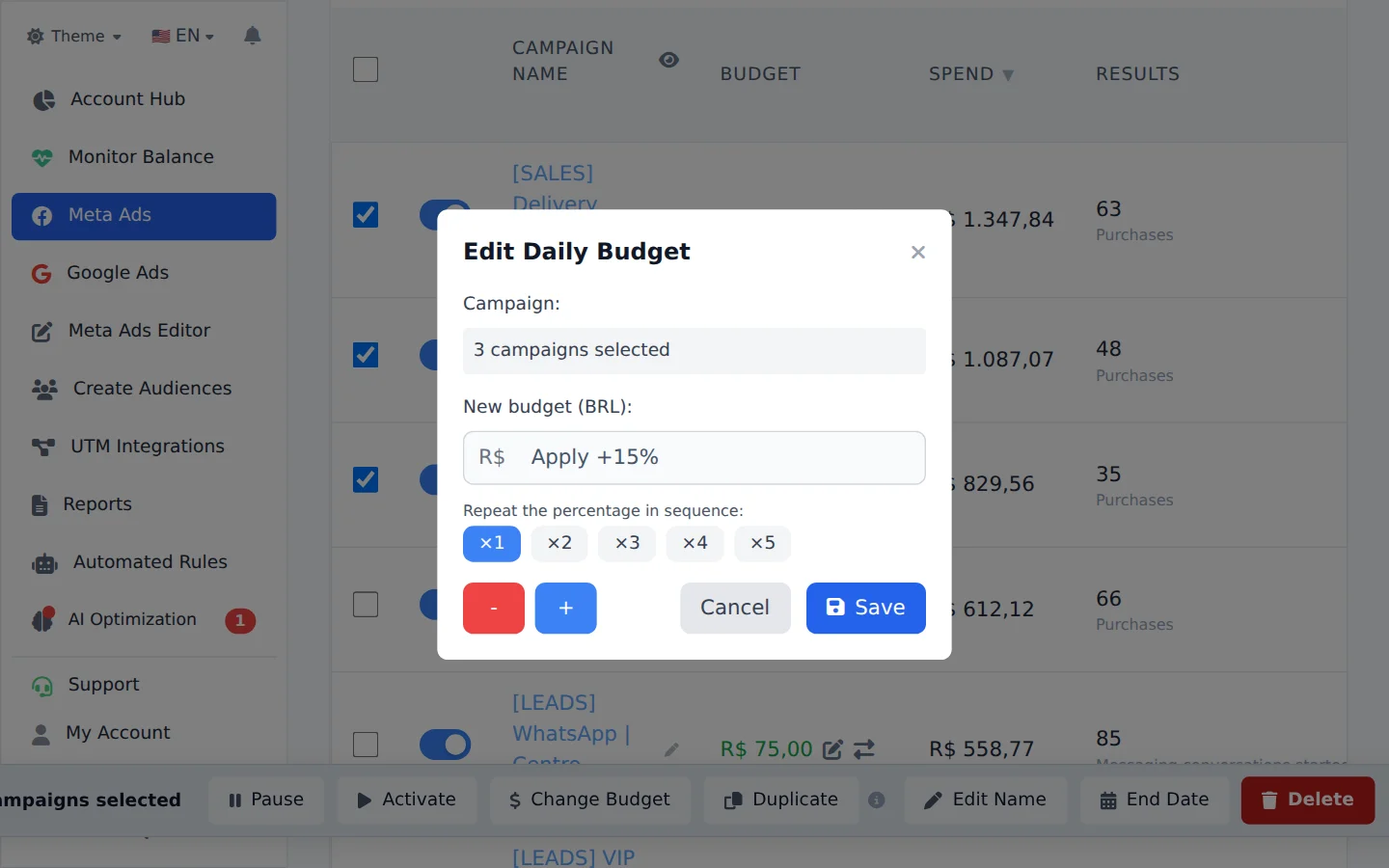
Click Change Budget. Type a new amount, which applies to all of them, or use + and pick 10%, 15%, 25% or 35% over each current budget. Click Save: the new amount shows right away on each row.
- 3
Pause or activate in bulk
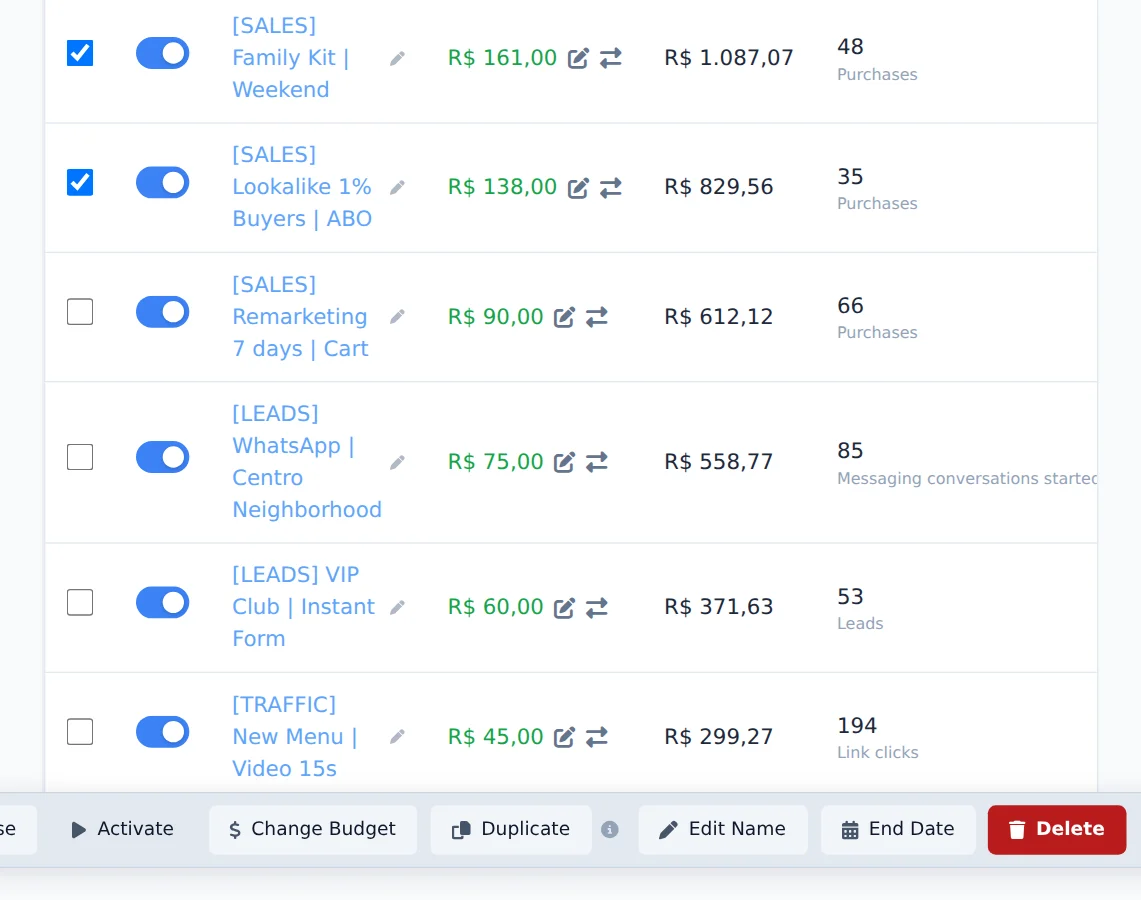
With the items checked, Pause and Activate, in the same bar, change all of them at once. A notice at the end shows how many were changed.
- 4
Or change a single campaign
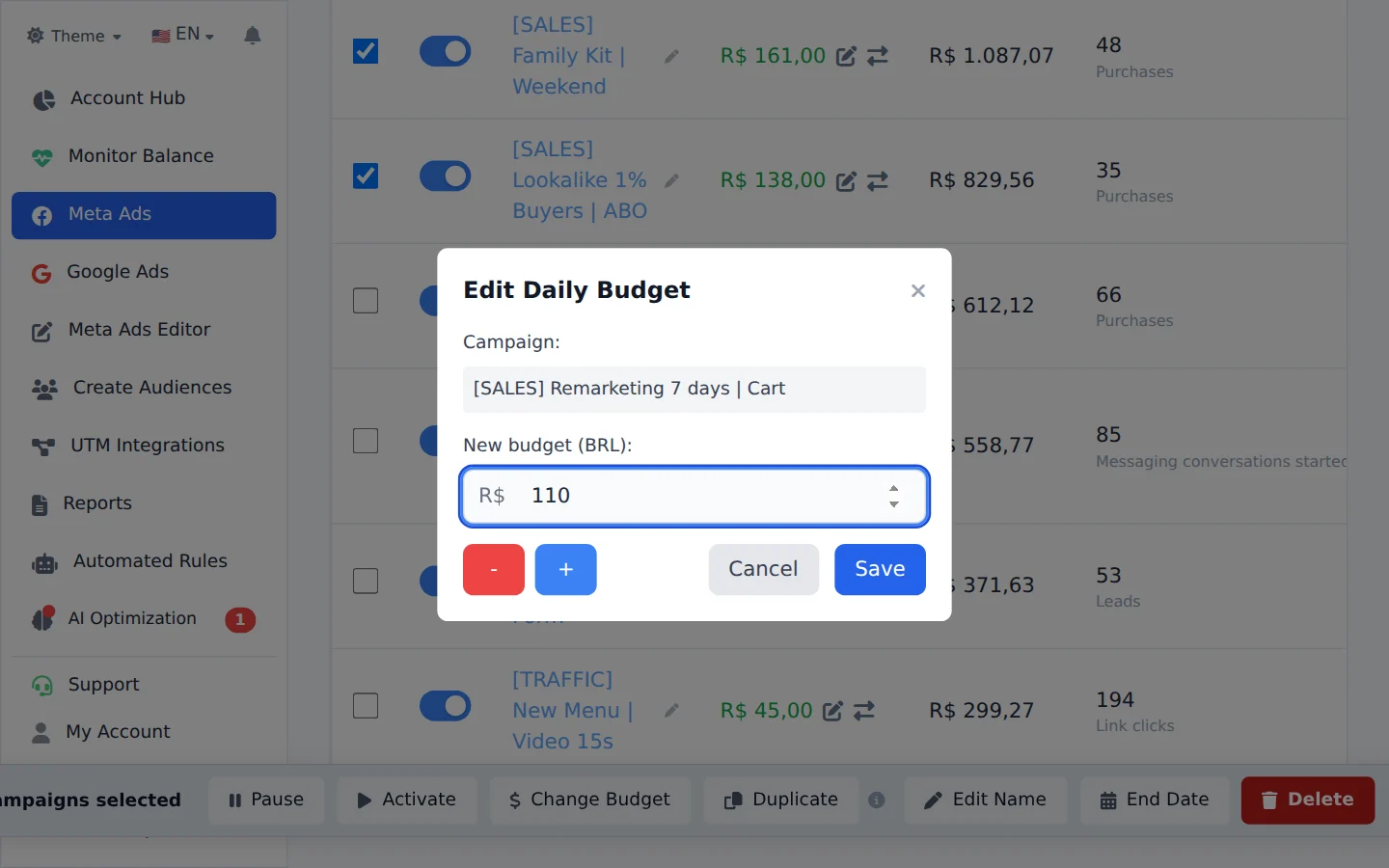
For a single campaign, click the pencil next to the budget on its row, type the new amount and save.
Raise without a big jump
To raise a lot without Meta treating it as a jump, use Repeat the percentage in sequence in the budget window: the same percentage is applied in steps in a row, with a pause between them.
How to tell it worked
- The Budget column shows the new amount on each checked campaign.
- The notice in the corner confirms how many items were changed.
- Each row switch is on or off according to the chosen action.
If something goes wrong
| Symptom | Likely cause | What to do |
|---|---|---|
| Change Budget does not change a campaign | Its budget lives on the ad sets (ABO) | Go to the Ad Sets tab and change it there |
| The notice says some items failed | Meta refused the change, for example a budget below the minimum | The table reloads with the real state; check the reason and adjust the amount |
| The Change Budget button does not show | You are on the Ads tab | Switch to Campaigns or Ad Sets |
Frequently asked questions
How do I change the budget for multiple ad sets or campaigns at once?
Select the items, click Bulk edits, then Change Budget. In the Edit Daily Budget window you have two ways to adjust: enter a fixed amount that will be applied to all items, or use the minus and plus buttons to raise or lower each item's current budget by 10%, 15%, 25%, or 35%. Click Save to apply. On the Campaigns tab, the adjustment only works for campaigns with a campaign-level budget (CBO). On the Ad Sets tab, it works for ad sets with a daily or lifetime budget. Bulk budget editing is not available on the Ads tab, because ads don't have their own budget in Meta. To edit the budget of a single item, use the pencil icon in the Budget column of its row.
How do I pause or activate multiple campaigns at once?
Select the campaigns, ad sets, or ads with the checkboxes, click Bulk edits, and use the Pause or Activate buttons in the actions panel. The table updates instantly, and the system applies the change in Meta in the background, then shows a notice with how many items were changed. If any item fails, the notice shows how many, and the data reloads to reflect the actual state. You can also pause or activate a single item with the on/off toggle on its row, without opening the panel.
How do I select multiple items at once and what can I do in bulk?
Select the checkbox in the first column of the rows you want, or the header checkbox to select all visible rows. To select a range, select the first item, hold Shift, and click the last one: everything in between is selected at once. With items selected, click Bulk edits to open the actions panel, which shows how many items are selected. The available actions are: Pause, Activate, Change Budget, Duplicate, Edit Name, Delete and, depending on the tab, Edit Ad (name, text, headline, Button (CTA), URL, WhatsApp, URL Parameters, Registration Form, Facebook Page, Instagram, Deactivate Advantage+) or Edit Ad Set (Edit Name, Edit Age, Edit Gender, Edit Placements, Edit Location, Edit Audiences, Advantage+ Audience). These edits apply only to the tab of the matching level. While a bulk action is running, wait for it to finish before starting another.
How do I make bulk changes to Meta Ads (budget, age, gender)?
In Meta Ads you can edit several items at once:
- Open Meta Ads and click Bulk edits, above the table.
- Go to the tab for the level you want to change (campaigns, ad sets, or ads) and select the items.
- Use the bar that appears at the bottom.
Ad Sets: the Edit Ad Set menu includes Edit Name, Edit Age, Edit Gender, Edit Placements, Edit Location, Edit Audiences, and Advantage+ Audience. These edits apply only to ad sets: if campaigns or ads are selected, the menu does not appear.
Ads: the Edit Ad menu includes name, text, headline, Button (CTA), URL, WhatsApp, URL Parameters, Registration Form, Facebook Page, Instagram, and Deactivate Advantage+.
Budget: click Change Budget (available on the campaigns and ad sets tabs). Enter the new daily amount, or use the + and - buttons, which offer shortcuts of 10%, 15%, 25%, and 35% up or down. Then click Save. For campaigns, only CBO campaigns have a campaign-level budget. For ABO campaigns, change the budget on the ad sets. Ads have no budget.