
Account Center and balance
Account groups
Bring accounts together by client, niche or manager and see just that group in one click, in the Account Hub and in the Meta Ads and Google Ads account picker.
Quick answer
In the Account Hub, click New group, give it a name, pick a color, check the accounts under Group accounts and click Save. The group becomes a button above the table: click it to see only the group accounts, with totals for just them.
Watch the walkthrough 0:28
Before you start
- A group can hold both Meta and Google Ads accounts.
- An account can be in more than one group.
- The group is the same across the app: creating, editing or deleting it in the Hub also applies to the Meta Ads and Google Ads account picker.
Step by step
In this example, we put the agency's restaurant accounts in one group.
- 1
Create the group
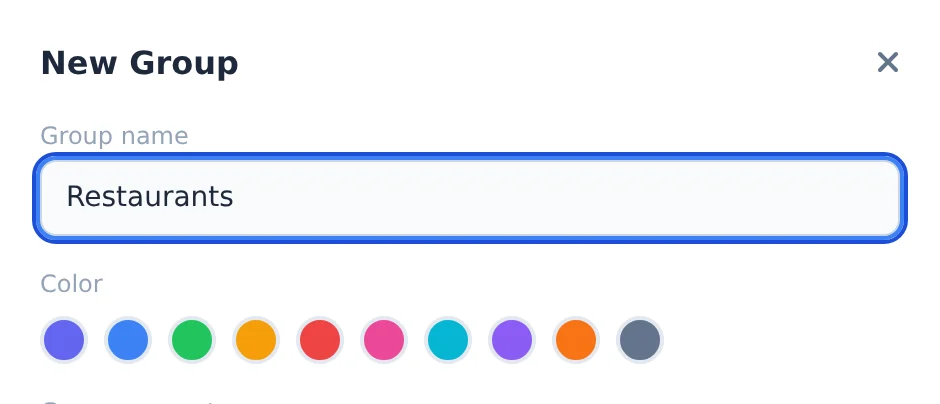
Above the Account Hub table, click New group. Under Group name, type the name (here, Restaurants) and pick a color.
 12
12- 1Group name
- 2Color
- 2
Check the accounts
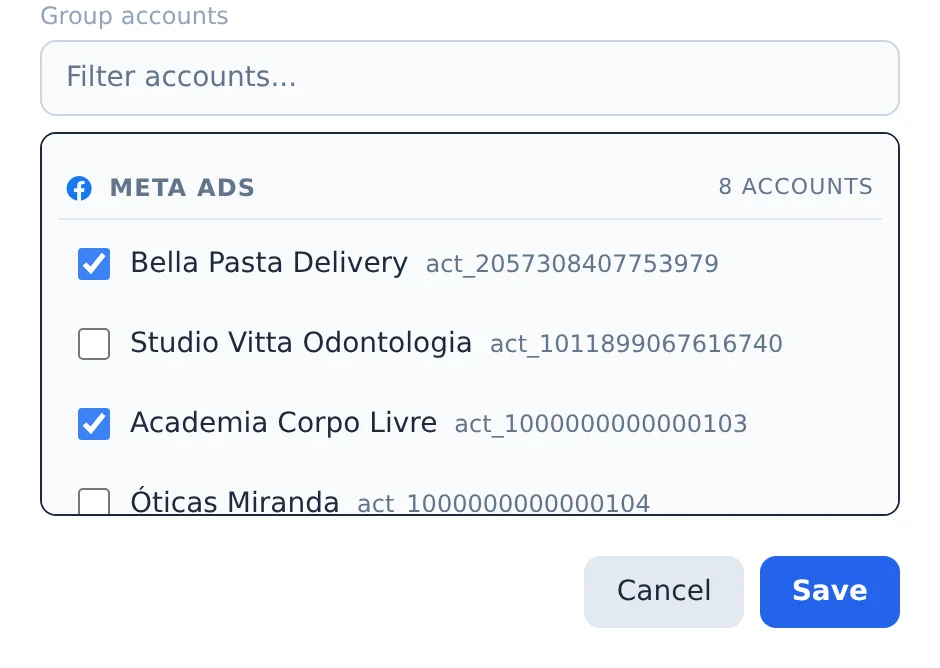
Under Group accounts, check the accounts that go in. With many accounts, use Filter accounts... to find them by name. Click Save.
 12
12- 1Group accounts
- 2Save
- 3
Filter by group
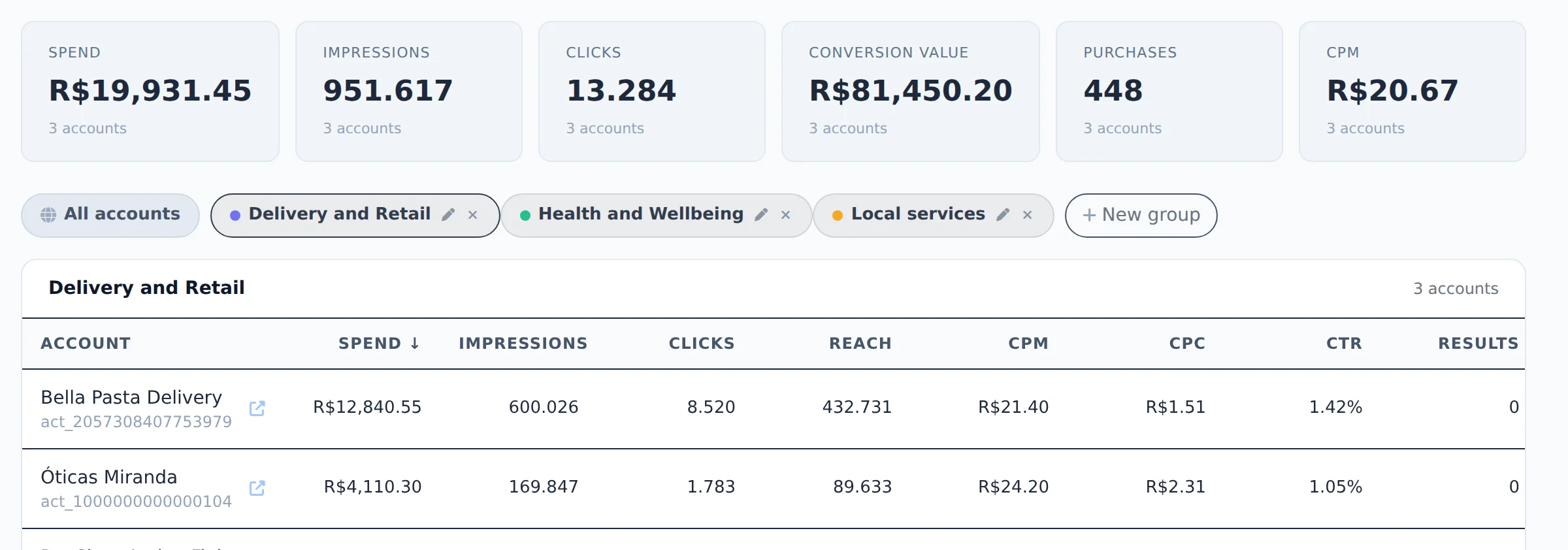
The group shows up as a button above the table. Click it: the table shows only the group accounts and the cards at the top add up only them. All accounts goes back to the full list.
 12
12- 1The group
- 2Group totals
Group in the account picker
In Meta Ads and Google Ads, open the account picker and click the Groups row: one click on the group opens all its accounts. You can also create a group from there: check the accounts and click Save as group.
How to tell it worked
- The group shows up above the table, in the color you picked.
- When you click it, the table title shows the group name and the number of accounts.
If something goes wrong
| Symptom | Likely cause | What to do |
|---|---|---|
| I want to change the name or the accounts | The group is edited with the pencil | Click the pencil next to the group name, adjust it and save |
| I deleted a group and worried about the accounts | The x deletes only the group | The accounts stay connected and show up under All accounts |
| The group does not show up in the Google Ads picker | The group has no Google Ads account | Edit the group and check the Google accounts too |
Frequently asked questions
How do I use account groups in the Meta Ads and Google Ads selector?
Account Center account groups also appear in the account selector on the Meta Ads and Google Ads pages.
- Open a group: in the selector, click the Groups (N) row to show the groups (it's collapsed, and Ads Editor remembers if you leave it open). Click a group and its accounts open.
- Create a group from the selector: select the accounts (you can use Select all or Shift + click) and click Save as group. Give it a name and you're done.
- Delete: the × next to a group deletes only the group; the accounts are not affected.
It's the same group as in Account Center: creating, editing or deleting in one place applies in the other. A group can contain Meta and Google accounts; in Meta Ads it opens the group's Meta accounts, and in Google Ads it opens the Google accounts. A group with no accounts on that platform doesn't appear in the selector.
How do I favorite accounts and keep them at the top of the list?
In the Meta Ads account selector, each account has a star next to its name. Click the star to add an account to your favorites, and click it again to remove it. Favorite accounts appear in a Favorites section at the top of the list, including inactive accounts, so it's easier to find the accounts you use most. Favorites are saved to your Ads Editor account, so they work in any browser or on any device where you sign in.