
Account Center and balance
Account balance monitor
Know which accounts will stop for lack of balance before they do, with the days left for each one and a summary ready to send to the client.
Quick answer
Click Monitor Balance in the menu. The Critical Balance and Low Balance cards count the accounts at risk, and each row shows the balance, spend per day and Days Left. Use Only with issues to see just what needs action and Copy summary, on the account row, to send the balance to the client.
Watch the walkthrough 0:35
Before you start
- The Monitor shows the accounts turned on in Connect Meta and Connect Google, in separate tabs, and refreshes on its own every 5 minutes.
- The days forecast applies to prepaid accounts (boleto or Pix) and uses the average spend of the last 7 days.
- The Monitor does not send balance notifications: keep the screen in your daily routine.
Step by step
In this example, we find the agency accounts that need a top up this week.
- 1
Read the cards
In the side menu, click Monitor Balance. Critical Balance counts the accounts with 3 days of balance or less (or disabled, or with a pending payment). Low Balance counts the ones with 4 to 7 days.
 12
12- 1Critical Balance
- 2Low Balance
- 2
Check each account
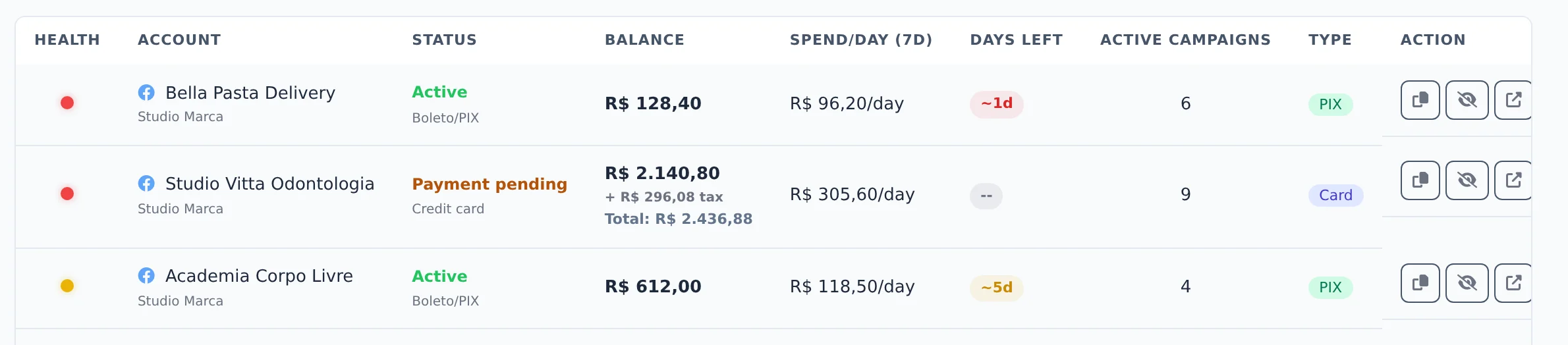
Each row is an account. The Health dot sums up the risk: red is urgent, yellow needs attention, green is fine and gray is an account with no recent spend. Next to it are the Balance, the spend per day and the Days Left.
 123
123- 1Health
- 2Balance
- 3Days Left
- 3
Filter what needs attention
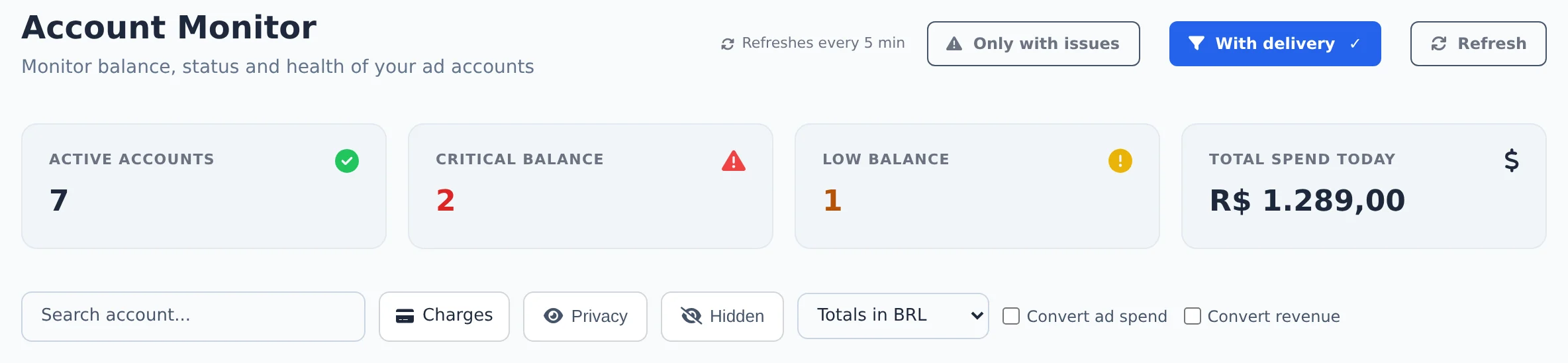
Only with issues leaves on screen only the red and yellow accounts. Search account... finds the account by name. With accounts in different currencies, the currency picker adds up the cards at the top in a single currency.
 123
123- 1Only with issues
- 2Search account
- 3Totals currency
- 4
Tell the client
At the end of the row, Copy summary copies a text with the balance, average spend and forecast, and suggests a top up for 20 more days when the balance lasts less than 30. Paste it in the client chat. The crossed eye hides the account from the Monitor.
 12
12- 1Copy summary
- 2Hide account
A hidden account comes back any time
Hidden accounts leave the list and the cards. To bring one back, click Hidden and then Restore. The Monitor hidden list is separate from the Account Hub one.
How to tell it worked
- The cards at the top match the red and yellow dots in the table.
- After copying the summary, the text is ready to paste in the chat.
If something goes wrong
| Symptom | Likely cause | What to do |
|---|---|---|
| The status stays on loading | The balance is still being fetched from Meta or Google | Wait. If it takes more than a few minutes, click Refresh |
| Days Left shows -- | The account is paid by card (postpaid) or did not spend in the last 7 days | That is expected: the forecast only exists for prepaid balance with recent spend |
| An account does not show up | It was hidden or is not turned on in the connection | Check Hidden and the active accounts in Connect Meta |
Frequently asked questions
How does Account Monitor work (balance and forecast)?
Account Monitor brings every account's balance together so you can see it before it runs out:
- Click Monitor Balance in the side menu (this opens Account Monitor). Meta and Google accounts are in separate tabs, and the screen refreshes every 5 minutes.
- See all accounts on one screen, with the current balance, the payment method (credit card, boleto (Brazilian bank slip) or Pix (Brazil's instant payment)), and how many days the balance should last (estimated from the last 7 days of spend).
- Colors show the risk: red for a prepaid account with 3 days of balance or less, or a disabled account or one with a pending payment; yellow for 4 to 7 days; green above 7 days; gray for an account with no recent spend.
- The Copy summary button creates a text with the balance and forecast to send to your client, including a suggested top up for 20 more days when the forecast is under 30 days.
Account Monitor doesn't send balance notifications: check the screen as part of your routine.
Does Ads Editor notify me when an account balance is running low?
Not through notifications today: Ads Editor doesn't send automatic low balance warnings. You track balances in Account Monitor (the Monitor Balance item in the side menu), which shows Meta and Google accounts in separate tabs and refreshes every 5 minutes:
- Each account shows its current balance and, for prepaid accounts, an estimate of how many days the balance will last, based on the average daily spend over the last 7 days.
- The color shows the risk: red for a prepaid account with 3 days of balance or less, and for an account that is disabled, closed, has a pending payment or is in a grace period; yellow for a prepaid account with 4 to 7 days of balance, or with any status other than active (such as risk review); green above 7 days; gray for an account with no recent spend.
- The cards at the top count how many accounts are at Critical Balance and Low Balance.
- The Copy summary button in the account's row creates a text with the balance, average daily spend and forecast. When the forecast is under 30 days, the text also includes a top up recommendation that covers 20 more days of average spend, rounded up to a multiple of 50. It's ready to send to your client.
To keep only the accounts you follow on screen, hide the others: click the crossed-out eye icon in the account's row and confirm with Hide. To bring an account back, click Hidden on the controls bar and then Restore.
How do I hide an account from the Account Monitor?
In the account's row, click the button with the crossed-out eye icon and confirm with Hide. The account disappears from the Monitor list and is no longer counted in the summary cards at the top (Critical Balance, Low Balance and today's spend). To undo, click the Hidden button on the controls bar, find the account in the list and click Restore. The Monitor reloads, and the account shows up again. Note: the Monitor's hidden list is separate from the Account Center's hidden list, so hiding an account in one doesn't hide it in the other.
How do I see Account Monitor totals in a single currency (BRL or USD)?
This is for people who have accounts in different currencies:
- Click Monitor Balance in the side menu.
- In the control bar, open the currency selector. The default is Each account's currency. Choose Totals in BRL, Totals in USD, or another currency.
- Once you choose a currency, the Convert investment option (selected by default) and the Convert revenue option appear.
What changes: only the summary cards at the top add everything up in the chosen currency. Each row still shows the actual amount in the account's own currency. The conversion uses the official European Central Bank rate, with a 3% margin added to spend (the panel may show slightly more, never less), and a note with the exchange rate appears alongside the summary.
Available currencies: BRL, USD, EUR, JPY, GBP, MXN, CAD, AUD, CHF, and CNY. Accounts in any other currency (Argentine or Chilean pesos, for example) are left out of the total, and the note tells you how many were excluded.
Does Account Monitor also track Google Ads accounts?
Yes. Account Monitor tracks Google Ads accounts. The available data varies depending on the payment method and the information that Google provides for each account.
"Loading" status in Account Monitor
The Status column shows loading while the account balance is being checked. Wait for the update. If the status remains for several minutes, refresh the page. If it continues, contact support and include the affected account.