
Google Ads
UTMs in Google Ads
Put the UTMs in the campaign final URL suffix, so each sale comes back with its source campaign, ad group and ad.
Quick answer
In Google Ads, check the campaigns, click Bulk Edit and, under Edit campaigns, pick UTMs. Paste the UTMs in the Final URL suffix, without the question mark at the start, and click Apply. For a single campaign, use the UTMs card of the campaign Edit.
Watch the walkthrough 0:23
Before you start
- The ready Google UTM template is in UTM Integrations, in the UTM step of the project. There you also find Add to Google Ads, which applies it to the whole account or to up to 15 campaigns.
- The campaign suffix applies to all of its ads. A campaign with its own suffix does not inherit the account one.
- Use Google variables, such as {campaignid}, which are replaced on click. Do not change their text.
Step by step
In this example, we put the UTMs on the dental implant Search campaign.
- 1
Select the campaigns
Check the campaign boxes and click Bulk Edit. In the bottom bar, open Edit campaigns and pick UTMs.
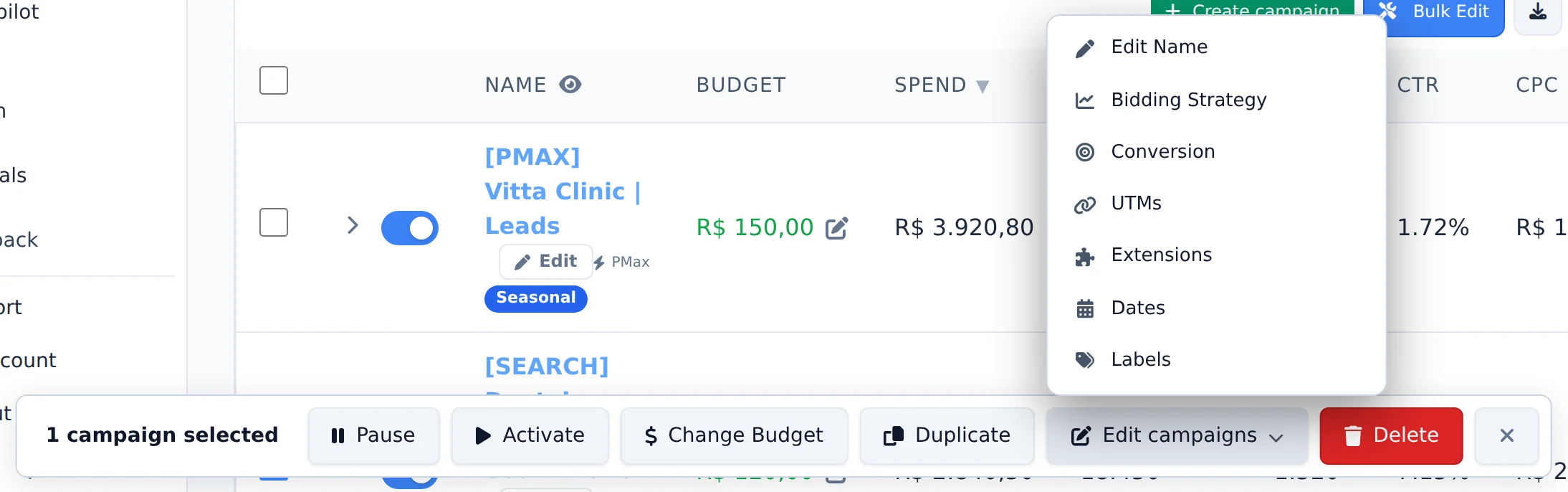 12
12- 1Edit campaigns
- 2UTMs
- 2
Fill in the suffix
The Tracking template is for click tracking tools; for UTMs, use the Final URL suffix, without the question mark at the start. An empty field keeps what is already there. Click Apply.
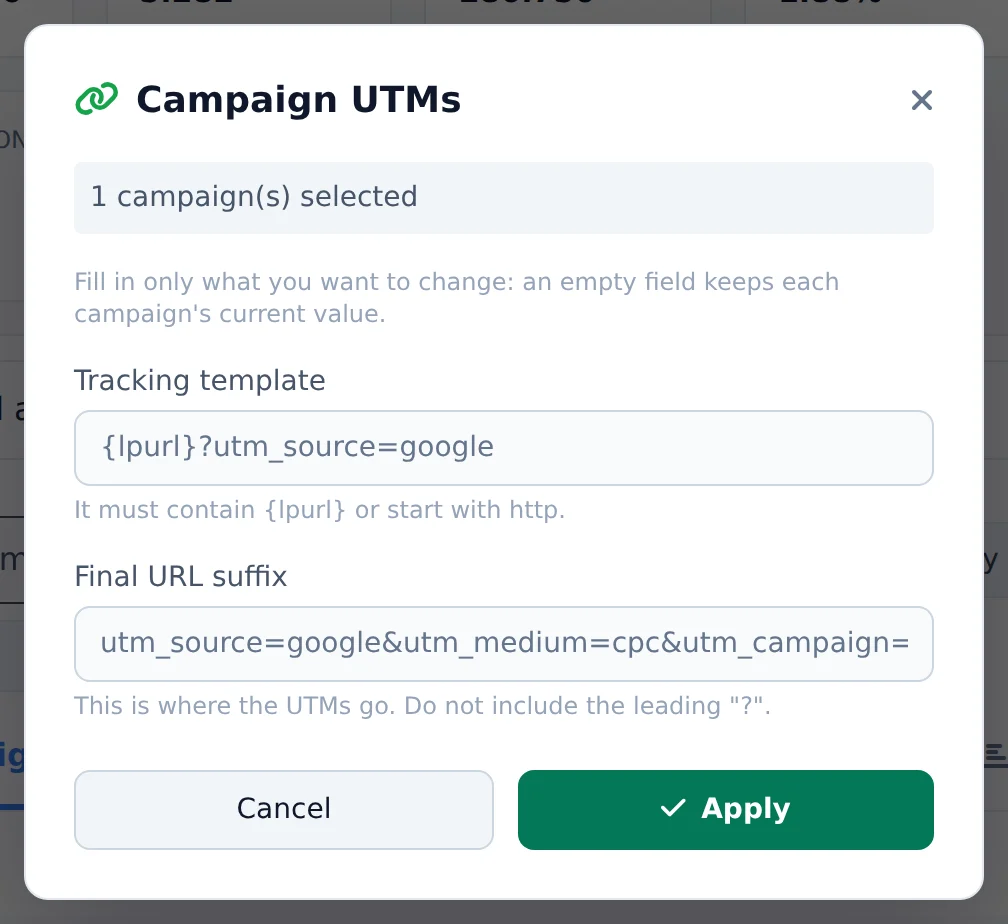 123
123- 1Tracking template
- 2Final URL suffix
- 3Apply
See the sales in the table
With the UTMs in place and the sales platform integration on, the UTM Purchases and UTM Revenue columns of Google Ads show the real sales of each campaign. Turn the columns on with the gear above the table.
How to tell it worked
- The notice in the corner confirms the updated campaigns.
- The UTMs card of the campaign Edit shows the new suffix.
- When you click the ad, the page address arrives with the UTMs at the end.
If something goes wrong
| Symptom | Likely cause | What to do |
|---|---|---|
| Sales arrive without a source | The suffix was pasted in the Tracking template | Move the text to the Final URL suffix |
| The campaign did not take the account suffix | It has its own suffix, which wins over the account one | Apply the suffix on the campaign itself |
| Google rejected the suffix | It starts with a question mark or has spaces | Remove the question mark and the spaces and apply again |
Frequently asked questions
How do I set up UTM tracking for Google Ads campaigns?
In your project's How to integrate panel, there is a section called UTMs for Google Ads campaigns, with a ready-to-copy template. You only need to do this once, and it applies to the whole account:
- In Google Ads, click Admin (gear icon) and open Account settings.
- Expand the Tracking section and find the Final URL suffix field.
- Paste the code you copied and click Save.
That's it: every click now arrives with campaign, ad group and ad IDs, and sales appear in the UTM Purchases and UTM Revenue columns in Google Ads. If you prefer, you can also apply it per campaign under Campaign settings, Campaign URL options, Final URL suffix. The template uses Google's own variables, which are resolved at click time, so don't change the text.
You can also do this without opening Google Ads: in UTM Integrations, at step 3, click Include in Google Ads and choose In the entire account (recommended; campaigns with their own suffix don't inherit it, and the screen shows which ones) or In specific campaigns (up to 15 at a time).
What are the UTM Purchases, UTM Revenue and UTM ROI columns in Google Ads?
These columns match your Google Ads campaigns with the real sales tracked by Ads Editor's UTM Integrations (webhooks from payment platforms, such as those used for digital products). They show how many purchases, how much revenue and what ROI each campaign generated based on the sales UTMs, not just the conversions Google reports. To use them: first set up your integration on the UTM Integrations page, make sure your ads use the correct UTMs, then turn on the columns in Customize columns (they only appear in the picker when an integration is connected to the account). Known limitation: Performance Max campaigns don't fill in the ad group UTM, so attribution by ad group may show zero for this campaign type. If values are zero on regular campaigns, check that your ads' UTMs follow the pattern set in the integration.