
Google Ads
Duplicate a Google Ads campaign
Copy the whole campaign, with ad groups, ads, keywords and extensions, to the same account or to another client's account.
Quick answer
In Google Ads, check the campaign, click Bulk Edit and then Duplicate in the bottom bar. Choose What to copy, turn on Duplicate to other accounts if the copy goes to another client, and click Duplicate. The copy starts paused, unless you turn on Duplicate as active.
Watch the walkthrough 0:26
Before you start
- Search, Display, Performance Max and Demand Gen can be duplicated, including across accounts. Video campaigns cannot, due to a Google API limitation.
- In Performance Max, the copy brings the asset group along: headlines, descriptions, images, logo and search themes.
- Without a new name, the copy gets the original name with "#2" at the end, just like Google does.
Step by step
In this example, we duplicate the dental implant Search campaign to test a variation.
- 1
Open Duplicate
Check the campaign box and click Bulk Edit. In the bar that shows up at the bottom, click Duplicate. You can check several campaigns and duplicate them all at once.
 12
12- 1Checked items
- 2Duplicate
- 2
Say what to copy
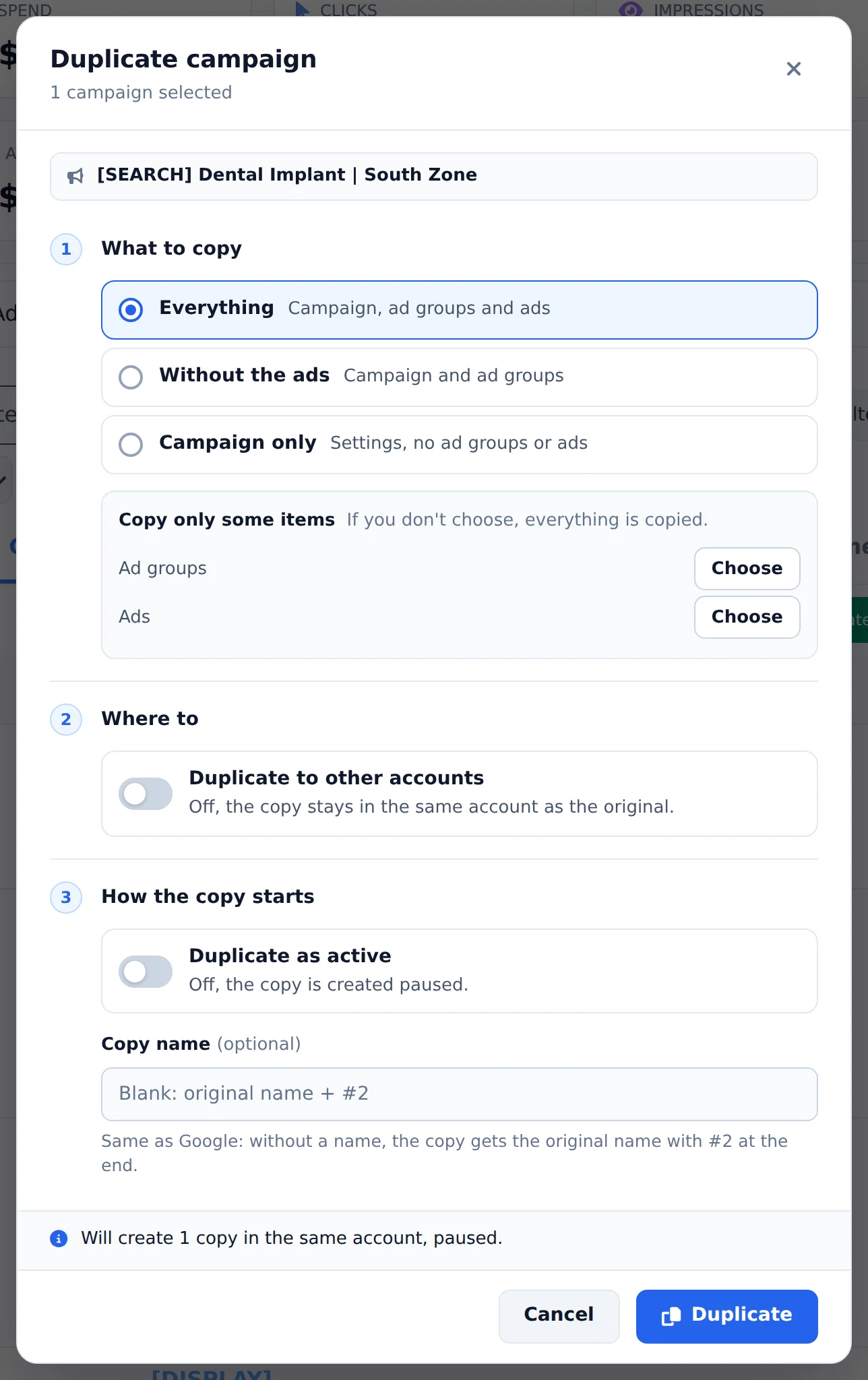
Under What to copy, Everything brings campaign, ad groups and ads; Without the ads and Campaign only copy less. To bring only some ad groups or ads, use Choose. Under Where to, turn on Duplicate to other accounts and check the target accounts. Under How the copy starts, leave it off for the copy to start paused.
 1234
1234- 1What to copy
- 2Duplicate to other accounts
- 3Duplicate as active
- 4Duplicate
- 3
Duplicate
Click Duplicate. With several campaigns checked, the button shows how many copies will be created. The progress shows in the window itself, step by step, and the copy joins the campaign list paused, ready for you to review.
Copying to another client
When duplicating across accounts, the window lets you change the final URL, headlines and descriptions of the copied ads. That way the source client's website and copy never end up in the other account.
How to tell it worked
- The window shows each finished step: budget, campaign, ad groups and ads.
- The copy shows up in the target account table with the switch off.
- If something could not be copied, the window ends with a warning and says what was left out.
If something goes wrong
| Symptom | Likely cause | What to do |
|---|---|---|
| Duplicate name warning | A campaign with that name already exists in the target account | Type another name for the copy and duplicate again |
| Google rejected an ad because of the URL | The landing page is down | Check the website and duplicate again, or change the URL when duplicating across accounts |
| The Video campaign does not duplicate | Google does not allow editing or copying that type through the API | Duplicate it in Google Ads itself or use Demand Gen |
Frequently asked questions
How do I duplicate a Google Ads campaign, in the same account or in another account?
Turn on Bulk edits, select the campaigns and click Duplicate in the bottom bar. In the Duplicate Campaign(s) modal, choose what to include: Campaign + Ad Groups + Ads (full copy), Campaign + Ad Groups (no ads) or Campaign Only (empty structure). Choose whether the copy starts Paused (default, recommended) or Active.
Copy name: if you leave it blank, the copy gets the original name plus "#2" (then #3, #4...), the same way Google does it. If you type a name that already exists in the account, Ads Editor warns you and suggests an available one, without creating anything.
Performance Max: duplicating works, and the copy includes the asset group (headlines, descriptions, images, logo and search themes).
To copy to another account, turn on the Duplicate to another ad account switch and select the destination accounts from the list (you can search by name and use Select all). When duplicating across accounts, you can also override the final URL, headlines and descriptions of the copied ads. Search, Display, Performance Max and Demand Gen campaigns are supported across accounts; Video campaigns aren't, due to a Google API limitation.
Error: Duplicate campaign name when cloning (Google Ads)
When you clone a campaign between Google accounts, a campaign with the same name already exists in the destination account.
How to fix it:
- Enter a different name in the "Cloned campaign name" field.
- Clone again.
Why can't I duplicate a Google Ads Video campaign to another account?
This is a limitation of the Google Ads API itself, not of Ads Editor, and it goes beyond duplication: Video campaigns are read-only in the API. Google doesn't allow creating, editing, or cloning these campaigns through the API, and this applies to every external tool, not just Ads Editor.
In practice, with a Video campaign, Ads Editor lets you:
- Track performance: metrics, reports, and columns work normally (read access is allowed).
What can only be done inside Google Ads:
- Create the Video campaign.
- Pause, activate, or change budget, bids, targeting, or anything else.
- Duplicate it to the same account or another one.
The alternative Google itself recommends, when the goal is to run video ads on YouTube with API management, is to use Demand Gen campaigns. They accept video ads and are fully supported, including duplication between accounts. Search, Display, Performance Max, and Demand Gen campaigns remain 100% supported.
Are Video campaigns going away? In part, and that's good news: Video Action Campaigns (the conversion-focused video subtype) have been discontinued by Google, and the existing ones were automatically upgraded to Demand Gen, which is fully supported in Ads Editor (create, edit, pause, and duplicate between accounts).
The other types of video campaigns (reach, views, and brand awareness) still exist and remain read-only in the API. In practice: what used to be a performance video campaign is now Demand Gen, and you can manage it normally here. What remains in Video is top of funnel, which is still edited inside Google Ads.