
Audiences and UTM Integrations
UTM sales columns
See in the manager how many sales, how much revenue and how much profit each campaign brought, through the UTMs.
Quick answer
With an integration linked to the account, the Meta Ads table gets the sales columns on its own: UTM Purchases, UTM Revenue, Profit, Total Sales, Total Revenue and Total Profit. Each campaign, ad set and ad shows the sales that came from it. The same numbers can go into the summary cards.
Watch the walkthrough 0:25
Before you start
- The columns only show when the account has a project in UTM Integrations.
- Revenue is net: the sale amount minus the platform fee, when the platform reports it.
- Only approved sales count; refunds and chargebacks leave the numbers.
Step by step
In this example, we turn on the sales columns in the account of a delivery business that sells a course.
- 1
See the sales in the table
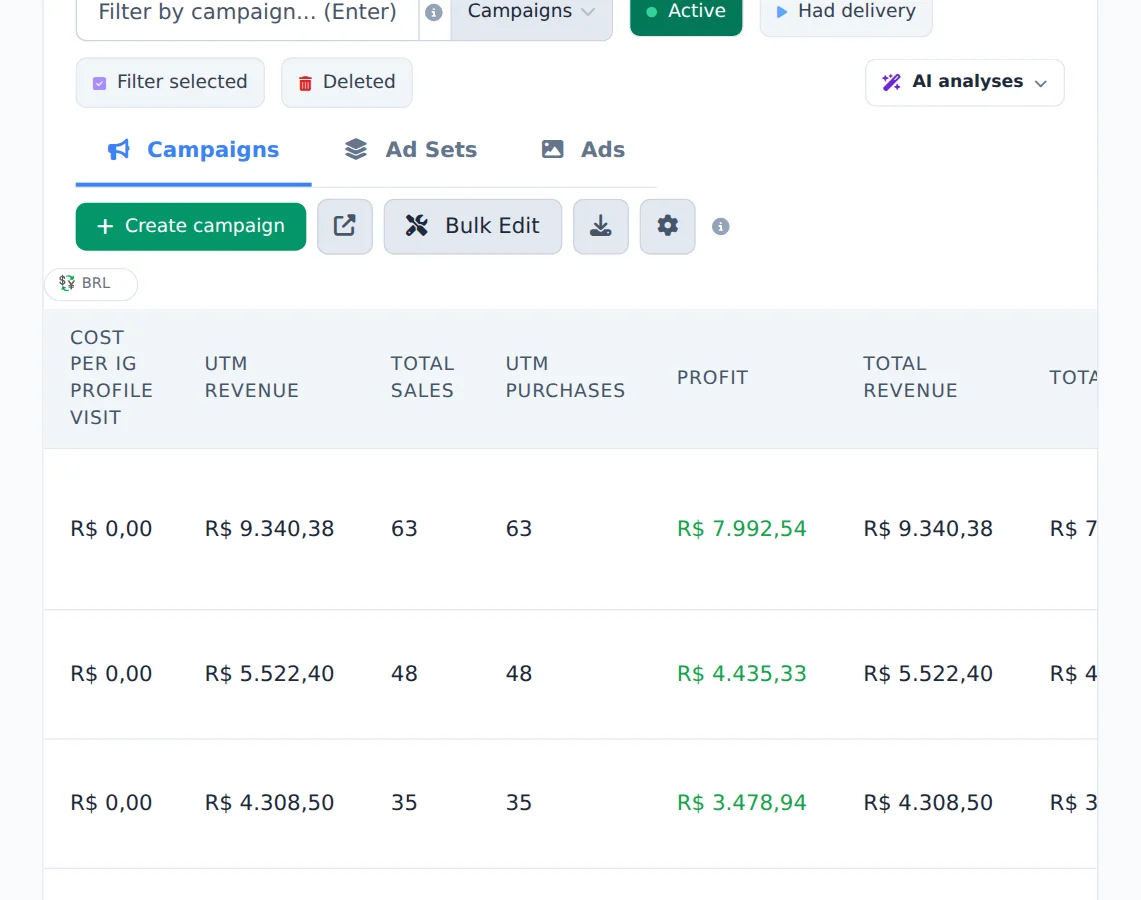
Open Meta Ads on the account linked to the integration. UTM Purchases and UTM Revenue show the sales that came from each campaign in the chosen period.
- 2
Compare with spend
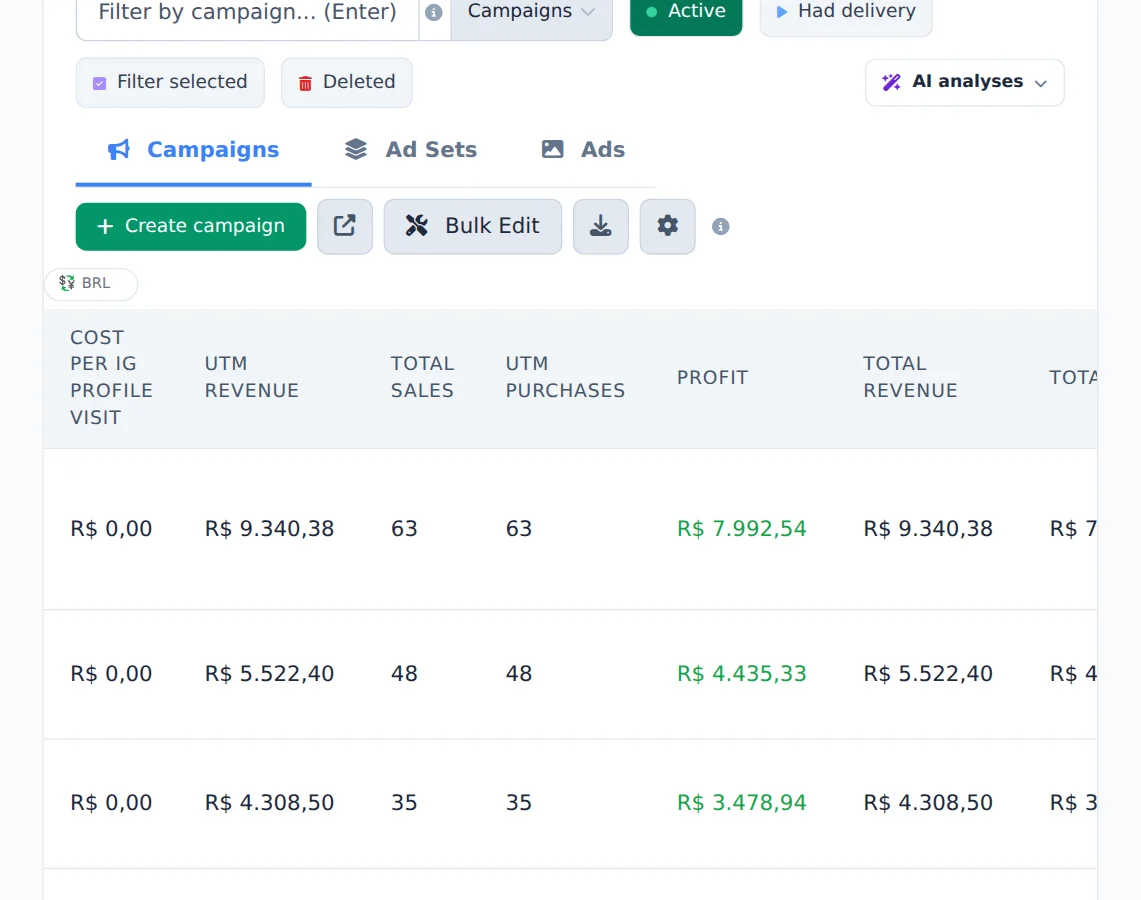
Profit subtracts the campaign spend. Total Sales, Total Revenue and Total Profit also count sales that arrived without a campaign.
- 3
Bring them to the summary
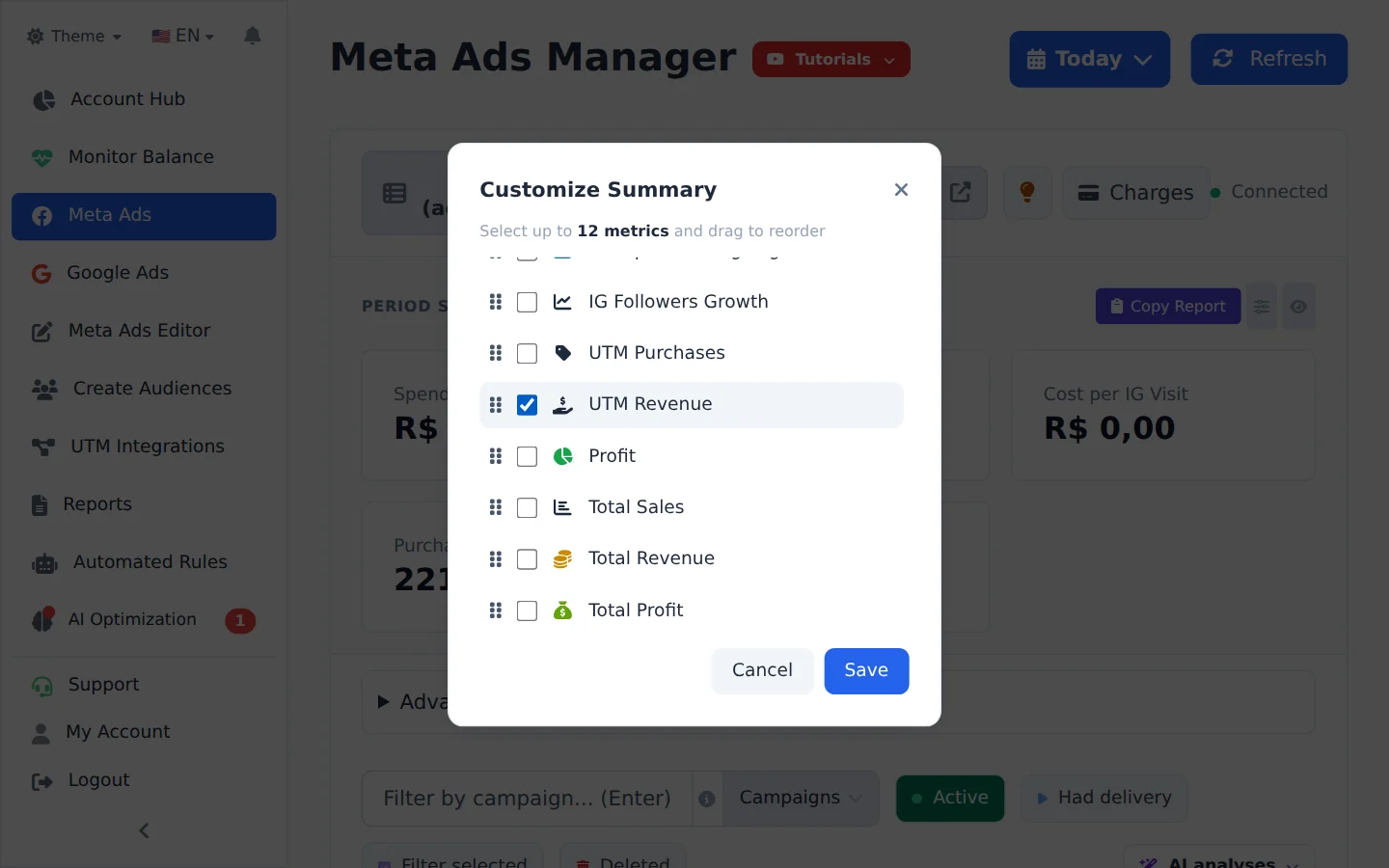
Click the list icon next to Copy Report, check the sales metrics and save: they become Period Summary cards.
Order by sales
Click the UTM Revenue title to sort the table by the campaigns that sold the most in the period.
How to tell it worked
- The columns show in the table, with numbers on the campaigns that sold.
- The numbers follow the period chosen at the top.
If something goes wrong
| Symptom | Likely cause | What to do |
|---|---|---|
| The sales columns do not show | The account has no project in UTM Integrations | Create the integration and link the account to it |
| The column shows zero | The sales did not arrive or the ads have no UTMs | Follow the guide on a sale that does not show up |
Frequently asked questions
What sales columns appear in Meta Ads after I connect an integration?
With at least one integration connected to the account, the manager's column selector unlocks extra columns: UTM Purchases (the number of approved sales attributed to that campaign, ad set, or ad), UTM Revenue (revenue from those sales), Profit (UTM Revenue minus the campaign's spend), Total Sales (all approved sales in the period, even without attribution), Total Revenue, and Total Profit. You can also add the same metrics to the summary cards at the top of the manager. To turn them on, open the manager's column selector and select the ones you want. If you don't see these columns, no integration project is connected.
Does UTM Revenue show gross or net sales? Do refunds count?
The revenue shown is net: the sale amount minus the sales platform's fee, when the platform sends that fee in the webhook. Only sales with an approved status are counted. Pending boletos (Brazilian bank slips) and Pix payments (Brazil's instant payment method) don't count until they are paid. When a sale is refunded or charged back, it leaves the approved status and is automatically removed from the columns and totals. That's why you should also select the refund and chargeback events when you register the webhook on your platform. Otherwise, returned sales keep inflating your numbers. Values follow the period selected in the manager, based on the date the sale was recorded.