
Google Ads
A/B tests, dates and labels in Google Ads
Compare a bid strategy or a new landing page against the current campaign before changing it, set the campaign start and end, and organize everything with labels.
Quick answer
In Google Ads, click Edit on the Search or Display campaign and pick Experiment (A/B test). In New experiment, say what the trial changes (bid strategy or landing page) and how much of the traffic goes to it. With 95% confidence or more, Apply to original takes the change to the campaign, and End discards it. Dates sits in the same panel, and labels under Edit campaigns, Labels.
Watch the walkthrough 0:46
Before you start
- Experiments work on Search and Display campaigns. A campaign with a shared budget does not accept them.
- Google copies the campaign, changes only the copy and splits the traffic between the two, from 10% to 90%.
- Let the test run until the statistical confidence reaches 95%: before that, the difference may be chance.
Step by step
In this example, the clinic tests Target CPA against Maximize conversions on the dental implant campaign.
- 1
Open Experiment (A/B test)
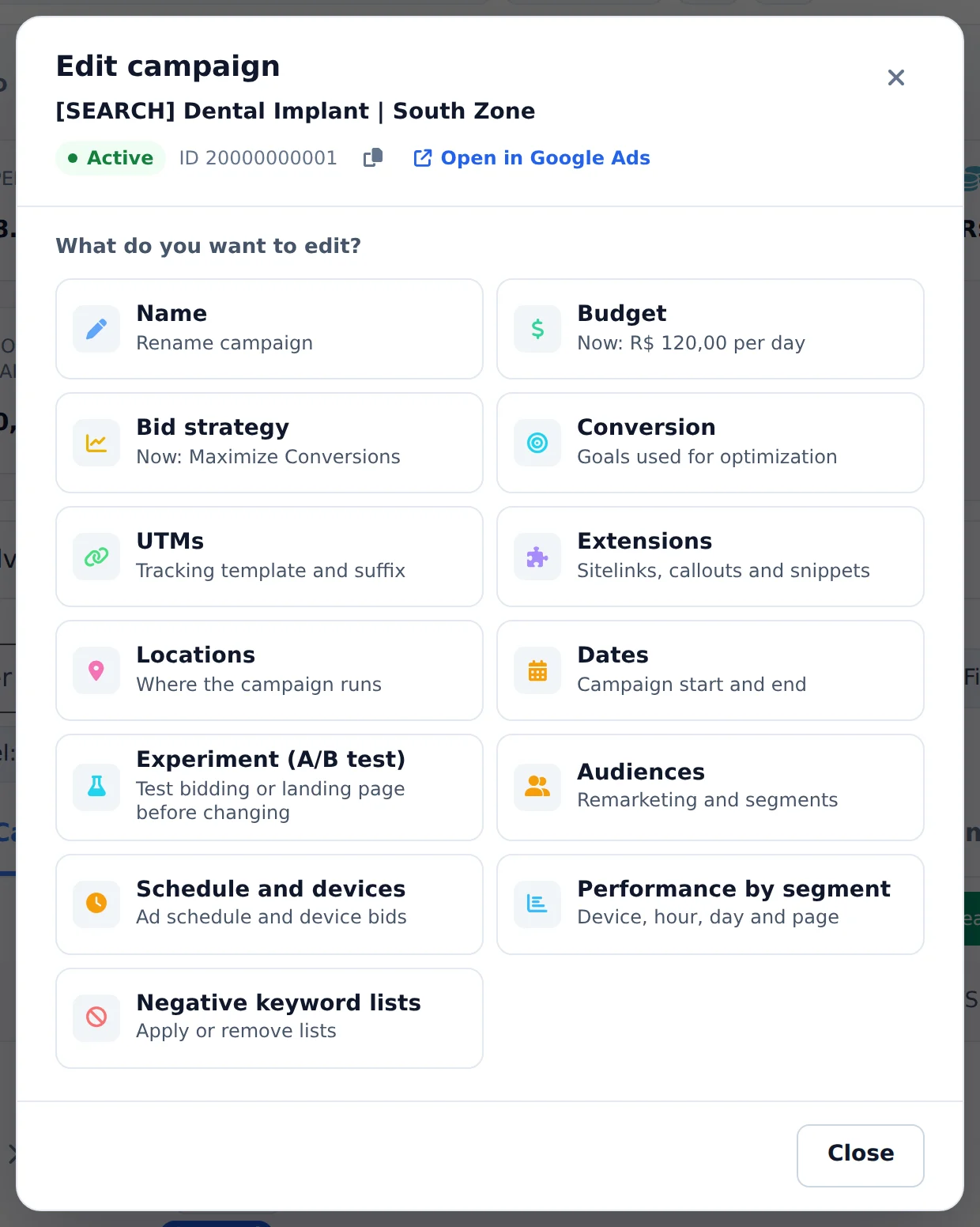
Click Edit, below the campaign name, and pick the Experiment (A/B test) card. The Dates card sits in the same panel.
 12
12- 1Experiment (A/B test)
- 2Dates
- 2
Create the experiment
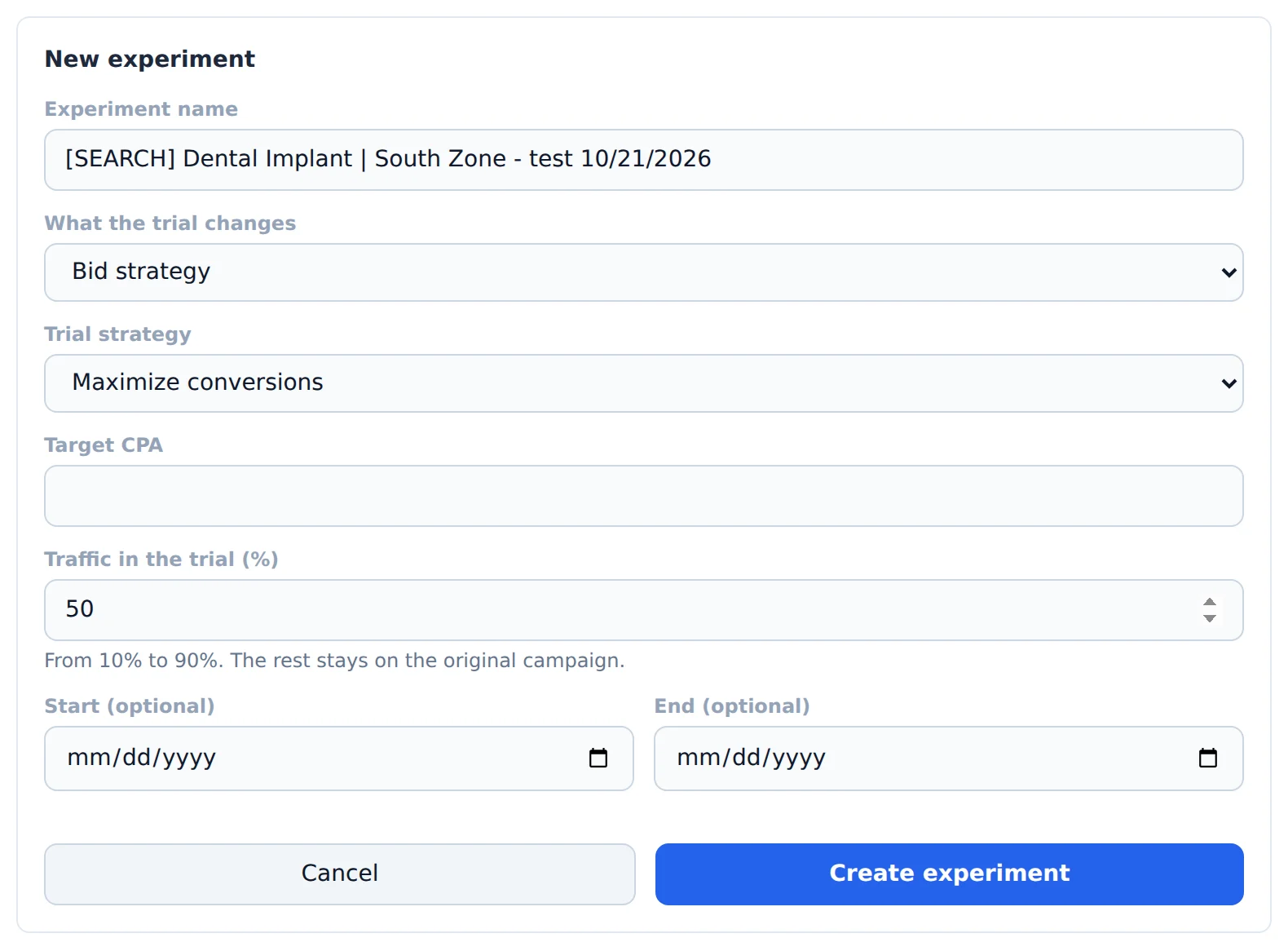
Click + New experiment. Name it, pick under What the trial changes between Bid strategy and Landing page, choose the trial strategy and how much of the traffic goes to it. Click Create experiment.
 123
123- 1What the trial changes
- 2Trial strategy
- 3Traffic in the trial
- 3
Read the result and decide
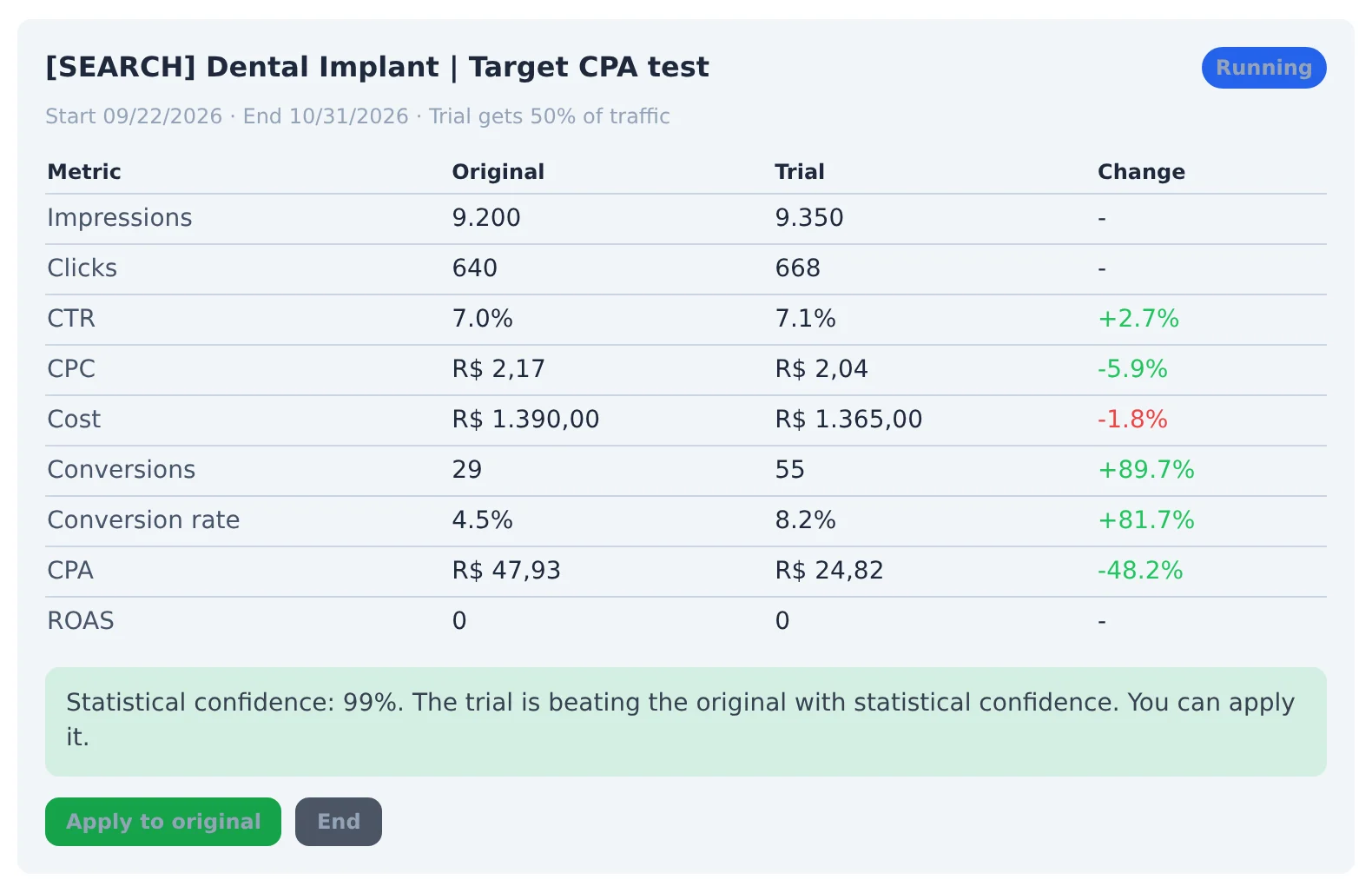
The experiment card compares the original and the trial on each metric, with the change, and shows the statistical confidence. With 95% or more, Apply to original takes the change to the original campaign; End discards the trial.
 123
123- 1Original against trial
- 2Confidence and verdict
- 3Apply to original
- 4
Set the dates
In the Dates card, pick the campaign start and end. The end can be any date from today on, or none; the start can only change before the campaign starts running. For several campaigns, use Edit campaigns, Dates.
- 5
Organize with labels
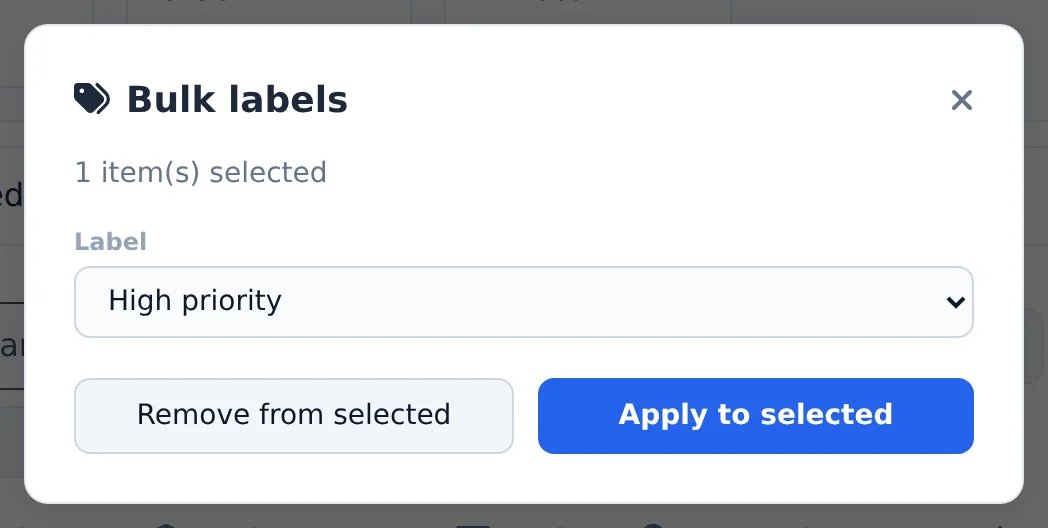
Check the campaigns, ad groups or ads, click Bulk Edit and open Edit campaigns, Labels. Pick the label and click Apply to selected or Remove from selected.
 123
123- 1Label
- 2Apply to selected
- 3Remove from selected
- 6
Filter by label
The label shows below the name of each item. The Label filter above the table shows only what has that label.
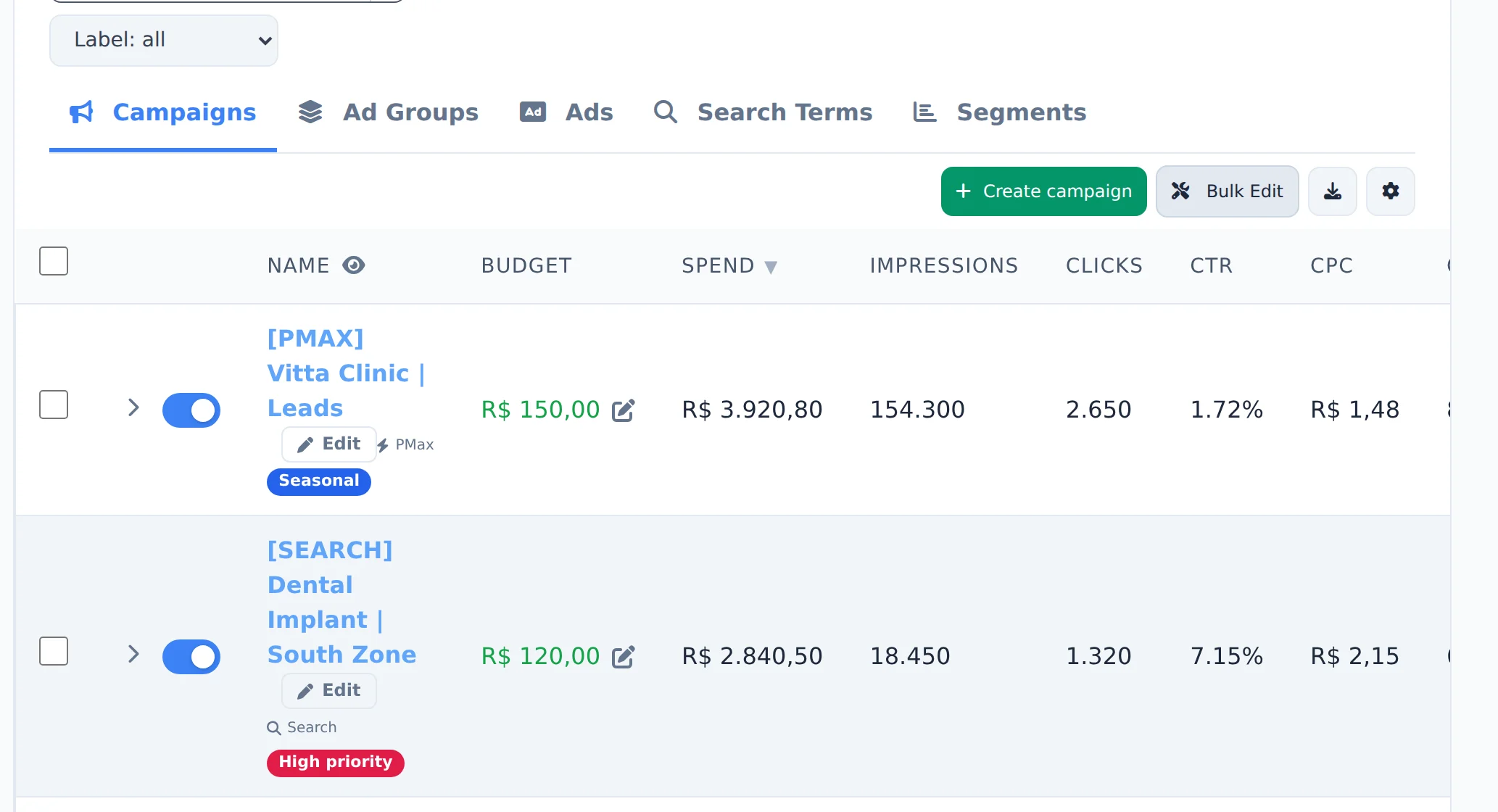 12
12- 1Label filter
- 2Label on the campaign
One test at a time
Change only one thing in each experiment. If the trial changes the bid and the page at the same time, there is no way to know which one made the difference.
How to tell it worked
- The experiment shows with the Running badge and the dates.
- After Apply to original, the badge changes to applied to the original campaign.
- The label shows on the campaign row and counts in the filter.
If something goes wrong
| Symptom | Likely cause | What to do |
|---|---|---|
| Google rejected the experiment | The campaign uses a shared budget or is neither Search nor Display | Give the campaign its own budget or test on a Search campaign |
| The confidence does not go past 95% | Little volume of clicks and conversions in the period | Let the test run longer or raise its traffic |
| I cannot change the start date | The campaign has already started running | Change only the end, or duplicate the campaign with the new date |
Frequently asked questions
How do I run an A/B test (experiment) and use labels and dates in Google campaigns?
Everything is in Google Ads, under Experiment (A/B testing): open Edit on a Search or Display campaign › Experiment (A/B testing). Google copies the campaign, changes the copy (bid strategy or landing page) and splits the traffic (from 10% to 90%). The modal shows control and test, the variation and the statistical confidence. At 95% or higher, you decide: Apply moves the change to the original campaign, End discards it. Campaigns with a shared budget aren't supported.
Dates: Edit on the campaign › Dates. For several campaigns, select them and use Edit campaigns › Dates. The end date can be any date from today onward (or none). The start date can only be changed before the campaign starts running.
Labels: select campaigns, ad groups or ads and use Edit campaigns (or Edit groups, Edit ads) › Labels to apply or remove labels. The Labels button in the bar filters the list.