
Get started
Pick your ad accounts
Open one or several accounts at once in Meta Ads and Google Ads, with favorites and groups so you do not repeat the selection.
Quick answer
At the top of Meta Ads (or Google Ads), click the account picker. Search in Search accounts... and check the accounts (or use Select all): a moment later the screen loads the checked ones. With several accounts, the table and the summary add up the numbers of all of them.
Watch the walkthrough 0:28
Before you start
- Only the accounts turned on in Connect Meta and Connect Google show up.
- The first time, the list may take a few seconds: Meta is slow to answer for people with many accounts.
- Shift + click checks every account between two.
Step by step
In this example, we open the accounts of two restaurants together in Meta Ads.
- 1
Open the account picker
At the top of Meta Ads, the picker shows the open account. Click it to choose others. Privacy, next to it, hides the account name on screen, handy for recording or sharing your screen.
 12
12- 1Account picker
- 2Privacy
- 2
Check the accounts
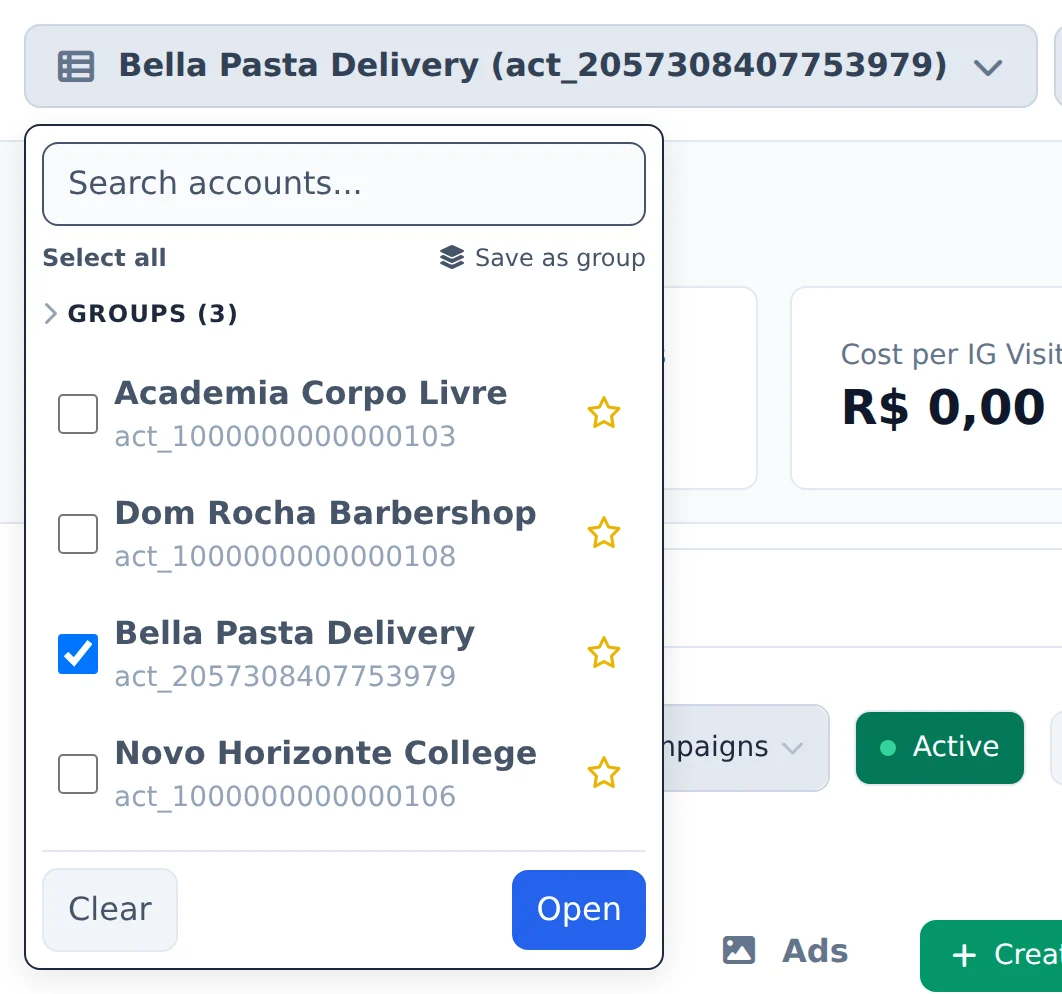
Type in Search accounts... to find them by name or ID. Select all checks the ones in the list, following the search. The Groups row opens a group of accounts in one click.
 123
123- 1Search accounts
- 2Select all
- 3Groups
- 3
Favorite, save and check
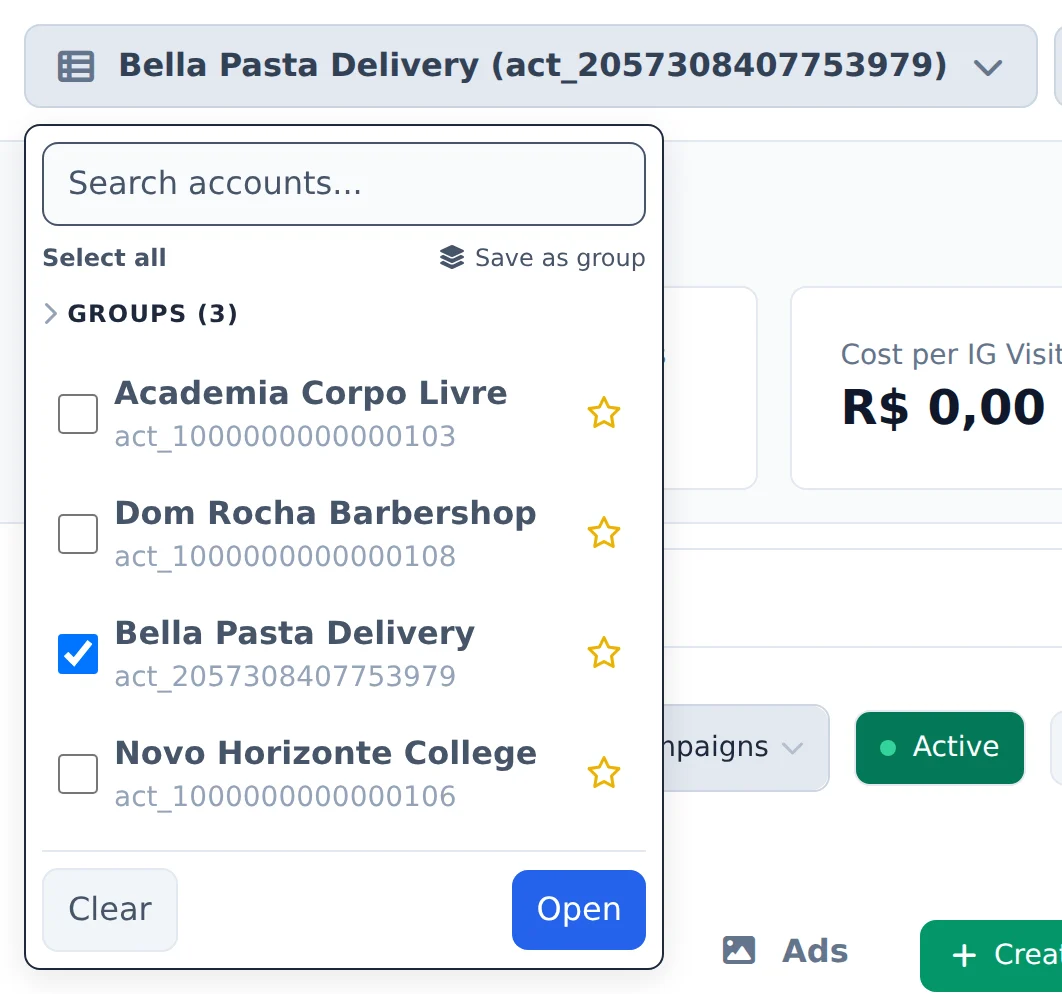
The star next to the account keeps it at the top of the list. Save as group keeps the selection for next time. Check each account box: a moment later the screen loads every checked one. Clicking the name, instead of the box, opens only that account.
 123
123- 1Favorite
- 2Save as group
- 3Open
The same group everywhere
The group saved from the picker is the same as in the Account Hub. See the Account groups guide.
How to tell it worked
- The picker shows how many accounts are open.
- The campaigns table lists the campaigns of every checked account.
If something goes wrong
| Symptom | Likely cause | What to do |
|---|---|---|
| An account does not show up in the picker | It is not turned on in the connection | Turn the account on in Connect Meta or Connect Google |
| The list takes a while to show up | Meta is returning many accounts | Wait a few seconds. Next time it opens faster |
| The group does not show up in Google Ads | The group only has Meta accounts | Edit the group in the Account Hub and add the Google accounts |
Frequently asked questions
How do I select one or more ad accounts in Meta Ads?
Meta Ads works with one or more accounts at the same time. At the top of the page, click the account selector button, use the Search accounts field to find accounts by name or ID, select the ones you want and click Open. The Clear button deselects everything so you can start over. With more than one account open, the table and the Period Summary combine the data from all of them. Next to the selector there's also a Privacy button, which hides the account name on screen, and an external link button that opens the selected accounts directly in Meta Ads Manager. If the list takes a few seconds to load the first time, that's normal: Meta can take a while to return the accounts for users with access to many.
The selector has Select all (selects the accounts in the list, respecting your search), Shift + click to select a range, and the account groups from Account Center in the Groups (N) row, with Save as group to save your selection.
How do I select all accounts at once (or a range) in the Meta Ads and Google Ads account selector?
On the Meta Ads and Google Ads pages, open the account selector at the top:
- Select all: selects all accounts shown in the list. It respects the search: type part of a name in Search accounts and click Select all to select only the matches.
- Shift + click: click one account, hold Shift and click another. All accounts between the two are selected at once (or deselected, if the second one was already selected).
Then just open the accounts as usual. With several accounts open, the table and summary combine the data from all of them.
To avoid repeating the selection every time, use Save as group in the same selector: the group is saved and opens those accounts in one click.
How do I favorite accounts and keep them at the top of the list?
In the Meta Ads account selector, each account has a star next to its name. Click the star to add an account to your favorites, and click it again to remove it. Favorite accounts appear in a Favorites section at the top of the list, including inactive accounts, so it's easier to find the accounts you use most. Favorites are saved to your Ads Editor account, so they work in any browser or on any device where you sign in.
How do I use account groups in the Meta Ads and Google Ads selector?
Account Center account groups also appear in the account selector on the Meta Ads and Google Ads pages.
- Open a group: in the selector, click the Groups (N) row to show the groups (it's collapsed, and Ads Editor remembers if you leave it open). Click a group and its accounts open.
- Create a group from the selector: select the accounts (you can use Select all or Shift + click) and click Save as group. Give it a name and you're done.
- Delete: the × next to a group deletes only the group; the accounts are not affected.
It's the same group as in Account Center: creating, editing or deleting in one place applies in the other. A group can contain Meta and Google accounts; in Meta Ads it opens the group's Meta accounts, and in Google Ads it opens the Google accounts. A group with no accounts on that platform doesn't appear in the selector.
My ad accounts don't show up in the editor's account selector. What should I do?
The editor's selector shows the accounts you selected in the Account Center. Your favorite accounts appear first, with a star. If you see a message saying no accounts are selected, first confirm that your Meta account is connected under Connect Meta in the side menu. Then open the Account Center and select the ad accounts you want to use. Back in the editor, click the Refresh button (next to Search account) to reload the list without losing your current selections. Tip: the Privacy button in the same area hides account names on the screen, which is useful for recording tutorials or sharing your screen with clients.