Account, team, and subscription
Add people to your team
Give managers and collaborators access to Ads Editor, choosing which screens each one opens and which accounts they can manage.
Quick answer
Open Team and click Add member. Fill in the name, Login email and Access password, choose the Role, check the Pages they can open and, to restrict access, the accounts under Ad accounts they can manage. Click Add member and send the email and password to the person.
Before you start
- Only the account owner (or an Admin member with the Team permission) can add people.
- The number of seats depends on your plan: the Members tab shows how many are in use.
- Members use the Meta and Google connection you already made. They do not need to connect anything or have their own subscription.
Step by step
In this example, we add a manager who takes care of two of the agency clients.
- 1
Open Team
In the side menu, click Team and then Add member. The Members tab lists who already has access, and Action history shows what each person did in the accounts.
 12
12- 1Add member
- 2Members
- 2
Say who they are
Fill in Name and Login email. Under Access password, type a password or click Generate. Phone is optional.
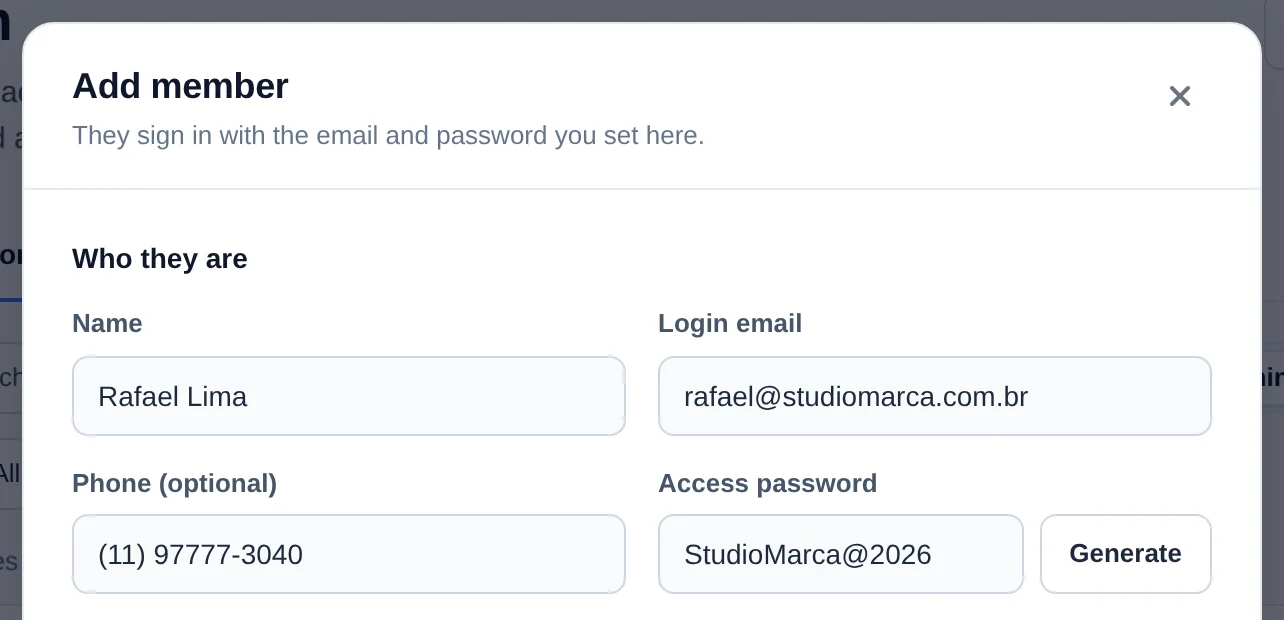 123
123- 1Name
- 2Login email
- 3Access password
- 3
Choose the role and the pages
The Role is a shortcut: Admin checks all regular pages and Collaborator removes the management ones. What really decides access is the Pages they can open list: uncheck what the person should not see. Team, Connect Meta and Connect Google only apply to Admin and are never checked automatically.
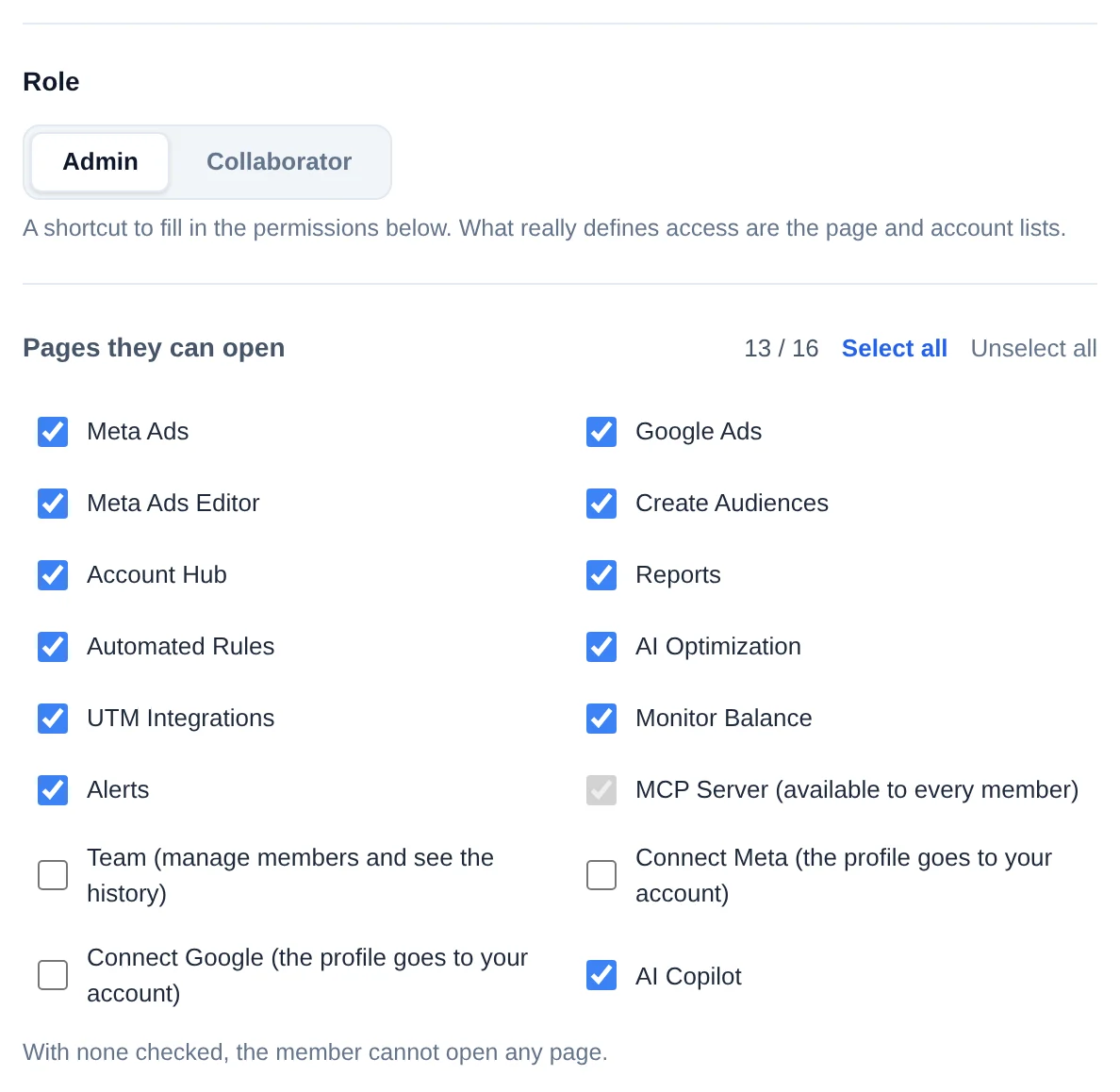 12
12- 1Role
- 2Pages they can open
- 4
Restrict the accounts and save
Under Ad accounts they can manage, pick the Meta accounts (and the Google Ads ones, if Google is connected) this person works on. With none selected, they can manage all of them. Click Add member.
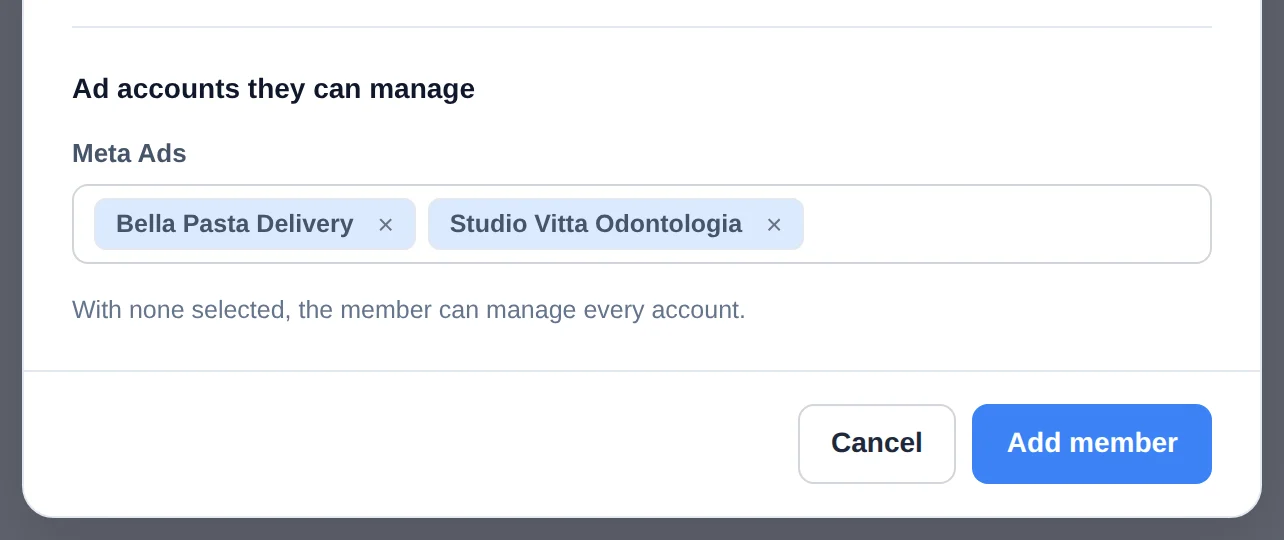 12
12- 1Allowed accounts
- 2Add member
- 5
Share the access
The member shows up in the Members tab with their role and allowed pages. Send them the Ads Editor address, the email and the password: on their first login they land in your workspace, seeing only what you allowed.
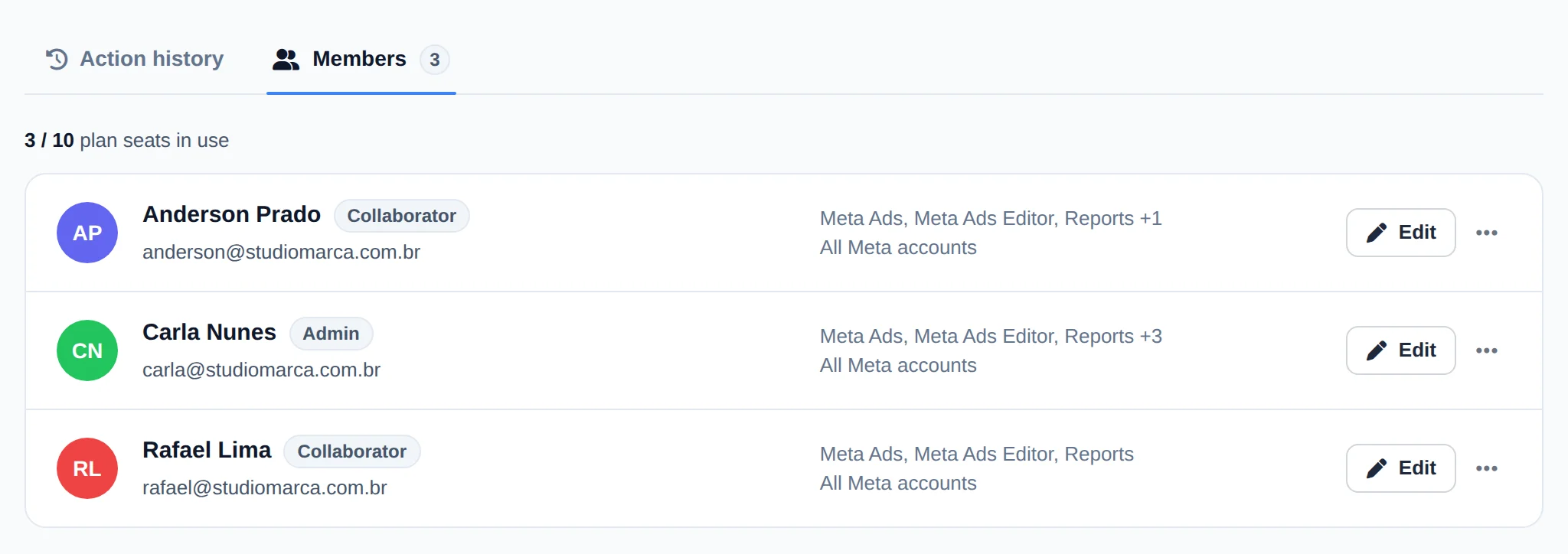 1
1- 1The new member
Several managers with the same access
In a member’s ... menu, use Duplicate permissions: the new entry comes with the same pages and accounts, and you only change the name, email and password.
How to tell it worked
- The member shows up under Members, and the seat counter goes up.
- When they log in, the menu shows only the checked pages and every screen shows only the allowed accounts.
- Whatever they do in the accounts shows up in Action history.
If something goes wrong
| Symptom | Likely cause | What to do |
|---|---|---|
| The member sees no accounts | The allowed accounts do not include the ones they are looking for | Under Members, click Edit and adjust Ad accounts they can manage |
| A page is missing from their menu | It is not checked under Pages they can open | Check the page and ask them to reload: no need to log out |
| I cannot add anyone else | The plan seats ran out | Remove people who no longer use it or move to a plan with more seats |
| The member forgot the password | You set the password, not them | In the member’s ... menu, use Reset password and send the new one |
Frequently asked questions
What is the difference between the Admin and Collaborator roles on the team?
The Role pre-fills the permissions and determines three powers that only an Admin can have. What the member sees day to day comes from Page Permissions and the allowed accounts, which you adjust before saving.
- Admin: the default role when the New Member window opens. It selects all standard pages and leaves accounts unrestricted. Only an Admin can receive Team (manage members and view history), Connect Meta, and Connect Google, and you select each one on purpose: no shortcut turns them on.
- Collaborator: the Team, Connect Meta, and Connect Google boxes disappear and are unchecked. The other pages stay selected as they were, so for tailored access, clear by hand whatever the member shouldn't see and choose their accounts.
With Team, the Admin gets the same powers as you on that page (except My Subscription and removing themselves). With Connect Meta/Google, they can manage profile connections for your account. The MCP Server is available to all members.
How do I limit which Meta and Google accounts a member can see?
When adding or editing a member, use the Allowed Meta ad accounts and Allowed Google Ads accounts fields to select only the accounts that person should access. From then on, they see only those accounts across the entire system (manager, Account Center, reports and balance). If you leave the list empty, the member has access to all your accounts, with no restriction. This is how you give each team member only the clients they are responsible for and keep the other accounts out of reach.
Does the member need to connect their own Facebook or Google account?
No. Members sign in with the email and password you set up in Team and work through the owner's connection, limited to the pages and accounts you've allowed. They don't provide a token or go through Meta login.
There is one extra option: if the member has the Admin role, you can select Connect Meta (the profile goes to your account) and Connect Google (the profile goes to your account). Then they see Connect Meta or Connect Google in the menu, and any profile they connect goes into YOUR account, as if you had connected it. This lets a manager who handles the client's BM connect without needing your password. These boxes are never selected by a shortcut, and the Collaborator role doesn't have them.
If a member says they can't see any accounts, it's almost always their list of allowed accounts, not the connection.
I changed a member's permissions. Do they need to sign out and back in?
No, they don't need to sign out. Page permissions are checked on every access, so both new access and removed access take effect almost immediately. The member just needs to reload the page or go to the area in question to see the change. For account permissions, we also recommend reloading the page so the list updates. In short, you adjust access on the Team page and the member sees the change without starting a new session.
Where do I see what each team member has done in the accounts?
In Team, below the list of members, is the Team History: what each person did, on which account, in the same format as Meta's activity history.
- Use Search account, action, item or person to filter, the Person selector to see a single member, and the start and end dates for the period.
- Group repeated actions combines the same action done several times into one row.
- The history also shows changes made directly in Meta and Google: anyone who made changes in the native interface appears there, even if they're not on your team (Google reports changes with a delay of a few minutes).
Who can see it: the account owner and the Admin member with the Team (manage members and view history) permission. It requires a paid plan; the history does not appear during the free trial.