Audiences and UTM Integrations
Create audiences in bulk
Pick the account, choose the sources and retention windows, and create dozens of Meta custom audiences at once.
Quick answer
Open Create Audiences in the side menu and, on the Meta tab, choose the Ad Account. Turn on the sources you want (Instagram, Facebook, videos, website, customer list or lookalike) with the Enable checkbox on each block, pick the Retention Periods and check the counter. Click Create Audiences: creation runs on the server and each audience shows up in the progress panel.
Before you start
- The ad account must be connected through the Meta connection, with advertiser permission.
- For Instagram and Facebook audiences, your user needs access to the Page and profile linked to the account. For website audiences, to the pixel.
- Every audience has two parts: the source (who interacted with what) and the retention period (how many days back). Each source you check becomes one audience per period.
Step by step
In this example, we create the Instagram engagement audiences for a restaurant account using the default periods.
- 1
Open Create Audiences and pick the account
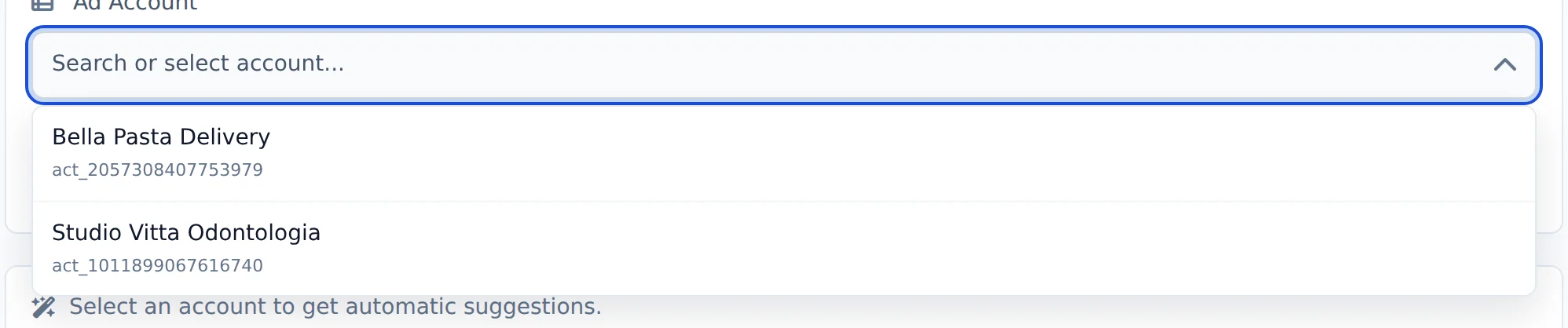
In the side menu, click Create Audiences. On the Meta tab, click the Ad Account field and choose the account. You can search by name or ID.
 12
12- 1Ad account field
- 2Accounts you connected
- 2
Check what was found
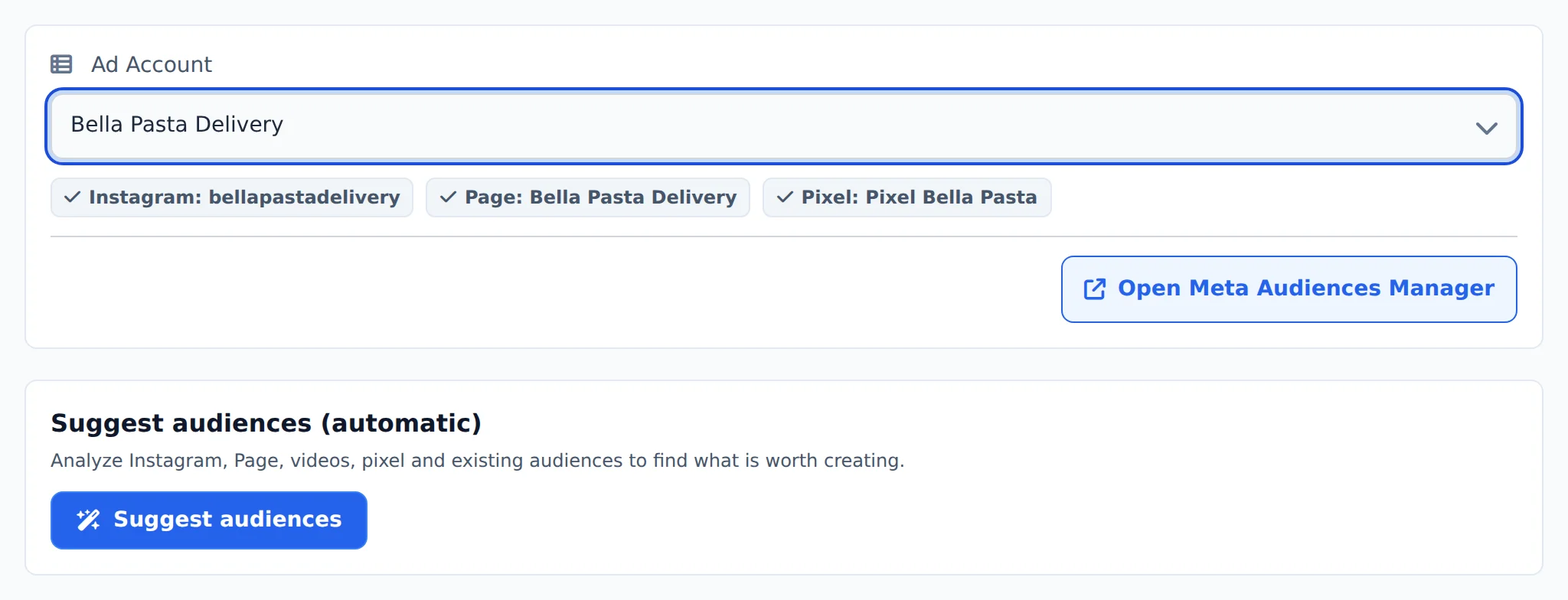
Once the account is chosen, Ads Editor looks up the Instagram, Page and Pixel linked to it and shows each one in a green tag. Anything missing there cannot be used as a source in this account.
 12
12- 1Instagram, Page and Pixel of the account
- 2Suggest audiences
- 3
Turn on the sources
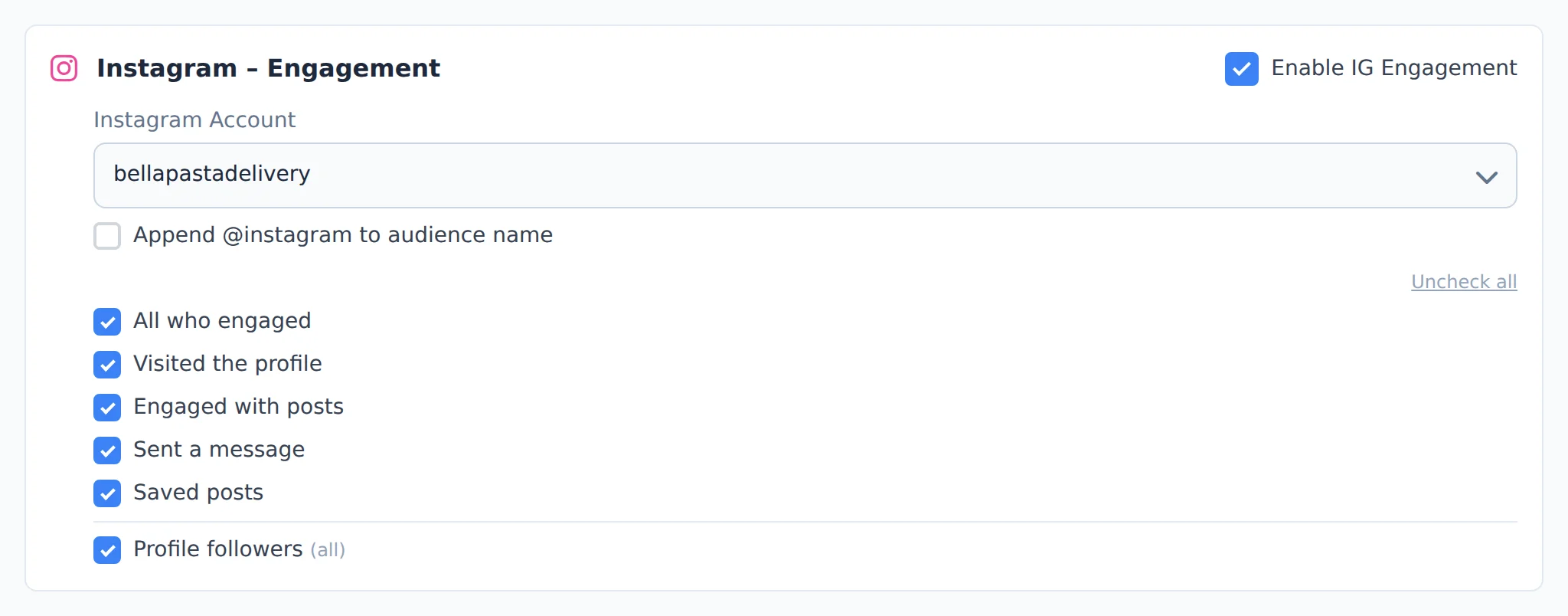
On each block, check Enable to open its options. On the Instagram block, for example, pick the profile and check the types: everyone who engaged, profile visitors, people who sent a message, saved posts and followers.
 123
123- 1Enable IG Engagement
- 2Instagram Account
- 3Engagement types
- 4
Choose the retention periods
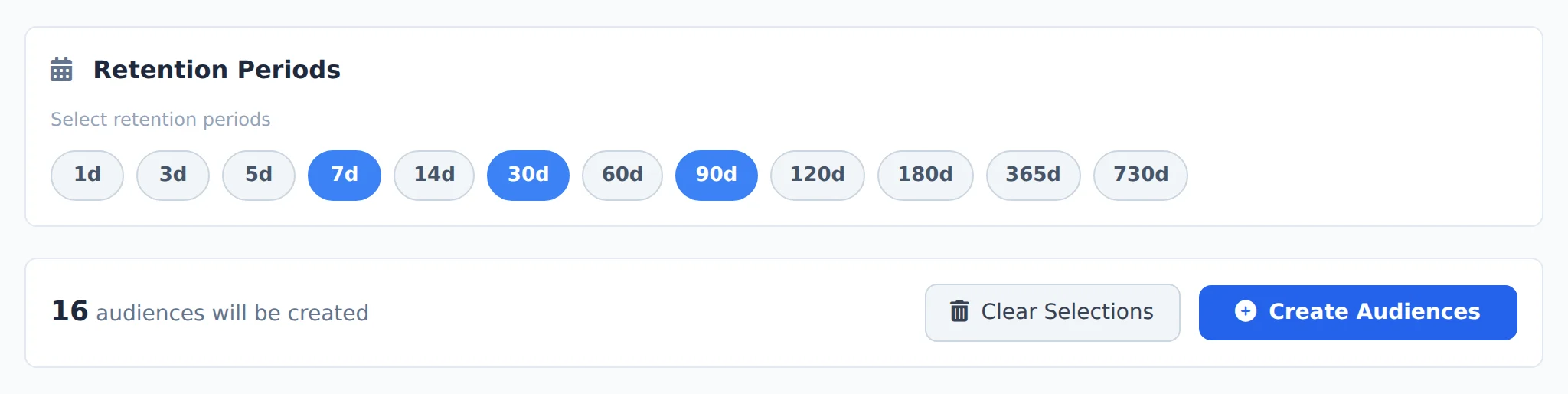
Under Retention Periods, click the days you want (from 1 to 730). 7d, 30d and 90d come selected by default. The counter below shows right away how many audiences your selection creates.
 123
123- 1Retention periods
- 2How many audiences will be created
- 3Create Audiences
- 5
Create and follow along
Click Create Audiences. Creation moves to the server and the panel shows each audience as Pending, Creating, Created or Error. You can close the page: when it finishes, you get a notification in the bell.
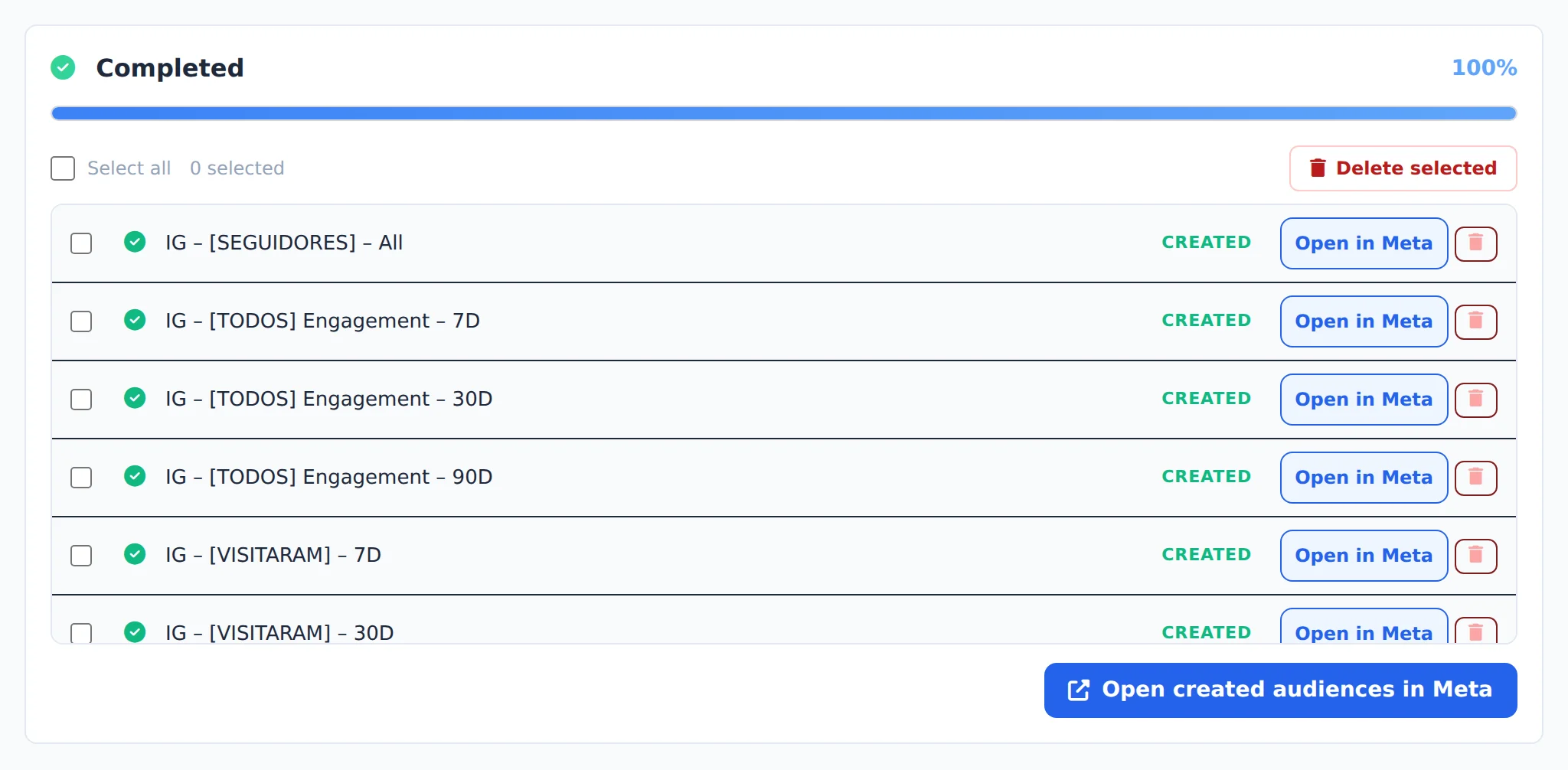 12
12- 1Creation status
- 2Open created audiences in Meta
Not sure where to start?
Use Suggest audiences (automatic). It reads what the account actually has (Instagram, Page, videos, pixel and existing audiences) and only suggests what can be created. Nothing is created on its own: the suggestion fills in the screen and you confirm with Create Audiences.
How to tell it worked
- The progress panel ends with Completed and each audience shows as Created.
- The new audiences appear in the Audiences in this account list right below, and in Meta’s Audiences manager.
- Size shows as unavailable during the first hours: that is Meta populating the audience, not an error.
If something goes wrong
| Symptom | Likely cause | What to do |
|---|---|---|
| The Create Audiences button stays disabled | The counter is at zero or something required is missing | Pick the account, turn on at least one source and select a period |
| Instagram or the Page is missing from the tags | Your user has no access to them on Meta | Ask for access to the profile or Page in Business Manager and reconnect Meta |
| Some audiences show Error | Permission, a period above Meta’s limit or a lookalike source that is too small | Read the reason in red, fix it and click Create Audiences again: the ones already created are not duplicated |
| An audience was not created again | One with the same name already exists in the account | That is on purpose: Ads Editor reuses the existing one to avoid duplicates |
Frequently asked questions
How is the number of audiences to be created calculated?
The counter at the bottom of the page updates in real time as you make selections. The rule: each audience type you select is multiplied by the number of retention periods selected. For example, 3 Instagram engagement types with 3 periods create 9 audiences. There are exceptions: Profile followers (Instagram) and Page likes or followers (Facebook) count as 1 each because they don't use a period, and Lookalikes count as the number of sources multiplied by the selected percentages. The Create Audiences button is enabled only when the counter is greater than zero. If a required item is missing (account, Instagram, videos or periods), the system shows a warning telling you what to select.
How are the audiences named? Can I customize the names?
Names follow a fixed pattern that identifies the type and period, for example: IG - [VISITARAM] - 30D, FB - [MENSAGEM] - 7D, VIDEO - [ThruPlay] - 90D, View Page - SITE - 30D, SITE - [Purchase] - 30D and Lookalike - SourceName - 1%. Two customizations are available: for Video View you can change the name Prefix (the default is VIDEO), and for Instagram there is the option Add @instagram to the audience name, which appends the profile's @ at the end (for example IG - [SEGUIDORES] - Todos - @seuperfil). We recommend keeping the generated names, because the system uses them to recognize existing audiences and avoid creating duplicates later.
What happens if I try to create an audience that already exists in the account?
Ads Editor checks the audiences that already exist in the account before creating each one. If an audience with exactly the same name already exists, it isn't created again: the item shows as completed in the list, but the system reuses the existing audience and it isn't counted in the final total of created audiences. This lets you run bulk creation several times without creating duplicates, for example to fill in periods that were missing. Note: the comparison uses the exact name, so if you renamed an audience in Meta Ads Manager, Ads Editor will create a new one with the default name.
Why doesn't the Instagram Followers audience use the retention periods I selected?
This is how Meta works: the profile followers audience has no time window. It always includes all current followers. That's why it's created as a single audience named in the pattern IG - [FOLLOWERS] - Everyone, no matter how many periods you selected. The same goes for the Facebook audience of people who like or follow the Page, which is also created only once, as FB - [LIKES] - Everyone. In the page counter, these two count as 1 audience each, while the other types are multiplied by the number of selected periods.
Can I close the page while audiences are being created?
Yes. When you click Create Audiences, creation is sent to run in the background on the server, and you're told you can close the page. When the process finishes, a notification arrives in the system bell (and a push notification in the iOS app, if you use it) telling you how many audiences were created and whether there were errors. If you return to the Create Audiences page while the process is still running, the progress panel is restored automatically and keeps updating in real time, item by item.