
Google Ads
Budget, pause and activate in bulk in Google Ads
Change the daily budget of several Google campaigns at once, by amount or by percentage, and pause or activate them all in one click.
Quick answer
In Google Ads, check the campaigns with the box on the left and click Bulk Edit. In the bar that shows up at the bottom, Change Budget changes the daily budget of every checked campaign, and Pause and Activate change the status of all of them at once. For a single campaign, click the pencil next to the budget on its row.
Watch the walkthrough 0:25
Before you start
- The budget you edit is the daily budget linked to each campaign. Campaigns sharing a budget in Google change together.
- Every change goes straight to Google Ads, with no draft.
- The bulk bar also has Duplicate, Edit campaigns and Delete. Delete is permanent in Google.
Step by step
In this example, we raise the budget of the two Search campaigns of a clinic.
- 1
Select the campaigns
Check the box to the left of each campaign that will change and click Bulk Edit, above the table. The action bar shows up at the bottom of the screen, with a count of what is checked.
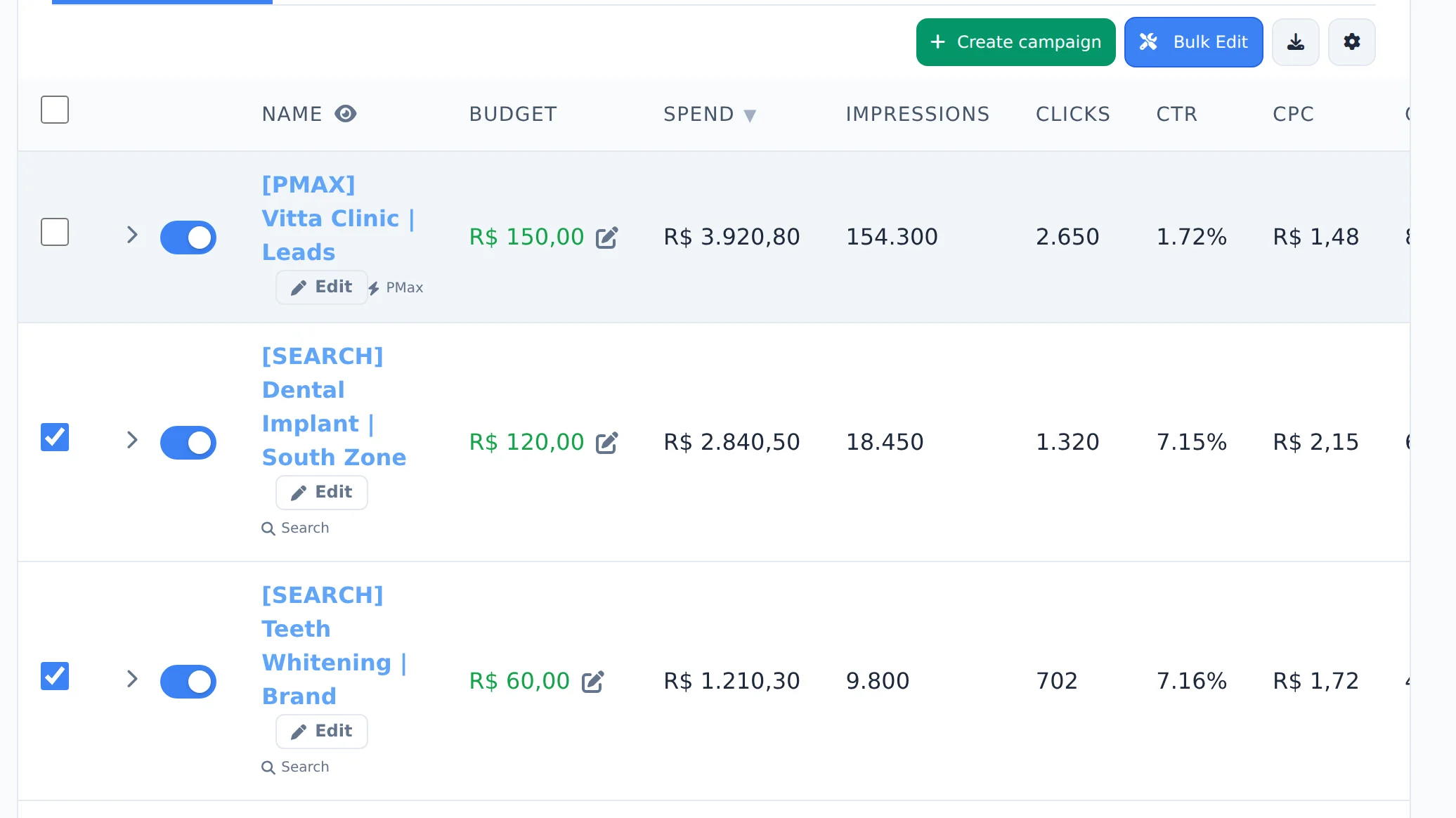 12
12- 1Checked campaigns
- 2Bulk Edit
- 2
Change the budget
Click Change Budget. Type the new daily amount, or use the minus and plus buttons, which open 10%, 15%, 25% and 35% shortcuts. Click Save: each campaign gets the new amount in Google Ads.
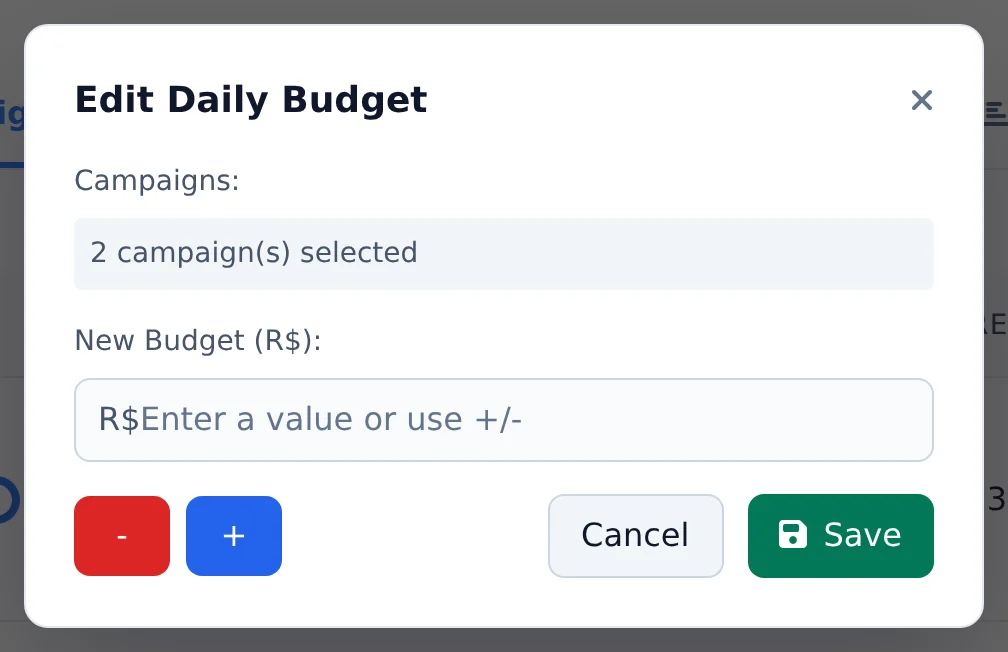 123
123- 1New daily budget
- 2Raise by percentage
- 3Save
- 3
Pause or activate
With the same campaigns checked, Pause and Activate change the status of all of them at once. The screen asks for confirmation and shows the progress item by item.
 123
123- 1Pause
- 2Activate
- 3Change Budget
Raise without going back to learning
Instead of one big jump, use the option to repeat the increase in steps that shows below the amount: the budget goes up little by little, and the campaign feels the change less.
How to tell it worked
- The Budget column of the table shows the new amount on each campaign.
- The row switch turns gray on paused campaigns and blue on active ones.
- The notice in the corner of the screen says how many items changed and whether any failed.
If something goes wrong
| Symptom | Likely cause | What to do |
|---|---|---|
| The action bar does not show up | Bulk Edit is not on, or nothing is checked | Check at least one box and click Bulk Edit |
| Two campaigns changed when I edited one | They share the same budget in Google | Split the budgets in Google Ads if you want different amounts |
| Change Budget is missing from the bar | You are on the Ads tab, which has no budget | Go back to the Campaigns tab |
Frequently asked questions
How do I change the daily budget for a Google Ads campaign?
In the campaigns table, hover over the budget amount and click the edit icon (Edit Budget). In the Edit Daily Budget modal, type the new amount or use the minus and plus buttons, which open percentage shortcuts (10%, 15%, 25% and 35%) to quickly increase or decrease it. Click Save and the change is applied right away in Google Ads. To change several campaigns at once, turn on Bulk edits, select the campaigns and use the Change Budget button in the bar at the bottom of the screen. Note: campaigns that share a budget on Google may behave differently, since the amount you edit is the budget linked to the campaign.
How do I pause, activate or delete multiple Google Ads campaigns at once?
Click the Bulk edits button above the table to show the checkboxes, then select the campaigns, ad groups, or ads you want. A bar appears at the bottom with these actions: Pause, Activate, Change Budget, Duplicate, Edit Ads, Extensions, and Delete. Actions ask for confirmation before running and show progress item by item. The Delete button removes items permanently in Google Ads, so double-check your selection before confirming. You can also pause or activate a single item with the status switch on its row. To focus only on what you selected, use the Filter selected filter above the table.