
Meta Ads
Manager columns and metrics
Show only the metrics that matter in the table, in the order you want, and pick the summary cards.
Quick answer
In Meta Ads, click the Customize columns gear next to Bulk Edit. Search the metric, check its box, drag it by the handle to change the order and click Save. To change the Period Summary cards, click the settings icon next to Copy Report and check up to 12 metrics.
Watch the walkthrough 0:37
Before you start
- Columns are saved per ad account: each client can have their own.
- Besides the default columns (Budget, Spend, Clicks, CPC, CPM and CTR), there are Purchases, Cost per purchase, ROI, Leads, Cost per Lead, Messages received, Reach, Frequency and more.
- The UTM sales columns (UTM Purchases, UTM Revenue, Profit) only show for those who have an integration in UTM Integrations.
Step by step
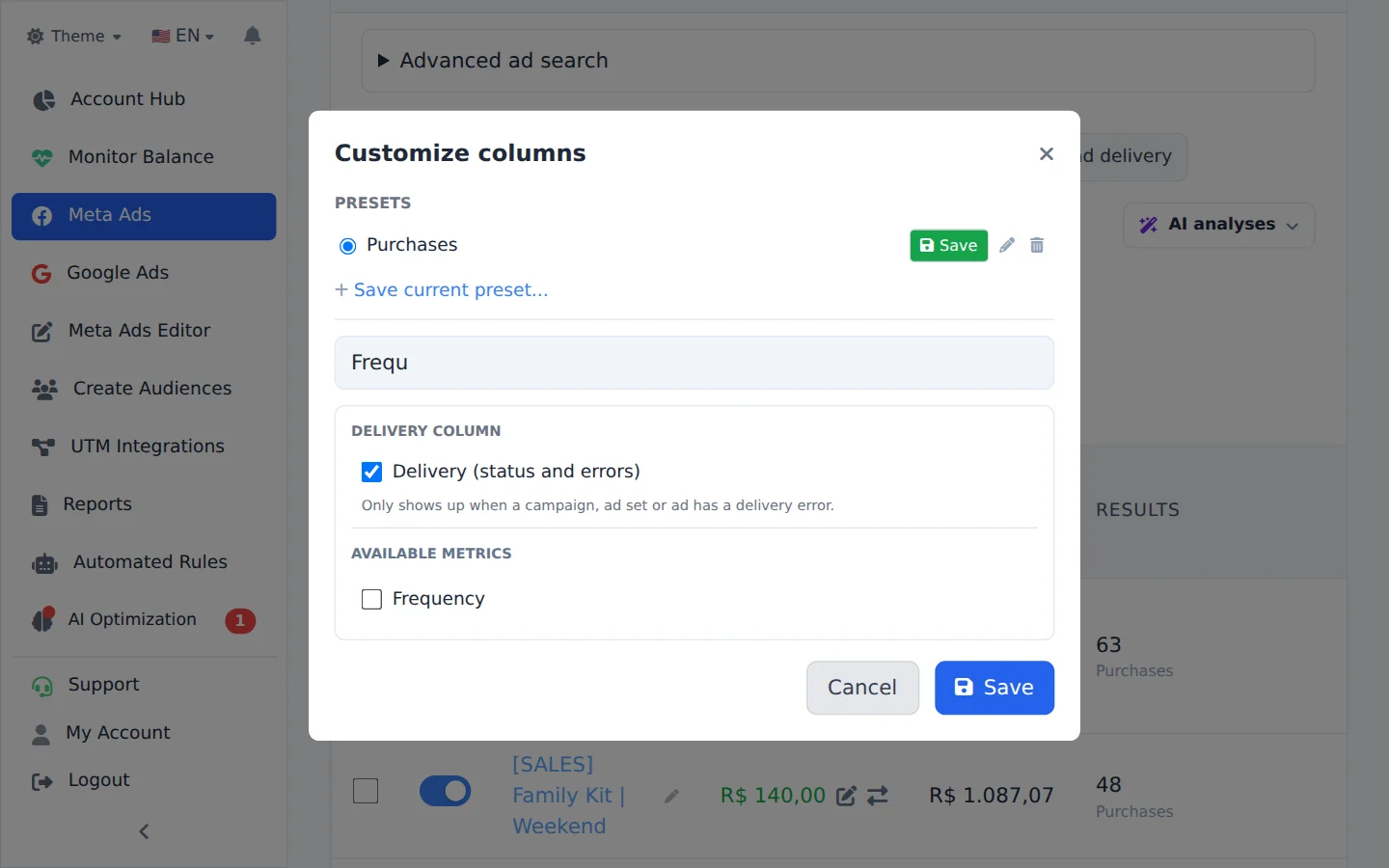
In this example, we add the Frequency column and a new card to the summary.
- 1
Open Customize columns
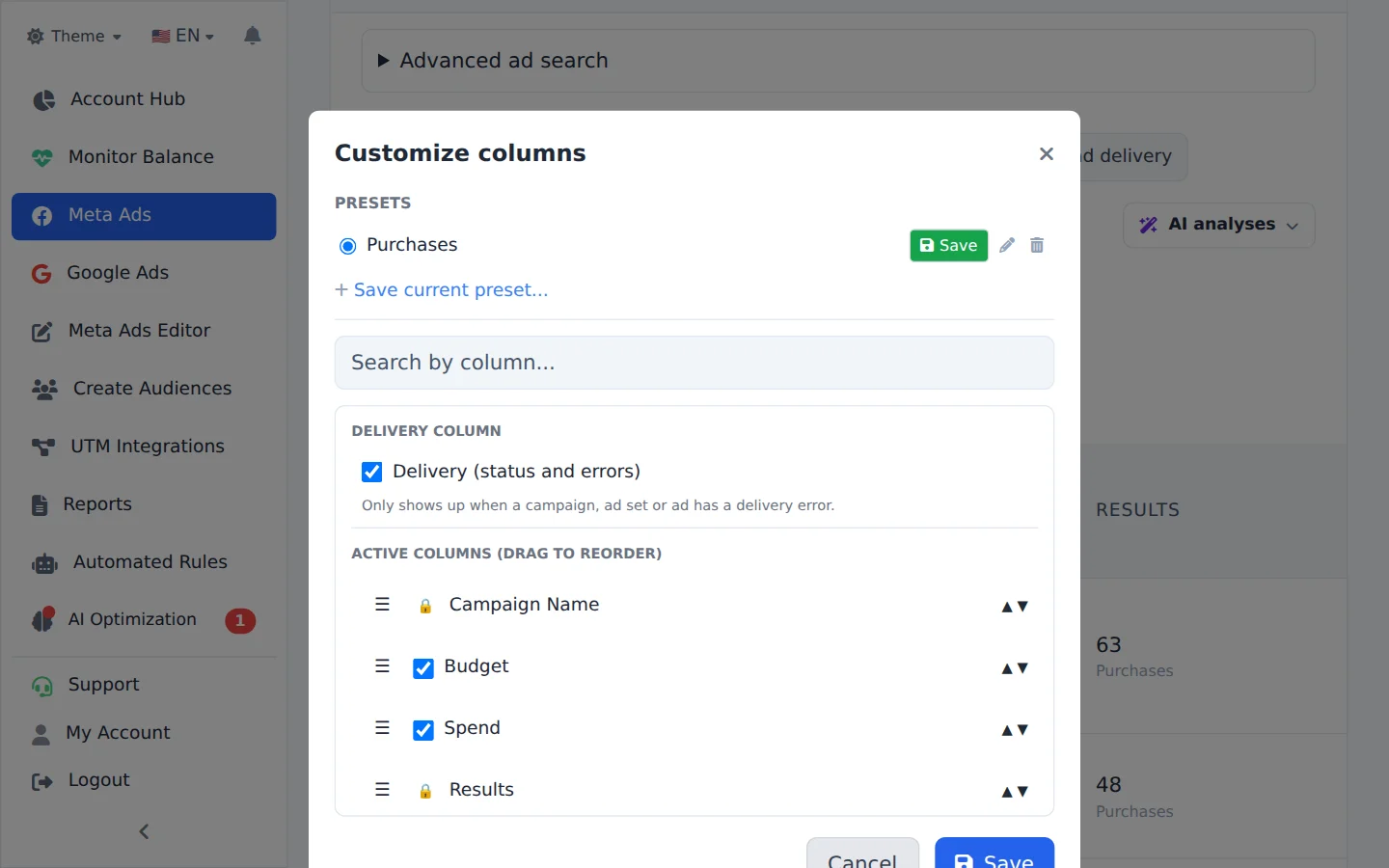
Click the gear next to Bulk Edit, above the table. A window opens with every available column.
- 2
Turn on the columns you want
Search the metric by name in the window search field and check its box. To change the order, drag the column by the handle on the left.
- 3
Save it as a preset
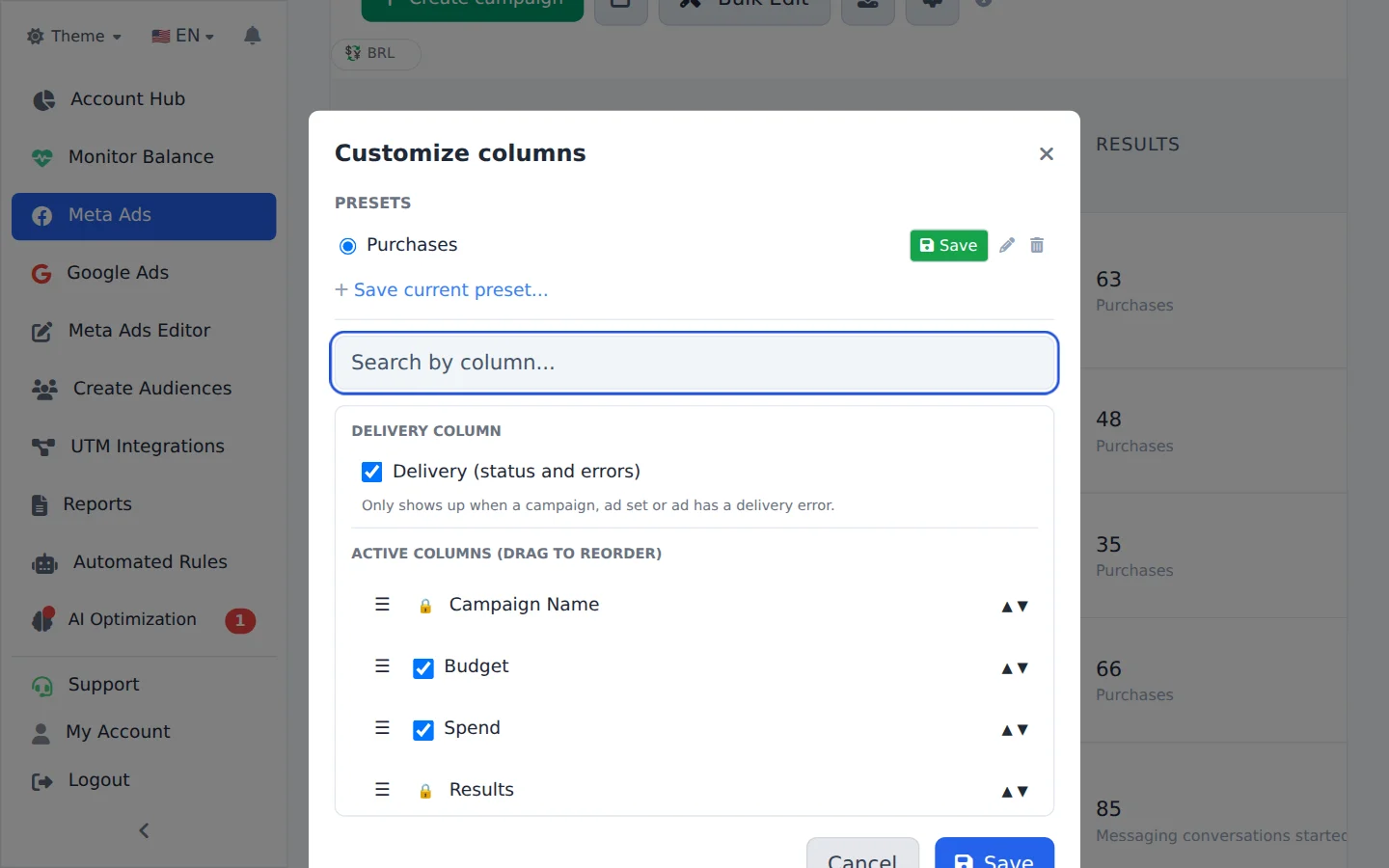
Save current preset keeps this set of columns under a name, so you can switch between profiles in one click. Click Save: the table now shows the new column.
- 4
Choose the summary cards
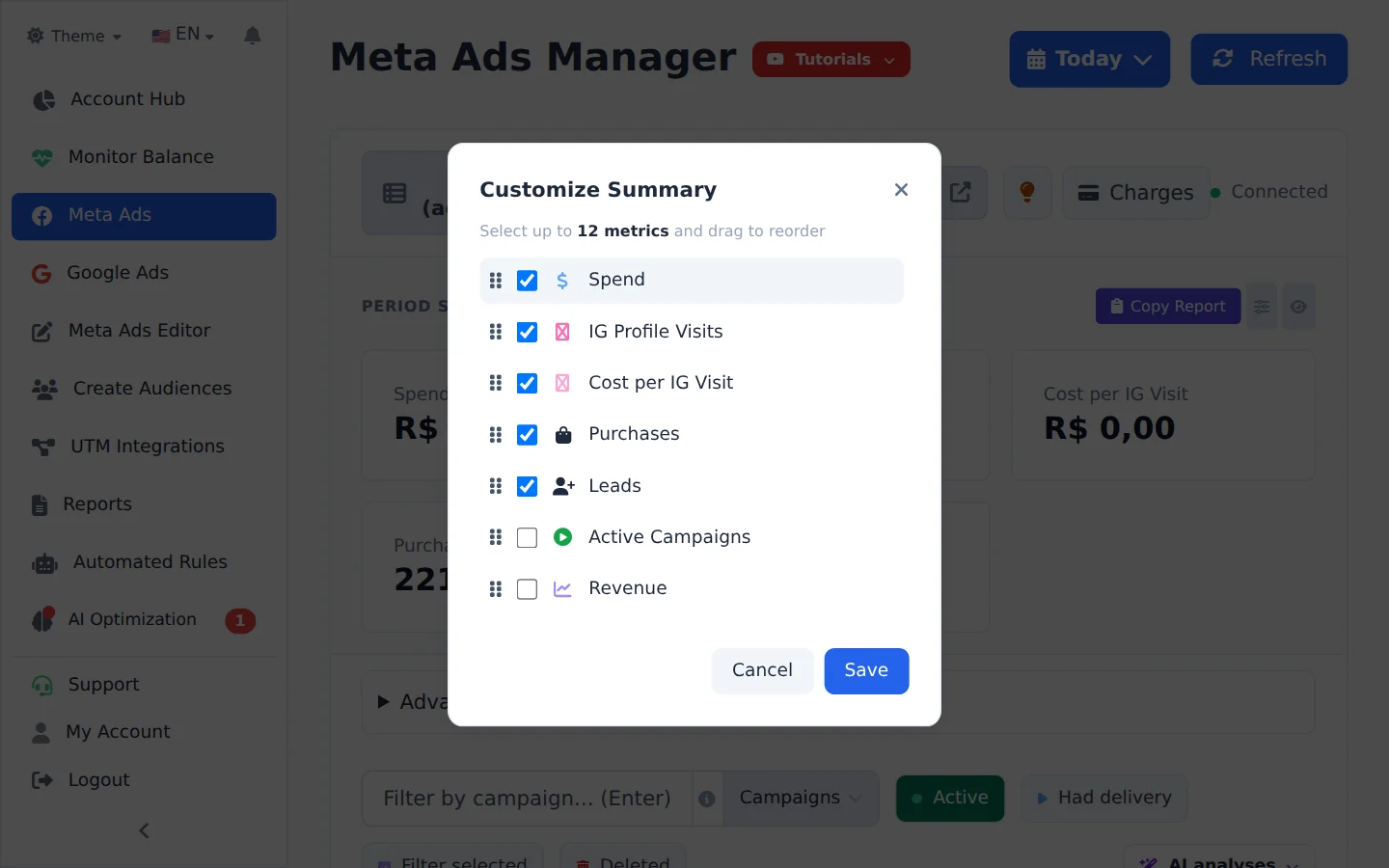
Click the list icon next to Copy Report. Check up to 12 metrics, drag them to sort and save. The eye next to it hides the whole summary.
Sort and resize from the table
Click any column title to sort the table by it, and drag the edge of the title to change its width.
How to tell it worked
- The new column shows in the table, in the position you chose.
- When you come back to the account another day, the columns are still the same.
- The Period Summary cards show the checked metrics, in the chosen order.
If something goes wrong
| Symptom | Likely cause | What to do |
|---|---|---|
| The columns changed in another account | The column choice applies per ad account | Save a preset and apply it in the other accounts |
| I cannot find the UTM sales columns | The account has no sales integration | Create the integration in UTM Integrations |
| The column shows a dash | Meta has no such data for the item in the period | Check the campaign objective and the chosen period |
Frequently asked questions
How do I customize table columns? I want to see ROAS, purchases and leads.
Click the Customize Columns gear button above the table and select the metrics you want in the Customize Columns window. In addition to the default columns (Budget, Investment, Clicks, CPC, CPM and CTR), there are extra columns such as Purchases, Cost per purchase, Conversion value, ROI, Leads, Cost per Lead, Messages received, Cost per Message Received, Adds to cart, Checkouts initiated, Impressions, Reach and Instagram profile visits. Use the Search by column field to find a column quickly, then click Save. The setup is saved per ad account, so each account can have different columns. You can also create Presets: build a set of columns and click Save current preset to switch between views in one click. In the table, you can sort by clicking any column title and resize a column by dragging the edge of its header. The UTM columns (UTM Purchases, UTM Revenue, Profit, Total Sales, Total Revenue and Total Profit) only appear if you have set up an integration on the UTM Integrations page.
What is the Period Summary and how do I choose which metrics appear on the cards?
The Period Summary is the panel of cards above the table. It shows the combined total of the metrics for everything listed in the current period. To choose the metrics, click the settings icon next to the panel. In the Customize Summary window, select up to 12 metrics and drag them to set the order. Options include Investment, Revenue, ROI, Purchases, Cost per Purchase, Leads, Cost per Lead, Clicks, CPC, CTR, Impressions, Messages Received, Instagram Profile Visits, Follower Growth, and more. Your choice is saved and will be the same next time you open the page. To hide the whole panel, click the eye button next to the settings icon.
What do the statuses in the Delivery column mean, such as Learning, Learning limited, or Has issues?
The Delivery column shows the actual delivery status of each item according to Meta, beyond simply active or paused. The main statuses are: Learning (the ad set is still in the algorithm's learning phase), Learning limited (Meta couldn't exit the learning phase, usually because of too few conversions), In review or Pre-approved (the ad is waiting for review), Disapproved (it violated a policy and isn't running), Has issues, Payment error (an outstanding charge on the account), and Paused by campaign or Paused by ad set (the item is active, but a level above it is paused). When there is a delivery error, a red label appears on the row. Hover over it to read Meta's full explanation. If you prefer, hide the column with the eye icon in the header and bring it back later under Customize columns.