
Audiences and UTM Integrations
Apply UTMs to your campaigns
Add the project UTM pattern to the Meta ads of several campaigns in one click, without touching what is already right.
Quick answer
In UTM Integrations, open the project under My projects and, in the Meta UTMs step, click Add to campaigns. Check the campaigns (up to 15 at a time) and click Apply UTMs. The summary shows how many ads were updated and how many already had the pattern.
Watch the walkthrough 0:26
Before you start
- The integration project must already exist, with the ad account linked to it.
- The list shows campaigns that are active or spent in the last 30 days.
- Ads with URL parameters different from the pattern get those parameters replaced. If you use UTMs from another tool, review this first.
Step by step
In this example, we apply a course project UTMs to the sales campaigns.
- 1
Open the project
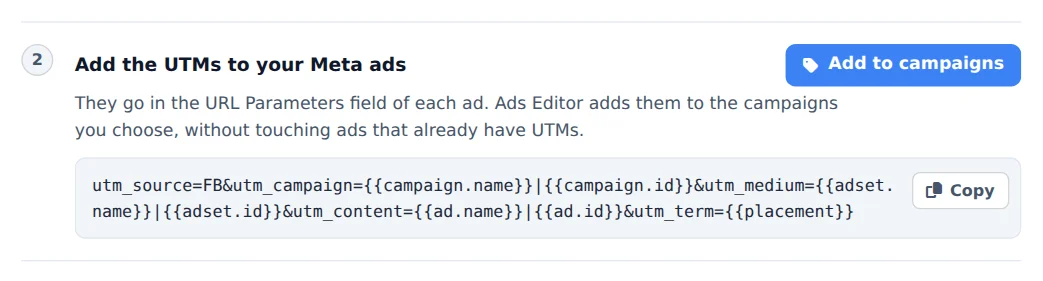
Under My projects, open the project Script, UTMs and webhook. The Meta UTMs step shows the pattern that goes in the URL parameters field of each ad.
- 2
Pick the campaigns
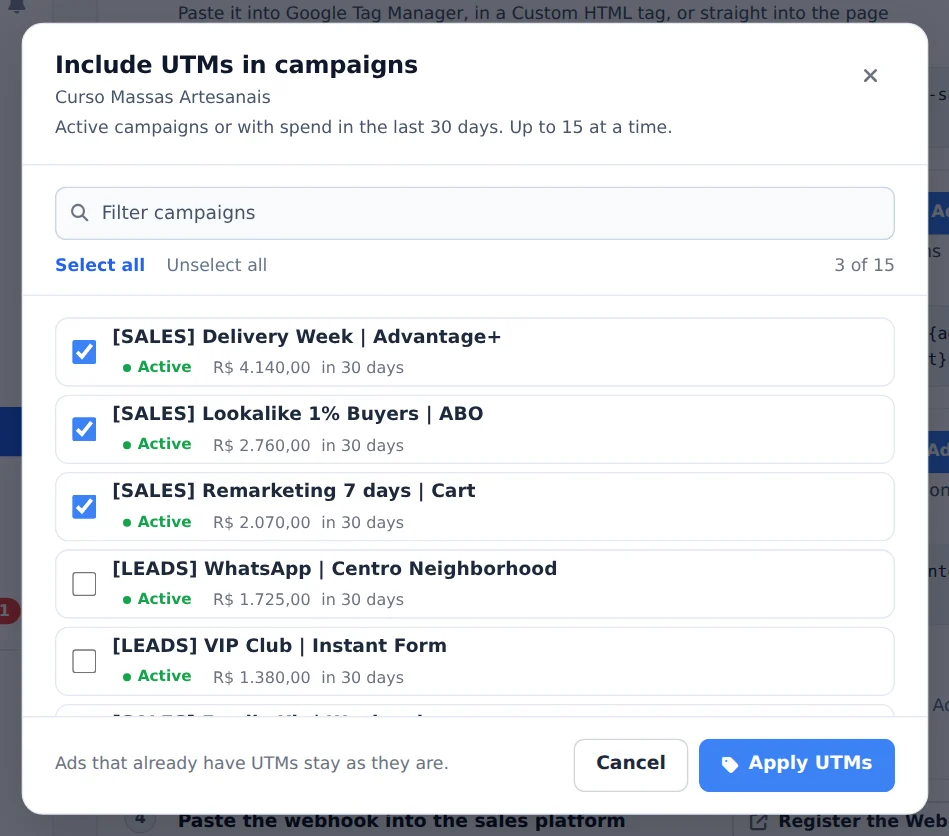
Click Add to campaigns. Search, use Select all or check them one by one, up to 15 campaigns at a time.
- 3
Apply and check
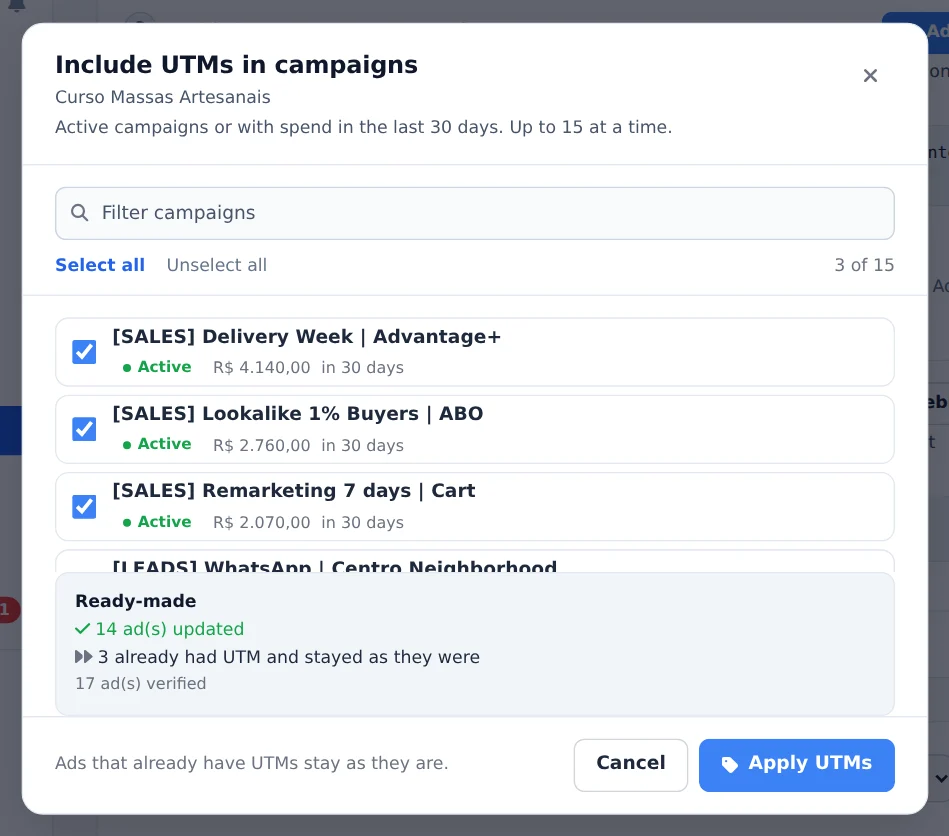
Click Apply UTMs. Ads Editor goes through the ads, skips the ones that already have the pattern and shows the summary with updated, skipped and errors.
New ads already go out with UTMs
Save the UTMs in a saved preset of the Meta Ads Editor: the next ads are uploaded with the pattern, with no need to apply it later.
How to tell it worked
- The summary shows the updated ads, with no error.
- In Meta Ads, the ad shows the pattern in the URL parameters field.
If something goes wrong
| Symptom | Likely cause | What to do |
|---|---|---|
| The campaign is not in the list | It is paused and did not spend in the last 30 days | Activate the campaign or paste the UTMs by hand in Bulk Edit, URL Parameters |
| I checked more than 15 campaigns | Meta limits how many changes it accepts at once | Apply in batches of up to 15 |
Frequently asked questions
How do I apply UTMs to my Meta campaigns automatically?
In your project, open the How to integrate panel, go to the UTMs for Meta Ads campaigns section and click the Include UTMs in campaigns button. The Apply UTMs modal opens, listing campaigns that are active or have spent in the last 30 days, with a search box and Select all and Deselect all buttons. Select the campaigns you want (up to 15 at a time, to stay within Meta's API limit) and click Apply UTMs. The system goes through the ads and applies the tracking pattern. Ads that already have the correct pattern are skipped automatically, and at the end a summary shows how many were updated, how many were skipped and any errors. Important: this replaces any different URL parameters the ad already had, so if you use UTMs from another tool, review them first.
My sale does not appear in the report (or in the manager). What do I check?
When an approved sale doesn't show up in the UTM Purchases and UTM Revenue columns, go through this checklist:
- The integration is active and the webhook is registered on your sales platform, with the approved purchase event selected (on Hotmart, version 2.0). If the webhook doesn't arrive, no sale is recorded.
- UTMs were applied to your Meta campaigns with the Include UTMs in campaigns button (or pasted manually). Ads without the UTM pattern don't attribute the sale to any campaign.
- The campaign and ad set names aren't too long. Many checkouts (Hotmart, Guru, Cakto) join the names into a single tracking field with a character limit, and the ad name, which comes last, can get cut off. If only the campaign and ad set appear and the ad is empty, this is why: rename the campaign and ad set to about 45 characters each, avoiding brackets, accents and terms like Advantage+ (you don't need to reapply the UTMs, since the pattern uses macros that Meta resolves at click time).
- The sale is actually approved and recent. Pending Pix (Brazil's instant payment method) and boleto (bank slip) payments only count once paid, and refunds or chargebacks are removed from the columns.
- The tracking script is installed on your sales page, if you use an intermediate page, so UTMs aren't lost before checkout.
- The report period covers the sale date.
If it still doesn't show up, contact support with your account and the approximate time of the sale.