
Google Ads
Google recommendations and optimization score
See Google's official recommendations translated, with what changes and how many points the score goes up, and apply or dismiss them without opening Google Ads.
Quick answer
In Google Ads, click the light bulb next to the account selector. The Google Ads recommendations window shows the account optimization score and each recommendation with what changes and the points it gains. Apply and Dismiss ask for confirmation. What Google does not allow applying from outside, such as creating Performance Max, opens the Ads Editor flow.
Watch the walkthrough 0:28
Before you start
- The recommendations come from Google and not all of them fit your strategy. Review before applying.
- The red number on the light bulb says how many recommendations the selected account has pending.
- Budget and bid are applied one at a time, with a notice of the new value.
Step by step
In this example, the clinic account has four pending recommendations.
- 1
Open the recommendations
Click the yellow light bulb, next to the account selector, at the top of Google Ads.
 1
1- 1Recommendations
- 2
Read the score and each recommendation
The account optimization score and how much it can go up sit at the top. Below, the recommendations grouped by campaign, each with what it proposes, the current and suggested values and the points it gains. Create in Ads Editor opens the Ads Editor flow when Google does not allow applying from outside.
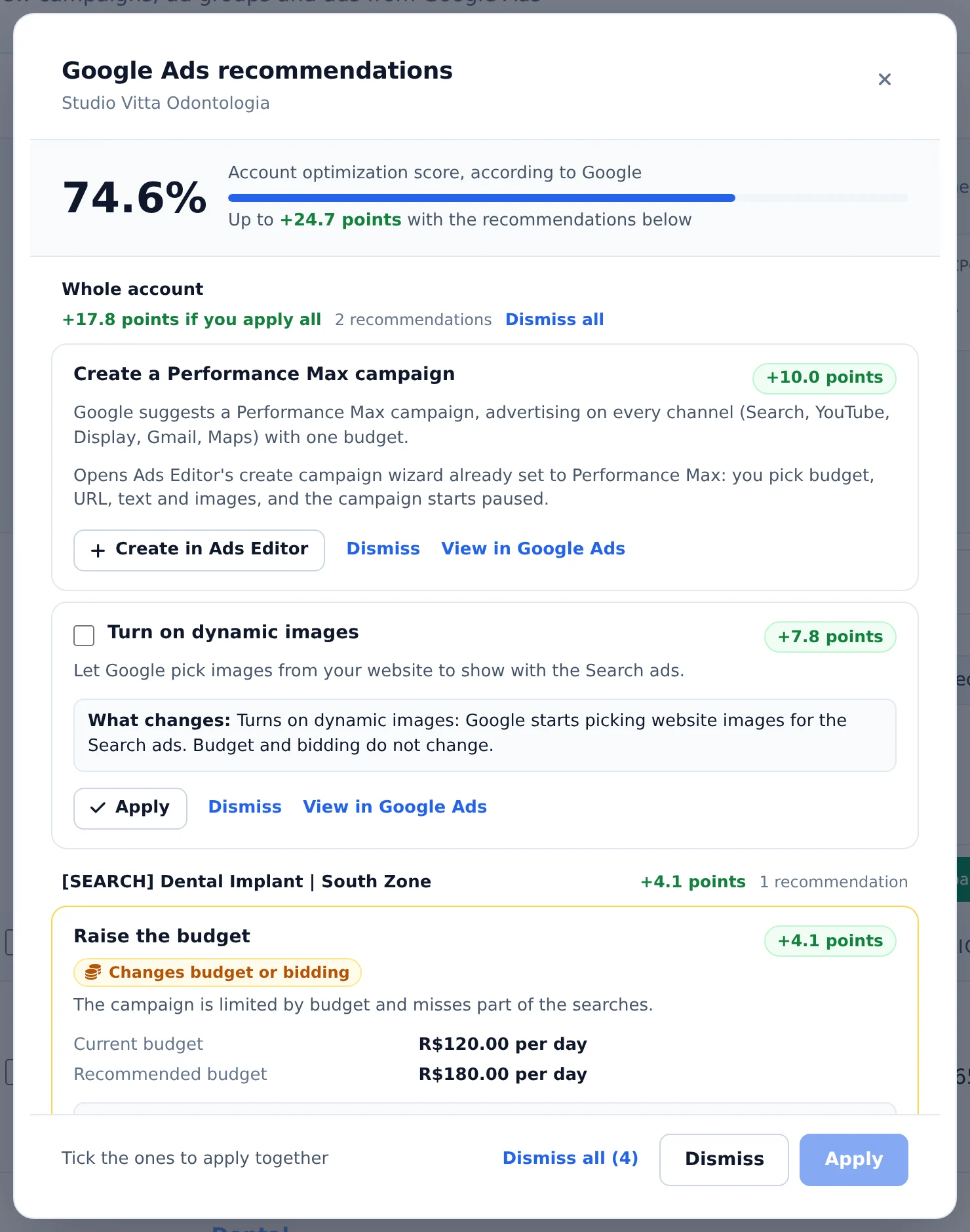 123
123- 1Optimization score
- 2Recommendation with the points gained
- 3Create in Ads Editor
- 3
Apply or dismiss
Apply shows what changes and asks for confirmation before saving to Google Ads. Dismiss removes the recommendation from the list. To clear them at once, use Dismiss all, or check several and use the buttons at the bottom.
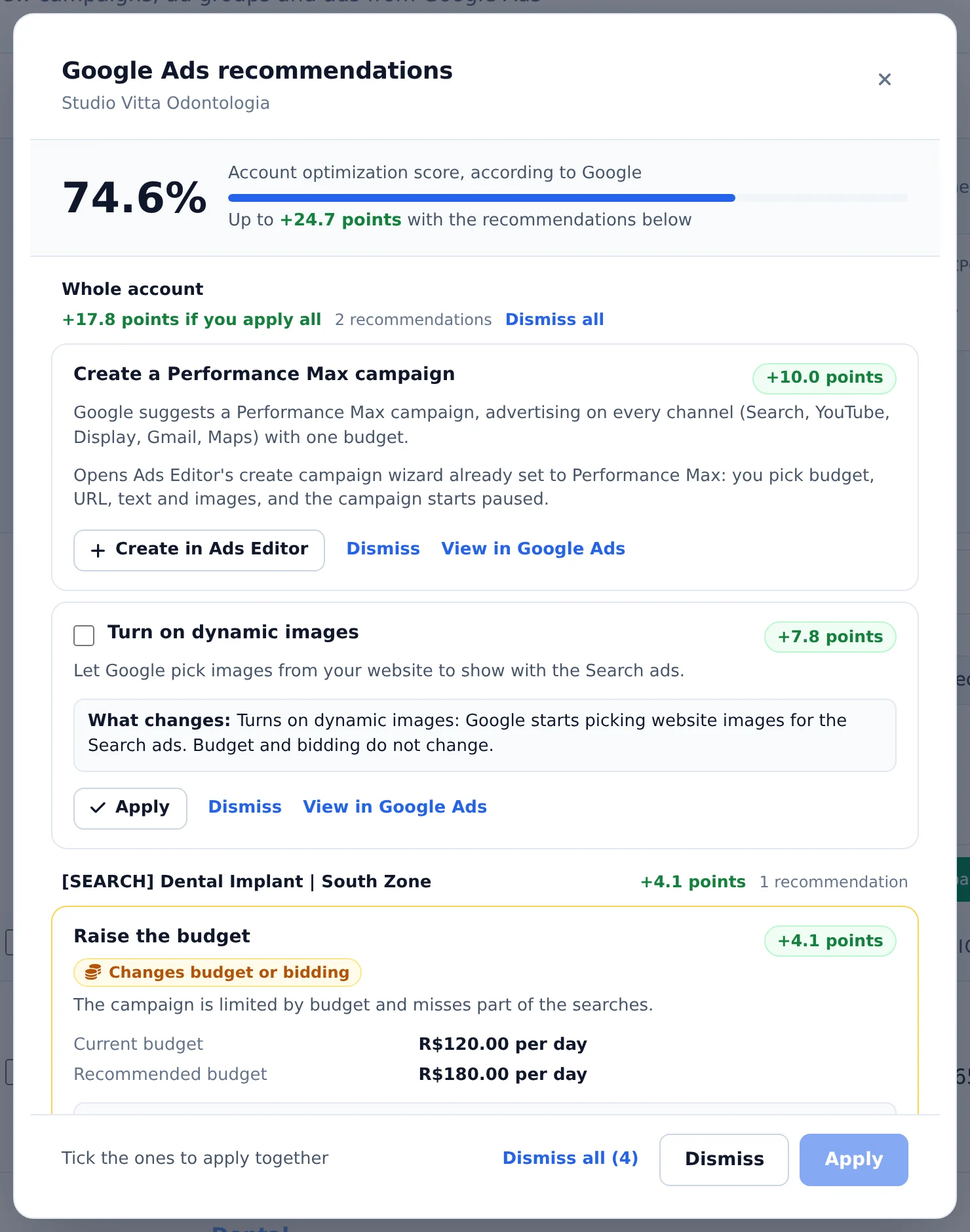 123
123- 1Apply
- 2Dismiss
- 3Dismiss all
Careful with budget and bid
Raising the budget or changing the bid because Google suggested it changes the client's account spend. Check the new value in the confirmation before applying.
How to tell it worked
- The applied or dismissed recommendation leaves the list right away.
- The score at the top is read again right after.
- The number on the light bulb goes down.
If something goes wrong
| Symptom | Likely cause | What to do |
|---|---|---|
| The recommendation came back to the list with an error | Google rejected the change | Read the reason on the card and adjust it in Ads Editor or Google Ads |
| "No access to this account recommendations" shows up | The connected Google login does not have enough access to the account | Check the access in Google Ads or reconnect in Connect Google |
| A recommendation has no Apply button | Google does not allow applying that type through the API | Use View in Google Ads or the Ads Editor flow shown on the card |
Frequently asked questions
What are the Google Ads Recommendations and Optimization Score that appear in the manager?
The yellow lightbulb button at the top of the manager opens the Google Ads Recommendations panel, with a red counter showing how many recommendations the selected account has pending. The panel shows the account's Optimization Score (green above 80%, yellow between 50% and 80%, red below that) and lists Google's official recommendations grouped by campaign, such as budget, keyword, extension, and smart bidding suggestions. It includes the estimated impact on impressions, clicks, and conversions when available. You can apply or dismiss each recommendation directly in Ads Editor, after confirming what changes and seeing the score gain for each one. The score can also appear as a card in the Period Summary and as a column in the table. Keep in mind that Google generates these recommendations, and not all of them fit your strategy, so review each one before applying.
Can I apply Google recommendations directly through Ads Editor?
Yes. The light bulb button at the top of Google Ads opens the Recommendations modal, with the account's Optimization Score at the top.
Each recommendation is explained in plain language: what it proposes, the current and suggested values (budget, keyword, CPA or ROAS, text), what changes if you apply it, Google's estimate and how many points your score goes up. When several recommendations are of the same type, Google reports a single gain for the whole group.
Apply and Dismiss ask for confirmation and show what will change, and you can dismiss several at once. Budget and bid recommendations are applied one at a time, with a warning. For recommendations Google doesn't let third-party tools apply directly (such as creating Performance Max campaigns or extensions), Ads Editor handles them through its own flow, for example Create campaign. Review each one before applying: the recommendations come from Google, and not all of them fit your strategy.