
Automation and AI
What AI did and why
Follow each optimization on its card and open the history to see every budget change, with the numbers and the reason.
Quick answer
In AI Optimization, each optimization has a card with the weekly spend and the adjustments. The switch pauses and resumes, the pencil edits and View History opens the decision timeline, with the budget before and after, the numbers at that moment and the reason.
Watch the walkthrough 0:22
Before you start
- Pausing the optimization stops the adjustments right away, but does not touch the campaigns: they keep the last budget.
- Deleting gives the budget back to you and does not pause anything on Meta.
Step by step
In this example, we check what AI did in the sales campaigns of a restaurant over the last few days.
- 1
Read the optimization card
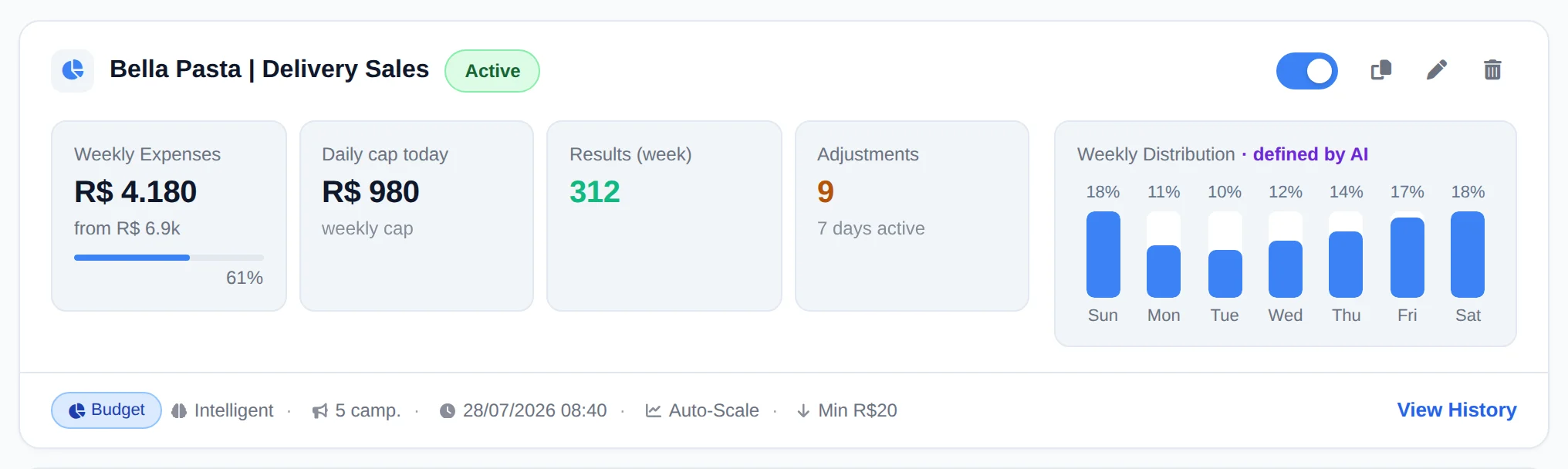
Each card shows the weekly spend against the limit, the daily ceiling, the results and how many adjustments AI made. The switch pauses and resumes, the pencil edits and View History opens the decisions.
 123
123- 1Active or paused
- 2Edit
- 3View History
- 2
See each decision and its reason
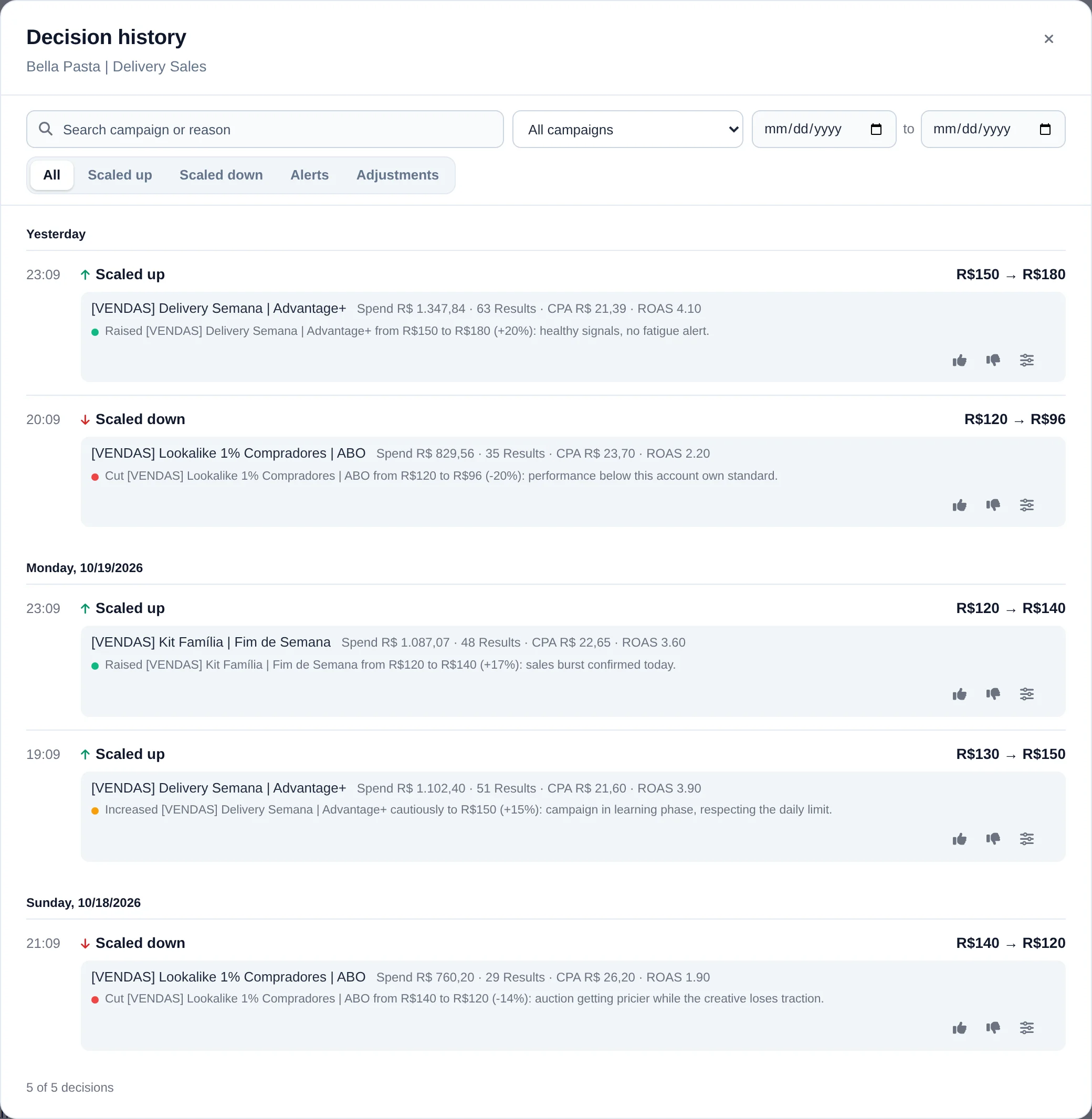
The history lists each decision: date, campaign, the action (scaled, cut, adjusted), the budget before and after and the numbers at that moment. Below each row comes the reason in plain text. Use the filters and search to find a campaign.
 1
1- 1AI decisions
Disagree with a decision?
Adjust the limits (minimum and maximum budget, max CPA) with the card pencil. AI starts deciding with the new rules on the next round.
How to tell it worked
- The card shows the number of adjustments in the week.
- Each budget change in the Meta Ads Manager has a row in the history.
If something goes wrong
| Symptom | Likely cause | What to do |
|---|---|---|
| The history is empty | The optimization is new and has not run yet | Wait for the first round. Decisions show up as soon as AI acts |
| AI raised less than I expected | It protects the Meta learning phase and splits large raises into steps | Read the row reason. To scale faster, switch the preset to Aggressive |
| An optimization shows as critical | Something needs your action, such as spend near the limit or falling performance | Open View History and read the reasons of the latest decisions |
Frequently asked questions
How do I see the history of what the AI has done and understand why it made each decision?
Each optimization card has a View history link that opens the full timeline of decisions. The table shows date and time, campaign, action (Scaled, Reduced, Ramp, Adjusted, Duplicated, Paused, or Alert), the budget before and after, and the spend, results, CPA, and ROAS at that moment. Below each row, the reason appears as colored labels for quick reading, such as TOP Sales, KILL no conversion, Weekly Cap, or Bad Today, followed by the full explanation. You can filter by type (All, Scaled, Reduced, Alerts, Adjustments), search by campaign name or reason, and filter by date. Click Show more to load older records.
How do I pause, resume, or delete an optimization? What happens to my campaigns?
Each card has a switch that toggles between Active and Paused. When you pause, the AI stops making adjustments immediately, but it doesn't touch your campaigns, which keep running at the last budget it set. To resume, just turn the switch back on. To delete, click the trash icon on the card and confirm in the Delete Scale window. Your campaigns go back to manual budgeting, which means they keep the last configured value and you control everything from the Manager again. Deleting the optimization doesn't pause or delete anything in Meta. If you only want to stop it temporarily, pause instead of deleting, so you keep the history and settings.
Why did the AI limit my budget growth instead of scaling faster?
The limit protects Meta's learning phase. Sudden or very frequent changes can restart learning and temporarily reduce performance.
For this reason, AI Optimization applies safeguards when raising budgets and may split a change into stages. The reason appears in history. Reductions meant to cut wasteful spend follow the safeguards configured for the optimization.
What do the healthy, attention, and critical counters at the top of the optimization list mean?
This is the health bar for your optimizations. Healthy ones are running well. Attention means something deserves a look, such as a spending limit getting close or performance dropping. Critical points to problems that need your action. No data means new optimizations that don't have enough history to be evaluated yet. When any optimization is in attention or critical, the See only with problems button appears and filters the list to show just those. The same health summary appears in the Overview panel, on the Healthy optimizations card. To investigate a problem optimization, open its View history and read the reasons for its latest decisions.
Why doesn't my account's actual spend exactly match the budget the AI set?
A configured budget is not guaranteed spend: Meta often delivers less than the daily budget, especially late in the afternoon and at night. When the AI notices that actual spend is behind the expected pace for the week, it applies a temporary boost (catch-up), setting the budget slightly above the proportional amount to pull delivery up, always respecting the weekly limit. That's why the daily budget can be higher than simply dividing the weekly budget by 7. To track it, use the optimization card: Week Spend shows how much has been spent against the limit, with a progress bar and how much is left. The refresh metrics button at the top of the page updates the numbers immediately.