
Account, team, and subscription
Track and manage your team
See what each person did in the ad accounts and look after access: edit, duplicate permissions, reset the password or remove.
Quick answer
In Team, the Action history tab shows who paused, changed a budget, uploaded a creative or duplicated, in which account and when. In the Members tab, Edit changes pages and accounts, and the ... menu has Duplicate permissions, Reset password and Remove from team.
Watch the walkthrough 0:22
Before you start
- The history brings together what the team did in Ads Editor, in Meta Ads Manager and in Google Ads. What is done straight in Google shows up 6 to 20 minutes later.
- Only the owner (or an Admin with the Team page) manages members.
Step by step
In this example, the agency owner checks what the two managers did and resets the password of one of them.
- 1
See what each one did
Open Team. The Action history tab lists actions by day, with the person, the account, what changed (before and after) and the item. Search by account, action or person and filter by period, person, platform or account.
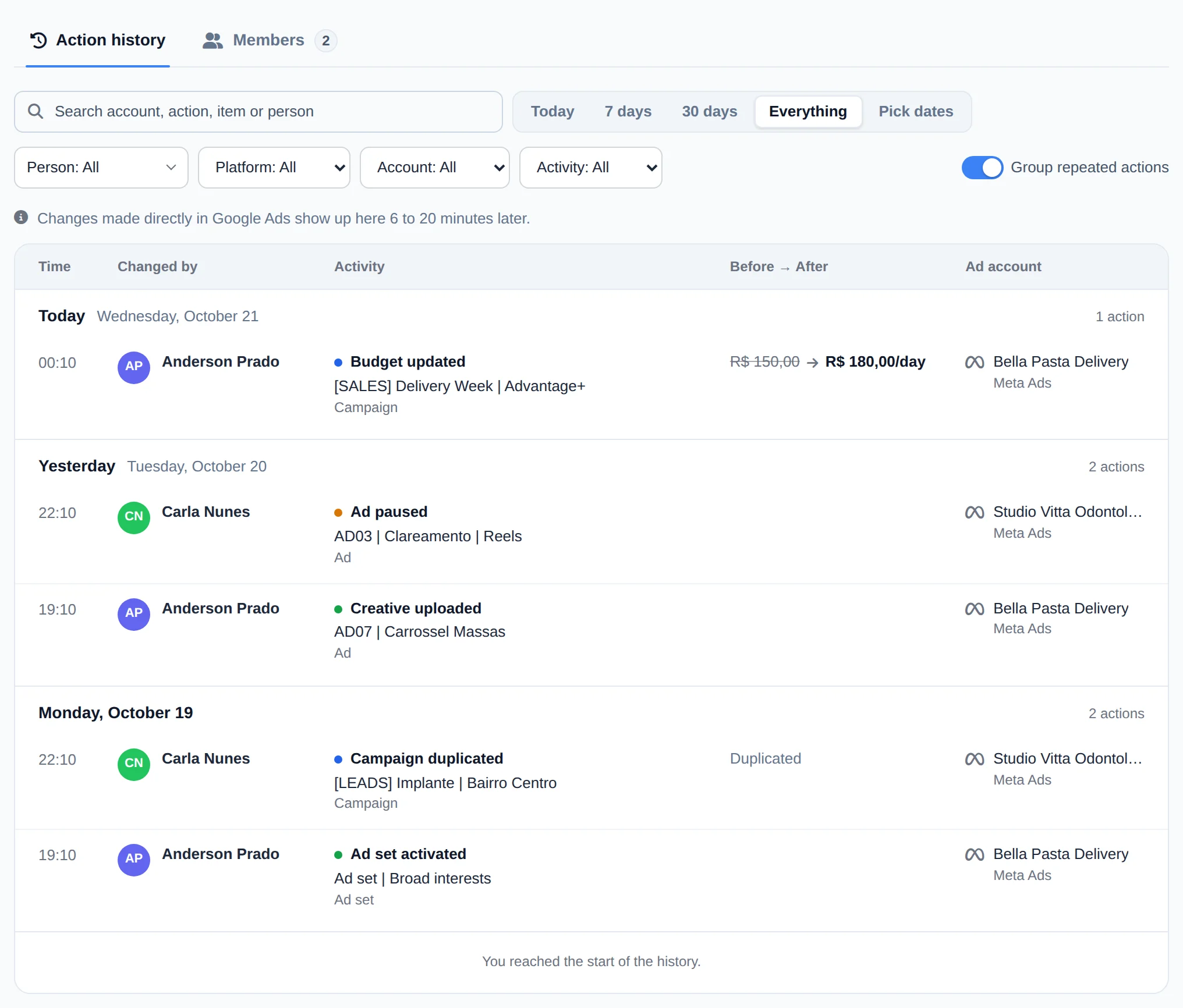 123
123- 1Search
- 2Person filter
- 3The actions
- 2
Look after access
In the Members tab, Edit changes the person pages and accounts. In the ... menu: Duplicate permissions creates another member with the same access, Reset password generates a new password for you to share, and Remove from team cuts access right away.
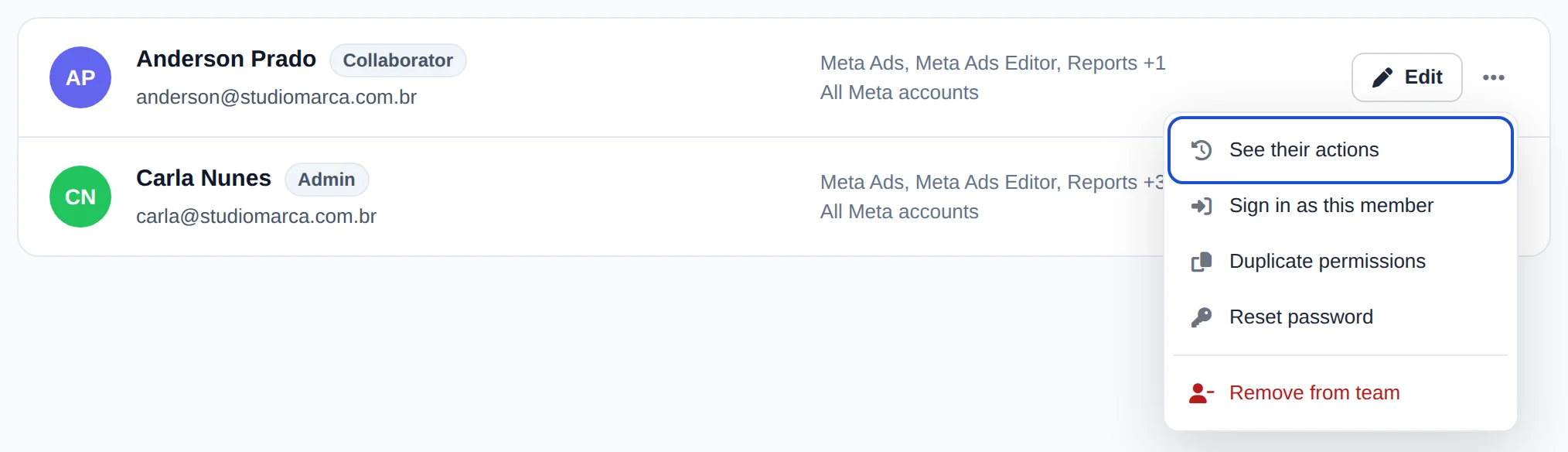 1234
1234- 1Edit
- 2Duplicate permissions
- 3Reset password
- 4Remove from team
A manager left the agency
Use Remove from team the same day. Access drops right away, and the history of what they did stays saved.
How to tell it worked
- Access changes apply on the next screen the member opens, with no need to log out.
- The seat counter under Members goes down when someone is removed.
If something goes wrong
| Symptom | Likely cause | What to do |
|---|---|---|
| The history is empty | No one on the team made changes in the chosen period | Choose Everything for the period or clear the filters |
| An action done in Google does not show up | Google takes a while to report changes | Wait 6 to 20 minutes and reload |
| The member cannot log in with the new password | They are typing the old password or the wrong email | Check the email under Members and share the password shown when resetting |
Frequently asked questions
Where do I see what each team member has done in the accounts?
In Team, below the list of members, is the Team History: what each person did, on which account, in the same format as Meta's activity history.
- Use Search account, action, item or person to filter, the Person selector to see a single member, and the start and end dates for the period.
- Group repeated actions combines the same action done several times into one row.
- The history also shows changes made directly in Meta and Google: anyone who made changes in the native interface appears there, even if they're not on your team (Google reports changes with a delay of a few minutes).
Who can see it: the account owner and the Admin member with the Team (manage members and view history) permission. It requires a paid plan; the history does not appear during the free trial.
How do I reset a team member's password?
On the Team page, open a member to edit and select Reset Password. There you set a new password for them (you can also generate one automatically). After saving, give the new password to the member to use at their next login. This is useful when someone forgets their password or when you want to change credentials for security reasons. Since members sign in with an email and password that you control, you reset it yourself, right in the dashboard, without needing support.
How do I remove a team member?
On the Team page, find the member in the list and use the remove option. The system asks you to confirm before it finishes. Once removed, the person immediately loses access to Ads Editor and no longer appears in your members list. Use this when someone leaves your operation or should no longer have access to the accounts. Because members never had their own Meta or Google credentials (they used your connection), removing a member doesn't affect your ad accounts in any way. It only ends their access.
How do I limit which Meta and Google accounts a member can see?
When adding or editing a member, use the Allowed Meta ad accounts and Allowed Google Ads accounts fields to select only the accounts that person should access. From then on, they see only those accounts across the entire system (manager, Account Center, reports and balance). If you leave the list empty, the member has access to all your accounts, with no restriction. This is how you give each team member only the clients they are responsible for and keep the other accounts out of reach.
How many team members can I have?
The member limit depends on your plan: check the current limits on the plans page. If you need more people than your plan includes, upgrade to a plan with more member seats. Keep in mind that AI credits are a single pool owned by the account owner and shared by the whole team, no matter how many members you have.
See current plans and pricing: https://adseditor.app/pricing