
Meta Ads Editor
Upload ads in bulk
Pick the account and campaigns, drop the creatives and Ads Editor creates one ad from each file in each ad set.
Quick answer
Open the Meta Ads Editor in the side menu, pick the account and one or more campaigns (hold Ctrl, or Cmd on a Mac, to check several). Active ad sets come checked. Pick the creatives, fill in text, headline and website only if you want to replace what already runs, and click Create Ads: each file becomes an ad in each ad set.
Watch the walkthrough 0:48
Before you start
- It takes JPG, PNG, GIF and WEBP images and MP4, MOV, AVI, MKV and WEBM videos, up to 50 files at a time. Large videos upload in parts.
- Blank text, headline, website, button, Page, Instagram and UTMs are inherited from the latest ad in each ad set.
- An ad set with no ads has nothing to inherit: fill in the Website URL if the objective requires it.
Step by step
In this example, we upload three dish photos from a delivery business into three campaigns.
- 1
Pick the account
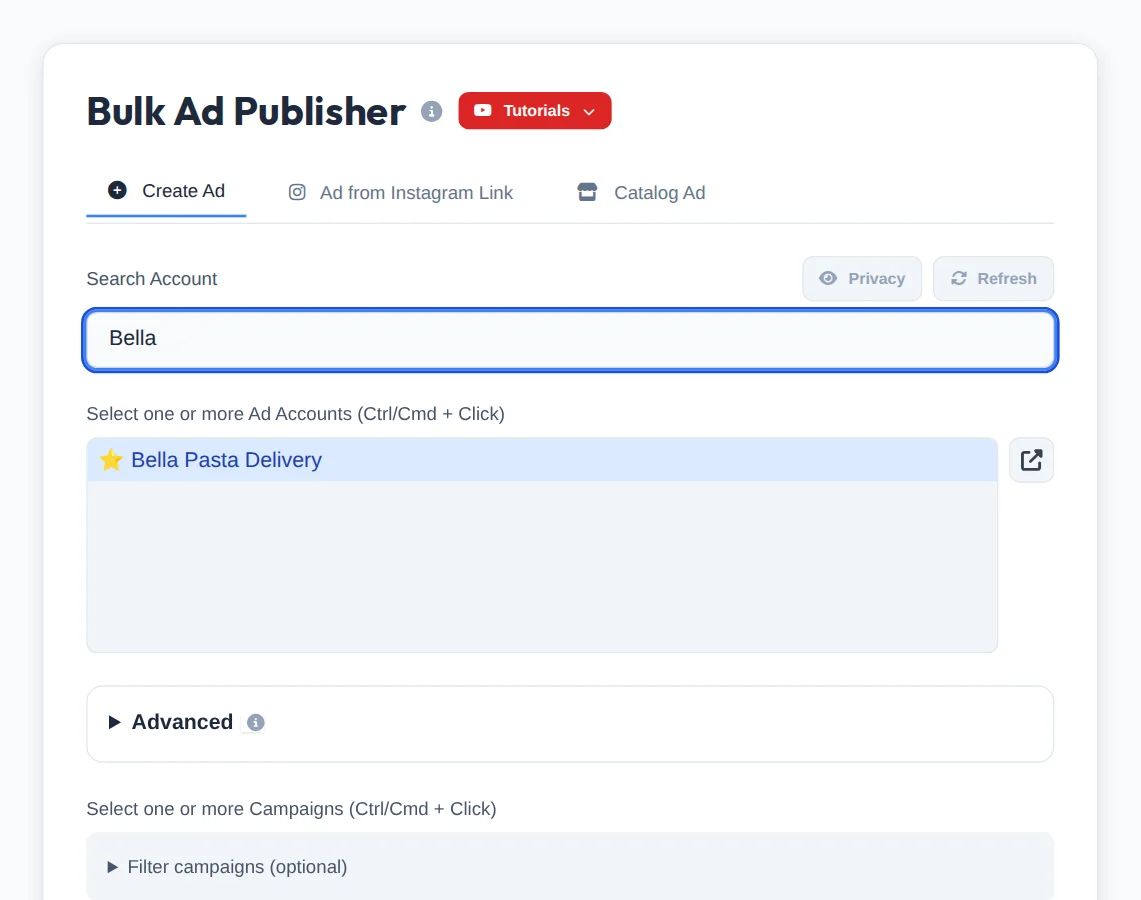
Open Meta Ads Editor in the menu. Search the ad account by name and click it.
- 2
Pick the campaigns
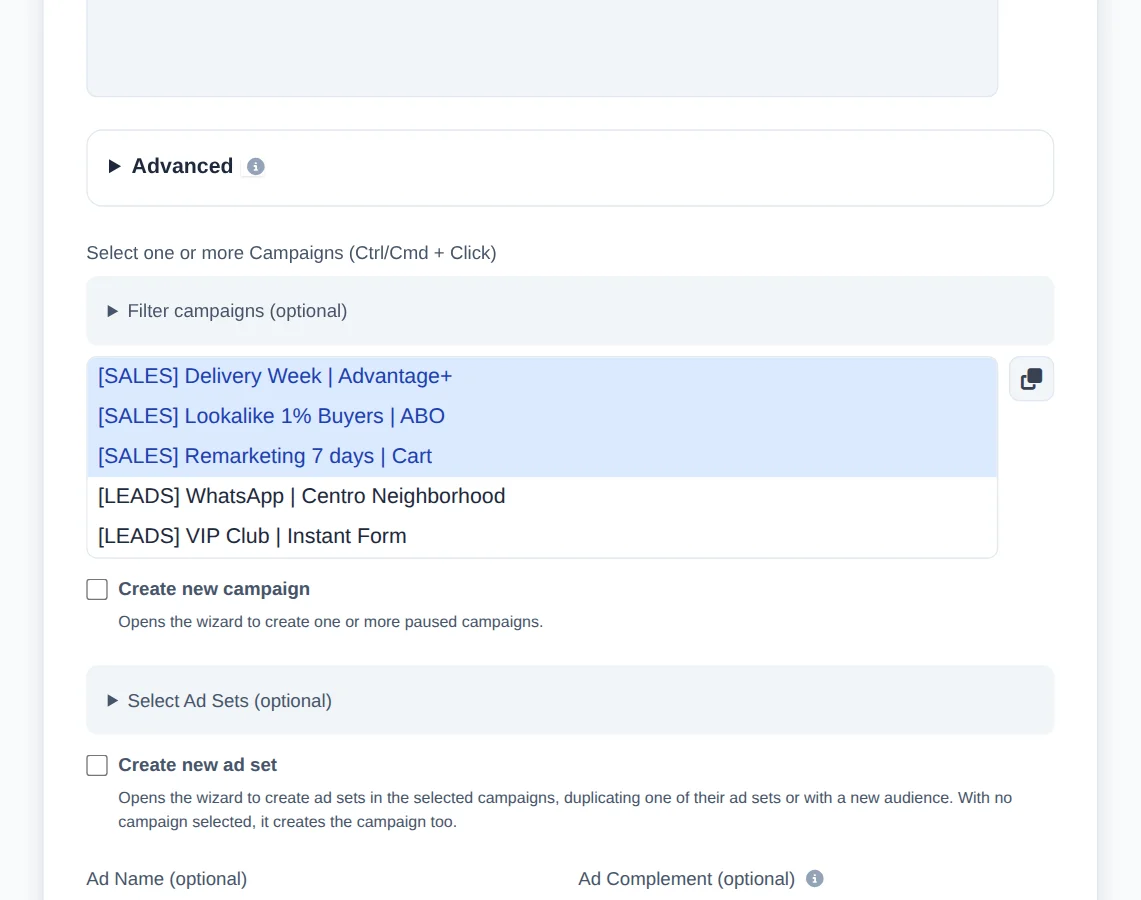
Check one or more campaigns, holding Ctrl (or Cmd on a Mac) to check several. By default an ad goes into each active ad set; Select Ad Sets lets you choose.
- 3
Name, link and copy
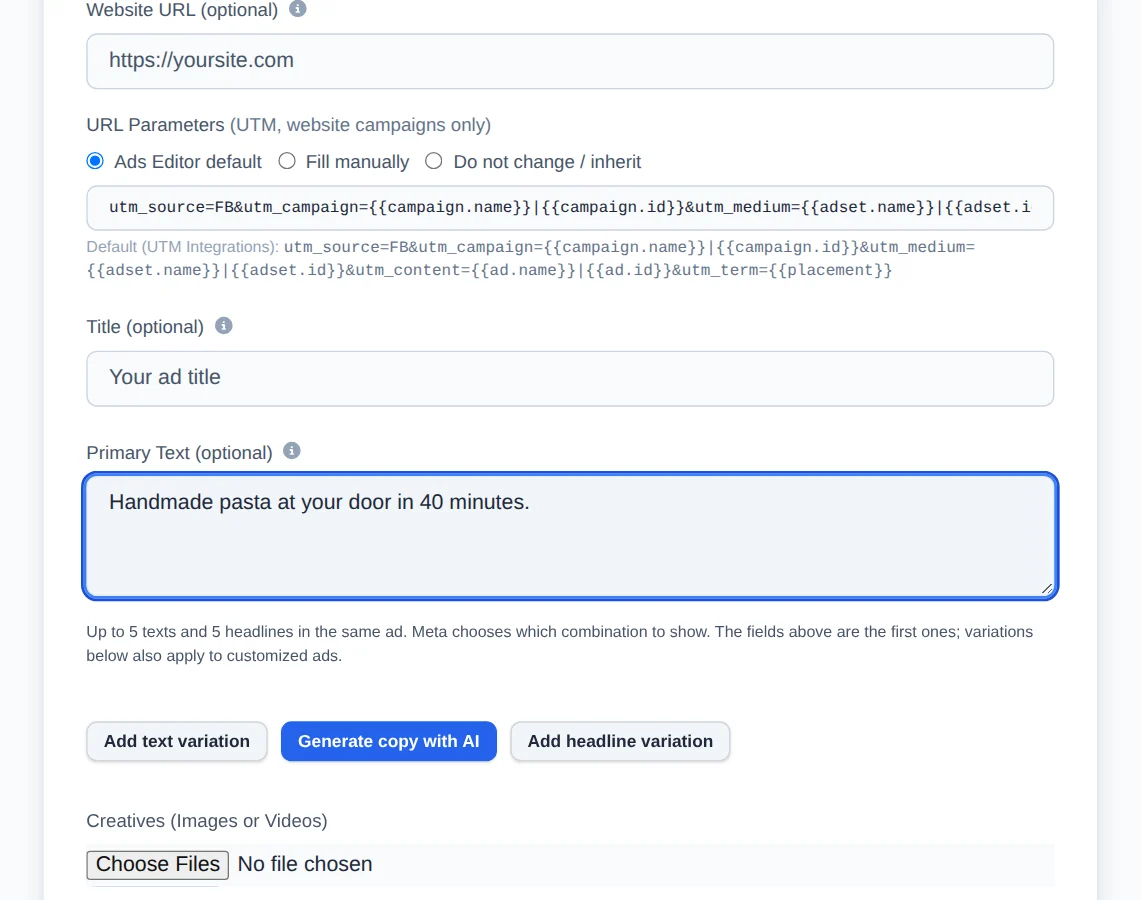
The name is automatic (AD01, AD02...), and you can add a suffix. Leave link, headline and text blank to inherit them from the ad set, or write new copy for all of them.
- 4
Drop the creatives
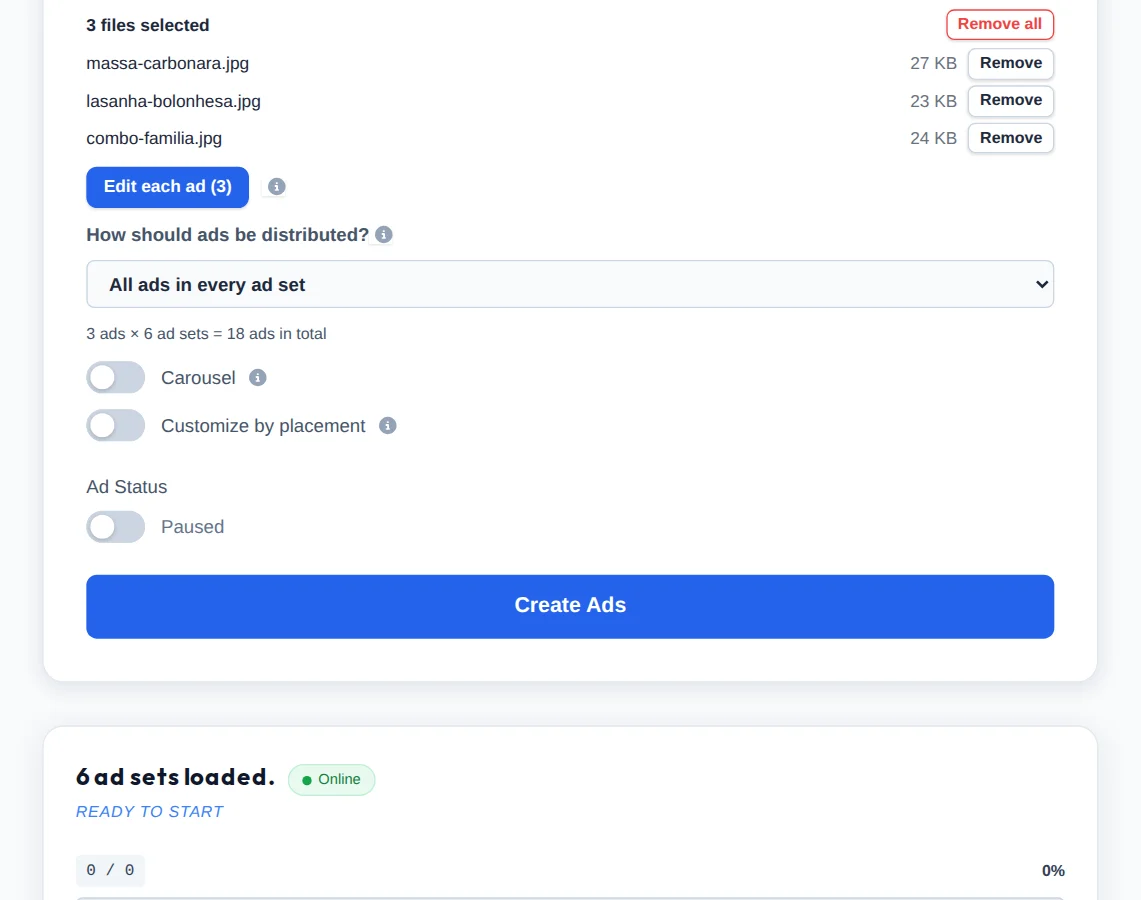
Under Creatives, pick the images or videos: each file becomes an ad. Carousel joins the files into one ad, and placement splits feed and stories. Status sets whether the ads start active or paused.
- 5
Create the ads
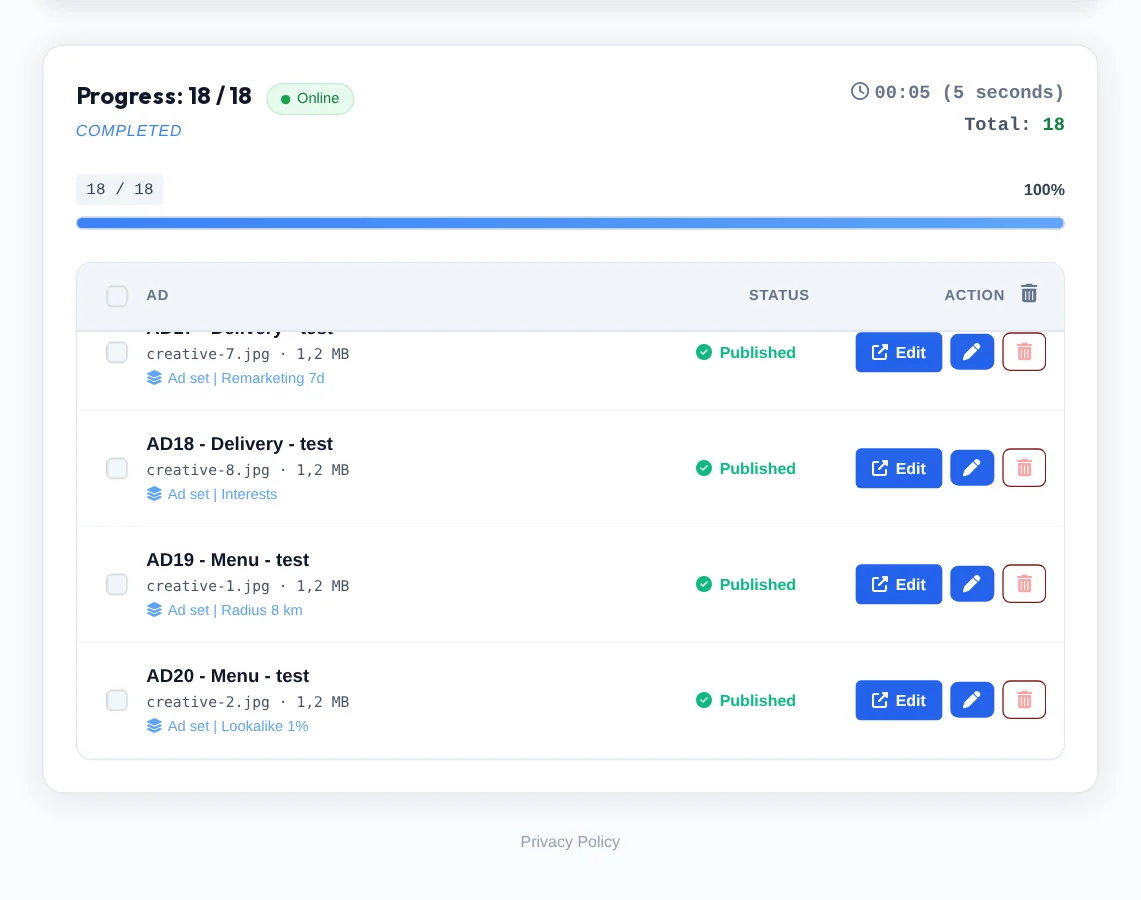
Click Create Ads. Progress shows each ad, and you can close the page: the upload keeps going on the server.
The multiplication math
Each creative goes to each checked ad set: 3 files in 6 ad sets make 18 ads. Check the total in the progress bar before big batches, and use One ad per ad set when each file has its own ad set.
How to tell it worked
- Progress ends with every ad done, each row showing the ad set it went into.
- In Meta Ads, on the Ads tab, the new ads show with the name AD followed by the number.
If something goes wrong
| Symptom | Likely cause | What to do |
|---|---|---|
| An ad failed for lack of a link | The ad set had no ad to inherit the website from | Fill in Website URL and upload again to that ad set |
| More ads came out than expected | Each file went to each checked ad set | Use Select Ad Sets or One ad per ad set next time |
| The video takes a while to finish | Meta is still processing the video | Wait: progress shows the upload and the creation in real time |
Frequently asked questions
How do I publish ads in bulk in Meta Ads Editor?
To publish ads in bulk:
- Open Meta Ads Editor in the side menu.
- Select the ad account and the campaigns that should receive the ads. You can select several campaigns at once, even with different objectives (Ctrl/Cmd + click).
- Under Select Ad Sets, active ad sets are already selected. Select or clear any you want.
- Upload the creatives. You can mix images and videos in the same batch.
- Choose the format: each creative becomes a single ad, or turn on Carousel to group 2 to 10 files into one ad, in the order you selected them.
- Fill in Primary Text, Headline, and Website URL. If you leave them blank, the Editor copies them from the latest ad in each ad set.
- Select Active if you want the ad to start running right away, then click Create Ad.
With Publication Queue Mode you don't have to wait for the upload to finish. The batch enters the queue in seconds, and you can select other campaigns and start the next batch.
To change the ad's Page or Instagram account, set it under Page and Instagram. If you leave it untouched, the Editor keeps the Page and Instagram account from the previous ad.
How do I publish multiple ads at once in Ads Editor?
Open Meta Ads Editor in the side menu to get to the Bulk Publish Ads page. On the Create Ad tab, use the Search Account field to filter and select one or more Ad Accounts (hold Ctrl on Windows or Cmd on Mac to select several), then select one or more Campaigns. If you want, open Select Ad Sets (optional) to choose specific ad sets: by default, active ad sets are already selected. Fill in the optional fields (Ad Name, Ad Complement, Website URL, Headline, Primary Text), choose the files under Creatives (Images or Videos), and set the Ad Status (Paused or Active). Click Create Ads and follow the progress in the list below: each ad appears with a status of Queued, Processing, Published, or Error. Each media file becomes one ad in every selected ad set.
What happens when I select multiple accounts and multiple campaigns at the same time?
The editor creates ads for every selected combination: each ad set in each campaign, in each account, receives all the creatives you upload (each media file becomes one ad in every ad set). For example, 3 videos published to 2 ad sets generate 6 ads in total. To select several options, hold Ctrl (Windows) or Cmd (Mac) while clicking. In the results list, each row shows the name of the ad set where the ad was created, so you can see exactly where each one landed. Check the planned total shown in the progress bar before confirming large volumes.
Do I need to fill in the URL, headline and text when bulk uploading ads? What does the system copy from existing ads?
No. All of these fields are optional. When you leave them blank, the editor inherits the settings from the ads already in the ad set: main text, headline, description, destination URL, call-to-action button, Facebook Page, Instagram profile, UTM parameters and the website event tracking pixel. This works even with ads in the Advantage+ format, which store the link in a different structure. If you fill in the Site URL, it takes priority and replaces the inherited link in all the ads you create. Advantage+ automatic enhancements (image enhancements, text enhancements, etc.) are turned off by default on new ads, so your creative goes out exactly as you uploaded it. Important: inheritance only works if the ad set already has at least one ad. In completely empty ad sets, enter the URL manually if your campaign objective requires it.
Which file formats does the editor accept, and are there size or quantity limits?
Images in JPG, JPEG, PNG, GIF and WEBP formats and videos in MP4, MOV, AVI, MKV and WEBM are supported. You can upload up to 50 files at a time. Large videos are supported too, including files over 100MB: the system automatically uses optimized chunked upload and Meta's advanced upload, with no size-limit error. Very large videos can take Meta a few minutes to process, and the screen shows the progress of the media upload and ad creation in real time.
See also
Saved presets in the Meta Ads EditorAd names in the editorEdit each ad before uploadingCarousel ad