
Automation and AI
Create an AI optimization
Let AI spread the budget across campaigns, scale the ones that sell and slow the ones that do not pay back, within the limits you set.
Quick answer
Open AI Optimization and click New optimization. Pick the platform, the type, the account and the campaigns (or the whole account), set the weekly budget and the max CPA, turn on Auto-scale by performance and click Create optimization.
Watch the walkthrough 0:45
Before you start
- AI Optimization is part of the plans with AI. Check it in My Subscription.
- Fill in the max CPA (how much you can pay per sale or lead without a loss): it is the yardstick for every decision.
- AI respects the limits you set and records each decision with its reason.
Step by step
In this example, we create the optimization for the sales campaigns of a restaurant.
- 1
Open AI Optimization
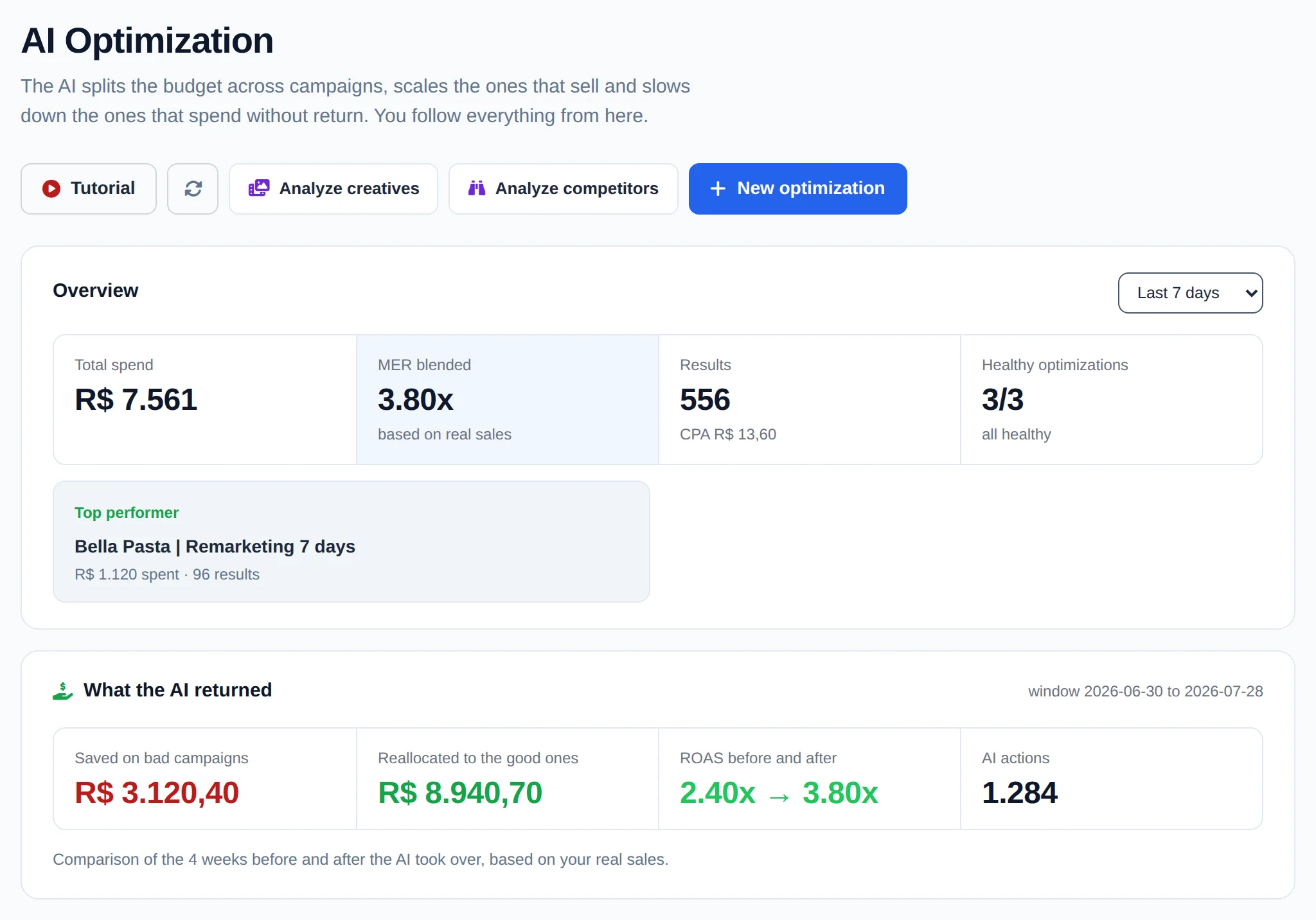
In the side menu, click AI Optimization. At the top are the Overview of every optimization and the What the AI returned panel, with what AI saved and reallocated. Click New optimization.
 123
123- 1New optimization
- 2Overview
- 3What the AI returned
- 2
Pick the platform
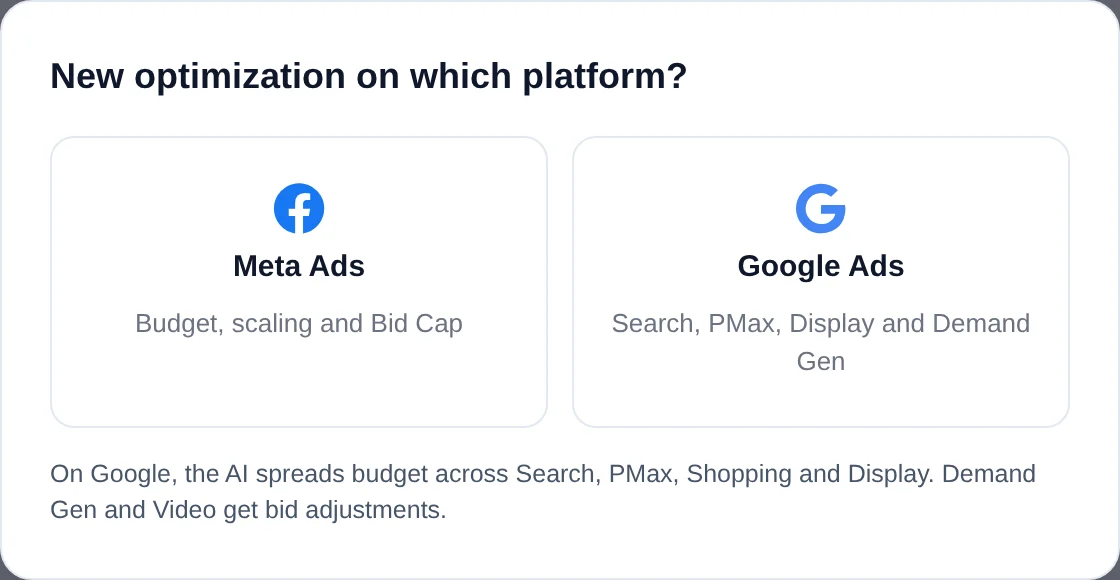
Choose Meta Ads (budget, scaling and Bid Cap) or Google Ads (Search, PMax, Display and Demand Gen).
 12
12- 1Meta Ads
- 2Google Ads
- 3
Type, name and account
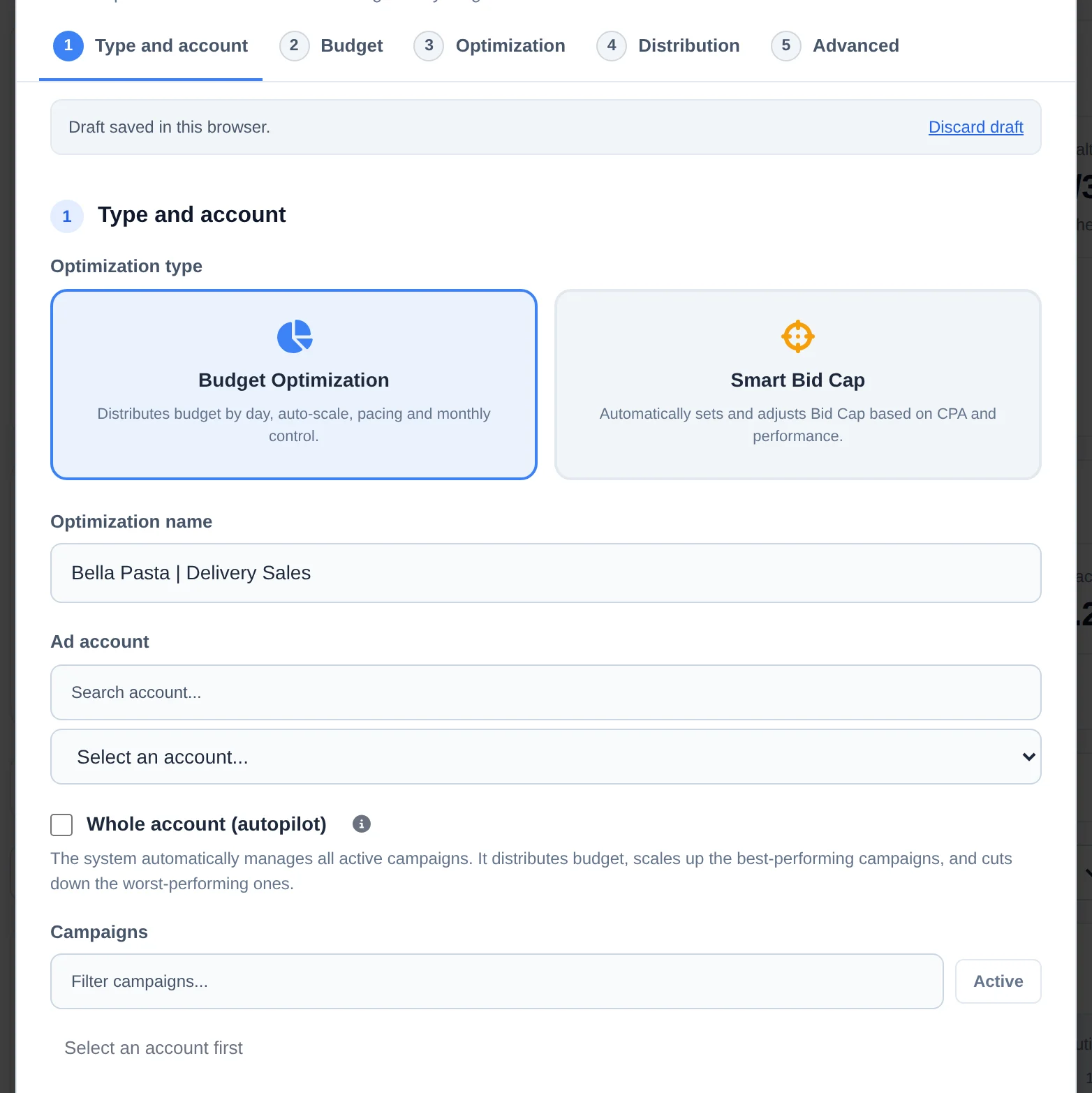
Under Type and account, choose Budget Optimization (or Smart Bid Cap), give it a name and pick the Ad account. Then check the campaigns, or turn on Whole account (autopilot) for AI to handle every active one.
 123
123- 1Optimization type
- 2Name
- 3Ad account
- 4
Set the budget and the max CPA
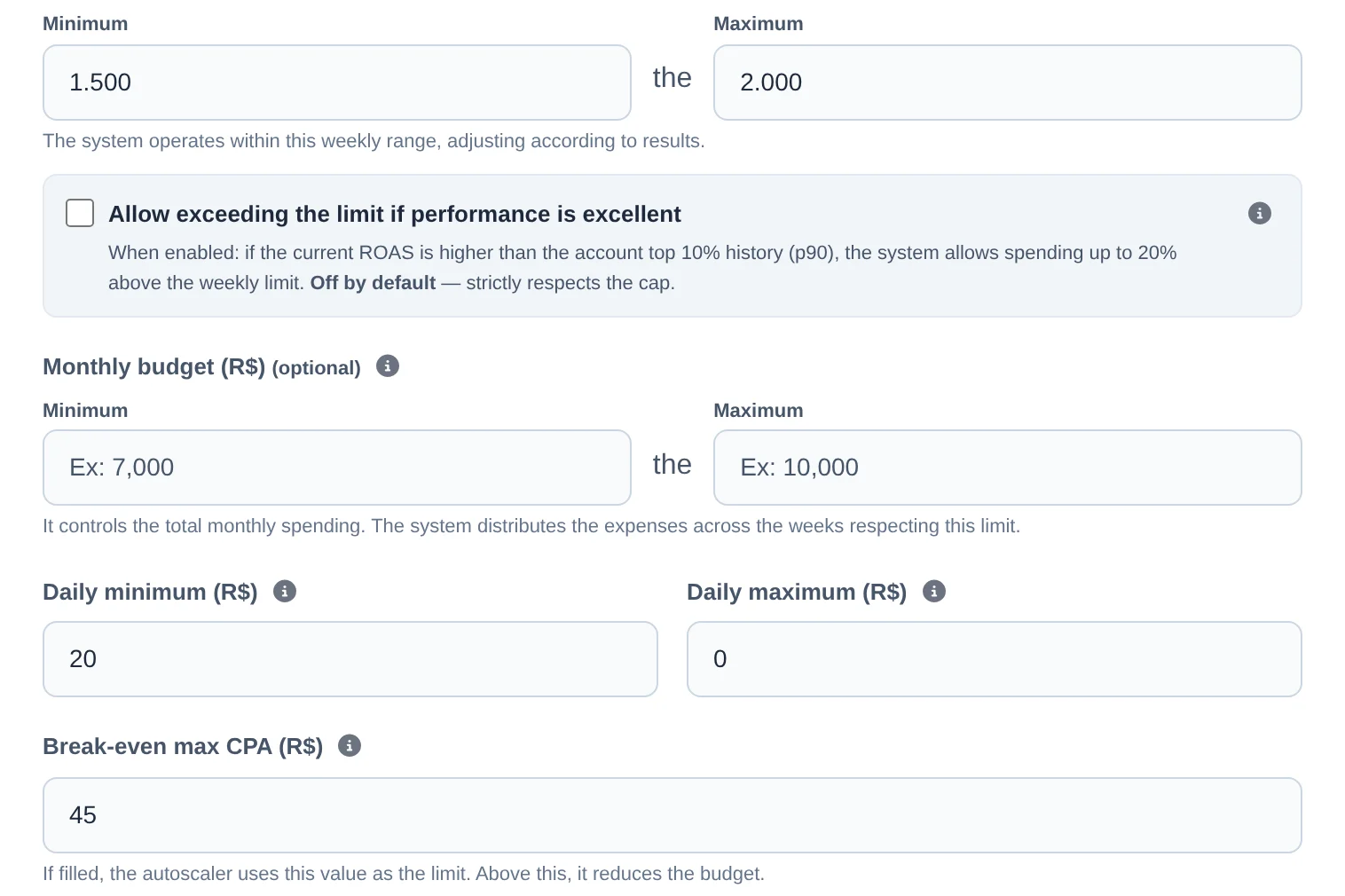
Under Budget, enter the weekly minimum and maximum: the minimum is the guaranteed floor and the maximum is the ceiling. Under Break-even max CPA, enter the max cost per sale or lead. When CPA goes above it, AI cuts the budget on its own.
 123
123- 1Weekly minimum
- 2Weekly maximum
- 3Max CPA
- 5
Turn on scaling
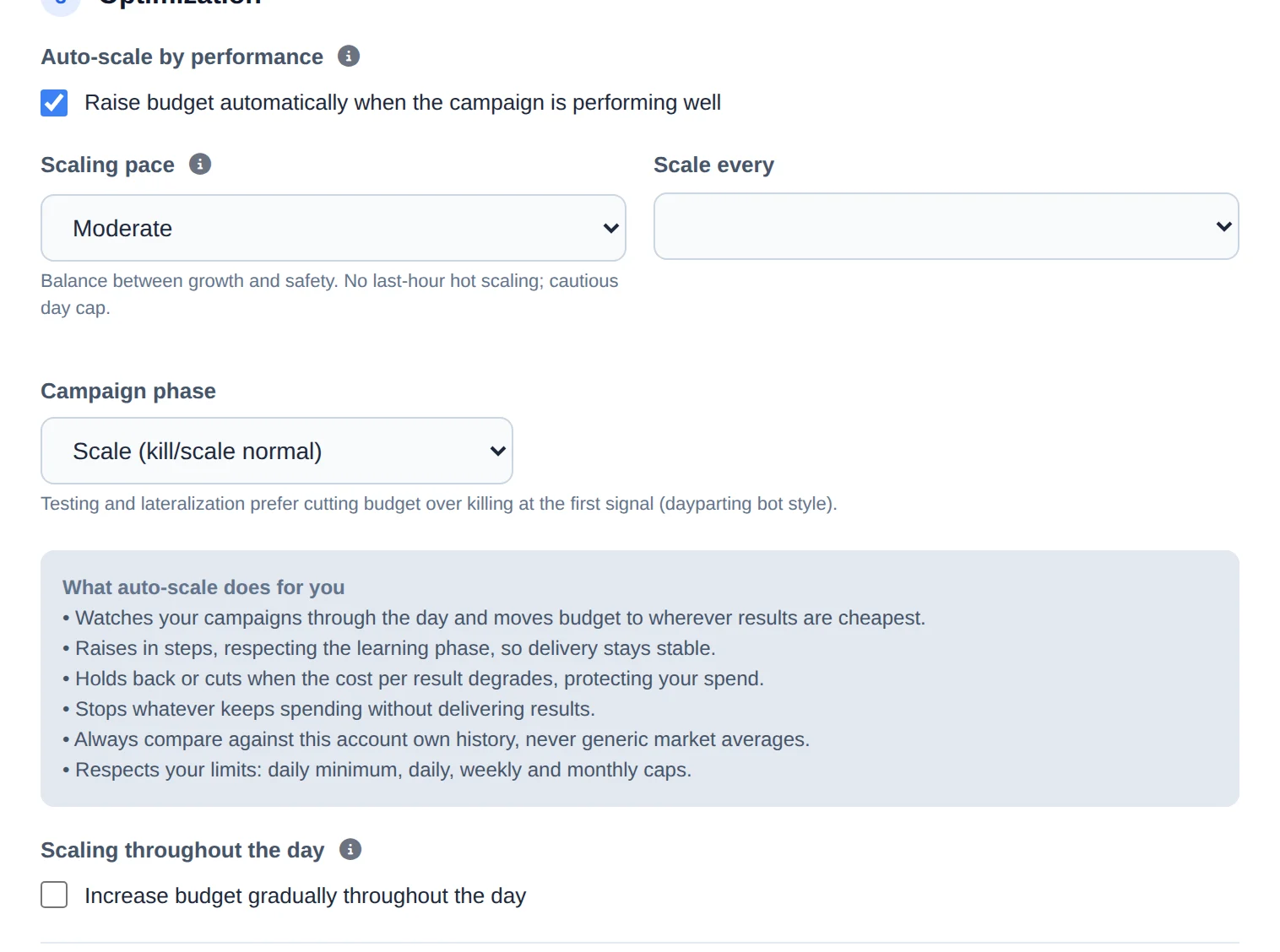
Under Optimization, turn on Auto-scale by performance and pick the Scaling pace (Conservative, Moderate or Aggressive). Scaling throughout the day raises the budget little by little during the day. Weekly distribution and advanced options come next, already filled in.
 123
123- 1Auto-scale by performance
- 2Scaling pace
- 3Scaling throughout the day
- 6
Create the optimization
Review it and click Create optimization. It shows up in the list as Active and starts checking the campaigns on the next round.
 1
1- 1Create optimization
Want to start from a template?
With no optimization created yet, the page offers templates (E-commerce Sales, Lead Gen WhatsApp and Whole Account Autopilot) that open the form already filled in.
How to tell it worked
- The optimization shows up in the list with the switch on and the Active label.
- Each change AI makes shows up in View History, with the reason. See the What AI did and why guide.
If something goes wrong
| Symptom | Likely cause | What to do |
|---|---|---|
| The account does not show up in the list | It is not turned on in Connect Meta or Connect Google | Turn the account on in the connection screen and open the form again |
| AI did not raise the budget | CPA is above the max or the weekly ceiling was reached | Open View History: the reason for each decision is there |
| The daily budget is higher than the weekly one divided by 7 | Meta delivery fell behind the pace and AI applied a temporary boost | That is expected. The weekly limit still applies, and the card shows spend against it |
Frequently asked questions
How do I create an AI optimization step by step?
On the AI Optimization page, click New Optimization. The form is split into steps. In step 1 (Type and account), choose between Budget Optimization or Smart Bid Cap, enter a name, select the Ad Account, and choose the campaigns, or select Entire Account (Autopilot). In step 2 (Budget), set the minimum and maximum Weekly Budget, the Monthly Budget (optional), the Daily Min and Max, and the Maximum CPA (Breakeven). In step 3 (Optimization), turn on Performance Auto-Scale and, if you want, Scale Throughout the Day. In step 4 (Distribution), set the budget percentage for each day of the week. In step 5 (Advanced), configure Horizontal Scaling, New Audiences, and how to handle ads with bad metrics. Click Create Scale to save. If you don't have any optimizations yet, the page offers ready-made templates (E-commerce Sales, Lead Gen WhatsApp, and Entire Account Autopilot) that open the form pre-filled, plus a Start from scratch button.
What is AI Optimization and what does it do for my campaigns?
AI Optimization helps allocate budget, expand strong-performing campaigns, and reduce exposure when results deteriorate, within the limits you configure. Options are available for budget optimization and compatible bidding strategies.
Evaluations run automatically, and every decision is recorded in history with its reason and available review options. When a sales integration is connected, that information can also enrich the analysis.
What is the Maximum CPA (Breakeven) field for and why should I fill it in?
Maximum CPA (Breakeven) is the most you can pay per sale or lead without losing money, taking into account product margin, gateway fees, and taxes. When the campaigns' actual CPA goes above this value, the system lowers the budget on its own to stop the loss. It also becomes the main reference for Auto-Scale (instead of generic averages), for evaluating the copies created by Horizontal Scaling, and for promoting New Audience tests. The field is optional but strongly recommended: with it, the AI knows exactly where profit ends and loss begins in your business. It appears as a CPA BE badge on the optimization card.
What is the AI Earnings panel and how does it calculate values?
This is the proof-of-value panel at the top of the page. It shows in money what the AI did for you: Saved on bad campaigns (budget that stopped being wasted), Reallocated to good ones, ROAS before and after, and the total AI Actions in the period. The comparison uses the 4 weeks before and after the AI took over the account, based on your real sales recorded by your integrations. The panel only appears once there is enough history of actions and measurements, so newly set up accounts won't see it until they gather data. Besides the panel, on the 1st of each month you receive an email summarizing the value generated in the previous month.
How does Auto-Scale by Performance work and what do the Conservative, Moderate and Aggressive presets change?
Performance Auto-Scale adjusts budget when a campaign shows consistent performance. The Conservative, Moderate, and Aggressive presets change the speed and intensity of adjustments.
Ads Editor considers results, cost, trends, and fatigue signals before increasing or reducing spend. You can also set a minimum interval between changes and review the reason for every decision in history. Start with Conservative when you want to observe behavior before accelerating.
How does Scale Throughout the Day work (increasing the budget by time of day)?
Scale Throughout the Day sets the percentage of the daily budget that applies in each time slot, and the system adjusts automatically every hour. Ready-made presets are available: Morning Peak, Night Peak, and Gradual. You can also build your own schedule with the + Add time button. Before the first time slot you set, the campaign runs at 30% of the budget (or at the lowest percentage you set, if that's lower). This keeps Meta from spending the whole budget before your peak time. A visual timeline in the form shows the resulting budget curve across the day.
What is the difference between choosing specific campaigns and activating Entire Account (Autopilot) mode?
With specific campaigns, you manually select which campaigns are included in the optimization, and only those are managed. In Entire Account mode (Autopilot), the system automatically manages all active campaigns in the account. It analyzes available performance data, distributes the budget between them, scales the best ones, and reduces the worst ones. New campaigns you activate are managed too, with no need to edit anything. If you want to leave some out, use the Ignored Campaigns field that appears when you select Entire Account. The AI doesn't touch campaigns selected there. The optimization card shows the Entire Account badge and the number of ignored campaigns. In both modes, the weekly budget you set remains the main limit.
What is the difference between Fixed and Smart Budget Mode?
In Fixed mode, the AI follows the day-of-week distribution you configured. In Smart mode, it may also reallocate budget between campaigns based on performance, always within your configured limits.
Smart mode uses safeguards to avoid abrupt increases and reduce exposure when costs deteriorate. Choose the mode under Budget Mode in the Budget step and review decisions in history.