
Get started
Connect Google Ads
Link the Google email that accesses the accounts or the MCC and turn on the ad accounts you will manage.
Quick answer
In the side menu, click Connect Google and Connect Google Ads (or Connect another profile, if you already have one). Log in with the Google email that accesses the MCC or the accounts and authorize. Back in Ads Editor, turn on the accounts you will use. New account in the MCC? Click Re-sync accounts.
Watch the walkthrough 0:24
Before you start
- Use the Google email that has access to the accounts in Google Ads, ideally the agency's MCC.
- The list shows the client accounts of the MCC, not the MCC itself. Canceled accounts do not show.
- A team member only sees Connect Google if the owner grants that permission under Team.
Step by step
In this example, the agency connects its MCC and turns on the accounts of two clients.
- 1
Connect the Google profile
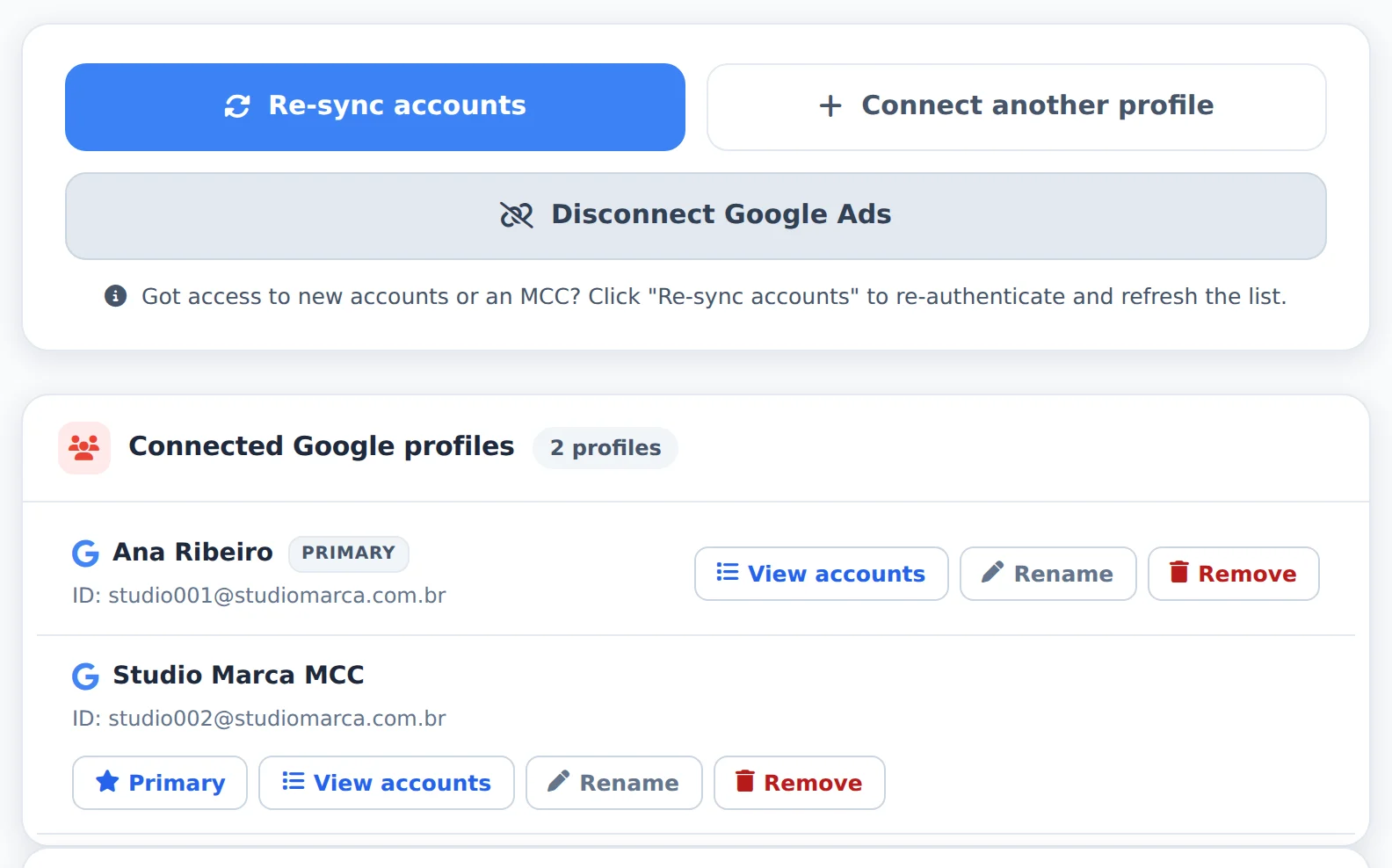
Click Connect Google Ads or, if you already have a profile, Connect another profile. The Google window opens: log in with the email that accesses the accounts and authorize. Linked profiles show under Connected Google profiles, with View accounts, Rename and Remove.
 12
12- 1Connect another profile
- 2Connected Google profiles
- 2
Request access to an account
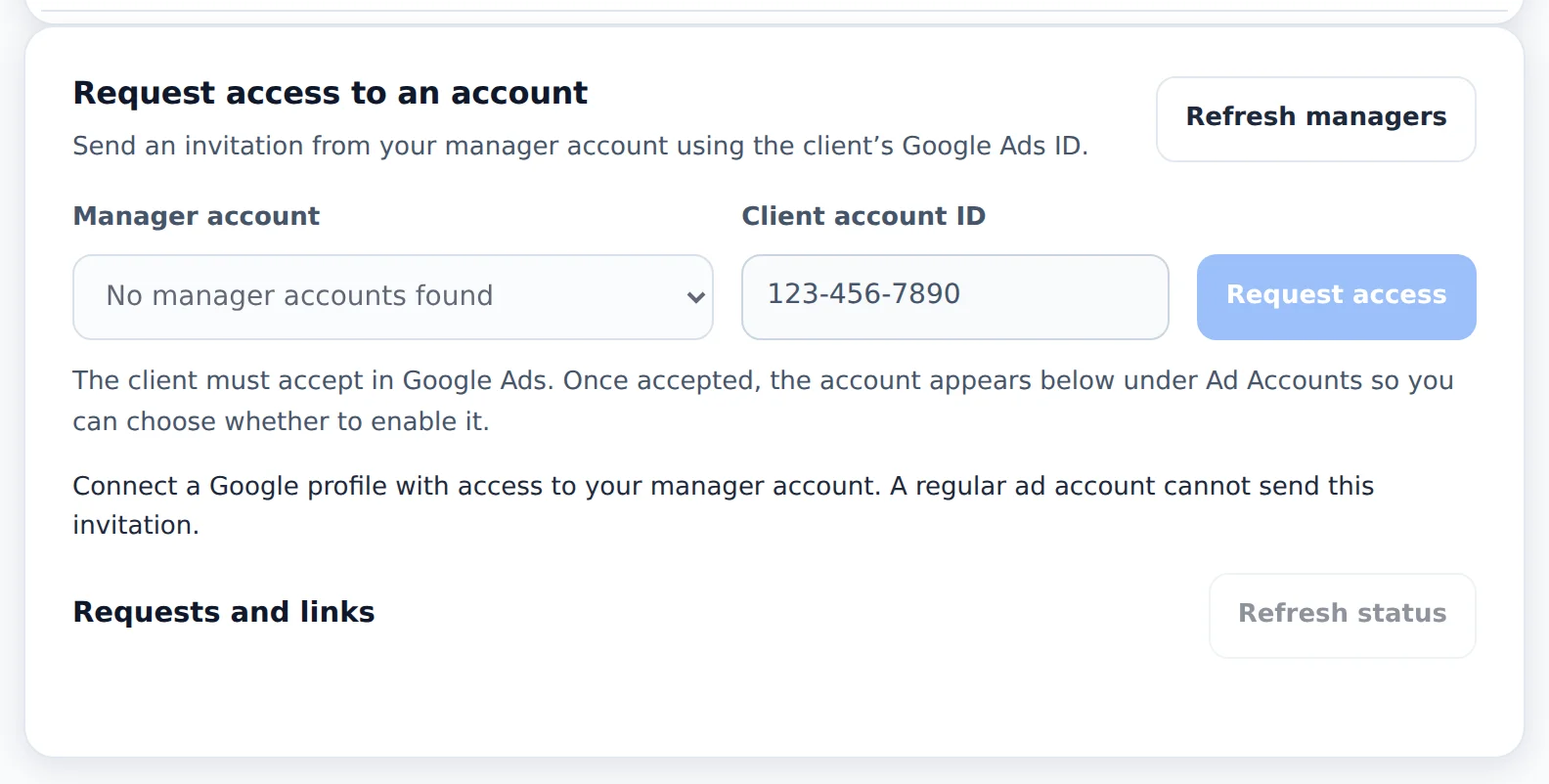
Client account outside your MCC? Under Request access to an account, pick the MCC, type the client's account ID and click Request access. The client accepts the invitation in Google Ads, and the account shows up in the account list.
 12
12- 1Client's account ID
- 2Request access
- 3
Turn on the accounts
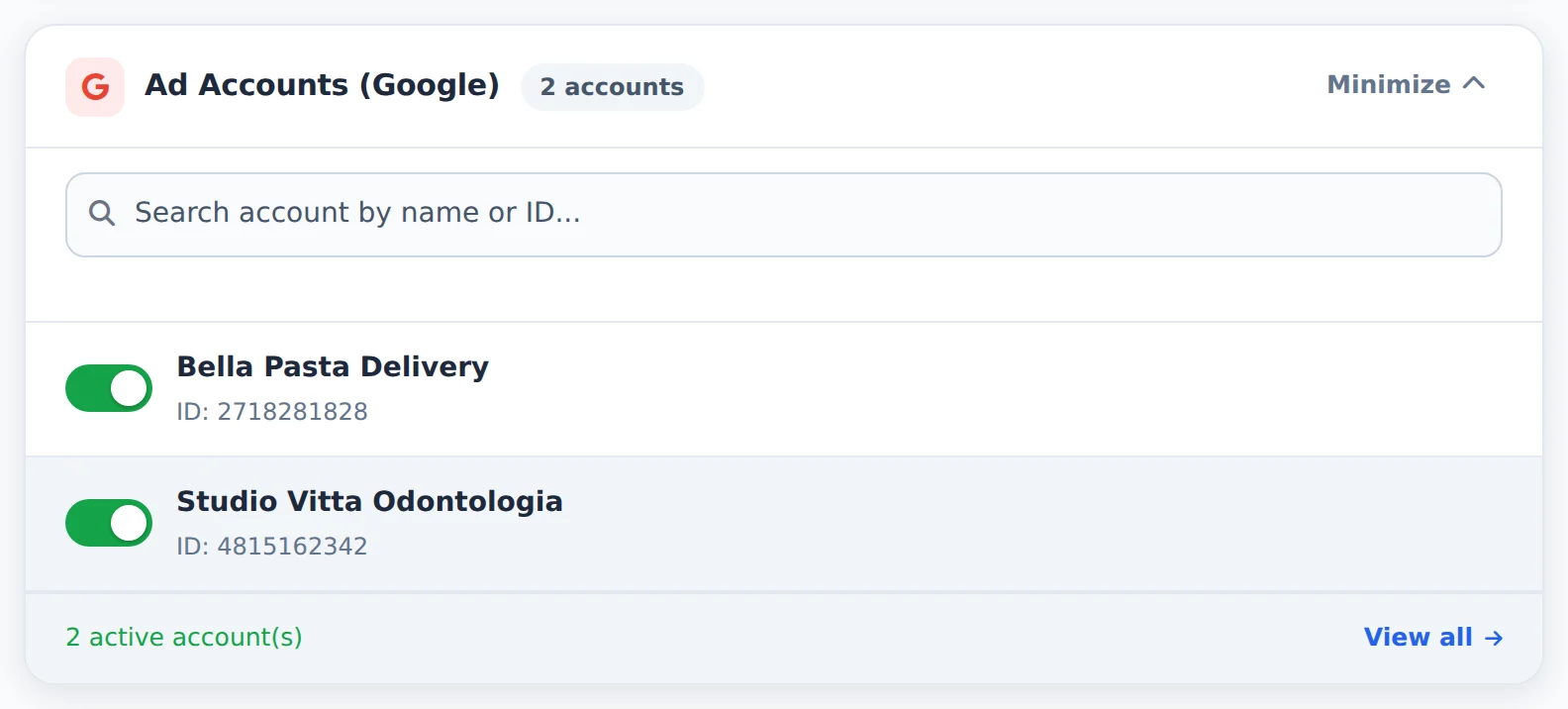
Under Ad Accounts (Google), search by name or ID and turn on the switch of each account you will manage. Only the accounts turned on show in Google Ads and count toward the plan limit.
 12
12- 1Search account
- 2Accounts turned on
- 4
Re-sync when needed
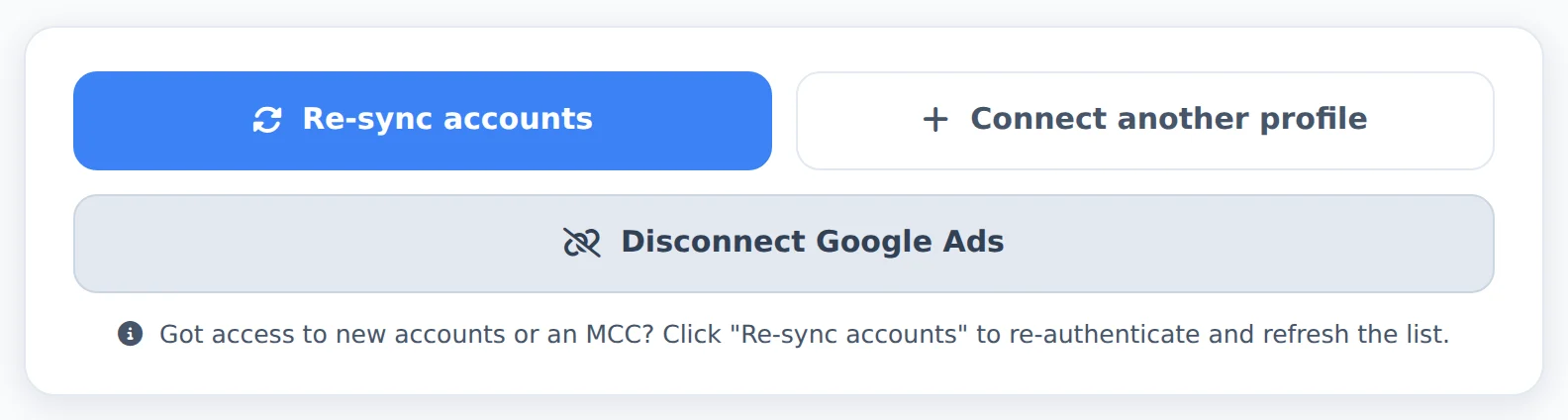
Got access to new accounts in the MCC after connecting? Click Re-sync accounts for Ads Editor to fetch the list again.
 1
1- 1Re-sync accounts
Several profiles, one list
You can connect more than one Google email, such as the agency's MCC and a client's login. The accounts of every profile show together in the Google Ads selector.
How to tell it worked
- The profile shows under Connected Google profiles.
- The accounts turned on show in the Google Ads account selector.
- The Google Ads summary shows Connected next to Copy Report.
If something goes wrong
| Symptom | Likely cause | What to do |
|---|---|---|
| The client account does not show | The connected email has no access to it, or it was added to the MCC later | Check the access in Google Ads and click Re-sync accounts |
| Google says it could not find the passkey | This is Google’s own verification | Pick another login method on the Google screen and try again |
| I cannot turn on more accounts | The plan account limit was reached | Turn off an account or check the plans in My Subscription |
Frequently asked questions
How do I connect Google Ads?
To connect Google Ads (including MCC accounts):
- In the side menu, click Connect Google (on mobile: More → Connect Google).
- Click Connect Google Ads.
- Sign in with the Google email that has access to the MCC (or to the accounts) and authorize.
- The Choose your Google Ads accounts screen opens. Turn on the accounts you want to use. You can use Activate all and Search account....
- Click Save Selection and Go to Dashboard.
Details:
- The list shows the MCC's client accounts, not the MCC itself. None are selected by default, so you choose.
- Added a new account to the MCC later? Click Re-sync accounts on the same screen.
- For another MCC or another email, use Connect another profile.
- The Connect Google item appears for the account owner. A team member only sees it if the owner grants them the Connect Google permission under Team. The member then opens the item, clicks Connect profile, and the profile is added to the owner's Ads Editor account. The owner can then grant access to the right accounts.
I connected Google, but my ad account isn't in the list. What should I do?
First, confirm that the Google email you used to connect actually has access to that Google Ads account (check under Admin, Access and security, inside Google Ads itself). Ads Editor lists accounts with direct access as well as child accounts of MCCs: if your login has access to an MCC, the accounts it manages appear automatically, but accounts that were canceled or deactivated in Google aren't listed. If the account belongs to a different Google login, you can add more than one Google profile in Ads Editor, and accounts from all profiles appear together in the selector. If you've already checked everything, disconnect and reconnect Google to renew the authorization. If you're a team member, the account owner may have restricted which Google accounts you can see. In that case, ask the owner to give you access.
Can I connect multiple profiles or multiple ad accounts at the same time?
Yes.
If it is a Facebook or Google Ads profile: you can connect more than one profile in Ads Editor.
If it is an ad account: when connecting the profile, the system lists the ad accounts linked to it.
- Meta: after connecting Facebook, the ad accounts available to that login are added (including via Business Manager).
- Google Ads: after connecting the Google login, the system lists the accounts that this login accesses (including MCC); select the accounts you want to use.
The limit of active accounts at the same time depends on the plan. To connect and manage profiles, use Connect Meta or Connect Google in the side menu.
Can the admin team member re-sync or disconnect the Meta and Google profiles on my account?
Yes, if you allow it. A member with the Admin role and the Connect Meta (or Connect Google) permission opens Connect Meta or Connect Google and sees the same screen you do: re-sync, connect another profile, rename, choose the primary one, remove, disconnect, and manage accounts. Everything affects YOUR account.
Members who are not Admin, even with the permission, only see the profiles already connected and the Connect profile button. The profile they connect goes into your account and appears to them as Connected by you.
The Collaborator role doesn't include Team, Connect Meta, or Connect Google: when you choose Collaborator, those boxes disappear and stay unchecked. My Subscription remains with the owner only.