
Reports
Share and protect the report
Send the link to your client, ask for a password when needed, close access when the work ends and see whether your client opened it.
Quick answer
On the report card in Reports, the copy icon grabs the link. To ask for a password, click Edit and choose Password protected under Access. The Active switch closes the link without deleting anything, and the eye icon shows the Recent Access.
Watch the walkthrough 0:36
Before you start
- The link stays the same forever: editing the report does not change the address.
- Your client opens it in any browser, without logging in.
- A turned off report still counts toward the plan limit. To free up room, delete it.
Step by step
In this example, we send a restaurant report to the client and protect it with a password.
- 1
Copy the link
In Reports, each card shows the report link. Click the copy icon next to it and paste it in the client chat or email.
 12
12- 1Report link
- 2Copy link
- 2
Ask for a password
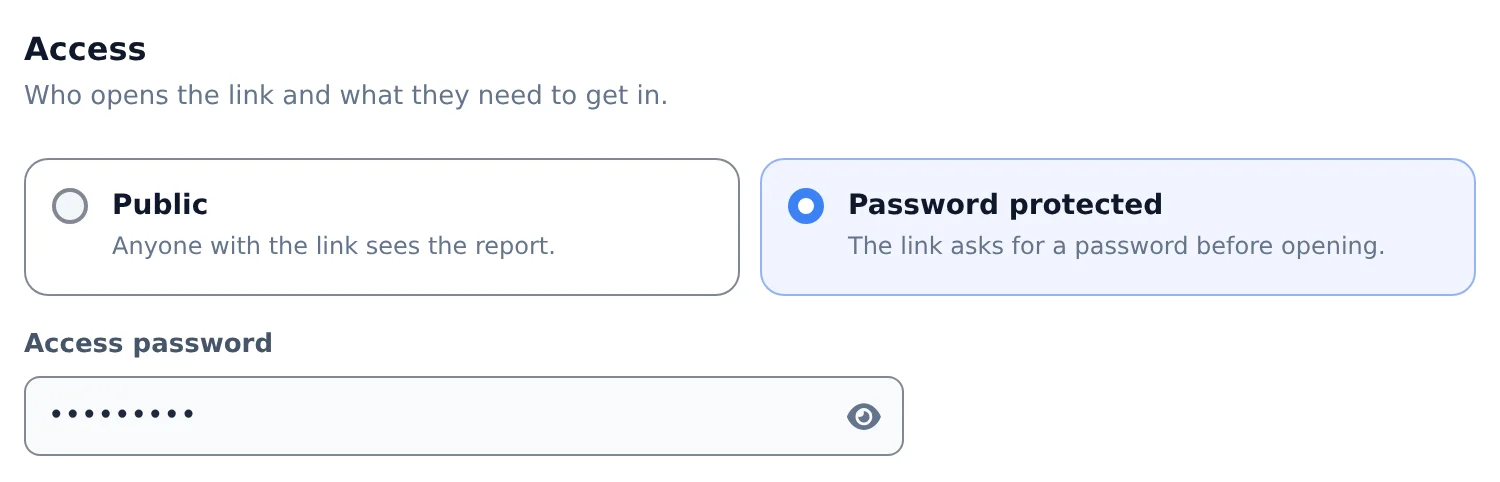
Click Edit on the card. Under Access, choose Password protected, type the password your client will use and save. The same link now asks for the password before showing the numbers.
 12
12- 1Password protected
- 2Access password
- 3
Turn it off when you are done
The Active switch closes the link right away, without deleting the report. Anyone opening it sees it is unavailable. Click again to reopen the same link.
 1
1- 1Active
- 4
See who opened it
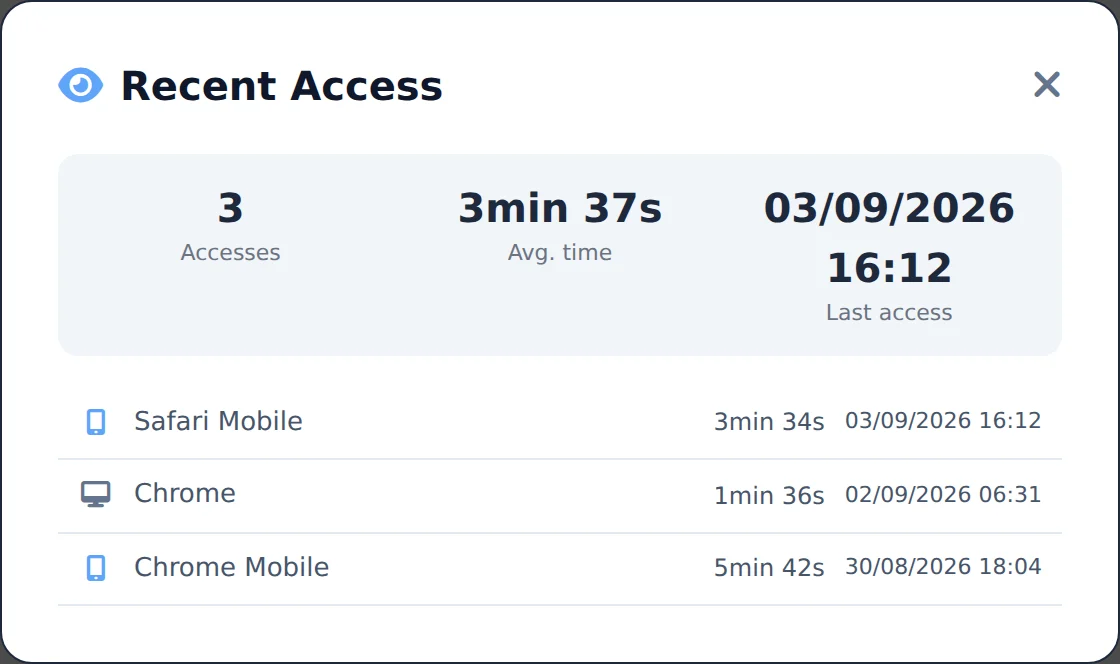
The eye icon opens the Recent Access: how many times the link was opened, the average time and the date, time and device of each opening.
 1
1- 1Recent Access
Before the meeting
Check the Recent Access before talking to your client: you can tell whether they just opened it or spent time reading.
How to tell it worked
- A password protected report shows the Protected label on the card.
- Opening the link in a private window shows the password screen or the unavailable link screen.
If something goes wrong
| Symptom | Likely cause | What to do |
|---|---|---|
| The client says the report is unavailable | The Active switch is off | Turn the switch on again: the link comes back right away |
| The client forgot the password | You set the password | Click Edit, type a new password under Access and save |
| I deleted the report and the link stopped | Deleting removes the link too | Create it again and send the new link. To pause without losing the link, use the switch |
Frequently asked questions
Where do I find the report link, and how does my client open it?
Each report has its own link in the format reports.adseditor.app followed by a unique code, shown on the report card on the Reports page. Click the copy icon next to the link, or the Open button to view it. Your client doesn't need an Ads Editor account or login: they just open the link in a browser, on any device. The report is a live page, always showing up-to-date data straight from Meta and Google, so you don't need to generate a new one every month. If you edit the report later, the link stays the same and the changes appear automatically.
How do I password-protect the report?
In the report editor, under Access, select Password protected and type the password in the Access password field. Anyone who opens the link sees a screen asking for the password before any data is shown. When editing a protected report, leave the password field blank to keep the current password, or type a new one to change it. If you switch back to Public (no password), the protection is removed. In the reports list, protected reports show a Protected badge, and in the edit window the current password can be shown when available.
How do I disable a report link without deleting it (overdue client or paused contract)?
Use the Active / Deactivated switch on the report card.
- Open Reports from the side menu.
- On the report card, click the Active switch to change it to Deactivated.
- To make the same link available again, click the switch once more.
While disabled, the link does not open for recipients, even when the report has a password. Its settings, metrics, and address remain saved. A disabled report still counts toward the plan limit; delete it only if you need to free a report slot.
Can I tell if my client opened the report?
Yes. On each report's card, click the eye icon button to open the Last Visits window. It shows a summary with total Visits, Average viewing time and the Last visit, plus a list of the 10 most recent visits with device (phone or computer), browser, IP, visit duration and how long ago it happened. Duration is measured while the page is open, so you can tell whether your client just opened the report or actually went through it. Visits are recorded automatically whenever someone opens the public link.
Does my client need to create an account or pay to see the report?
No. The report is a public link that opens in any browser, with no login, no sign-up and no cost for the person viewing it. If you set a password, they only need to enter the password you send them. Your client can still interact with the report: change the period, filter campaigns and status, turn metrics on and off in the chips, and change the Top 3 criterion. Nothing the visitor changes alters the report's saved setup, and they have no access to any other part of your Ads Editor account.
If I delete a report, what happens to the link I already sent?
The link stops working immediately, and anyone who tries to open it sees that the report was not found. Deletion is permanent: there is no trash and no way to restore it later, although your campaign data stays intact in Meta and Google. To delete, click the trash icon on the report card and confirm.
If you only want to cut off the client's access for a while (late payment, paused contract), don't delete the report. Use the Active / Deactivated switch on the card instead. When it's deactivated, the link won't open, even with the password, and you can reactivate the same link whenever you want.