
Automation and AI
Create an automated rule
Pause, activate or change the budget on its own when a metric crosses the limit, without having to keep watching the account.
Quick answer
Open Automated Rules and click New rule. Give it a name, pick the accounts and what the rule acts on, click Add condition (for example, Cost per Purchase greater than 45), pick the Calculation period, the Action and the Frequency, and click Create rule.
Watch the walkthrough 0:40
Before you start
- The rule really acts on the account: it pauses, activates or changes the budget. If you only want to be notified, use Metric alerts.
- Meta Ads and Google Ads rules are in separate tabs.
- Each time the rule acts, you get a notification in the bell and the history keeps what was done.
Step by step
In this example, we create a rule that pauses active campaigns when the cost per purchase goes above R$ 45.
- 1
Open New rule
In the side menu, click Automated Rules. The rules you already have show up as cards, with the condition and action of each one. Click New rule.
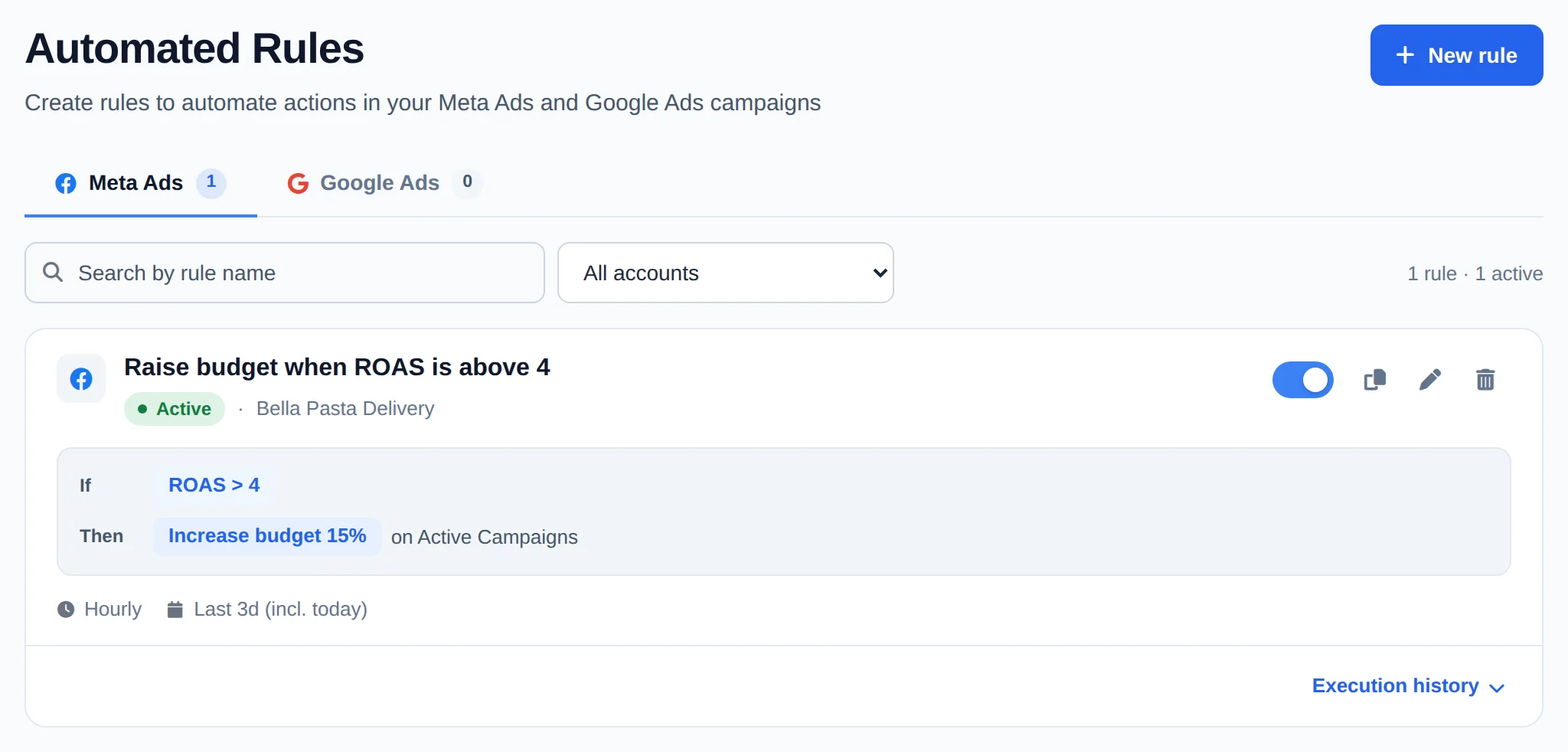 12
12- 1New rule
- 2An existing rule
- 2
Say where it acts
Under Rule name, write something that explains what it does. Under Ad accounts, pick the accounts, or leave all of them. Under Apply rule to, pick the level: campaigns, ad sets or ads, active or paused. To limit it to some names, use Filter by name.
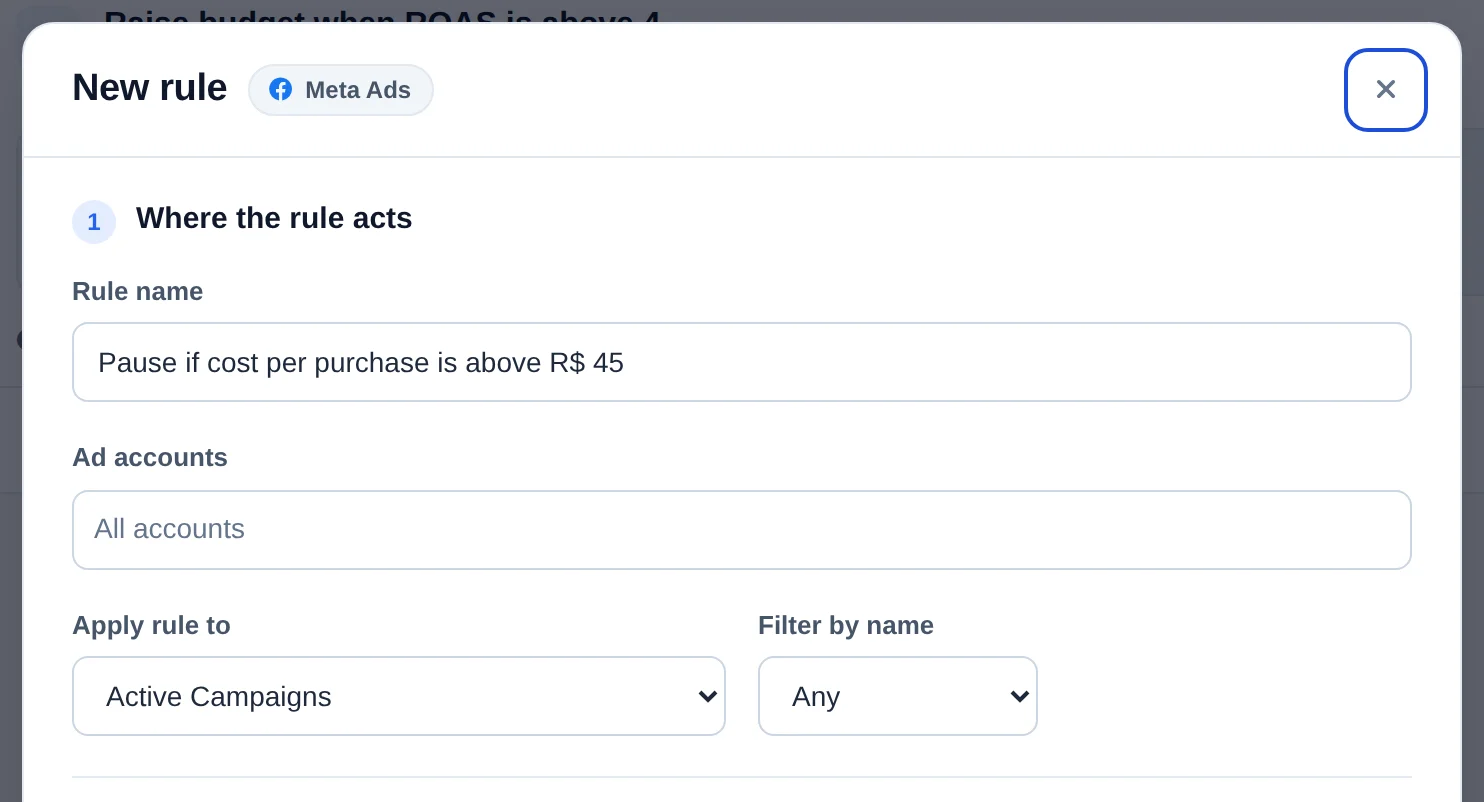 123
123- 1Rule name
- 2Ad accounts
- 3Apply rule to
- 3
Build the condition
Click Add condition, pick the metric (here, Cost per Purchase), the operator and the value, and confirm. You can add more than one condition: the rule only acts when all of them are met. Under Calculation period, pick which days count.
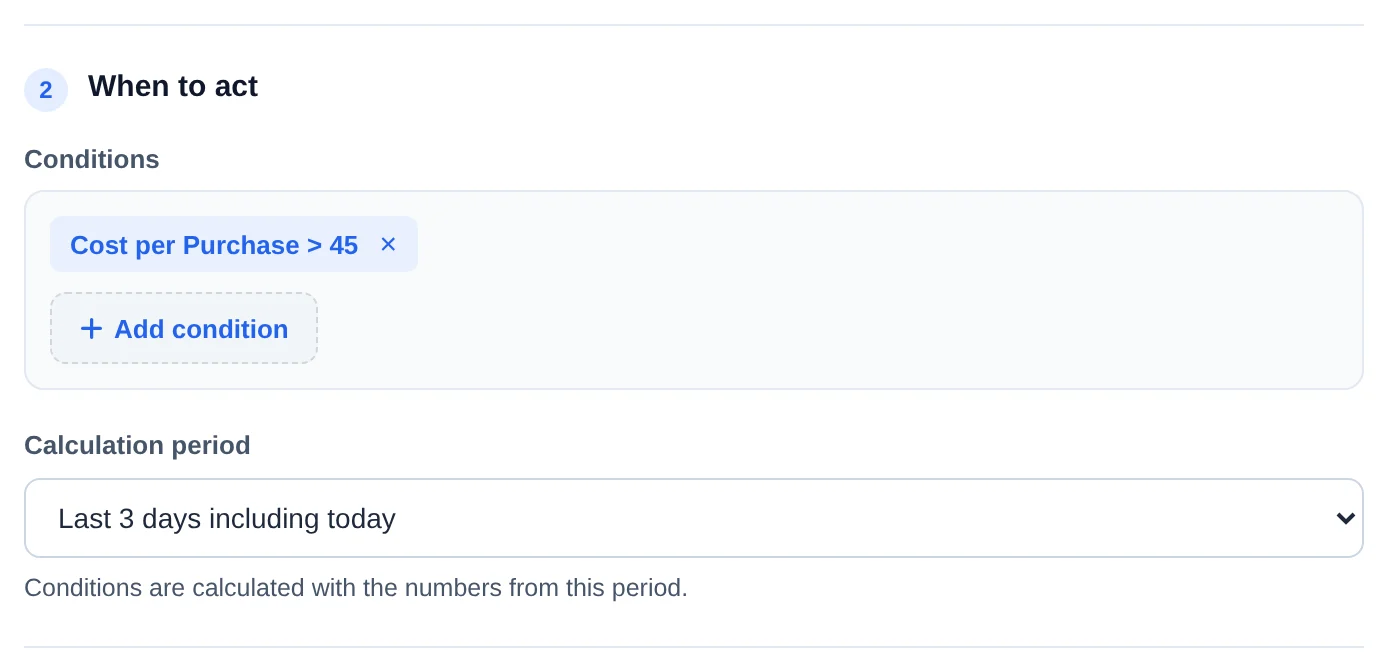 12
12- 1Condition
- 2Calculation period
- 4
Pick the action and how often
Under Action, pick what to do: pause, activate, raise or lower the budget, or just notify. Under Schedule, Continuously runs all the time at the chosen Frequency. Specific Date runs once on a date and time, and Custom runs only on the days and hours you check.
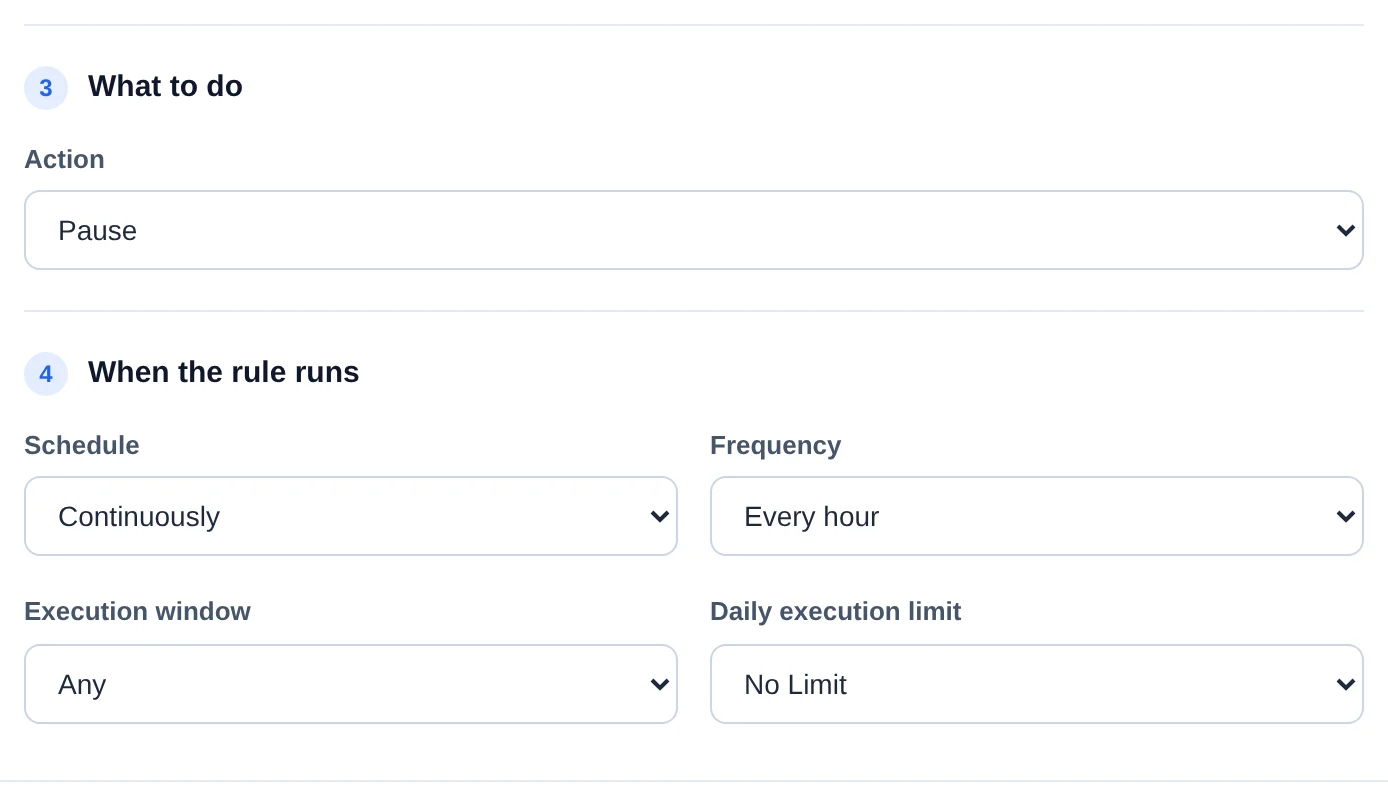 123
123- 1Action
- 2Schedule
- 3Frequency
- 5
Create the rule
Click Create rule. It joins the list, turned on. The switch turns the rule off and on whenever you want, and Execution history shows each time it ran and what it did.
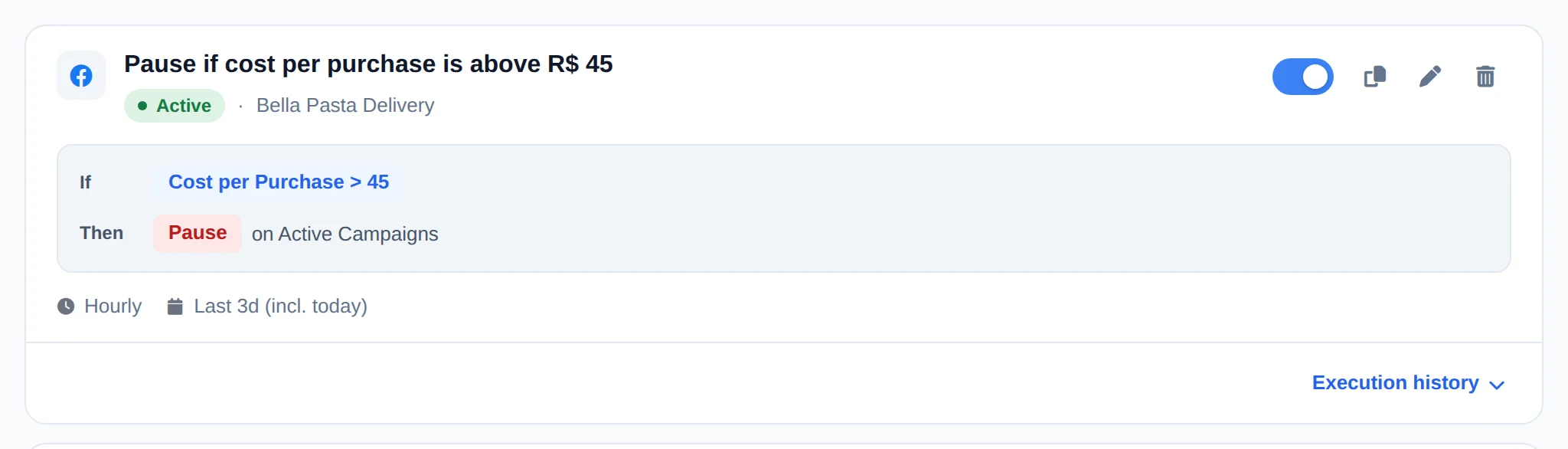 12
12- 1Turn on and off
- 2Execution history
The same rule in another account
On the rule card, the copy icon duplicates the rule. The copy opens turned off, with the original name plus (copy), so you can change the account or the limit before saving.
How to tell it worked
- The rule shows up in the list with the Active label.
- When the condition is met, the history shows the run and the notification arrives in the bell.
If something goes wrong
| Symptom | Likely cause | What to do |
|---|---|---|
| The rule never ran | The condition was not met in the period, or there was no spend | Open the Execution history: it says what was checked and why it did not act |
| The budget rule did not change an ad set | The budget is on the campaign (CBO), not on the ad set | Apply the rule to campaigns, or use an ad set with its own budget |
| It paused more than I wanted | The rule applies to every campaign in the chosen accounts | Use Filter by name to limit it to campaigns with a piece of text in the name |
Frequently asked questions
How do automated rules work?
Automated Rules perform actions on their own according to the conditions you define:
- Go to Automated Rules in the menu.
- Create a new rule.
- Set the condition (e.g. based on campaign/ad set metrics).
- Define the action to be taken when the condition is met.
- Save and activate the rule.
From there, Ads Editor monitors and applies the action automatically.
How do I create a rule to pause campaigns when the CPA exceeds a certain value?
Open Automated Rules in the side menu and click New Rule. Give it a name (for example, Pause if CPA greater than US$50), choose the Ad Accounts (or leave All accounts) and, under Apply rule to, select Active Campaigns. Under Action, choose Pause. Under Conditions, click Add condition, select the metric (for example, Cost per Purchase or CPA), the Greater than operator and the threshold value, then confirm. Finally, set the Calculation Period (for example, Today) and the Check Frequency, and click Create Rule. The rule is active from the moment you create it, and you get a notification whenever it pauses something.
What metrics can I use for a rule's conditions?
Conditions support metrics such as Spend, Cost per Result, Cost per Lead, Cost per Purchase, Cost per Message, CPA, ROI, ROAS, CPC, CPL, Leads, Messages, Conversations, CTR, CPM, Impressions, Clicks, Page Views, and Frequency. Available operators are Greater than, Less than, Greater than or equal to, and Less than or equal to.
Some metrics may not be available for every account or integration. When the required data is unavailable, the rule does not run the action. Prefer metrics with valid data in the account and review history after enabling a rule.
What are the rule's Schedule options (Continuously, Specific Date and Custom)?
Continuously is the default: the rule runs all the time, following the Frequency you chose. Specific Date makes the rule run once, at an exact date and time you set, which is useful for scheduled actions. Custom lets you select days of the week and, for each day, a time window (start and end). The rule only runs within those windows, with checks every 30 minutes. A tip for Custom mode: if you set the start time equal to the end time, the rule runs once at that time on the selected day.
How do I view the execution history of an automated rule?
On the Ads Editor Rules page, each rule has an execution history: when it ran, what it evaluated and what action it took (or why it didn't take one).
It answers "did the rule run?" without contacting support. Open the rule and see the list of recent executions with date, time and result.
If a rule shows no executions, check that it's active and that its condition can actually happen (for example, a CPA rule only runs when there is spend in the evaluated period).
How do I duplicate, edit, turn off or delete a rule?
Each card on the Automated Rules page has its own controls: the switch turns the rule on or off instantly (when off, it shows the Inactive label and doesn't run), the copy icon duplicates the rule, the pencil opens it for editing, and the trash can deletes it (with confirmation; deletion can't be undone). When you duplicate a rule, the copy opens in the form with the original name plus (copy), already turned off, so you can adjust accounts, conditions or values before saving. This is great for reusing the same logic on another account or with a different threshold. Changes take effect at the rule's next check.
My rule didn't run. What could have happened?
Check this list in order:
- Is the rule active? Rules with the Inactive label don't run. Turn on the toggle on the card.
- Frequency: if the rule ran recently, it waits for the chosen interval before evaluating again.
- Execution Interval and Schedule: outside the configured time window or days, the rule stays on hold.
- Daily Execution Limit: if the rule already reached its limit today, it will only run again tomorrow.
- Were the conditions actually met in the chosen Calculation Period? All of them must be true at the same time.
- Metrics with no data: if a condition uses cost per conversion and there were no conversions in the period, the rule skips instead of acting, for safety.
- Connection and subscription: your Meta account must be connected and your subscription active, because rules don't run for accounts with suspended access.