
Google Ads
Google Ads columns and cards
Choose and sort the metrics of the table and of the summary cards, and keep each layout as a preset to switch in one click.
Quick answer
In Google Ads, click the gear next to Bulk Edit. In Customize columns, search the metric, check the box and use the arrows or the handle to change the order. Save current preset keeps the layout with a name. Click Save. The Period Summary cards have their own settings button, next to Copy Report.
Watch the walkthrough 0:25
Before you start
- The columns apply to the Campaigns, Ad Groups and Ads tabs.
- The UTM Purchases, UTM Revenue and UTM ROI columns only show up when the account has an integration on in UTM Integrations.
- Your choices are saved for the next visits.
Step by step
In this example, we turn on Impression share and keep the layout as a preset.
- 1
Open the columns
Click the gear above the table, next to Bulk Edit and the export button.
 1
1- 1Customize columns
- 2
Choose and sort
In Search by column..., type the metric name and check the box to turn it on. Under Active columns, the arrows and the handle on each row change the order in the table. Save current preset keeps the columns with a name, to switch layouts in one click, for example one view per client.
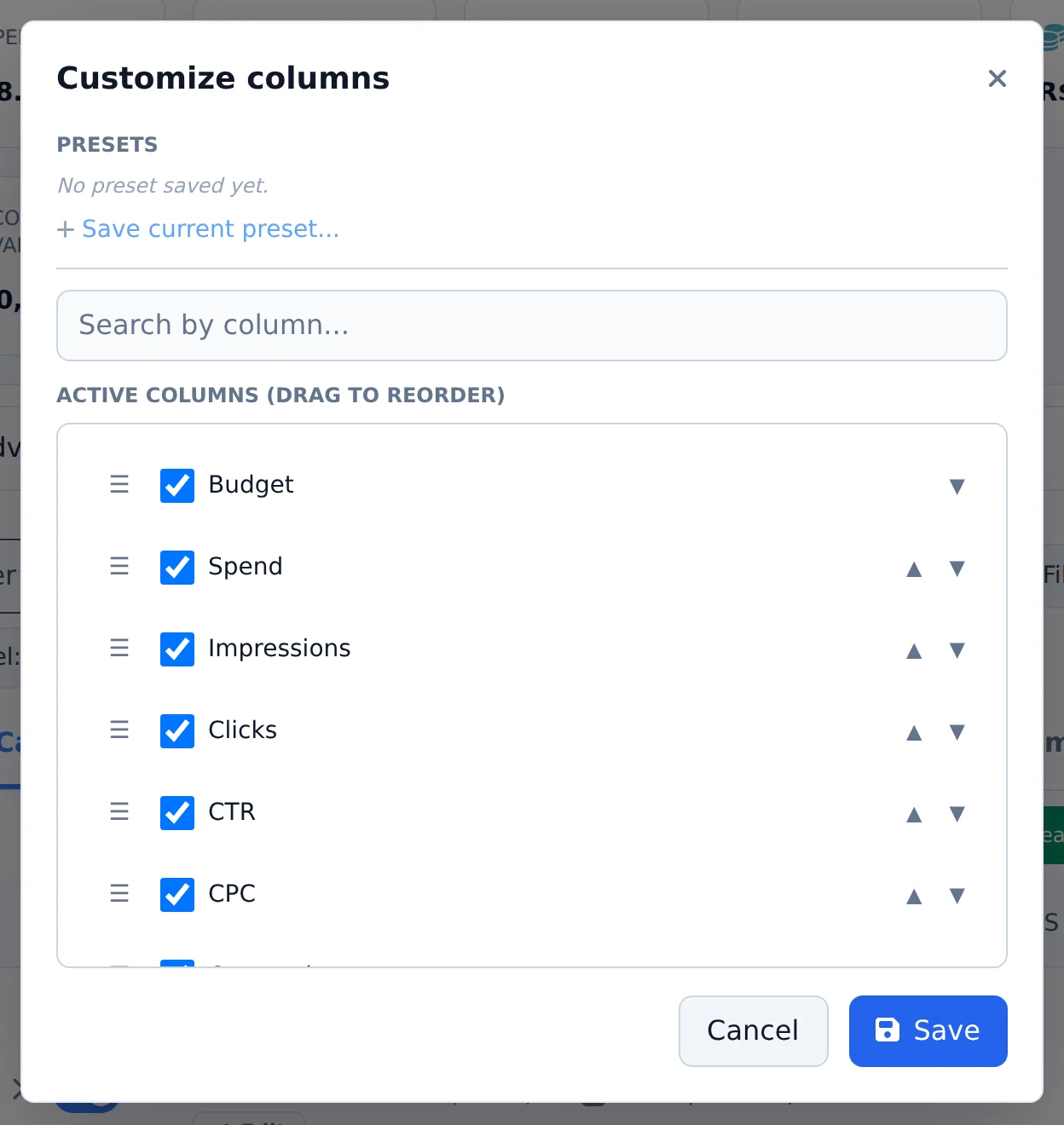 123
123- 1Search by column
- 2Active columns
- 3Save current preset
- 3
Save
Click Save. The table shows the columns in the order you chose.
- 4
Choose the summary cards
The settings button next to Copy Report opens Customize Summary: check up to 12 metrics, drag to sort and click Save. The eye next to it hides the whole summary.
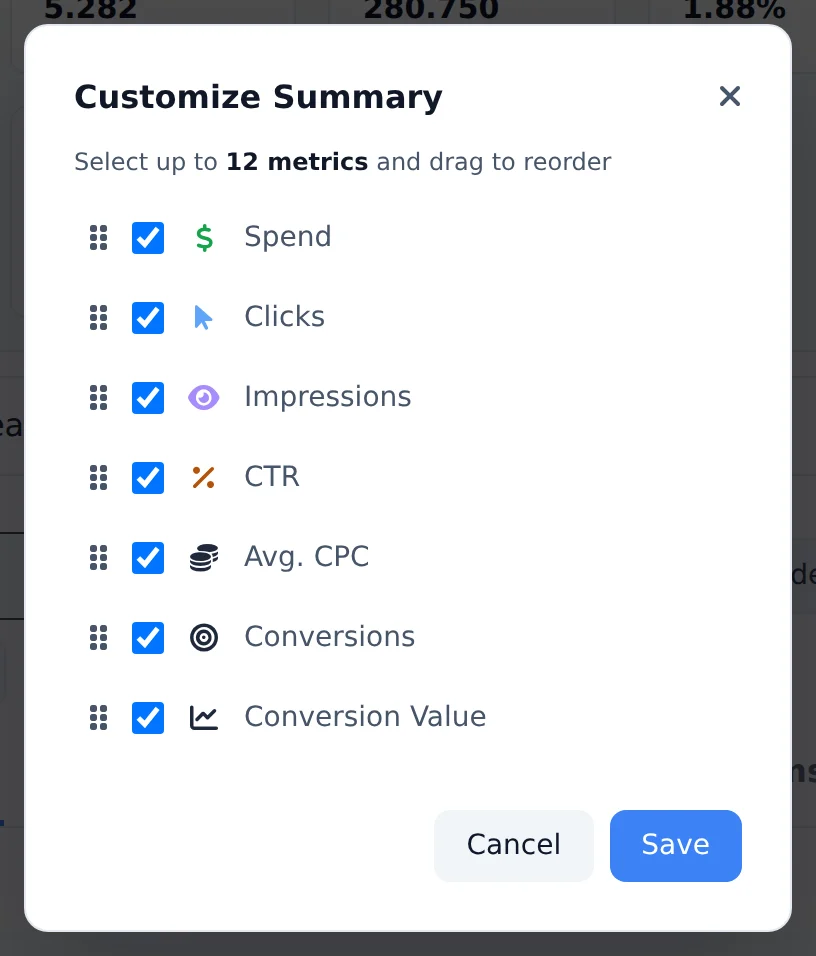 12
12- 1Card metrics
- 2Save
Export what is on screen
The export button, next to the gear, creates a CSV or PDF with the tab, columns, filters and period on screen. Adjust the columns before exporting.
How to tell it worked
- The table shows the new columns in the chosen order.
- The preset shows under Presets, at the top of the columns window.
- The summary cards show the checked metrics.
If something goes wrong
| Symptom | Likely cause | What to do |
|---|---|---|
| The UTM column is not in the list | The account has no sales integration on | Create the project in UTM Integrations and link the account to it |
| I cannot check more cards | The summary takes up to 12 metrics | Uncheck one before checking another |
| The columns went back to the default | You are in another browser or another account | Use the saved preset to get your layout back |
Frequently asked questions
How do I customize table columns and summary cards in Google Ads?
To customize the columns, click the gear button (Customize Columns). You can search for columns and turn them on or off, such as Budget, Investment, Impressions, Clicks, CTR, CPC, Conversions, CPA, ROAS, Conversion Value, All Conversions, Conversion Rate, Impression Share, CPM and Optimization Score, and drag them to reorder. You can save sets of columns as per-account presets with the Save and Load buttons, which is useful when each client wants a different view. For the cards at the top, click the adjustment control on the Period Summary (Customize metrics) and select up to 12 metrics, dragging them to set the order; the eye button hides the whole panel. With Compare mode on, the cards show the change versus the previous period for each metric. All preferences are saved for your next visit.
What are the UTM Purchases, UTM Revenue and UTM ROI columns in Google Ads?
These columns match your Google Ads campaigns with the real sales tracked by Ads Editor's UTM Integrations (webhooks from payment platforms, such as those used for digital products). They show how many purchases, how much revenue and what ROI each campaign generated based on the sales UTMs, not just the conversions Google reports. To use them: first set up your integration on the UTM Integrations page, make sure your ads use the correct UTMs, then turn on the columns in Customize columns (they only appear in the picker when an integration is connected to the account). Known limitation: Performance Max campaigns don't fill in the ad group UTM, so attribution by ad group may show zero for this campaign type. If values are zero on regular campaigns, check that your ads' UTMs follow the pattern set in the integration.
How do I export Google Ads data to CSV or PDF?
Click the download (Export) button above the table and choose Export CSV or Export PDF. The export uses exactly the current view: the open tab (Campaigns, Ad Groups or Ads), the columns you configured, the filters applied and the selected date range. The CSV is ideal for working in spreadsheets, and the PDF is formatted as a Google Ads report, ready to send. If you want a specific slice of data, adjust the columns and filters first, then export.