
Meta Ads
Duplicate a campaign to another account
Take a ready campaign, with its ad sets, audiences and ads, to another client's account, swapping Page and Instagram.
Quick answer
In Meta Ads, check the campaign, click Bulk Edit and Duplicate. Turn on Duplicate to another ad account, check one or more destination accounts and, under Settings for the destination account, check the Page, Instagram and Pixel for each one. Click the confirm button and follow the card in the corner of the screen.
Watch the walkthrough 0:37
Before you start
- The destination account must be in your Meta profile (or shared with you, if you are a team member).
- A website conversion campaign needs a Pixel in the destination account; without it the copy fails and the card shows why.
- The ads are recreated in the destination with the same images and videos. Rejected ads go too and go through Meta review again.
Step by step
In this example, we take a delivery sales campaign to another client's account.
- 1
Open Duplicate
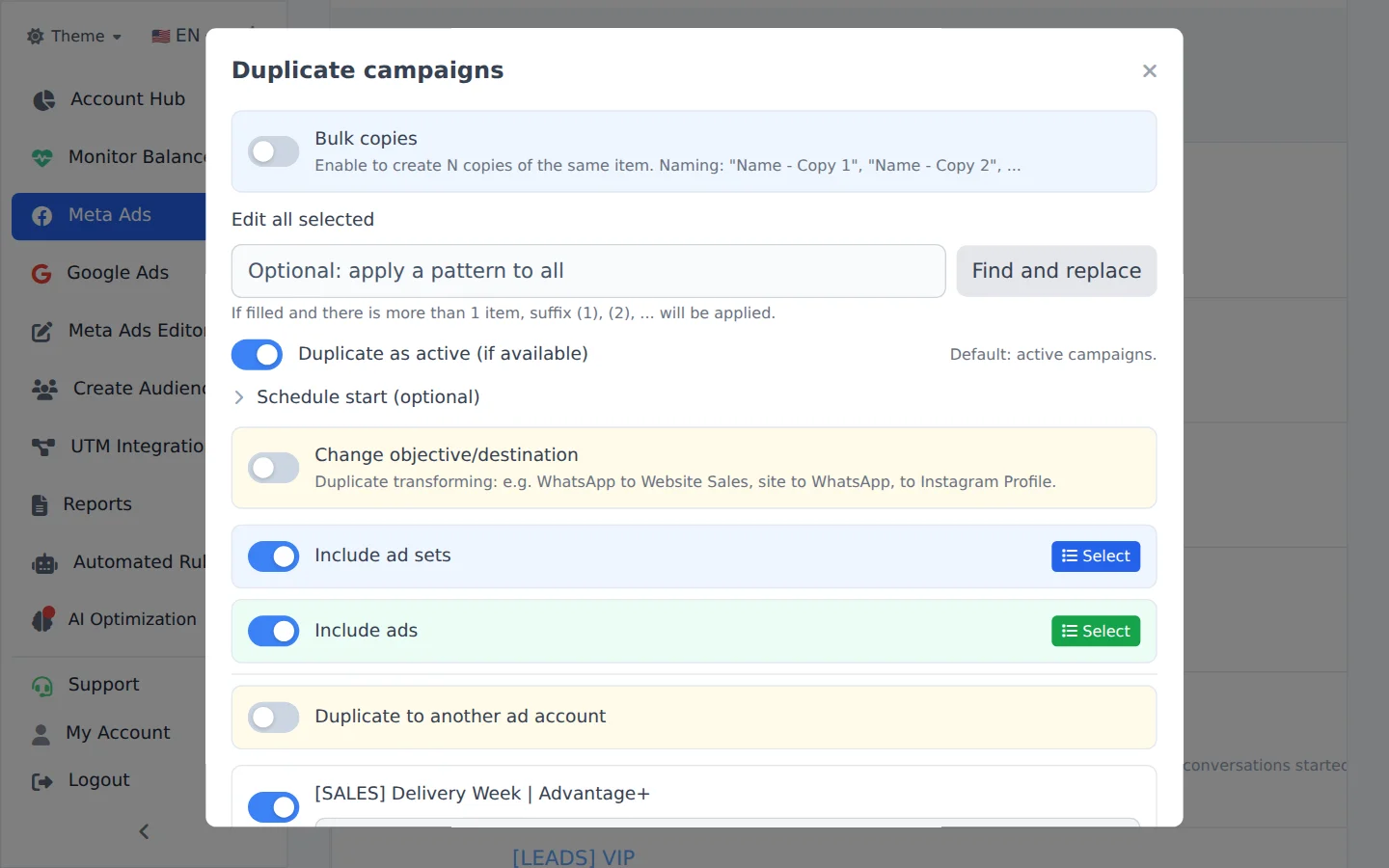
Check the campaign, click Bulk Edit and, in the action bar, Duplicate.
- 2
Pick the destination account
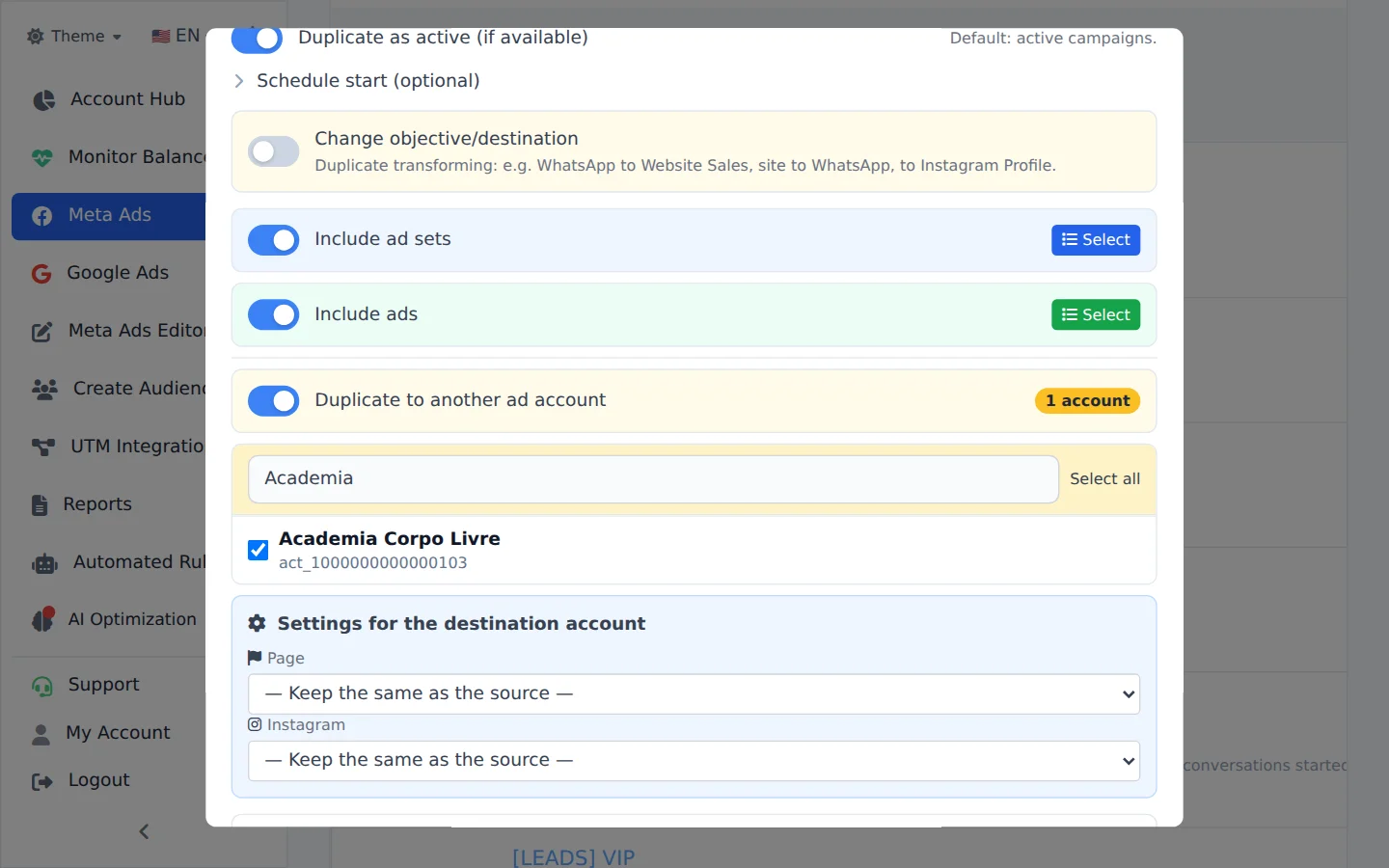
Turn on Duplicate to another ad account. Search by name or scroll the list and check one or more accounts: the campaign goes to each chosen account. Select all checks the whole list.
- 3
Check Page and Instagram
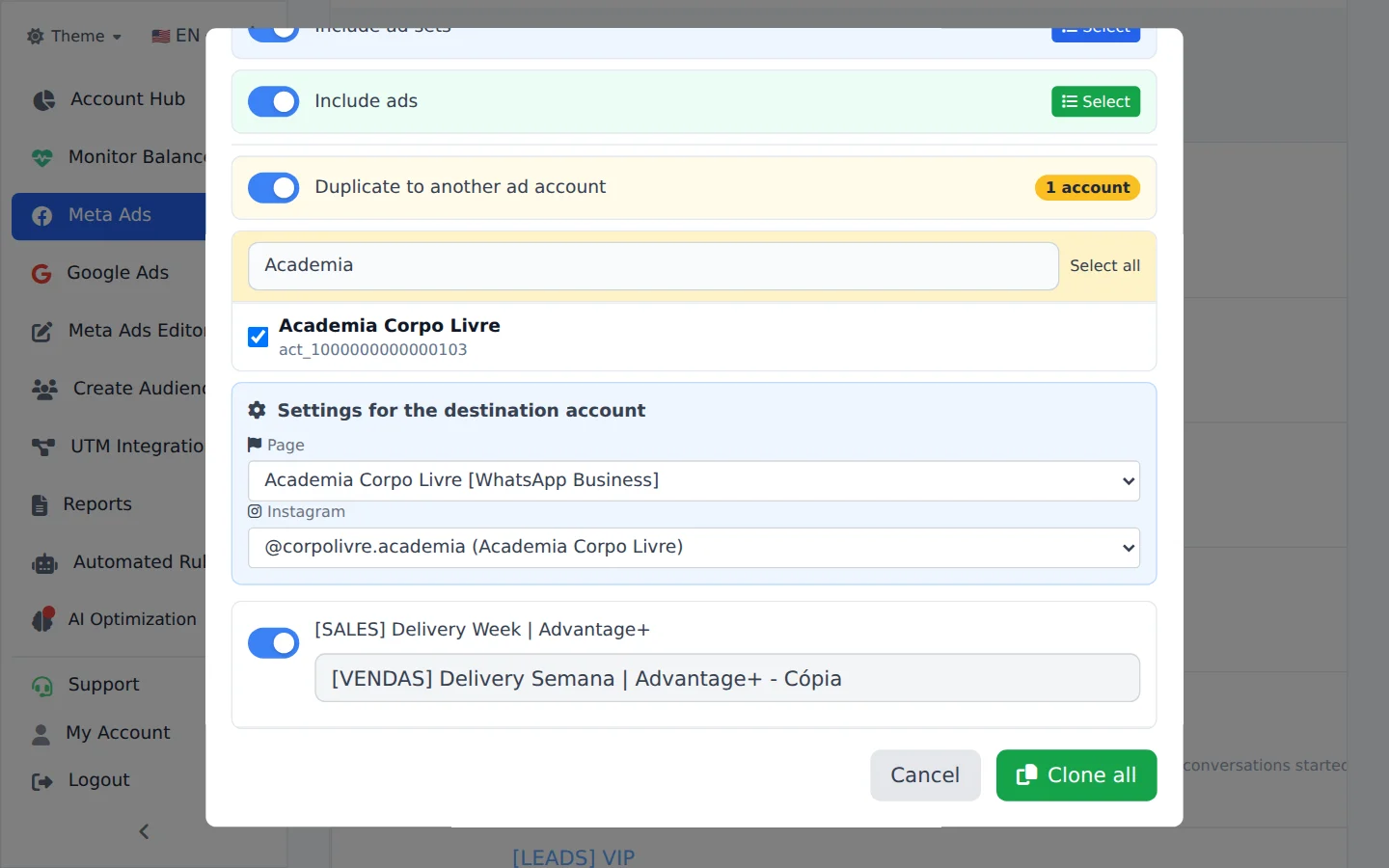
Under Settings for the destination account, Ads Editor suggests the Page and Instagram of the destination account and, when the campaign uses website conversions, the Pixel. Keep the same as the source keeps the original ones, if the destination account has access to them. The copy name ends in Copy: change it if you want.
- 4
Confirm the duplication
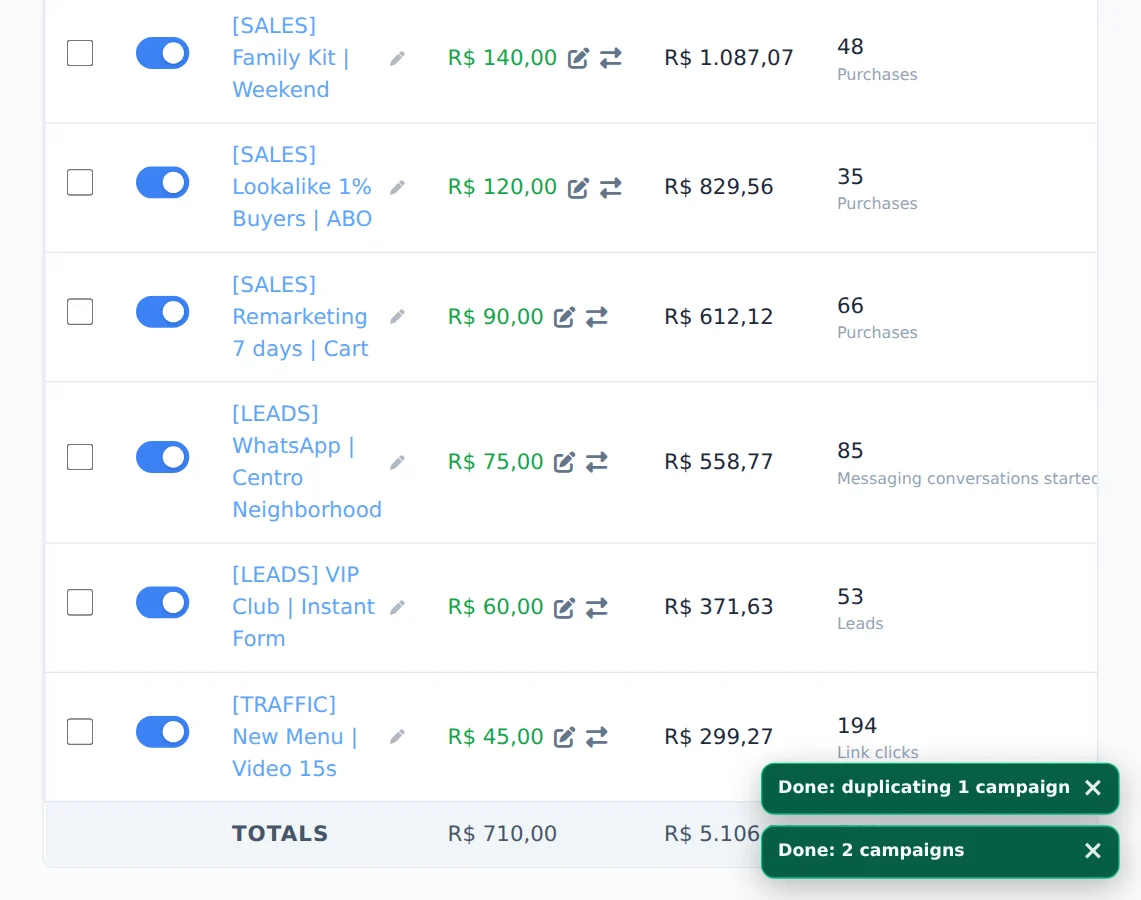
Click the confirm button. The card in the corner follows the copy in each account until the end.
New client, new ads
If the destination account belongs to another client, leave the old client's ads out of the copy (under Select, uncheck the ads) and upload the new creatives with the Meta Ads Editor. Then adjust budget and location.
How to tell it worked
- The card in the corner ends in Completed, once for each chosen account.
- When you open the destination account in Meta Ads, the campaign is there, with its ad sets and ads.
- The ads use the Page and Instagram chosen for that account.
If something goes wrong
| Symptom | Likely cause | What to do |
|---|---|---|
| The duplication failed for lack of a pixel | The campaign optimizes for website conversions and the destination account has no Pixel | Create or share a Pixel with the destination account and duplicate again |
| The ads were not created | The destination account cannot use the chosen Page or Instagram | Pick a Page of the destination account and duplicate the ads with Duplicate into another ad set |
| The account is not in the destination list | It is disabled on Meta or was not shared with you | Check the account in Meta Ads Manager or ask the owner for access under Team |
Frequently asked questions
How do I duplicate a campaign to another ad account?
On the Campaigns tab, click Bulk edits above the table, select the campaigns and click Duplicate in the bottom bar. In the modal, turn on Duplicate to another ad account. Search for and select one or more destination accounts. You can even use Select all to clone to several accounts at once. For each destination account, a Settings for the destination account section appears, where you choose the Page, the Instagram profile and, if the campaign uses website conversions, the Pixel. The default, Keep same as source, preserves the original assets when the destination account has access to them. For WhatsApp campaigns, the system prioritizes Pages detected with WhatsApp Business. Detection is automatic and doesn't always flag every Page, so if your Page has WhatsApp connected, you can continue despite the warning, since Meta validates at publishing. Ads are recreated in the destination account with the original images and videos. Disapproved ads are copied too (only deleted and archived ads are left out) and go through Meta's review again at the destination. This is how you can rescue the campaigns of an account that Meta has disabled. A website conversion campaign needs a pixel in the destination account. Without one, the copy fails, and the card in the corner of the screen shows the reason. To send a single ad to an ad set in another account, use Duplicate into another ad set on the ad and choose the Destination account.
How do I clone or duplicate a client's campaign structure to another account?
To reuse one client's structure in a new account (great when the new client is in the same niche):
- Open Meta Ads and click Bulk edits, above the table.
- Select the campaign you want to reuse.
- Click Duplicate in the bar that appears at the bottom and choose Duplicate in another ad account.
- Select the destination account (you can pick more than one).
- Enter the new client's Page, Instagram, pixel and WhatsApp.
- The whole structure (campaign, ad sets, audiences and ads) is copied to the other account. For a new client, remove the old client's ads before duplicating.
Then just adjust the budget and location: the entire structure is ready in a few minutes. The same steps work in Google Ads.
Can I duplicate a single ad into an ad set in another ad account?
Yes. Only the ad is duplicated, into the ad set you choose in another account of yours:
- Open Meta Ads, click Bulk edits (above the table), go to the Ads tab and select the ad (you can select more than one).
- Click Duplicate in the bar that appears at the bottom and turn on Duplicate into another ad set.
- Under Destination account, choose the account. The current account is labeled "(this account)". The other accounts you use in Meta Ads appear if they are active on Meta (a deactivated account can't be a destination). If you have no other active account, the field doesn't appear.
- Select one or more Destination campaigns and, in each one, the Destination ad sets. The ad is duplicated into each selected ad set.
- Click Duplicate and follow the progress on the card in the corner of the screen.
What changes when the destination is another account:
- The image or video is uploaded again to the destination account.
- Page: Ads Editor uses the Page selected under Page and Instagram (optional). If none is selected, it uses the destination ad set's Page. If the ad set has no Page, Ads Editor uses the source Page when the destination account has access to it; otherwise, it uses the first available Page. Instagram follows the selected Page unless you choose a different profile.
- The pixel from the source account doesn't come along, because it isn't valid in the other account: conversion tracking follows what is set on the destination ad set.
- An ad built from an existing post uses the same post, and the destination account needs access to that Page.
What isn't possible this way: sending an entire ad set to another account (an ad set's Duplicate into another campaign only works within the same account). To move a whole campaign with its ad sets and ads, select the campaign and use Duplicate to another ad account.
For a team member, the destination account must be allowed for them. You can also do this through AI Copilot or MCP: ask, for example, "duplicate ad X into ad set Y in the Store B account".