
Meta Ads
Create a campaign from scratch
Objective, campaign, ad sets with a full audience and review, in a four step wizard inside Meta Ads.
Quick answer
In Meta Ads, click the green Create campaign button above the table. The wizard has four steps: objective and destination, campaign (name, budget and bid), ad sets with the audience, and review. It creates the campaign and the ad sets; the ads go in afterwards through the Meta Ads Editor.
Watch the walkthrough 0:37
Before you start
- Pick the ad account in the selector at the top first: the campaign is created in it.
- For website sales or leads, the account needs a Pixel with the conversion event.
- The wizard ends at campaign and ad sets. The ads (image, video, carousel) are uploaded in bulk through the Meta Ads Editor.
Step by step
In this example, we create a website sales campaign for a delivery weekend menu.
- 1
Pick objective and destination
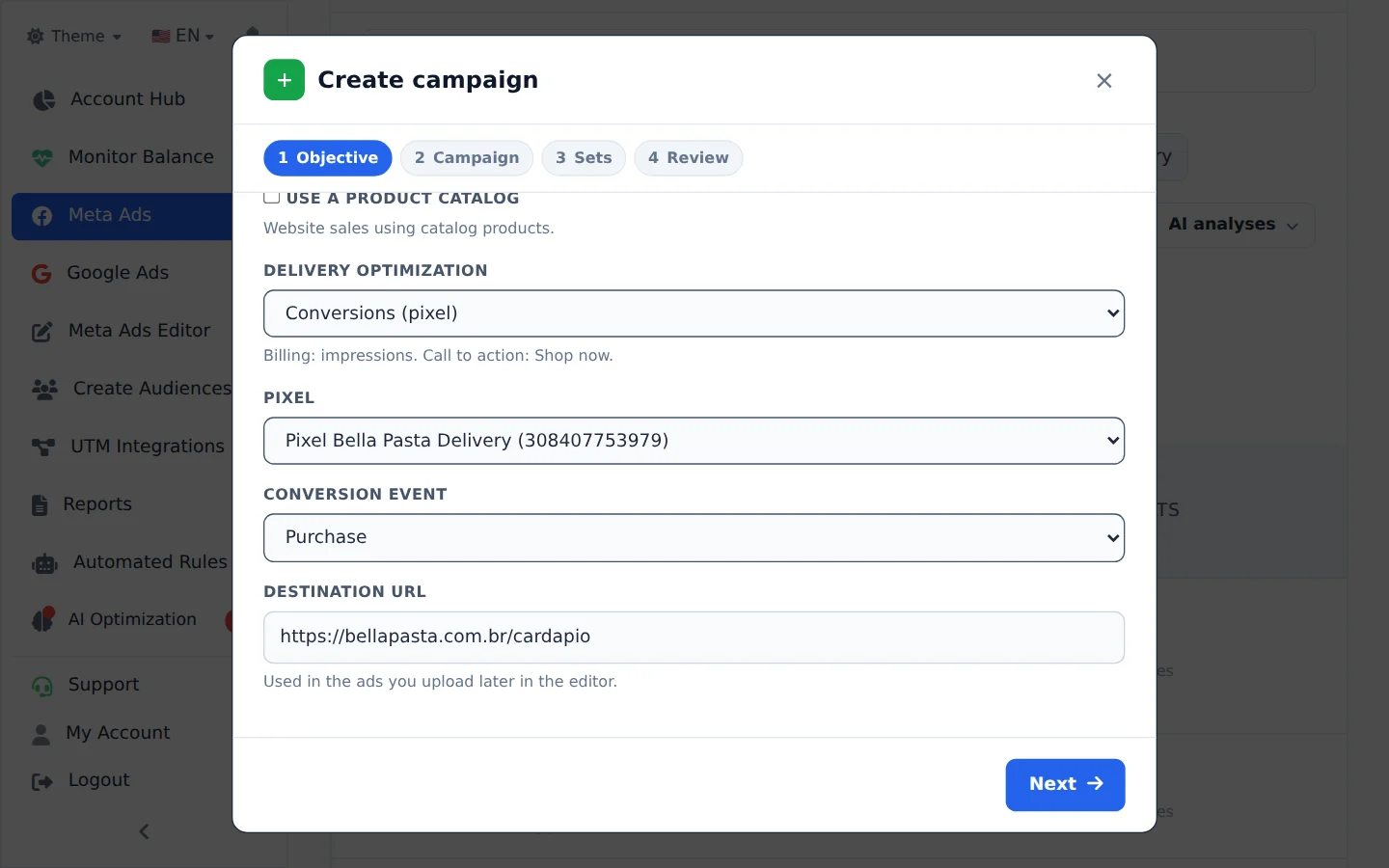
Click Create campaign. Pick the objective, destination and optimization; for website sales, also pick the Pixel and the purchase event. Click Next.
- 2
Name and budget
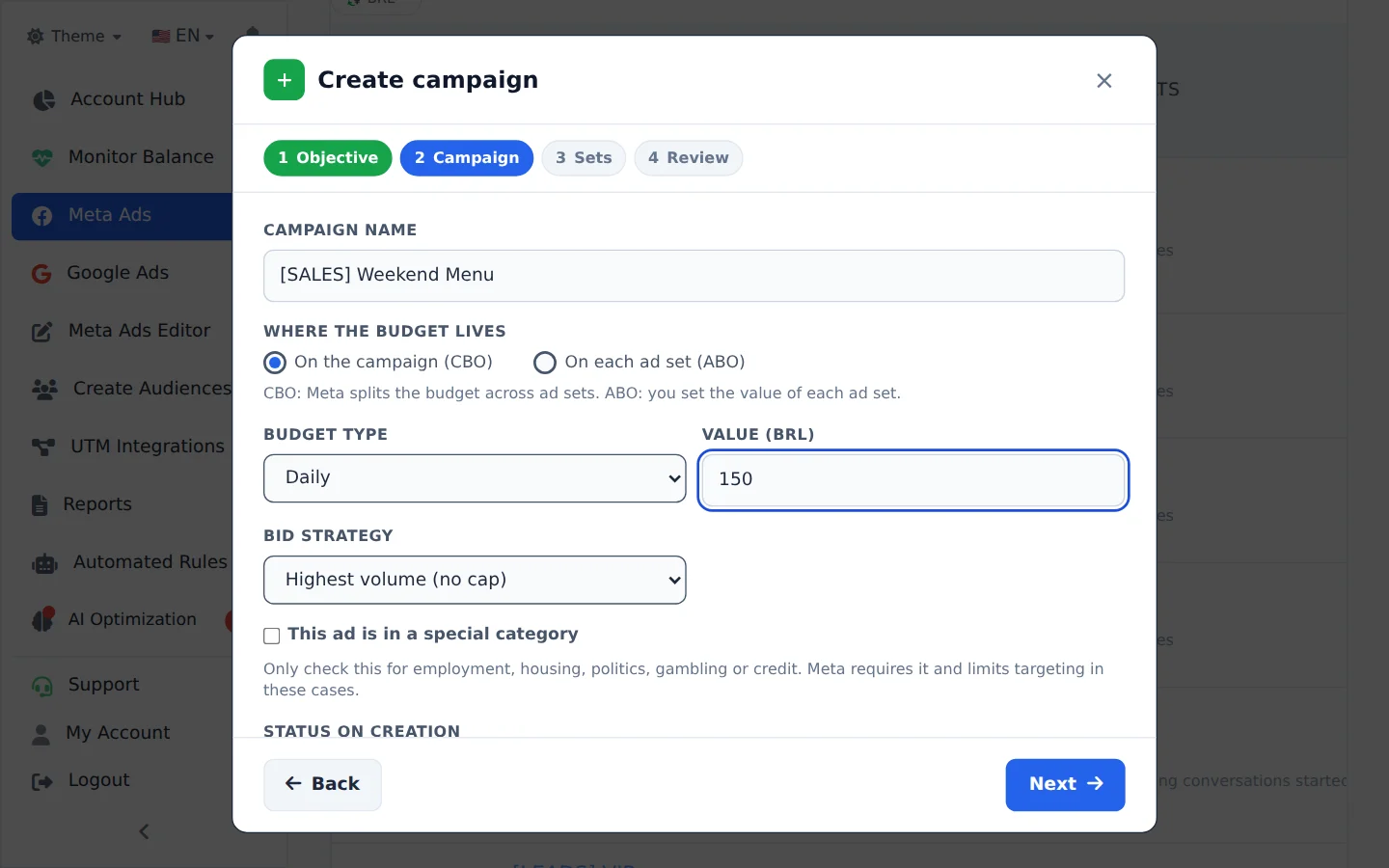
Name the campaign and choose where the budget lives: On the campaign (CBO) or on each ad set. Enter the daily amount and the bid strategy, and click Next.
- 3
Set up the ad sets
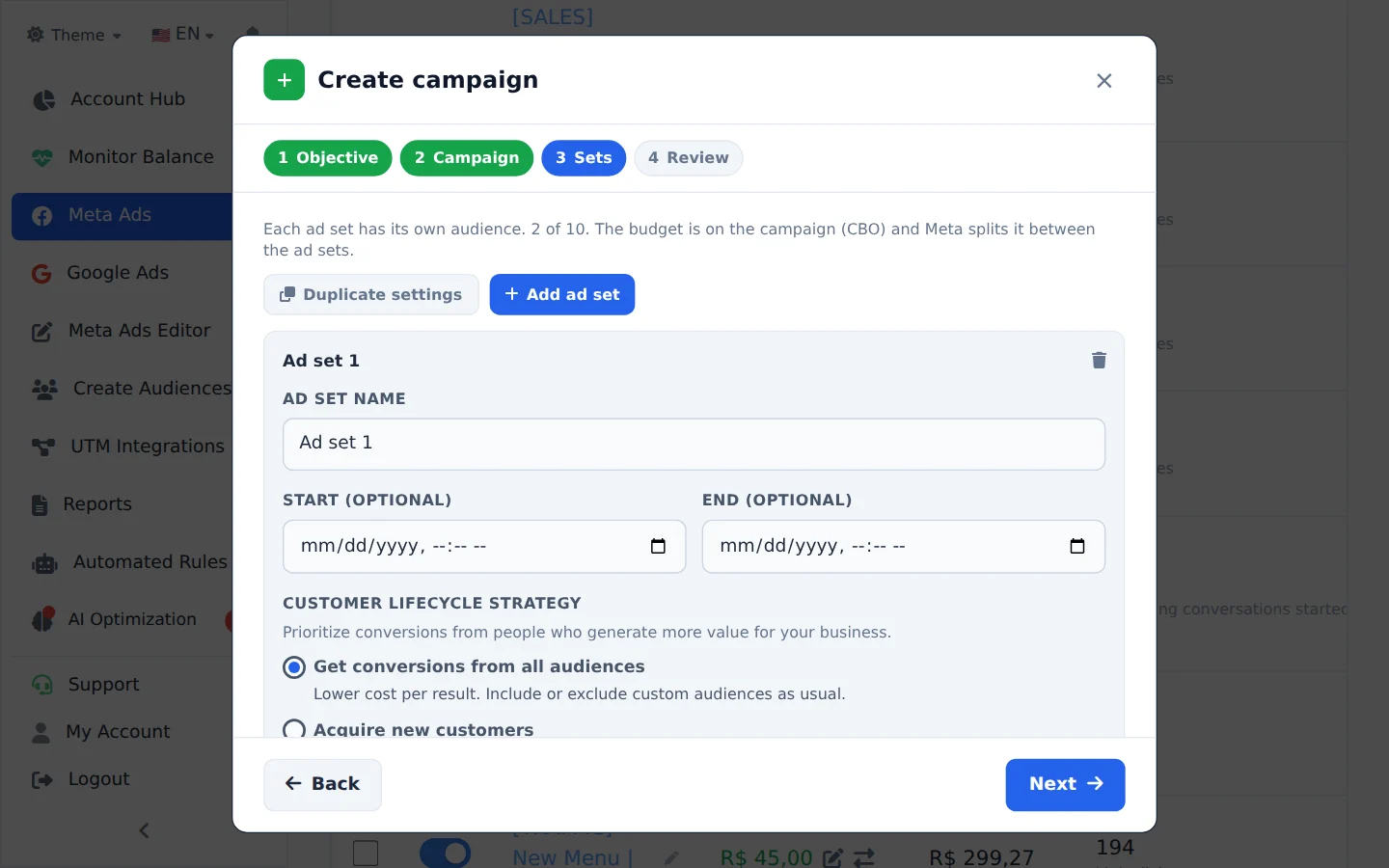
Each ad set has its own audience: location (with a radius on the map), age, gender, languages, interests and saved audiences. Add as many ad sets as you need and click Next.
- 4
Review and create
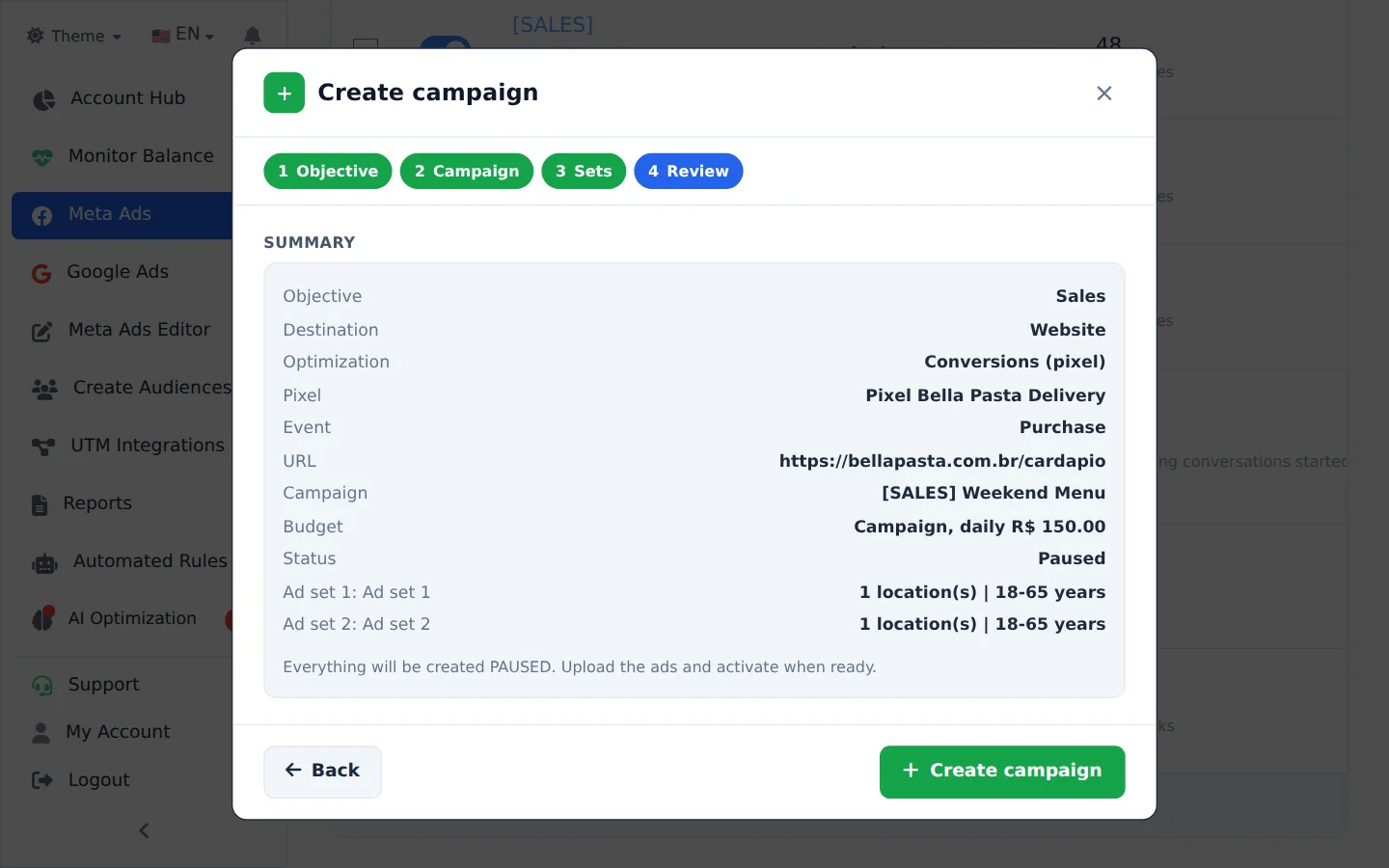
Check the summary and click Create campaign. Then open the Meta Ads Editor to upload the ads into the new ad sets.
Already have a campaign that works?
Duplicating is usually faster than starting from scratch: the copy takes the audiences and ads, and Change objective/destination swaps the objective along the way.
How to tell it worked
- The new campaign shows on the Campaigns tab, with the ad sets you set up.
- In the Meta Ads Editor, the campaign and ad sets are already there to receive the ads.
If something goes wrong
| Symptom | Likely cause | What to do |
|---|---|---|
| The conversion event does not show | The chosen Pixel has not recorded that event or Meta does not accept it for the objective | Check the Pixel in Meta Events Manager or pick another event |
| Meta refused to create it | Some field does not match the objective, such as a budget below the minimum | Read the message, go back to the indicated step and adjust it |
| The campaign was created with no ads | The wizard only creates the campaign and ad sets | Upload the ads with the Meta Ads Editor |
Frequently asked questions
What are the steps in the Create Meta Ads Campaign wizard in Ads Editor?
The Meta campaign wizard has four steps:
- Objective, destination, and optimization: choose from the objectives supported by Meta.
- Campaign: configure the name, CBO or ABO budget, bidding strategy, special category, and initial status.
- Ad Sets: create one or more ad sets and configure location, radius, age, gender, languages, interests, and saved audiences.
- Review: check the settings and create the campaign.
The wizard creates the campaign and ad sets; ads are not created in this flow. When it finishes, open Meta Ads Editor from the side menu to upload creatives (including video) in bulk.
Can I create campaigns from scratch in Ads Editor?
Yes! You can create a campaign from scratch in both Meta and Google Ads, without leaving Ads Editor.
- Meta: open Meta Ads in the side menu and click the green Create campaign button. The wizard creates the campaign and ad sets: objective, campaign (name, budget, bid), ad sets with full audience settings (location with a radius on the map, age, gender, languages, interests, and saved audiences), and review. Important: ads are not created in this flow. After creating the campaign, use the Meta Ads Editor to upload your creatives in bulk.
- Google Ads: open Google Ads in the side menu and click the green Create campaign button. The wizard creates Search, Display, Performance Max, Demand Gen and Shopping campaigns. For Search, you enter your website, objective, budget, and target CPA, and the AI suggests keywords (validated with real Google data), headlines, descriptions, sitelinks, and extensions. You can target by city, region, or a radius around an address, and create the campaign's conversions in the same flow. Drafts are saved automatically, so you can close the page and pick up where you left off.
- You can also create campaigns with the AI Copilot and the MCP. In that case, the campaign always starts paused so you can review it before activating.
If you prefer to start from a campaign that already performs well, use Duplicate/Clone and adjust the details.