
Audiences and UTM Integrations
Website visitors
Create audiences of site visitors, of a specific page or of people who fired a Pixel event, such as a purchase.
Quick answer
In Create Audiences, pick the account and turn on Enable Site Audiences. Check All visitors (with a URL, if you want only one page), Time on site for the most engaged and, under Pixel Events, the events that become audiences. Pick the periods and click Create Audiences.
Watch the walkthrough 0:43
Before you start
- Website audiences use the account Pixel: the block only turns on when a Pixel is found.
- Website audiences accept at most 180 days.
- Time on site 5%, 10% and 25% single out the visitors who spent the most time on the site.
Step by step
In this example, we create audiences of people who reached the thank you page and of buyers.
- 1
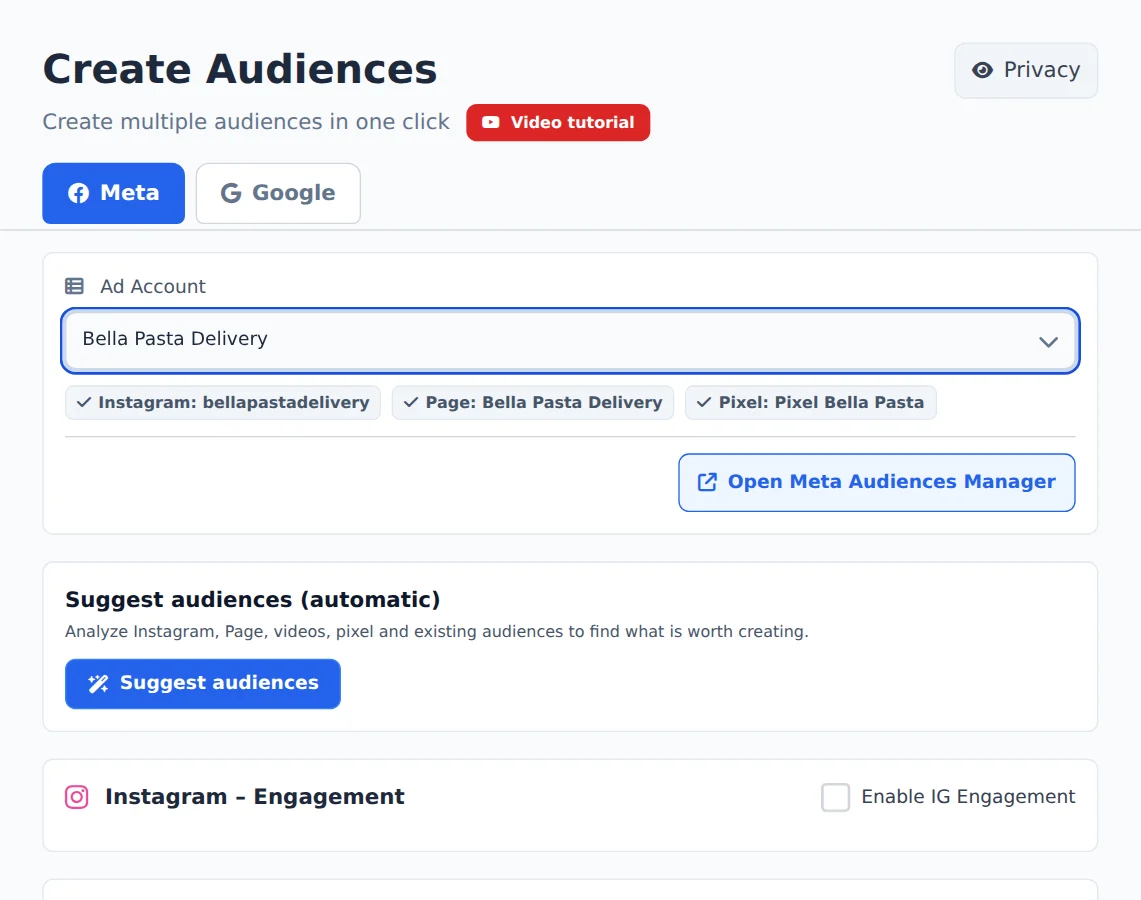
Pick the account
Open Create Audiences in the side menu and, on the Meta tab, pick the ad account in the selector at the top. Ads Editor finds its Instagram, Page and Pixel on its own.
- 2
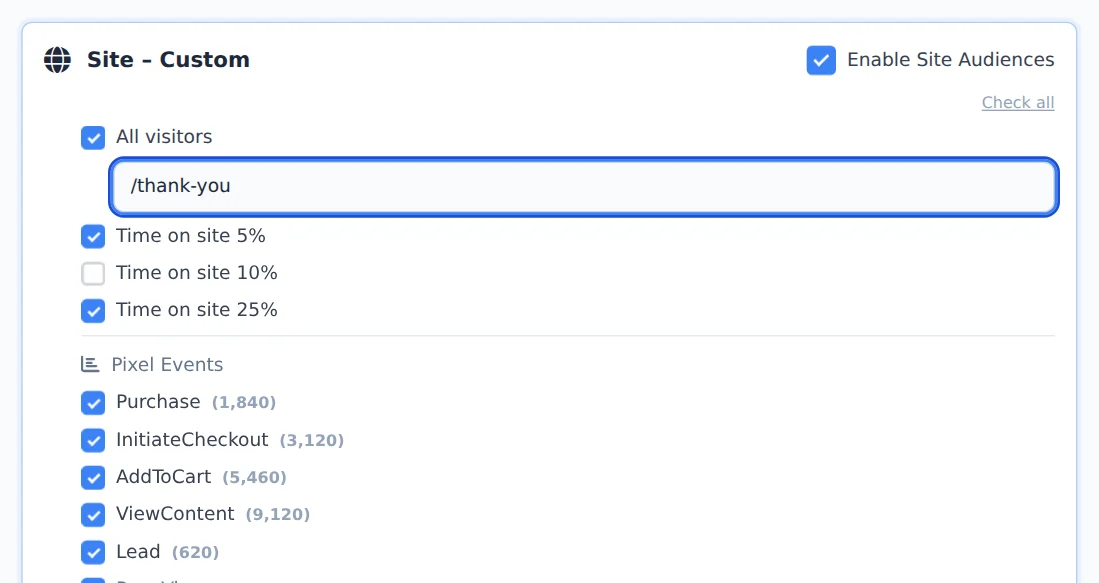
Turn on website audiences
Turn on Enable Site Audiences. Under All visitors, type part of the address to keep only one page, such as the thank you page. Check the Time on site you want.
- 3
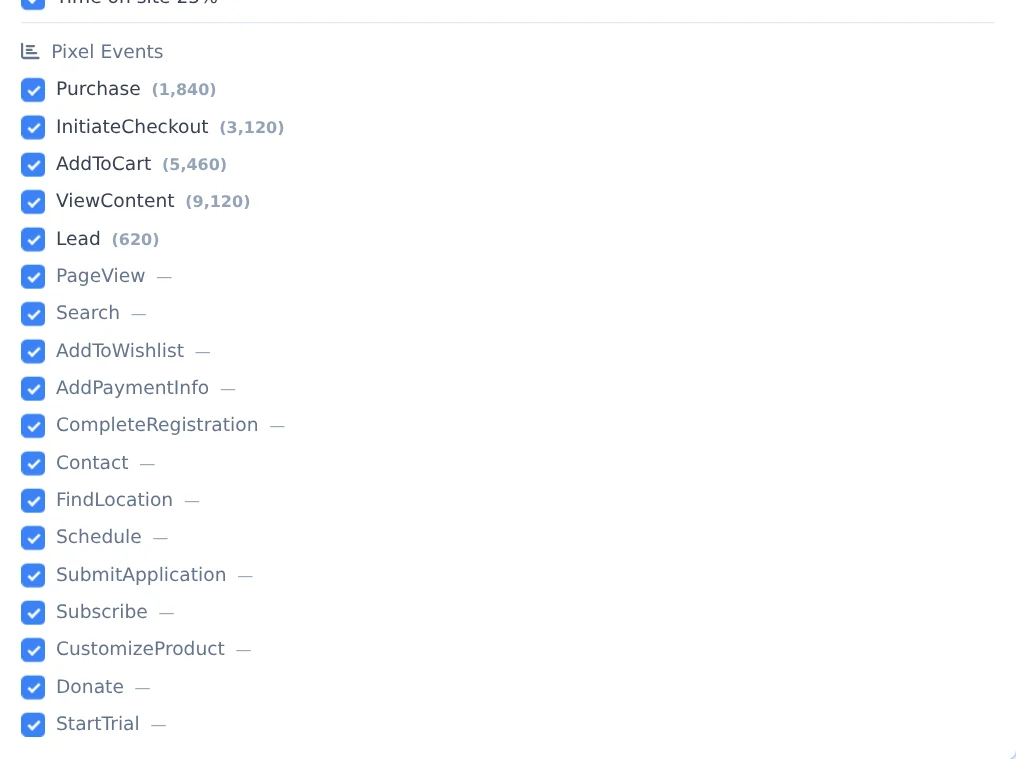
Pick the Pixel events
Under Pixel Events, each checked event becomes an audience, such as buyers or people who started checkout.
- 4
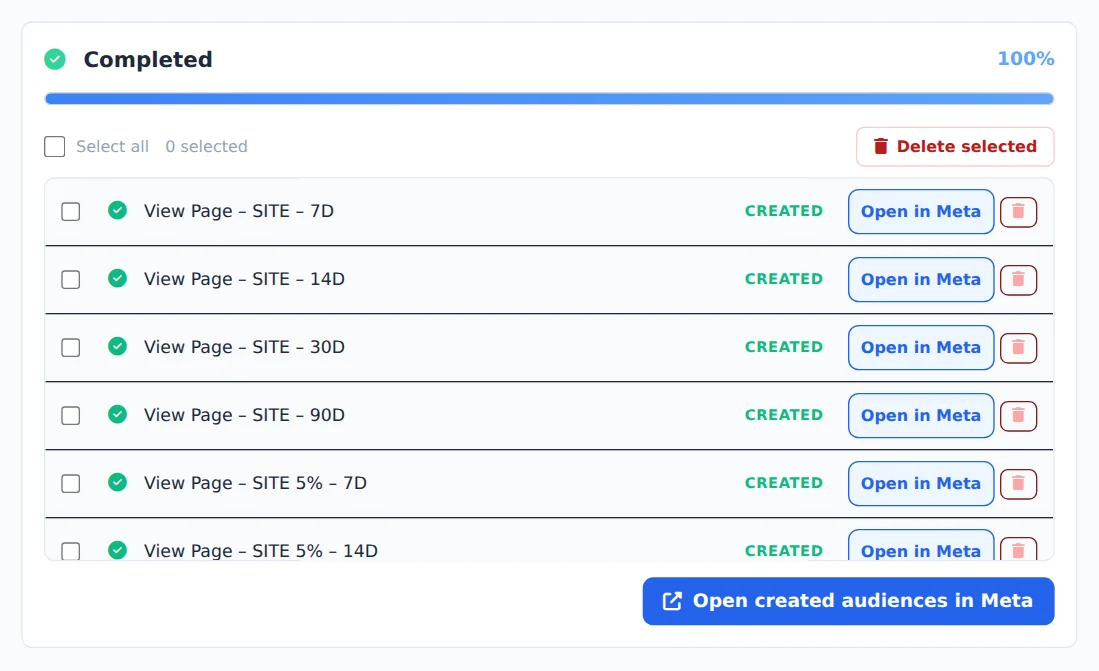
Periods and creation
Pick the Retention Periods (up to 180 days) and click Create Audiences.
Exclude people who already bought
Create the buyers audience and use it as an exclusion in retargeting ad sets: the ad stops showing to people who are already customers.
How to tell it worked
- The progress panel ends in Completed.
- Names come out as SITE - [Purchase] - 30D, with the event and the period.
If something goes wrong
| Symptom | Likely cause | What to do |
|---|---|---|
| The website block does not turn on | No Pixel was found in the account | Share the Pixel with the ad account and pick the account again |
| The event is not in the list | The Pixel has not recorded that event recently | Check the event in Meta Events Manager |
| An audience came out with Error | The period is over 180 days | Pick a shorter period for website audiences |
Frequently asked questions
How do I create audiences of visitors to my website?
The Custom Website section uses the account's Pixel, so it's only active if a Pixel is detected. Click Enable Site Audiences and select the options you want: All visitors (with an optional field to limit it to a specific URL, such as the thank-you page), and Time on site 5%, 10%, and 25%, which create audiences of your most engaged visitors (those who spent the most time on the site). Each option is combined with the retention periods you selected. Below these options, you'll also see the Pixel Events list, which lets you create audiences from any event your pixel fires.
How do Retention Periods work, and what are the limits?
Retention Periods set the audience's time window. A 30-day audience includes people who took the action in the last 30 days, and it updates itself automatically in Meta. You can select several periods at once (1, 3, 5, 7, 14, 30, 60, 90, 120, 180 and 365 days), and each audience type you select is created once for each period. The preselected defaults are 7, 30 and 90 days. Keep Meta's limits in mind: engagement audiences (Instagram, Facebook and video) accept a maximum of 365 days, and pixel-based website audiences accept a maximum of 180 days. Meta rejects periods above the limit and the item shows Error in the list, but the other audiences are still created.