
Meta Ads
Several copies at once
Create 2, 3, 5 or 10 copies of the same campaign, ad set or ad in one click, already numbered.
Quick answer
In Meta Ads, check the item, click Bulk Edit and Duplicate. Turn on Bulk copies, at the top of the window, and pick how many: 2, 3, 5 or 10. Each copy comes numbered (Copy 1, Copy 2...) and each name can be changed before you confirm.
Watch the walkthrough 0:25
Before you start
- It works for campaigns, ad sets and ads: each checked item gets that number of copies.
- The other options in the window (what goes along, active or paused) apply to every copy.
Step by step
In this example, we create three copies of a campaign to test three audiences.
- 1
Open Duplicate
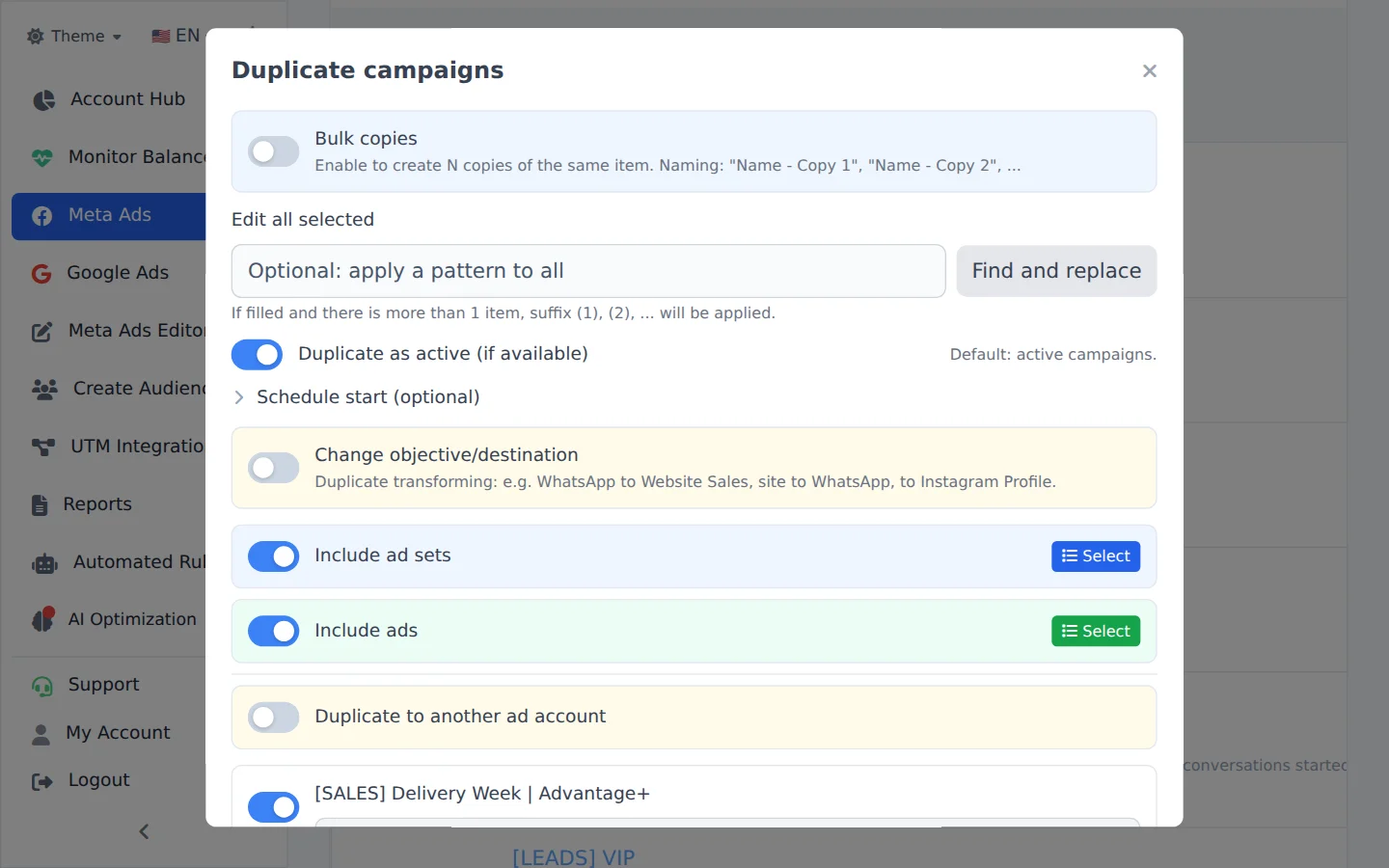
Check the campaign, click Bulk Edit and, in the action bar, Duplicate.
- 2
Turn on Bulk copies
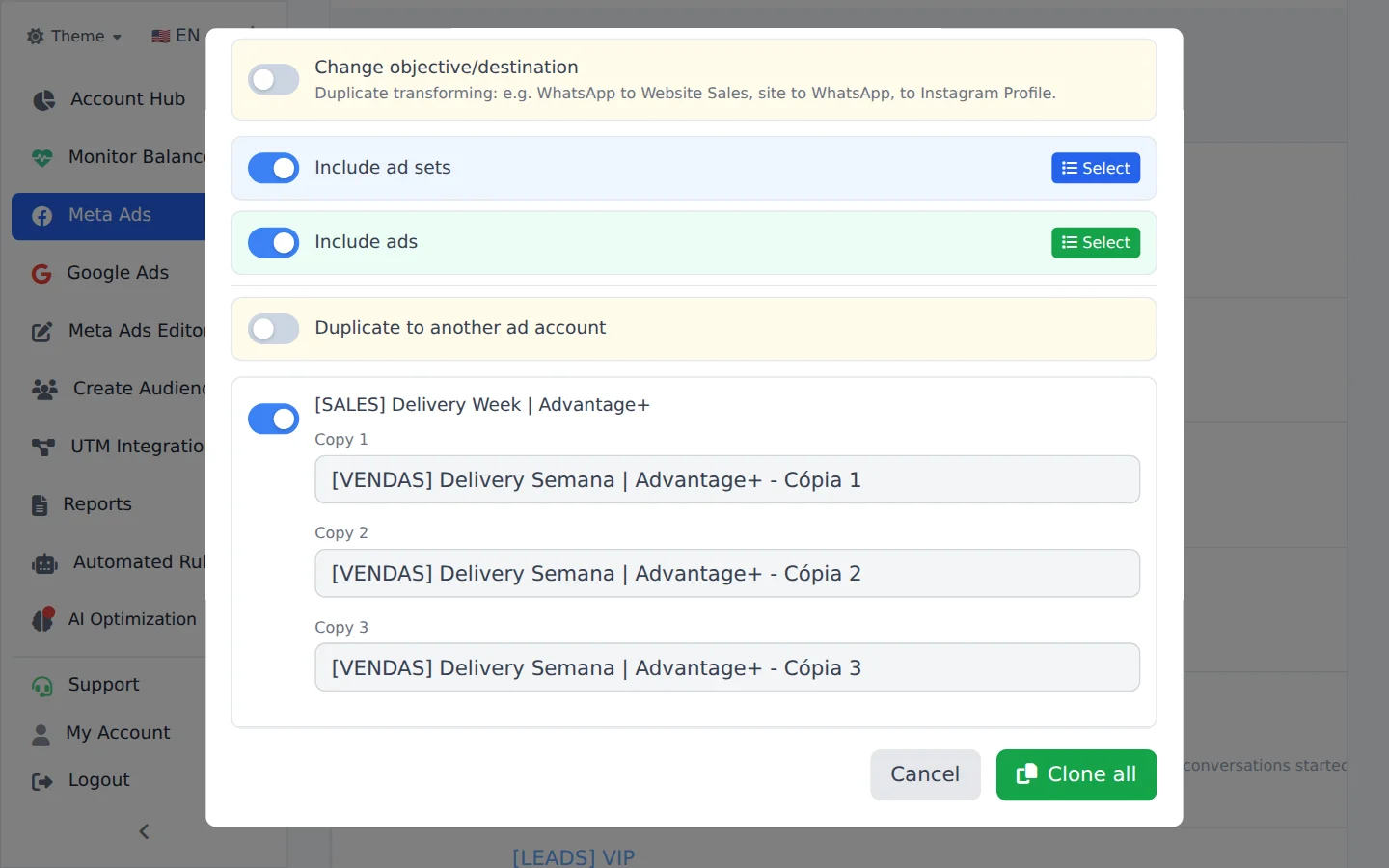
Turn on Bulk copies, at the top, and pick how many: here, 3 copies. Each copy comes numbered, and you can change the names in the list.
- 3
Confirm
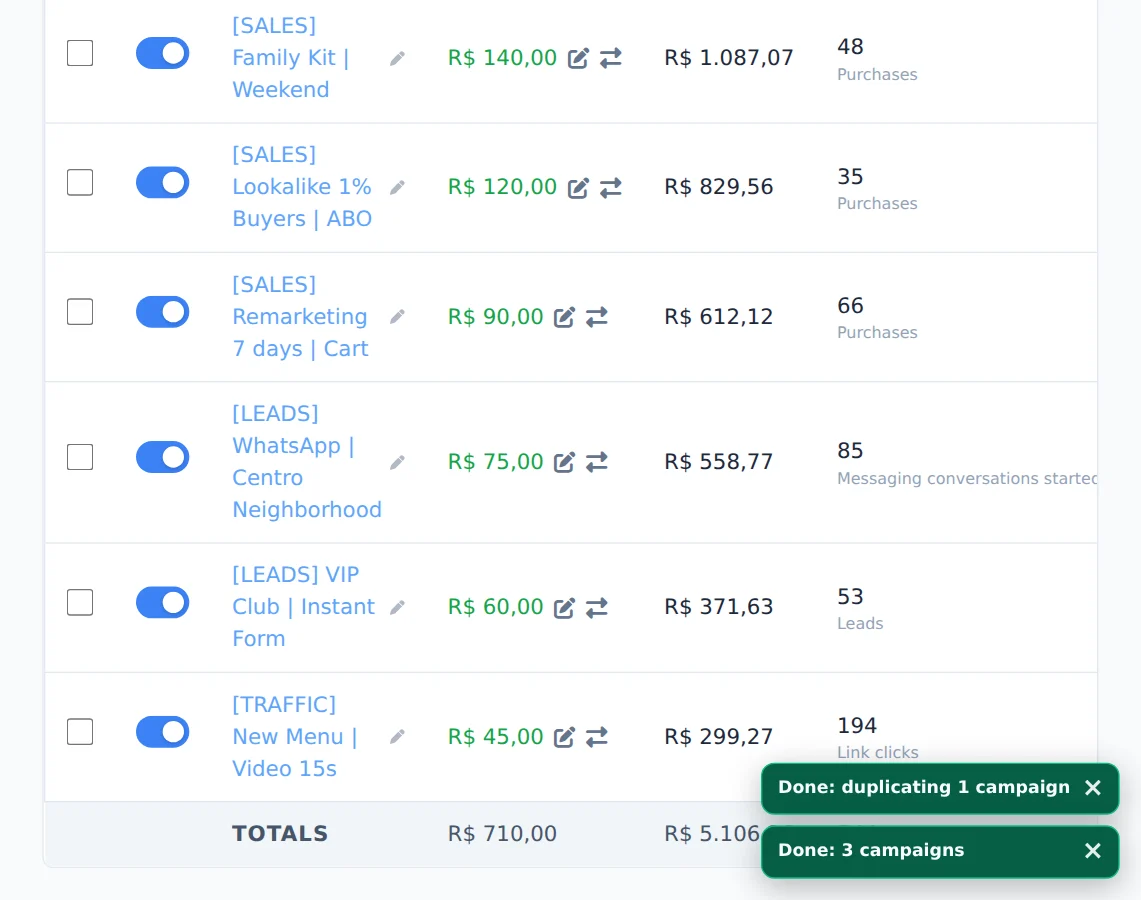
Click the confirm button. The card in the corner follows the copies until the end.
A/B test without rework
Make the copies paused, change in each one only what is being tested (audience, creative or budget) and activate them all together.
How to tell it worked
- The card in the corner ends in Completed.
- The copies show in the list with the number at the end of the name.
If something goes wrong
| Symptom | Likely cause | What to do |
|---|---|---|
| The card says Partial | Some copies worked and others did not | Read the reason for the first failure on the card and duplicate again only what is missing |
| I cannot find the Bulk copies switch | It sits at the top of the Duplicate window | Scroll the window back to the top |
Frequently asked questions
How do I create several copies of the same item at once (Bulk Copies)?
In Meta Ads:
- Click Bulk edits, above the table, and select the campaigns, ad sets or ads.
- Click Duplicate in the bar that appears at the bottom.
- In the modal, turn on Bulk copies and choose how many: 2 copies, 3 copies, 5 copies or 10 copies.
- Click Duplicate to confirm.
Each selected item gets that number of copies, already numbered (Name - Copy 1, Name - Copy 2 and so on). Before confirming, you can edit the copy names in the same modal.