
Meta Ads
The Meta Ads manager
Pick the account and the period, read the summary and find any campaign, ad set or ad in seconds.
Quick answer
Open Meta Ads in the side menu, pick the account in the selector at the top and the period in the date button. The Period Summary adds up everything that is listed. To find a campaign, type part of its name in the filter field above the table and press Enter. The Campaigns, Ad Sets and Ads tabs switch the table level.
Watch the walkthrough 0:44
Before you start
- Your Meta account must be connected. The accounts in the selector are the ones from the profile you connected.
- You can open a single account or several together: with several, the table and the summary add them all up.
- The numbers come straight from Meta. The Refresh button, next to the period, fetches them again at any time.
Step by step
In this example, we open a delivery business account and look for last week sales campaigns.
- 1
Pick the account
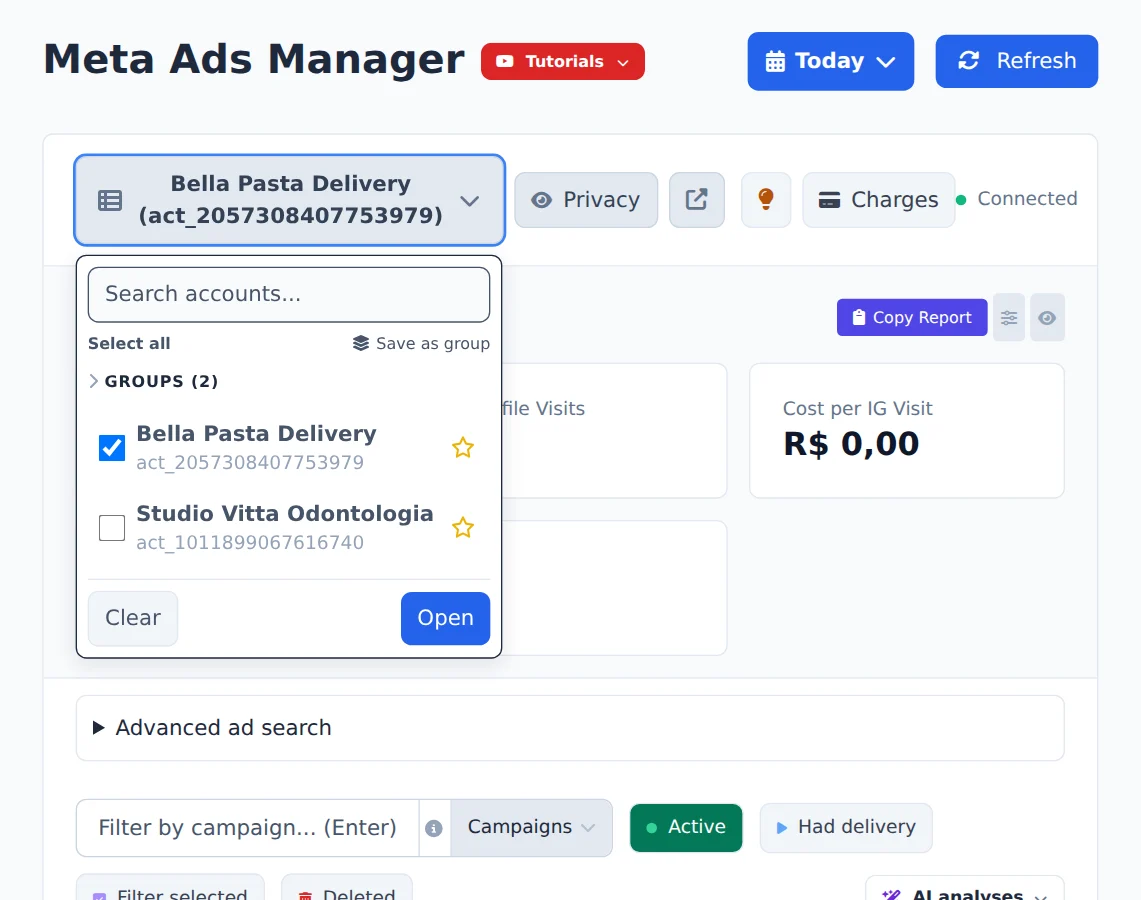
Click the account selector at the top of the page. Check one or more accounts (you can search by name) and click Open.
- 2
Pick the period
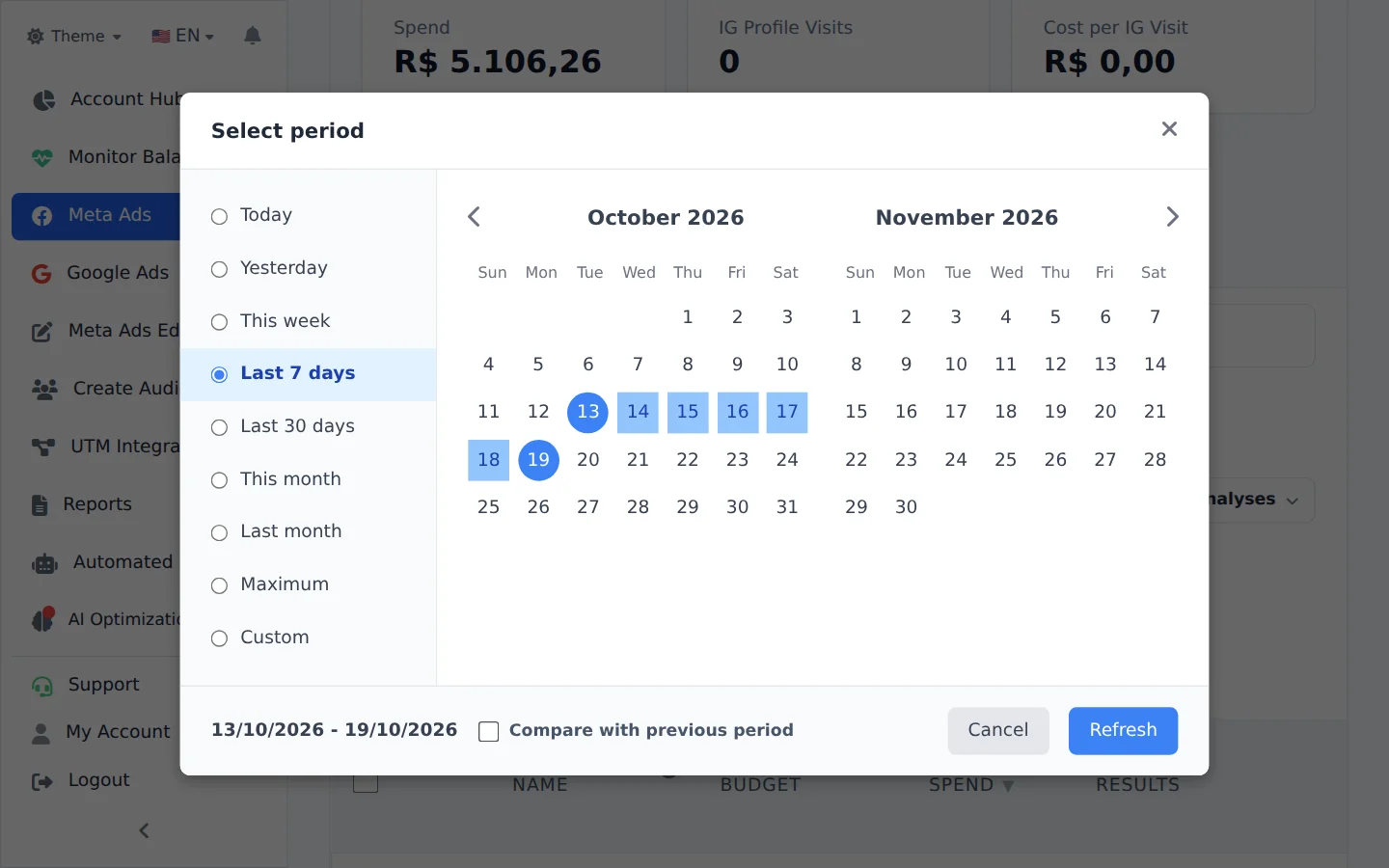
Click the period button (it shows the current one, for example Today). Pick a preset, such as Last 7 days, or a range on the calendar. Check Compare with previous period to see how much each number went up or down, and click Refresh.
- 3
Read the period summary
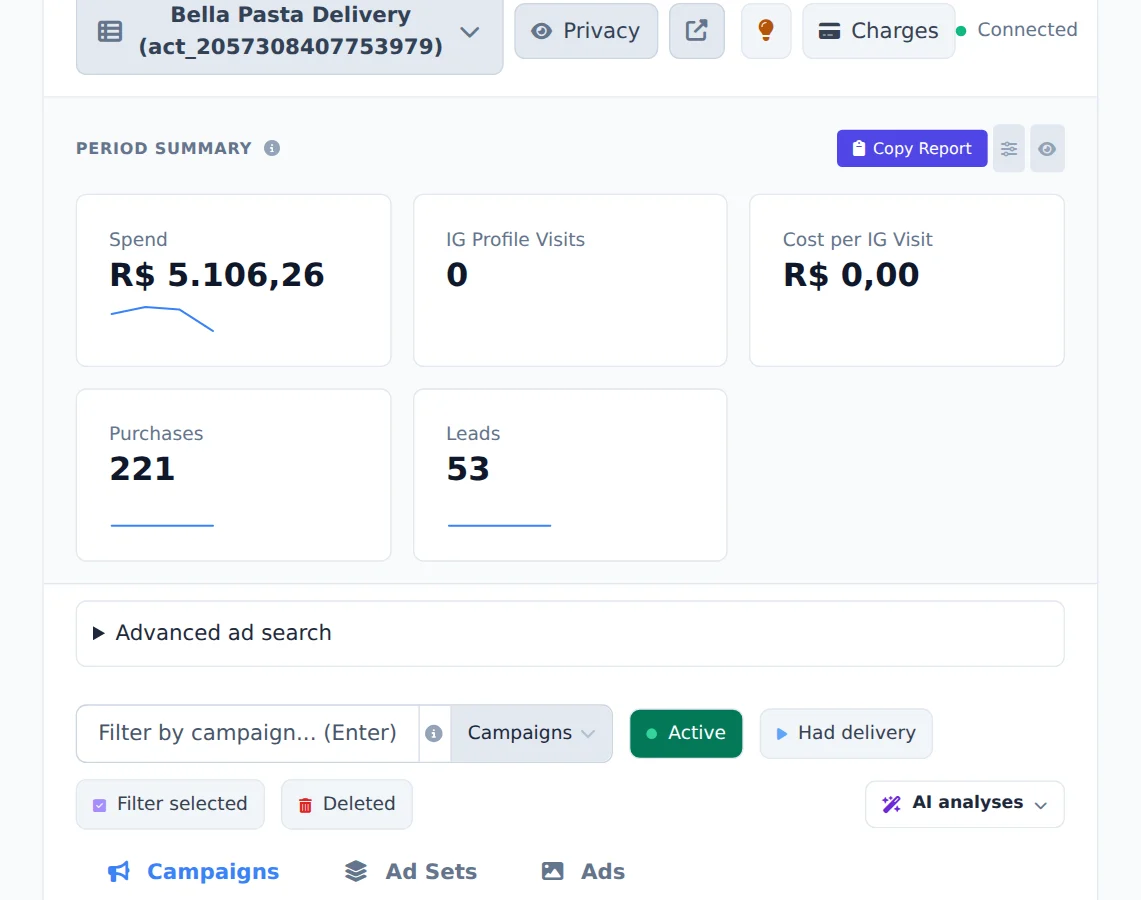
The Period Summary cards add up the spend and results of everything in the table. They follow the chosen period and filters.
- 4
Find the campaign
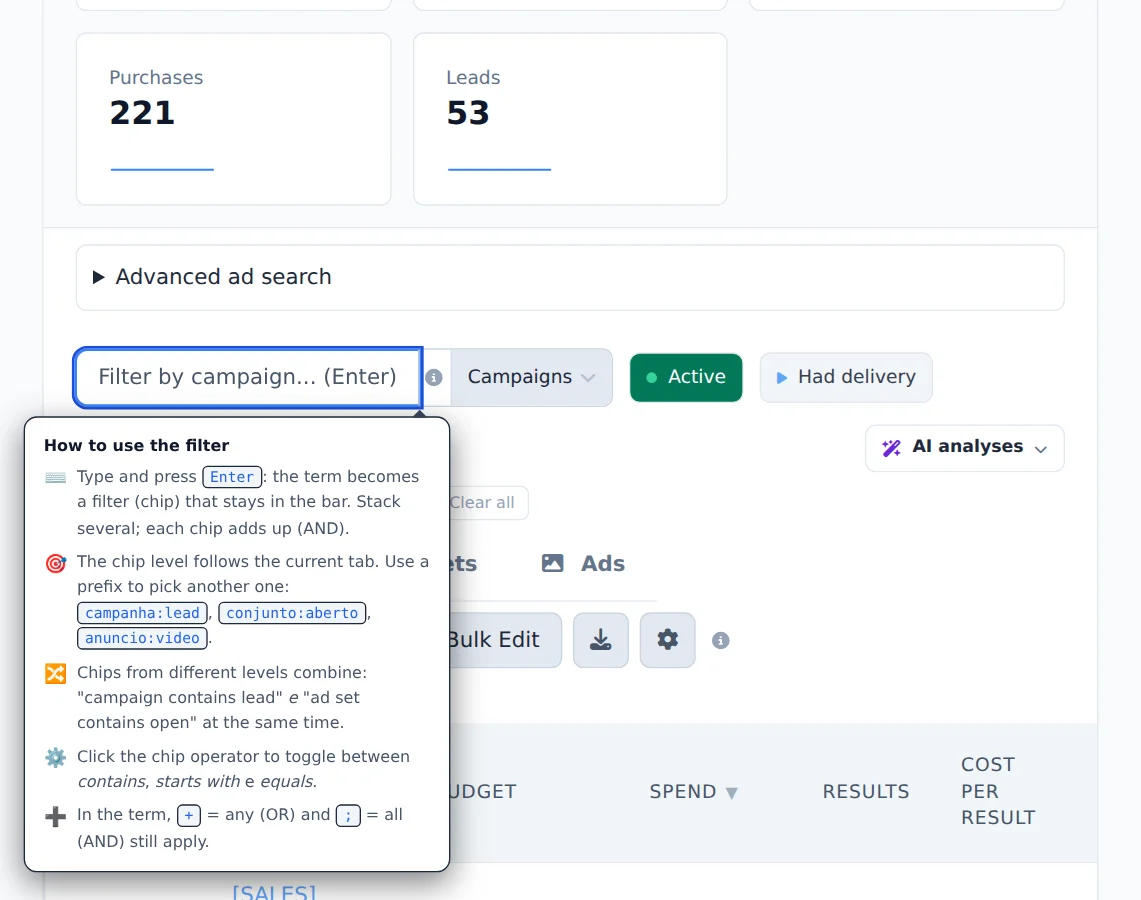
Type part of the name in the filter field above the table and press Enter: the term becomes a filter in the bar. Active shows only what is on and Had delivery only what spent in the period. Clear all shows everything again.
- 5
Move between levels
The Campaigns, Ad Sets and Ads tabs switch the table level. Go back to Campaigns whenever you want.
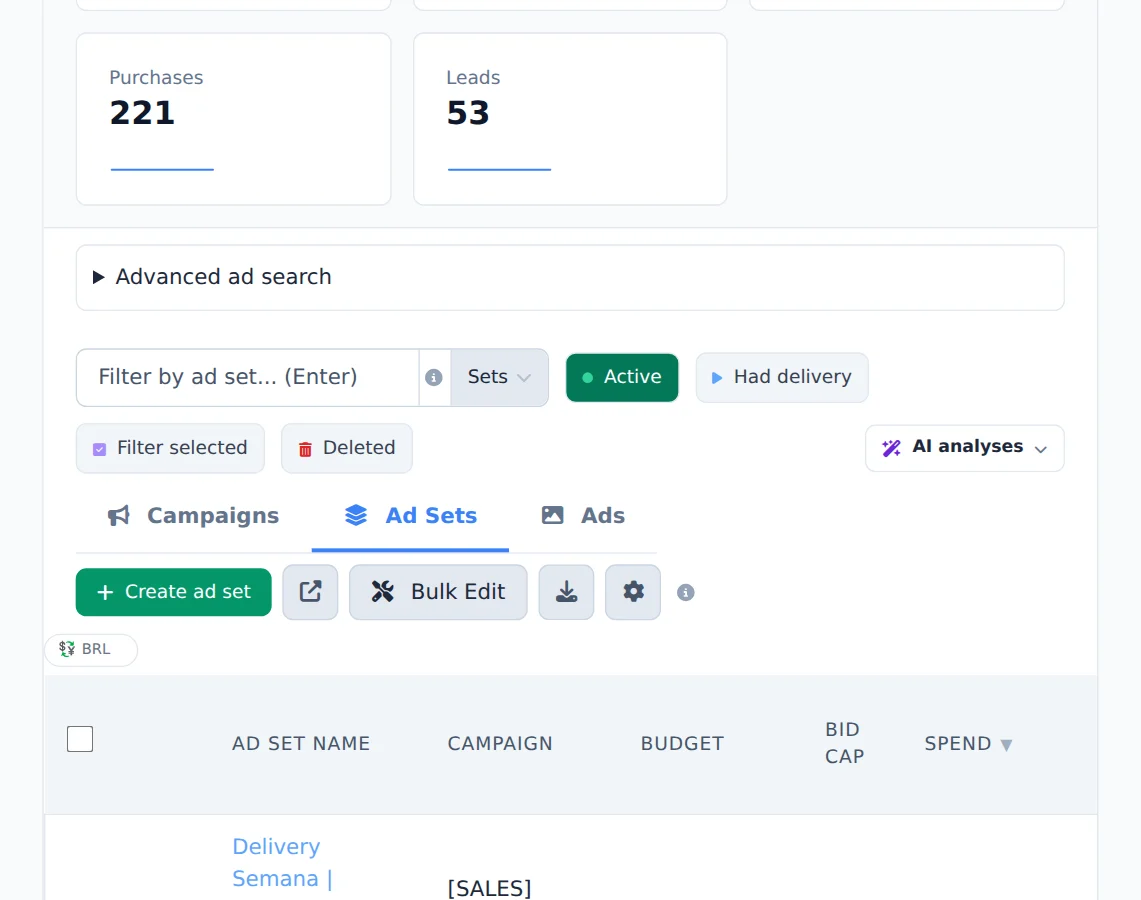
Filters add up
Each term you type becomes a separate filter, and all of them apply at the same time. Inside a term, + means any of them and ; means all of them: black + white brings items that have either one. Filters are saved per account.
How to tell it worked
- The chosen account name shows in the selector at the top.
- The period button shows the chosen range, and the table numbers change with it.
- The filter shows as a tag above the table, and only matching rows stay in the list.
If something goes wrong
| Symptom | Likely cause | What to do |
|---|---|---|
| The account is not in the selector | It is not in the connected Meta profile, or it was not shared with you in the team | Check the connected profile in Account Center or ask the account owner to share the account under Team |
| The table is empty | A filter or the Active button is hiding the campaigns | Click Clear all and turn off Active and Had delivery |
| The numbers differ from Meta | The period or time zone is not the same on both screens | Pick the same period on both and click Refresh |
Frequently asked questions
How do I change the metrics period in Meta Ads?
Click the period button at the top of the page (it shows the current period, for example Today) to open the Select period window. The preset options are: Today, Yesterday, This week, Last 7 days, Last 30 days, This month, Last month and Maximum. For a specific range, choose Custom and click the start and end days on the calendar. Then click Update to apply. All metrics in the table, the Period Summary and exports will reflect the selected period. The Refresh button next to the period reloads the data straight from Meta at any time.
How do I compare metrics to the previous period?
Open the Select period window and check Compare with previous period at the bottom, before you click Update. The system automatically calculates a previous period of the same length: if you're viewing the last 7 days, it compares with the 7 days immediately before. With comparison on, the table cells show a percentage change next to each metric, indicating whether it went up or down versus the previous period. Your preference is saved, so comparison stays on in future visits until you uncheck it.
What is the Period Summary and how do I choose which metrics appear on the cards?
The Period Summary is the panel of cards above the table. It shows the combined total of the metrics for everything listed in the current period. To choose the metrics, click the settings icon next to the panel. In the Customize Summary window, select up to 12 metrics and drag them to set the order. Options include Investment, Revenue, ROI, Purchases, Cost per Purchase, Leads, Cost per Lead, Clicks, CPC, CTR, Impressions, Messages Received, Instagram Profile Visits, Follower Growth, and more. Your choice is saved and will be the same next time you open the page. To hide the whole panel, click the eye button next to the settings icon.
How do I filter campaigns, ad sets, or ads by name in Meta Ads and Google Ads?
Above the table, in the Filter by name... field:
- Type a term and press Enter. It becomes a filter (chip) in the bar. You can stack several chips, and they all apply at the same time.
- In a term, + means any of them (OR) and ; means all of them (AND). Example: black + white matches names with either term; black ; video matches only names with both.
- The chip's level follows the current tab. For another level, use a prefix: in Meta Ads, campaign:, adset:, and ad: (example: campaign:lead); in Google Ads, campaign:, group:, and ad:.
- In Meta Ads, click the chip's operator to switch between contains, starts with, and equals.
Next to the field are the shortcuts Active, Had delivery, and Filter selected (select rows, then click to see only those).
What are the Active, Had delivery, and Filter selected buttons for?
These are quick filters next to the search field. Active shows only campaigns, ad sets, or ads with an active status and hides paused ones. Had delivery shows only items with spend or impressions above zero in the period, which is useful for clearing everything that didn't run. Filter selected shows only the rows you checked, which helps you review a large selection before applying a bulk action. Click any of them again to turn it off. These filters also affect exports and Copy report, which work from what is visible on screen.