
Reports
Period analysis with AI in the report
AI reads the numbers for the period and writes a short summary so your client understands the month. You review, adjust and save.
Quick answer
On the report card, click Analysis. Pick the period, click Generate with AI, review the text and save. The Period analysis (AI) section shows up on the client link.
Watch the walkthrough 0:24
Before you start
- Generating the analysis uses AI credits from the account that owns the report. The cost shows on the button.
- The text stays fixed until you generate it again: your client only reads it and does not generate anything.
- The analysis comes in three parts: what went well, points of attention and next steps.
Step by step
In this example, we generate the analysis of the last 30 days for a restaurant.
- 1
Open Analysis
In Reports, click Analysis on the report card. The window brings the report texts, with the AI analysis.
 1
1- 1Analysis
- 2
Generate the analysis
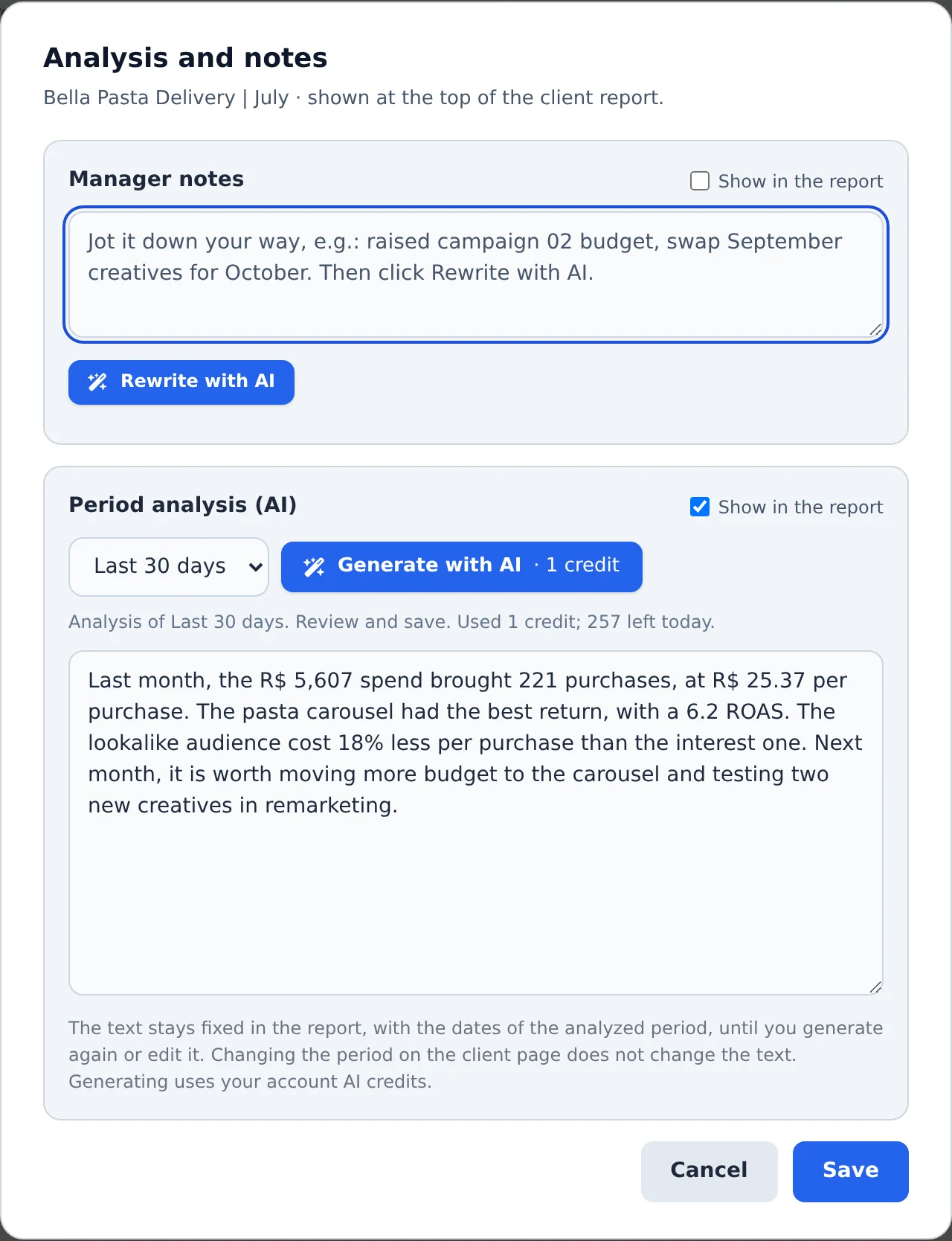
Pick the period the analysis will cover and click Generate with AI. The text arrives in seconds: read it and adjust whatever you want right in the box.
 123
123- 1Period
- 2Generate with AI
- 3Generated text
- 3
Save
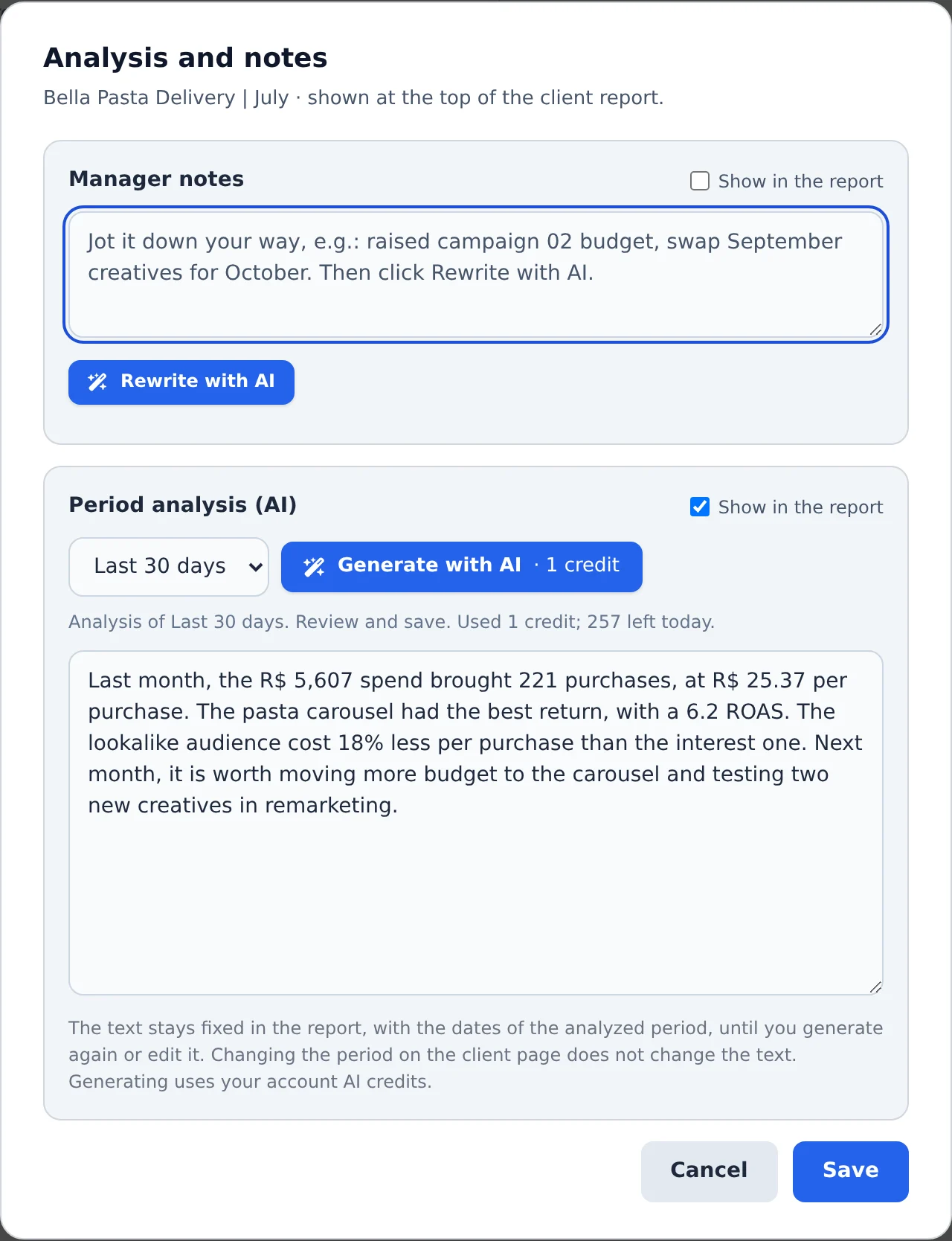
Keep Show in the report checked for your client to see the analysis, or uncheck it to keep it just for you. Click Save.
 12
12- 1Show in the report
- 2Save
Review before sending
The AI only uses the report numbers. If something happened outside of them (a sale, a holiday), add it to the text before saving.
How to tell it worked
- Opening the link, the Period analysis (AI) section shows up with the saved text.
- Changing the period on the link does not change the text: it belongs to the date it was generated.
If something goes wrong
| Symptom | Likely cause | What to do |
|---|---|---|
| A credits notice appears | The AI credits ran out | Buy credits in My Subscription, or write the text by hand |
| The analysis does not show up on the link | Show in the report is unchecked | Open Analysis, check the option and save |
| The text talks about another period | The analysis was generated earlier and stayed saved | Pick the new period and click Generate with AI again |
Frequently asked questions
How does Period Analysis (AI) work in the report?
Period Analysis (AI) is an optional report section, off by default. The AI writes a short text explaining the period, so your client can understand the numbers without you writing everything from scratch.
The analysis comes in three blocks, with short sentences and rounded numbers:
- What went well
- Points of attention
- Next steps
How to use it:
- On the Reports page, click Analysis on the report card (or open the report to edit) and turn on the Period Analysis (AI) section.
- Click Generate with AI. The AI reads the period's data and spends AI credits from the report owner's account.
- Review it, edit what you want and save.
The text stays fixed until you generate it again: changing the period on the link doesn't rewrite the analysis. Anyone who opens the link only reads the saved text. The client doesn't generate anything and doesn't use credits.
If you run out of AI credits, a warning appears: on the free plan with the See plans button, on a paid plan with Buy credits.