
Google Ads
Performance Max asset group
Edit the PMax headlines, descriptions, images, search themes, audiences and Merchant Center without opening Google Ads.
Quick answer
In Google Ads, click the name of the Performance Max campaign: the asset groups show up instead of ad groups. Click Edit on the group and pick Asset group. Adjust Basics, Text, Images and videos, Signals and Products and click Save changes.
Watch the walkthrough 0:32
Before you start
- Performance Max has no ad groups: the assets sit in the asset group, and Google builds the ads from them.
- Google's minimums apply after the edit: 3 headlines, 1 long headline, 2 descriptions, 1 landscape image, 1 square image and 1 logo. Ads Editor checks them before saving.
- To create a PMax from scratch, use Create campaign with the Performance Max type.
Step by step
In this example, we adjust the clinic's PMax asset group.
- 1
Open the asset group
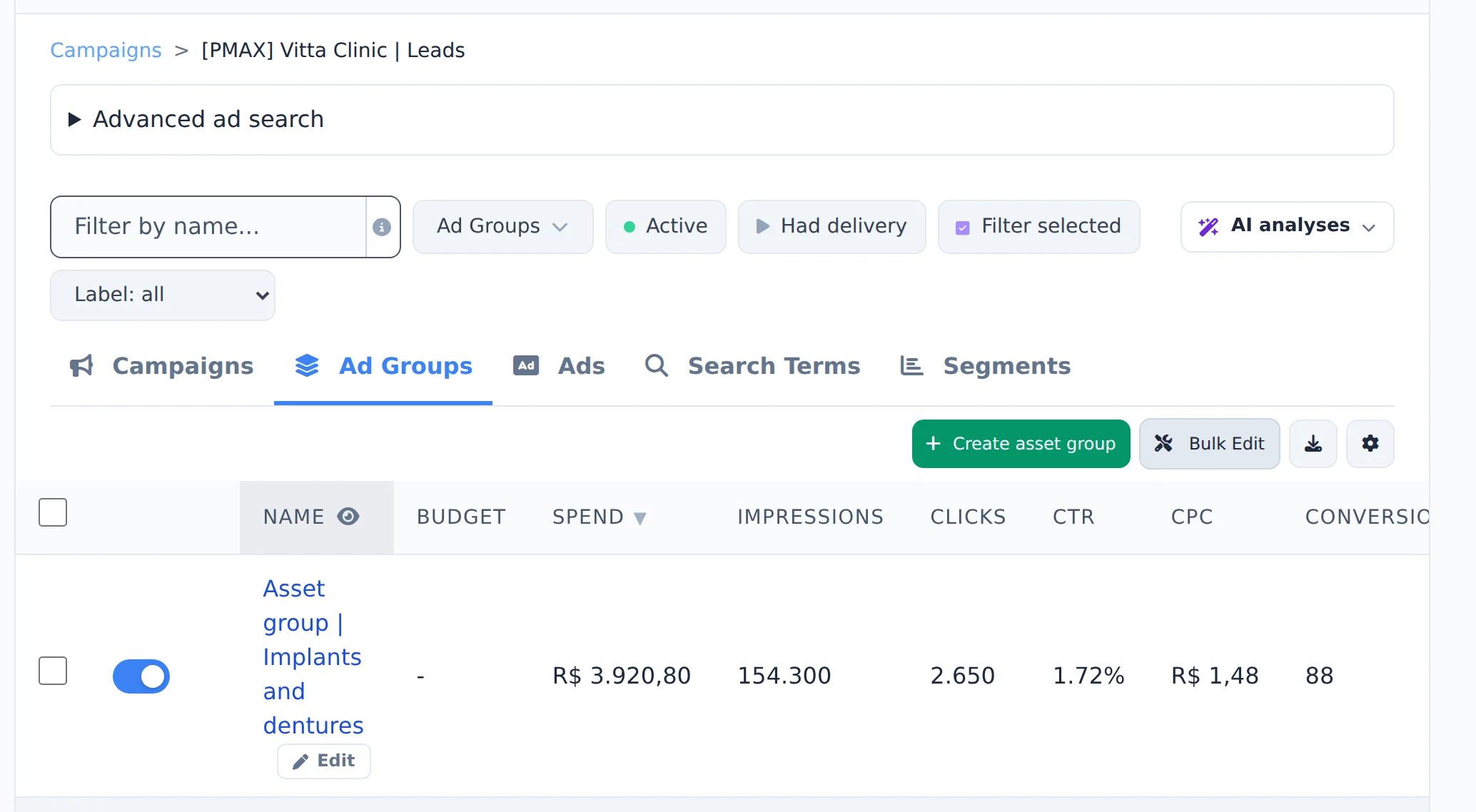
In the Campaigns tab, click the PMax campaign name. The path above the table shows the open campaign, and each row is an asset group. Click Edit, below the group name.
 12
12- 1Open campaign
- 2Edit
- 2
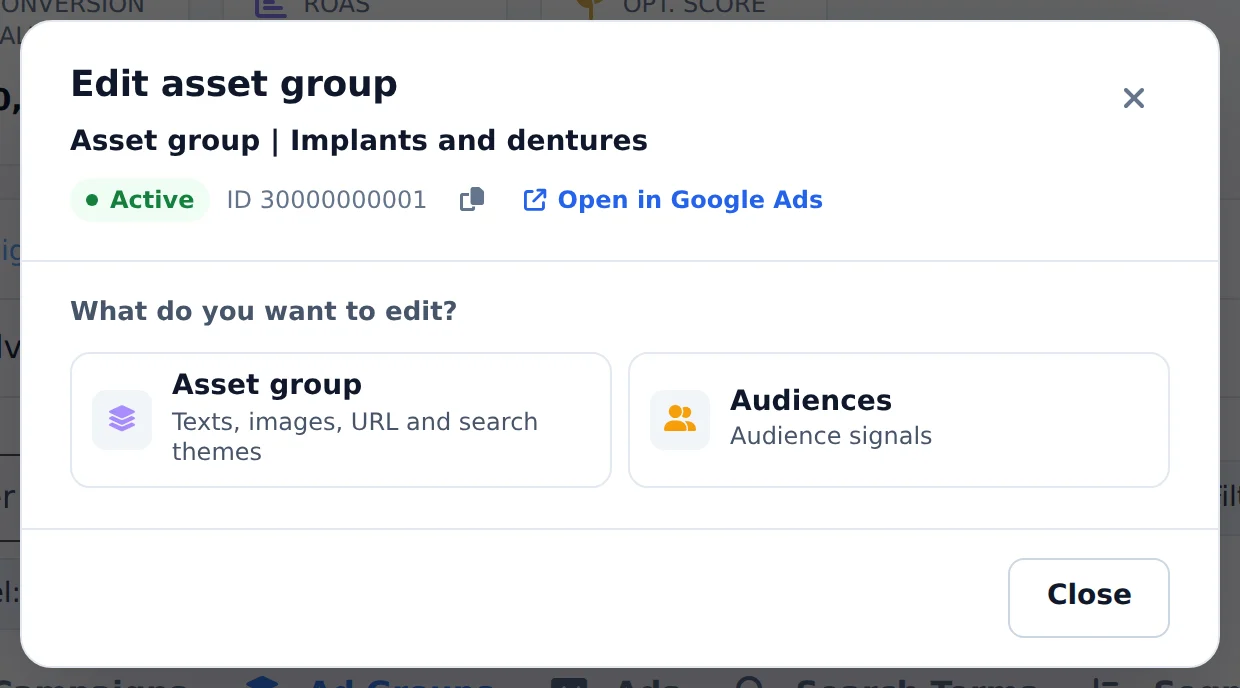
Pick Asset group
The panel has Asset group, with texts, images, URL and search themes, and Audiences, with the audience signals of the group.
 12
12- 1Asset group
- 2Audiences
- 3
Adjust the texts
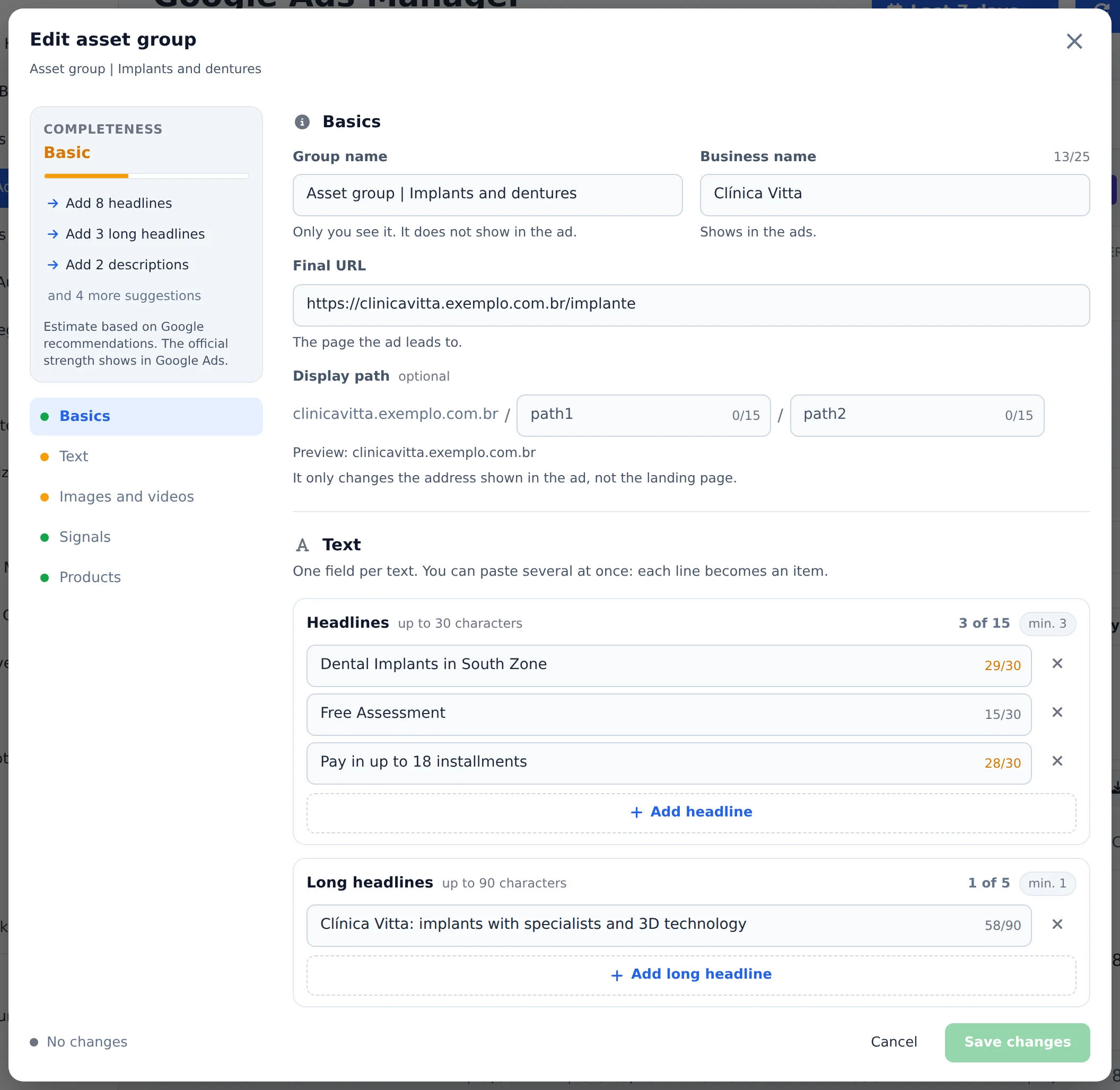
On the left you find the group strength, with what is missing to improve it, and the sections. In Basics, the group name, business name and final URL. In Text, the headlines (up to 30 characters), long headlines (up to 90) and descriptions, each with its counter. + Add headline creates a new field and the X removes it.
 123
123- 1Group strength
- 2Sections
- 3Headlines
- 4
Images and videos
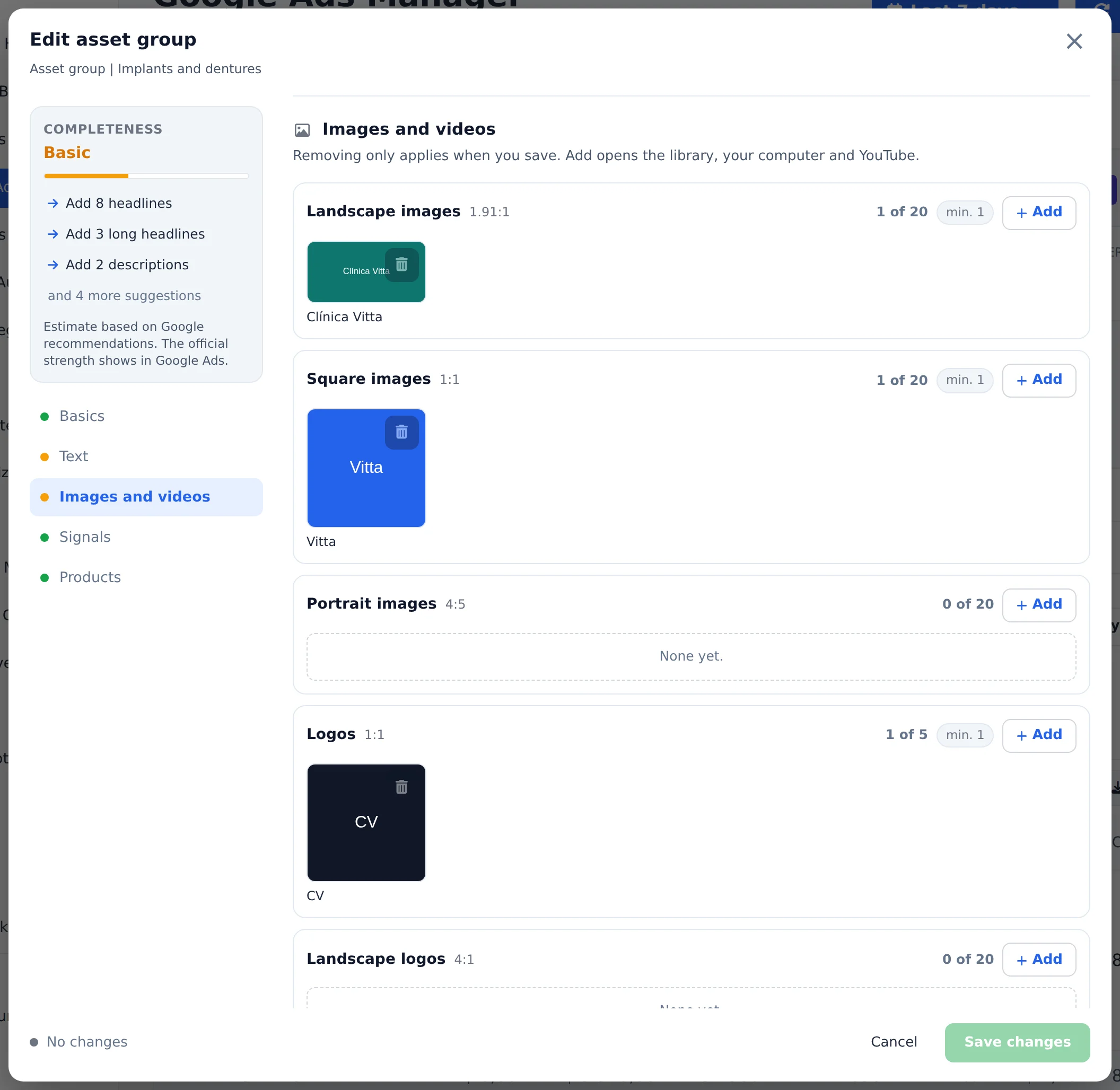
In Images and videos, each format has its own box: landscape, square, portrait, logo and YouTube videos. Add opens the account library, your computer or YouTube. The trash can removes the asset from the group.
 12
12- 1Images and videos
- 2Assets of each format
- 5
Search themes, audiences and products
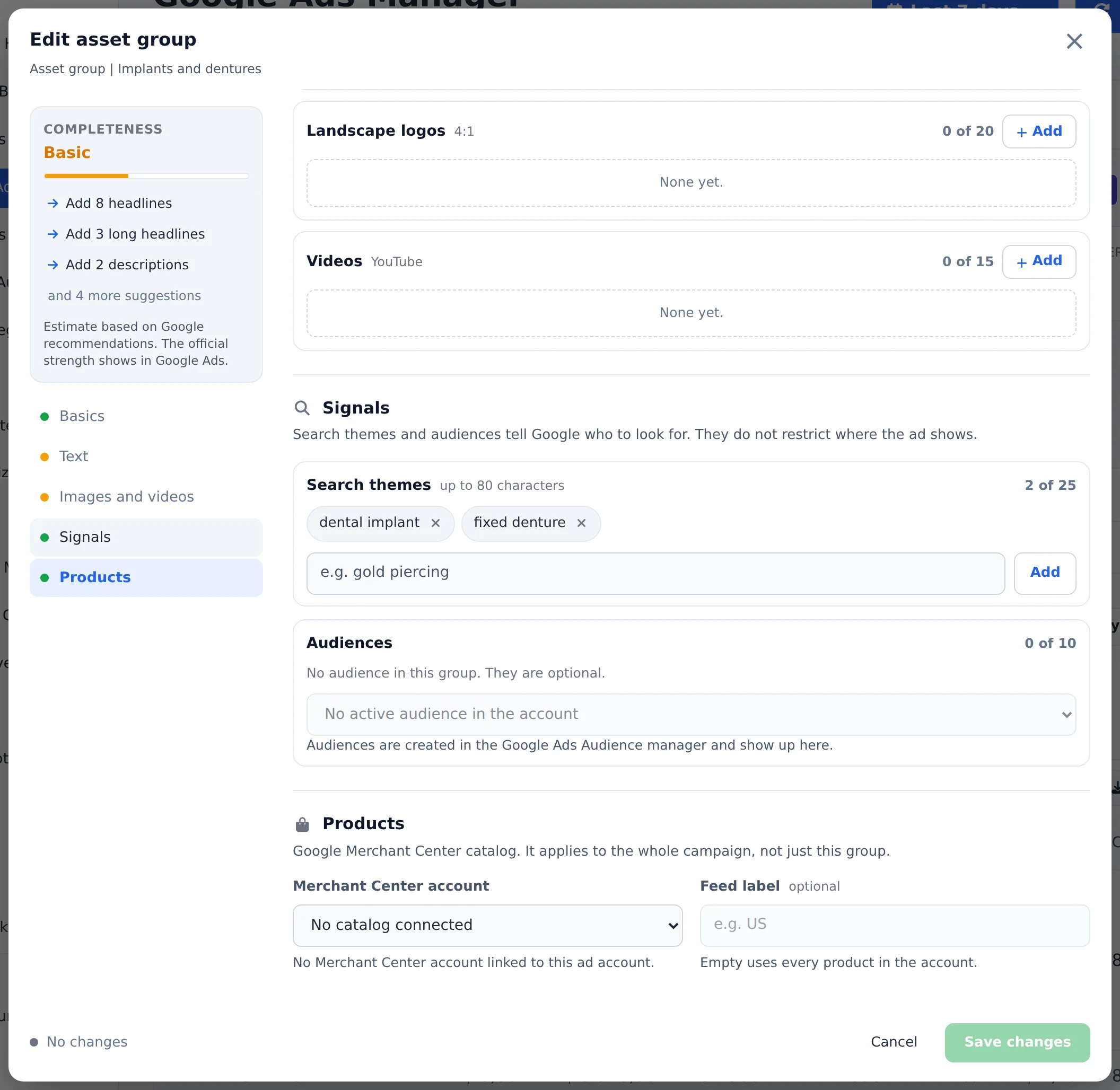
In Signals, search themes and audiences tell Google who to look for, without limiting where the ad shows. In Products, link the Merchant Center for the PMax to advertise the catalog. Click Save changes: Ads Editor checks the minimums and validates with Google before saving.
 123
123- 1Signals
- 2Search themes
- 3Save changes
Removing only applies when you save
An asset you remove or add only changes in Google when you click Save changes. If you close without saving, nothing changed.
How to tell it worked
- The notice in the corner confirms the group was updated.
- When you open the group again, the new assets show in the right section.
- The group strength goes up when you complete what it asks for.
If something goes wrong
| Symptom | Likely cause | What to do |
|---|---|---|
| Ads Editor does not let me save | The edit would leave the group below Google's minimums | Add the missing asset before removing another one |
| The Merchant Center is not in the list | It is not linked to the Google Ads account | Link it in Merchant Center, under Settings, Apps and services, and open the group again |
| The campaign does not show asset groups | It is not Performance Max | In other campaigns, edit the ad groups and the ads |
Frequently asked questions
How do I edit the asset group of a Performance Max campaign?
On screen: in Google Ads, open Edit asset group for the Performance Max campaign and adjust the group's assets.
You can also do it through AI Copilot or Ads Editor's MCP in your AI tool (Claude, Cursor, etc.):
- Ask to see the campaign's asset group (or to list the groups): each asset appears with its link.
- Ask for the edit: you can add headlines, long headlines, descriptions, business name, images (already in the account or uploaded on the spot), YouTube videos and search themes; remove assets by link; and change the name, final URL, status (active or paused) and paths.
Google's minimums must still be met after the edit: 3 headlines, 1 long headline, 2 descriptions, 1 landscape image, 1 square image and 1 logo. Ads Editor checks this and validates with Google before applying. To create a PMax campaign from scratch, use Create Campaign in Google Ads (type Performance Max) or ask AI Copilot or MCP.
How do I connect Merchant Center (product catalog) to a Google Performance Max campaign?
You can connect Merchant Center to Performance Max directly in Ads Editor, both when creating a campaign and when editing one.
New campaign: in Google Ads, click the green Create campaign button → type Performance Max. In the search themes step, the Merchant Center / Google Shopping block appears:
- Choose the Merchant Center linked to the account. Without product catalog creates the PMax campaign without products.
- Feed label (optional): use it only if your feed has a label (e.g., BR). If left empty, all Merchant products are used.
Existing PMax: open Edit asset group on the campaign. The same block appears there. Choose the Merchant Center (and the label, if you have one) and save.
What happens: the PMax campaign starts advertising Google Shopping products and includes all products in the feed. The connection applies to the whole campaign, and every asset group that had no products now gets all of them. You can refine by brand, category or specific product later in Google Ads itself.
If the Merchant Center isn't linked to the Google Ads account, Ads Editor refuses before creating or saving (this also applies to standard Shopping campaigns). To link them: in Merchant Center, go to Settings › Apps & Services and link your Google Ads account. If an invitation is left pending, accept it in Google Ads, under Tools › Linked accounts. Then just open the block again.
Can I create a Google Ads Performance Max (PMax) campaign through Ads Editor?
Yes! Go to Google Ads in the side menu, click the green Create campaign button, and choose the Performance Max type in the first step.
The wizard asks for: website, budget, strategy (Maximize conversions or Maximize conversion value), search themes, text assets (3 to 15 headlines, 1 to 5 long headlines, 2 to 5 descriptions, and the business name), and images and logo. You can upload the image right there in the wizard, without needing the account's image library.
Reminder: Performance Max has no ad groups. The assets live in the asset group, which is what you see when you expand the campaign in the manager. If a required asset is missing (for example, the logo), the wizard warns you before creating the campaign.
Google AI Optimization also tells you when the account is ready for a PMax campaign and opens the wizard already filled in.