
Account Center and balance
Track all your clients in the Account Hub
See all your clients' ad accounts in a single table, with spend, results and totals for the period, without opening them one by one.
Quick answer
Open Account Hub in the menu, pick the period on the date button and click Refresh. The cards at the top add up every account, and each table row is one account. Use Search account..., With spend and Columns to set up the screen your way.
Watch the walkthrough 0:35
Before you start
- The Hub shows the accounts turned on in Connect Meta and Connect Google. An account missing here needs to be turned on there.
- Meta Ads and Google Ads are in separate tabs, each with its own totals.
- Team members only see the accounts allowed for them.
Step by step
In this example, we check the last 30 days of every agency client.
- 1
Pick the period
In the side menu, click Account Hub. On the date button (it starts at Today), pick the period, for example Last 30 days, and confirm. The Meta Ads or Google Ads tab decides which accounts show up. Refresh fetches the numbers again.
 123
123- 1Period
- 2Meta Ads and Google Ads
- 3Refresh
- 2
Read the totals
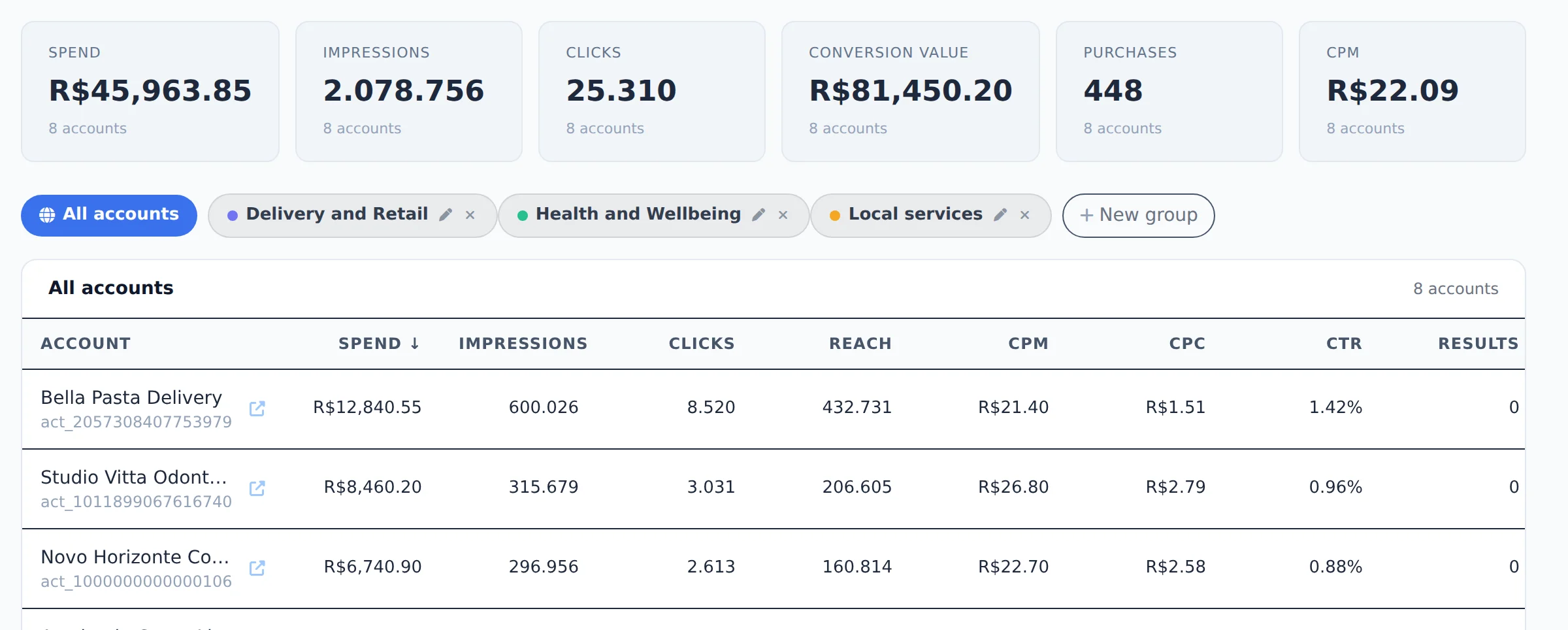
The cards at the top add up every account in the table. In the table, each row is one account: click a column header, such as Spend, to sort.
 12
12- 1Totals for all accounts
- 2Sort by the column
- 3
Search and filter
Type the name or ID in Search account... to find a client. With spend hides the accounts that did not spend in the period. To take an account off the screen, hover the row and click the crossed eye: it goes to Hidden, where you can bring it back any time.
 123
123- 1Search account
- 2With spend
- 3Hidden
- 4
Choose the columns
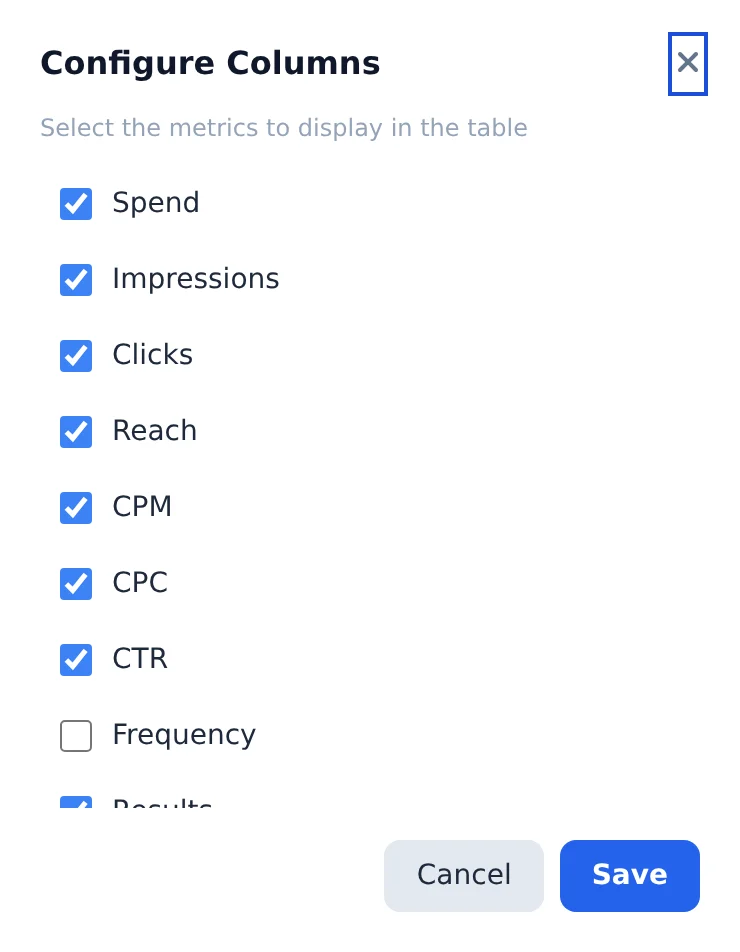
Click Columns, check the metrics you want in the table and click Save. The gear next to it picks the metrics of the cards at the top.
 12
12- 1Table metrics
- 2Save
Split clients into groups
With many clients, create groups (by niche, manager or client) and see the totals of just that group in one click. See the Account groups guide.
How to tell it worked
- The counter on each tab shows how many accounts made it into the table.
- The cards at the top change when you switch the period, tab or filter.
- The icon next to the name opens the account straight in the manager.
If something goes wrong
| Symptom | Likely cause | What to do |
|---|---|---|
| An account does not show up | It is not turned on in Connect Meta or Connect Google, or it was hidden | Check Hidden and, if it is not there, turn the account on in the connection screen |
| A Meta not connected notice appears | The Facebook login expired or was disconnected | Open Connect Meta and connect the profile again |
| One account shows an error and the others do not | The profile that accesses that account lost permission in the Meta business | Ask the business owner for access again and click Re-sync accounts |
Frequently asked questions
How do I use Account Center to keep track of all my clients?
Account Center shows all your clients on one screen:
- Open Account Center in the menu (it has a Meta tab and a Google tab).
- Organize accounts with account groups: click New group above the table, give it a name, choose the accounts, and save. Each group becomes a chip you can use to filter the screen.
- Click With delivery to see only the accounts that spent in the period, and use Search account... to find one by name or ID.
- Hover over a row and click the crossed-out eye to hide an account you don't want to see (you can bring it back with the Hidden button).
- Click the Customize card metrics gear to choose the metrics at the top, and use Columns for the table.
- Track the performance of all accounts without opening them one by one.
There is no filter by niche, category, or team member: grouping works through the groups you create.
In Account Center, a client's account that appears under several profiles won't open or shows an error. What should I do?
When the same ad account appears under several connected profiles, Account Center shows an error that explains the problem (for example, one profile's token lost access). It also tries the profile mapped to that account first, instead of failing without explanation.
To fix it, check which profile has access to the account in your Meta business, then reconnect the one that dropped (or select the right profile in Account Center).
What are the UTM Purchases, UTM Revenue and Profit metrics in the Account Center?
These metrics come from your UTM Integrations, meaning the sales webhooks you connected (Hotmart and other digital product platforms). UTM Purchases counts approved sales attributed to that ad account in the period. UTM Revenue adds up the net value of those sales, after the platform fee. Profit is UTM Revenue minus the account's ad spend in the same period. These columns only show values for accounts that have a UTM integration configured and attributed sales; otherwise they show zero. To set it up, go to the Integrations area and link your platform's webhook to the ad account.
The Account Center shows a Meta account not connected error. What should I do?
This warning means Ads Editor didn't find a valid Meta connection in your session. Open the Connect Meta page from the menu, sign in with Facebook again, and authorize the requested permissions. Then go back to the Account Center and click Refresh. If the Account Center loads but some accounts show a dash in the metrics and a gray dot in the status, the problem is access to those accounts: the connected Facebook profile no longer has permission for them in Business Manager. In that case, check access in Meta or connect the profile that manages those accounts.