
Meta Ads
Quick summary for WhatsApp
Build the text with the period numbers in seconds and paste it into the chat with your client, or export the table as CSV and PDF.
Quick answer
In Meta Ads, pick the period and click Copy Report, in the Period Summary. Write the greeting, choose the metrics and whether the per campaign detail goes along, check the preview and click Copy. Paste it into your client WhatsApp or email.
Watch the walkthrough 0:32
Before you start
- The text follows the table period and filters. With rows checked, it only counts the checked ones.
- You can include spend, impressions, clicks, CTR, CPC, leads, purchases, revenue, ROAS, messages and more.
Step by step
In this example, we send the weekly summary to a delivery business owner.
- 1
Open Copy Report
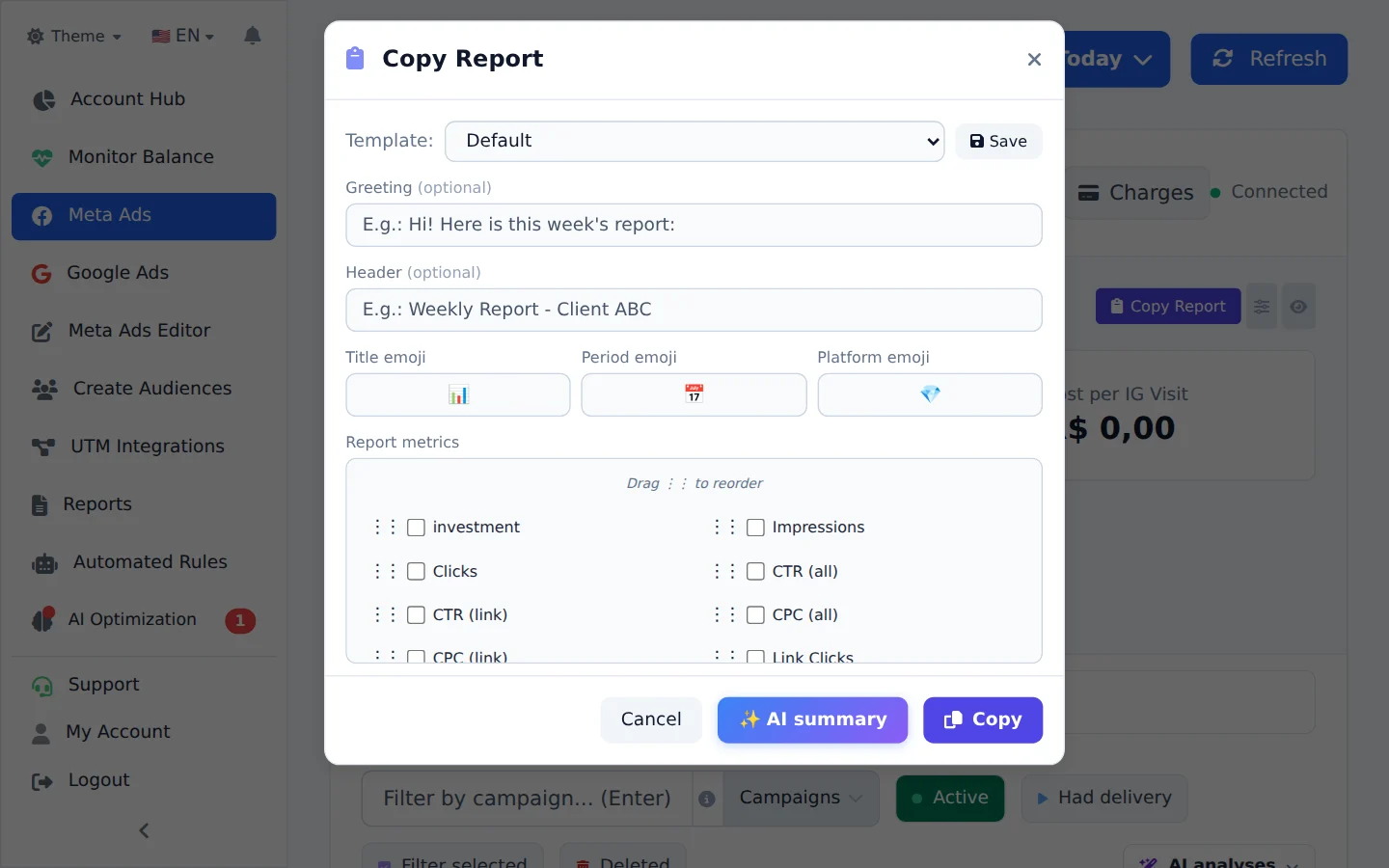
Pick the period at the top and click Copy Report, in the Period Summary.
- 2
Adjust the text
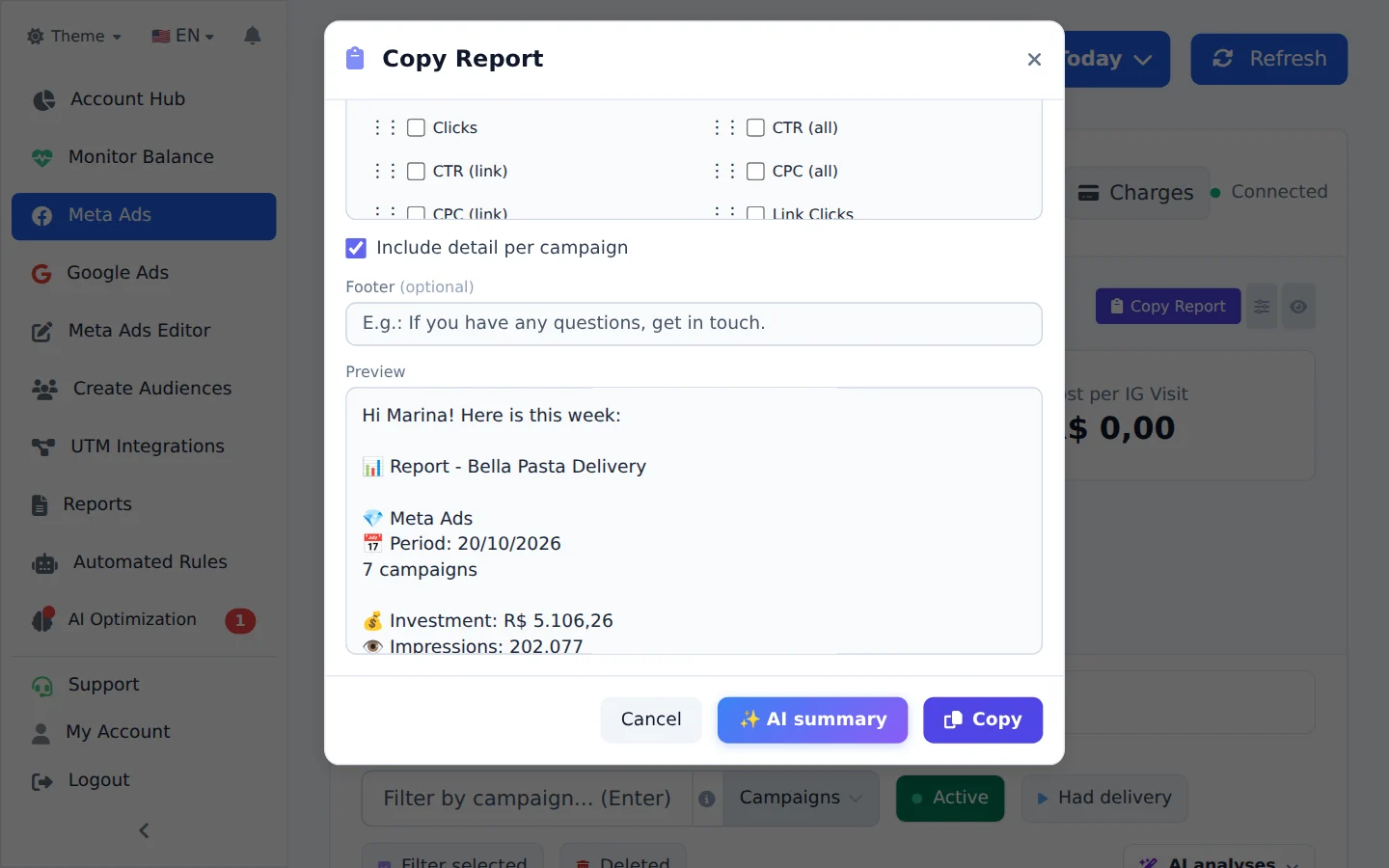
Write the greeting, choose the metrics and check whether the per campaign detail goes along. The preview shows the text as your client will read it.
- 3
Copy and send
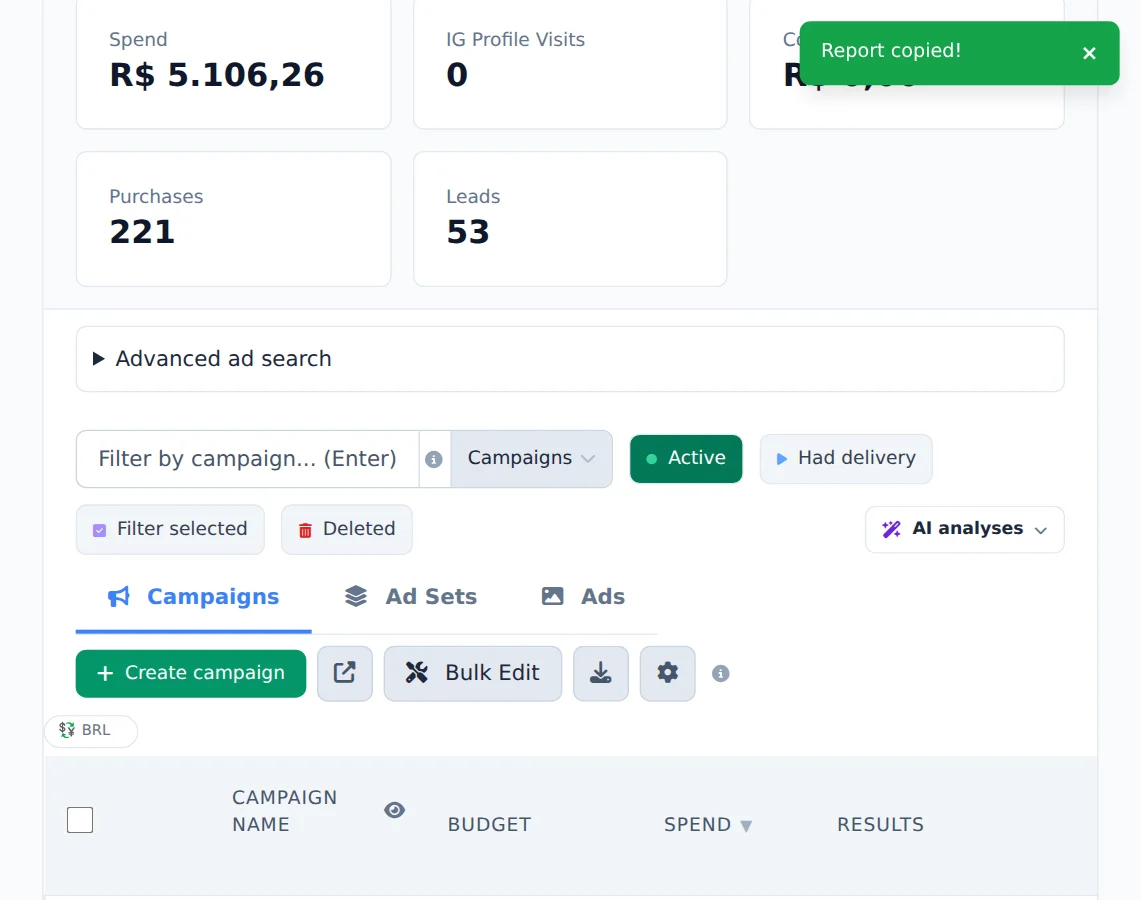
Save keeps the template for next week. Click Copy: the text goes to the clipboard, ready to paste into WhatsApp.
- 4
Or export the table
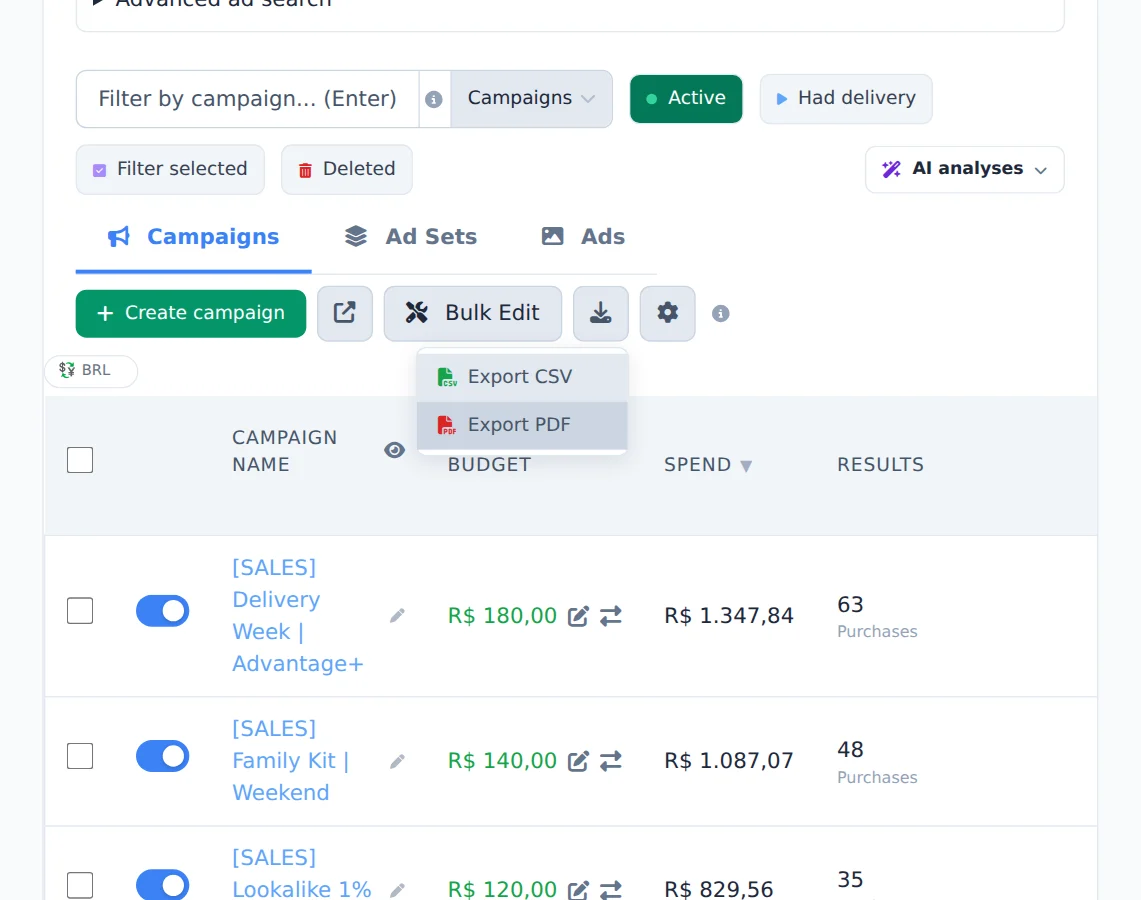
For a spreadsheet or PDF, use the download button next to Bulk Edit and pick Export CSV or Export PDF. The export uses the columns you set up.
A report your client opens by link
For a report your client opens through a link, with charts and creatives, use the Reports page.
How to tell it worked
- A notice confirms the text was copied.
- When you paste it in the chat, the greeting and the chosen metrics show up.
If something goes wrong
| Symptom | Likely cause | What to do |
|---|---|---|
| The numbers in the text are lower than expected | There are checked rows or an active filter in the table | Uncheck the rows and clear the filters before copying |
| The PDF window does not open | The browser blocked the new window | Allow pop-ups from Ads Editor and try again |
Frequently asked questions
How do I use Copy report to send the results to my client on WhatsApp?
The Copy report button is in the Period Summary panel. It builds a text report ready to paste into WhatsApp or email. In the window, choose which metrics to include (Investment, Impressions, Clicks, CTR, CPC, Leads, Purchases, Revenue, ROAS, Messages and others) and customize the greeting, header, footer and even the emojis. You can include a breakdown by campaign and links to the ad posts. If you use the same setup often, save it as a template to reuse later. The report respects the active period and filters: if rows are selected in the table, it includes only those. When you click copy, the text goes to your clipboard and you can paste it straight into the conversation. If AI Copilot is enabled for you, you'll also see an Analyze with AI button that generates an analysis of the numbers.
How do I generate a quick report to send to the client's WhatsApp?
For a quick report you can copy and paste:
- In Meta Ads, click Copy report.
- It comes pre-filled with the project information.
- Choose whether to break it down by campaign, and select the metrics to include.
- Add an intro message for the client, if you want.
- Click Copy.
- Paste it into the client's WhatsApp and send. For ads, you can also copy with a link.
How do I export Meta Ads data to CSV or PDF?
Click the download button above the table and choose Export CSV or Export PDF. The export uses the columns you configured in Customize Columns and respects the active period and filters. If there are selected rows, it exports only the selected ones, otherwise it exports everything that is visible. CSV downloads a file ready to open in Excel or Google Sheets, with accented characters displayed correctly. PDF opens a window with the formatted report (summary plus table) and uses the browser's print dialog: choose Save as PDF to generate the file. If the PDF window doesn't open, check whether your browser is blocking Ads Editor pop-ups and allow them.