
Reports
Report templates and agency logo
Build the report once and reuse the same metrics and sections for every client, with your agency logo and color.
Quick answer
In Reports, the Templates button lists the built-in models and yours, and keeps the agency branding. When creating or editing a report in Advanced mode, pick the model under Template. To keep your own, adjust the report and click Save as template.
Watch the walkthrough 0:33
Before you start
- The template swaps the metrics and sections. The report accounts do not change.
- The built-in models cannot be deleted. Yours can.
- The agency branding (logo and color) applies to every report in the account.
Step by step
In this example, we save the monthly model for restaurant clients and add the agency logo.
- 1
See the templates and the branding
In Reports, click Templates. The window lists the built-in models and the ones you saved. In the same window, under Agency branding in reports, upload the logo (PNG, JPG or WebP, up to 300 KB), pick the color and click Save branding.
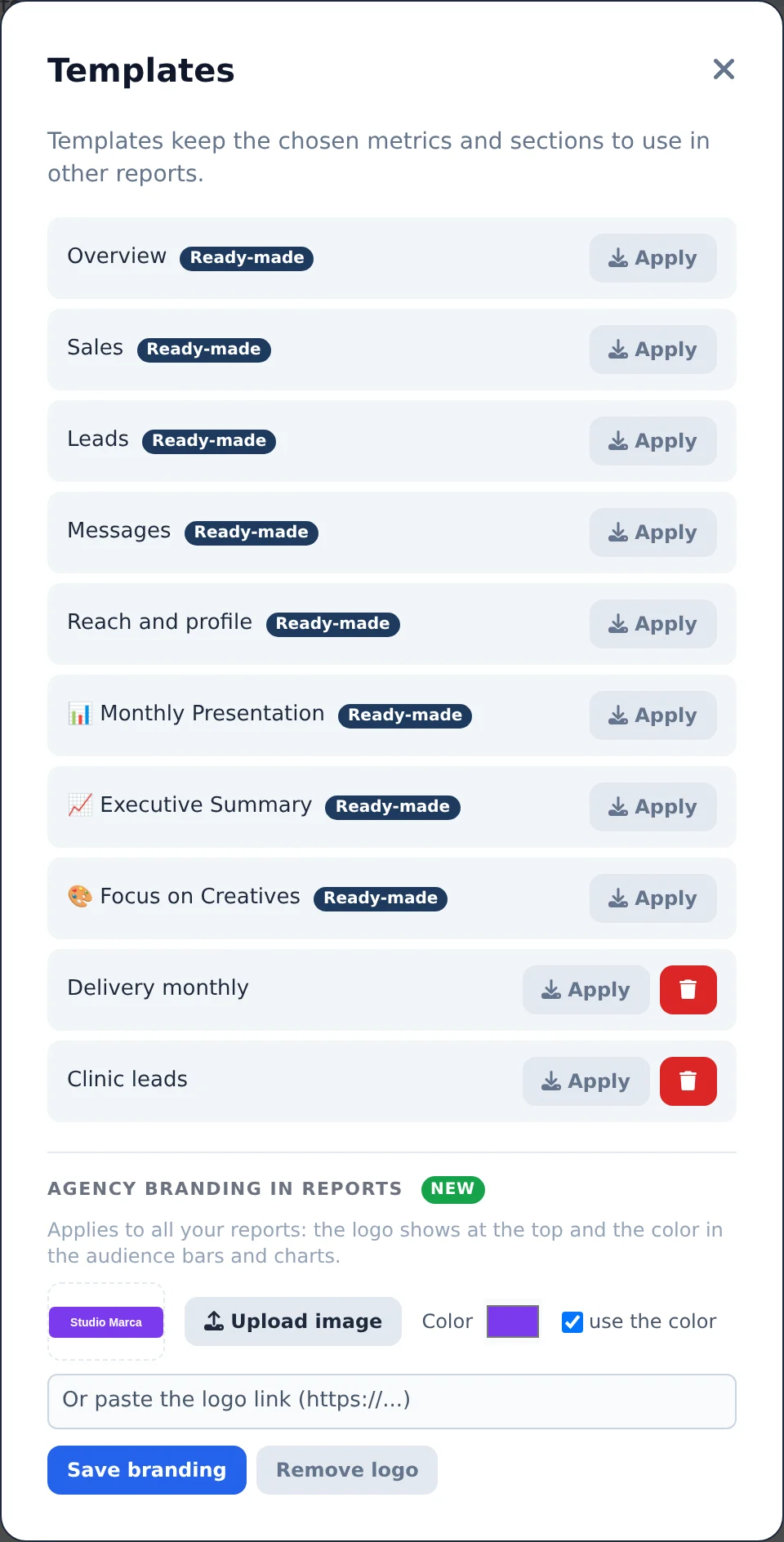 12
12- 1Templates
- 2Agency branding
- 2
Apply it to a report
Open New Report (or Edit on an existing one) and switch to Advanced. Under Template, pick the model: the metrics and sections change right away.
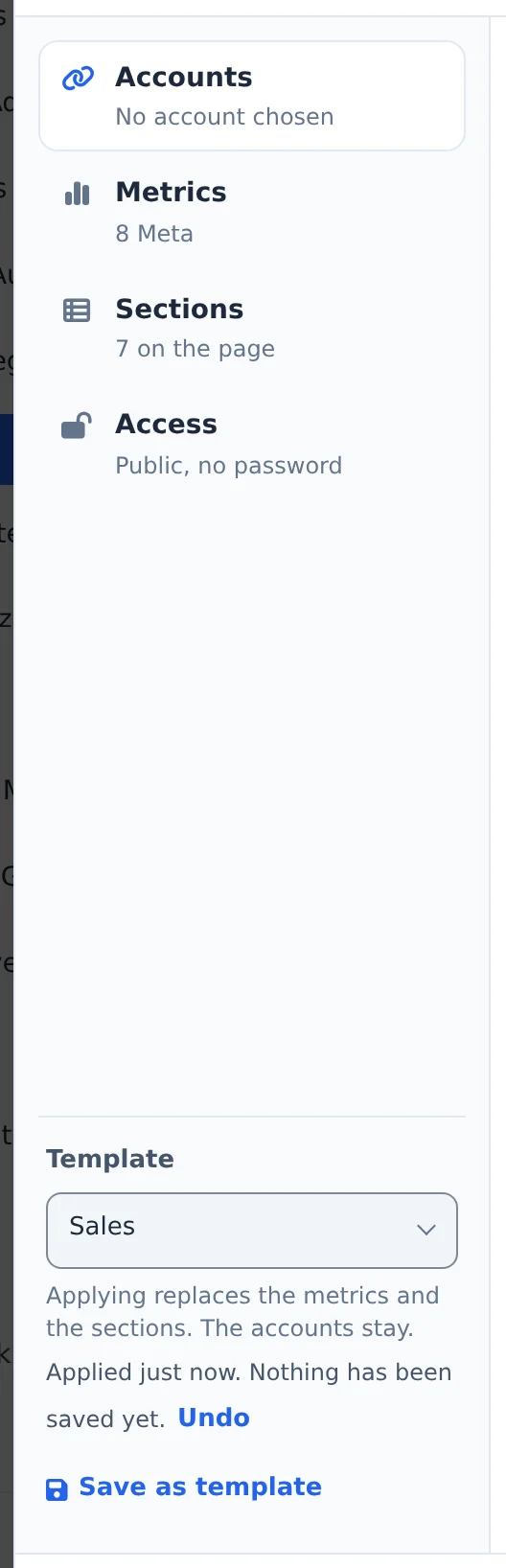 12
12- 1Template
- 2Model metrics
- 3
Save your own template
Adjusted it your way? Click Save as template, give it a name and confirm. It shows up under Template for the next clients.
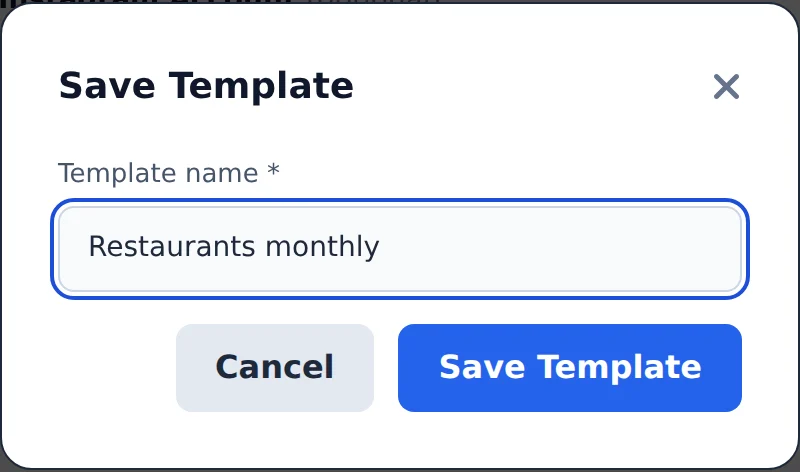 12
12- 1Template name
- 2Save
In Simple mode, the styles are templates already
Overview, Sales, Leads, Messages and Reach and profile are built-in templates. For most clients, picking the style is enough.
How to tell it worked
- The new template shows up in the Templates list and in the Template picker.
- Opening the link of any report, the logo shows at the top and the color paints the audience charts.
If something goes wrong
| Symptom | Likely cause | What to do |
|---|---|---|
| I cannot find the Template picker | The editor is in Simple mode | Switch to Advanced at the top of the window |
| The logo does not upload | The file is over 300 KB or is an SVG | Save it as a smaller PNG, JPG or WebP and upload again |
| I applied the template and lost a section | The template replaces the sections with its own | Turn the section back on in Sections and save |
Frequently asked questions
What are report templates and how do I use them?
Templates store a configuration of metrics and sections that you can reuse in new reports. Three are built in: Monthly Presentation, Executive Summary, and Creative Focus, each with a typical set of sections and metrics. When you create or edit a report, choose a template in the Template selector and it fills in the metrics and sections automatically (you can still adjust them afterward). To save your own configuration, build the report the way you want it, click the save template button next to the selector, and give the template a name. The Templates button on the Reports page opens the list, where you can apply or delete templates. Built-in templates cannot be deleted.
The same Templates panel contains the Agency branding in reports section: upload your logo (PNG, JPG, or WebP, up to 300 KB) and pick a color. Your branding applies to all reports in the account. Simple mode in the editor also includes built-in styles: Overview, Sales, Leads, Messages, and Reach and profile.
What are Simple mode and Advanced mode in the report editor?
The report editor has two modes, which you choose at the top of the editor:
Simple: a single screen with accounts, access (public or password) and the What the client sees block, where you choose a ready-made style:
- Overview
- Sales
- Leads
- Messages
- Reach and profile
Each style already turns on the metrics and sections that make sense for that type of campaign.
Advanced: the Accounts, Metrics, Sections and Access tabs, where you choose metric by metric, turn sections on and order them, and fine-tune everything by hand.
You can start in Simple and switch to Advanced at any time to refine. If you close the editor without saving, your changes are kept as a draft on the device. When you reopen it, a banner appears with the Discard draft button to go back to what was saved.
Can I add my agency's logo (white label) to the report?
Yes. You can add your agency's logo and color to the report.
How to set it up:
- Open the Reports page and click Templates.
- In the Agency branding in reports section, click Upload image and choose the logo (PNG, JPG or WebP, up to 300 KB; SVG isn't accepted).
- Choose the Color and click Save branding.
The branding applies to every report in the account. The logo appears at the top of the link your client opens, and the color is used on the bars and charts in the audience panels (Age, Gender, States, Placements, and Best days and times). If a report has its own branding, it takes the place of the account branding. To remove the logo, use Remove logo.
Not available: a custom domain for the report link, and removing Ads Editor from the page. Customization covers the logo and color inside the report.
If you don't see this section, the feature may have been turned off for your plan or user. Contact support.
Can I turn report sections (age, gender, states and times) on or off for all reports at once?
Yes. You can turn these sections on or off with the AI Copilot or with your assistant connected through MCP. For example, ask:
- "turn on age, gender and states in all my reports"
- "turn off best times in the Store A report"
- "turn on manager's notes and AI analysis in the reports for clients X and Y"
The AI only changes the on/off setting for the sections you name, in one, several or all reports. It doesn't touch the metrics, order or any other settings.
Turning on Period Analysis (AI) only makes the section visible. The text is still generated and saved in the report editor with the Generate with AI button. The same applies to the Manager's Notes text.
If your ChatGPT or Claude doesn't show this function, start a new conversation. The MCP function list is loaded at the start of each conversation.