
Google Ads
Ad schedule and devices in Google Ads
Choose which days and hours the ad shows, looking at the conversions of each hour, and how much more or less to pay on each device.
Quick answer
In Google Ads, click Edit on the campaign and open Schedule and devices. On the 7 day by 24 hour grid, click or drag to turn hours on and off, or use a shortcut like Monday to Friday, 08:00 to 18:00, and click Save schedule. Below, the device bid adjustment raises, lowers or removes a device from the campaign.
Watch the walkthrough 0:26
Before you start
- The schedule limits delivery with any bid strategy.
- The hourly bid adjustment only exists with manual CPC, enhanced CPC and Maximize clicks. With automated strategies, Google may hide the field or only allow excluding the device.
- Google rules: minutes 00, 15, 30 or 45, up to 6 slots per day and no overlap.
Step by step
In this example, we keep the clinic campaign to business hours only.
- 1
Open Schedule and devices
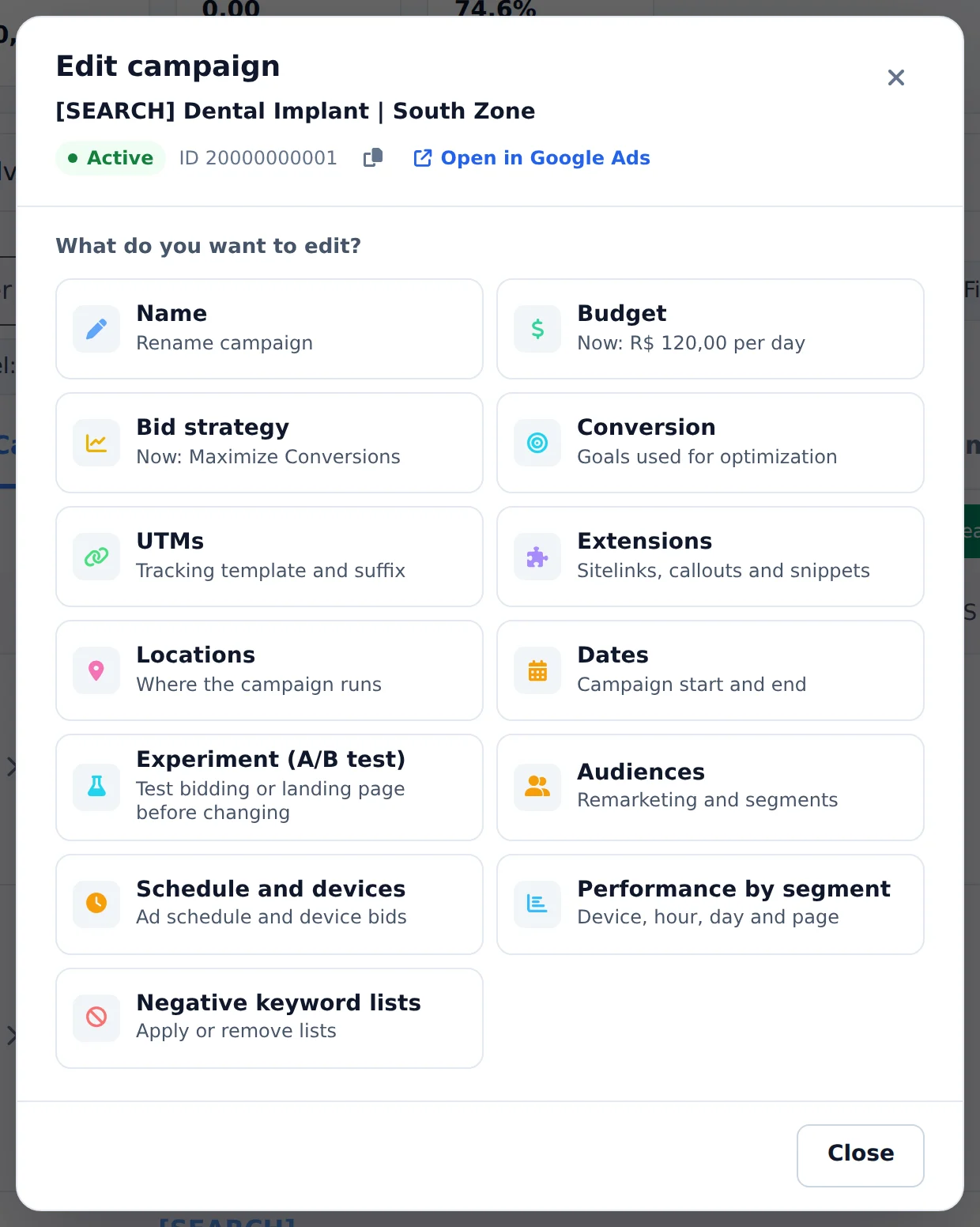
Click Edit, below the campaign name, and pick the Schedule and devices card.
 1
1- 1Schedule and devices
- 2
Mark the hours
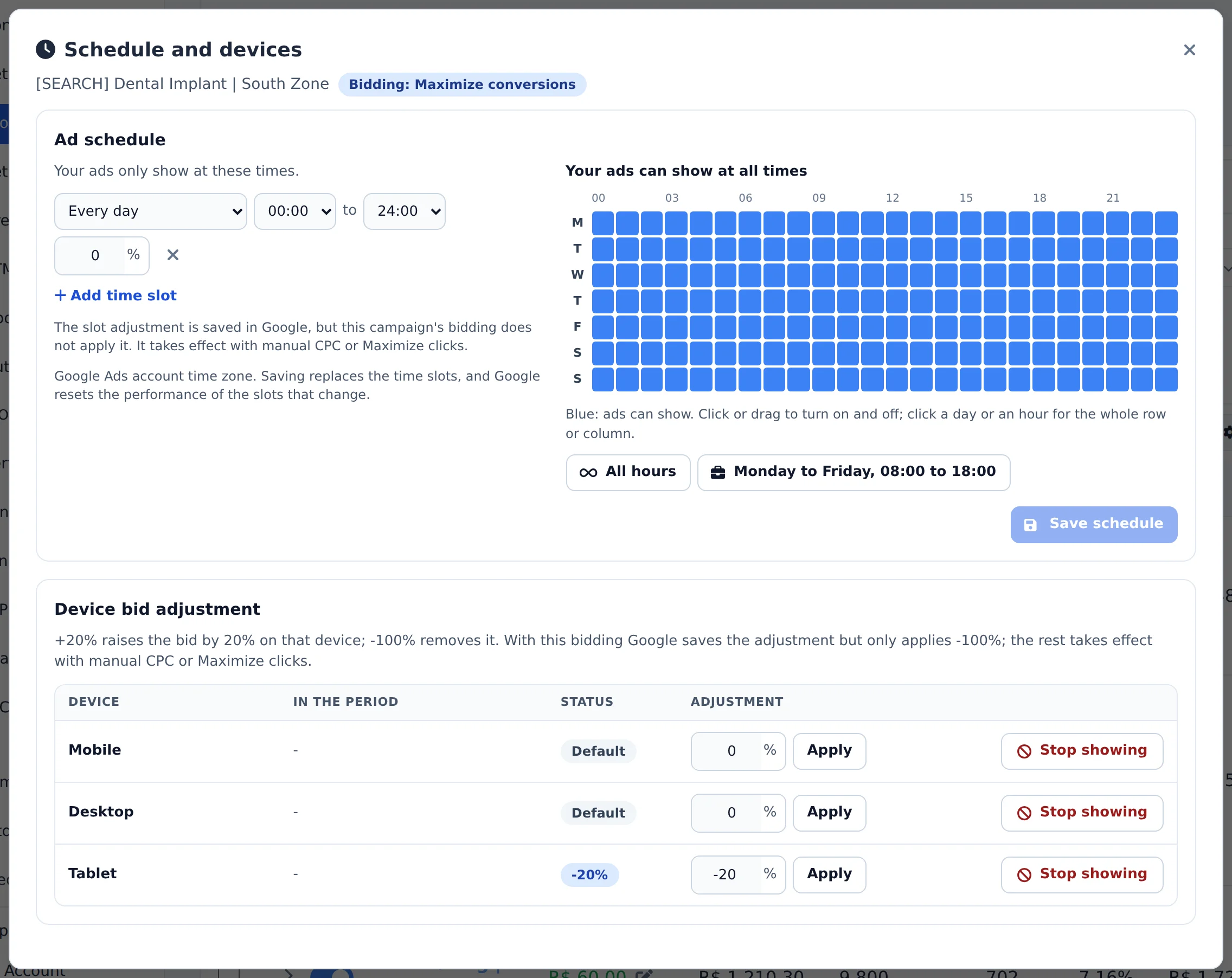
On the grid, blue is when the ad can show. Click or drag to turn it on and off; the day name or the hour turns the whole row or column on. The conversions of each hour show over the grid, so you decide by the numbers. The All hours, Monday to Friday, 08:00 to 18:00 and Only where it converts shortcuts fill the grid at once. Click Save schedule: the screen shows the before and after of each day before saving.
 123
123- 1Shortcuts
- 2Days and hours grid
- 3Save schedule
- 3
Adjust by device
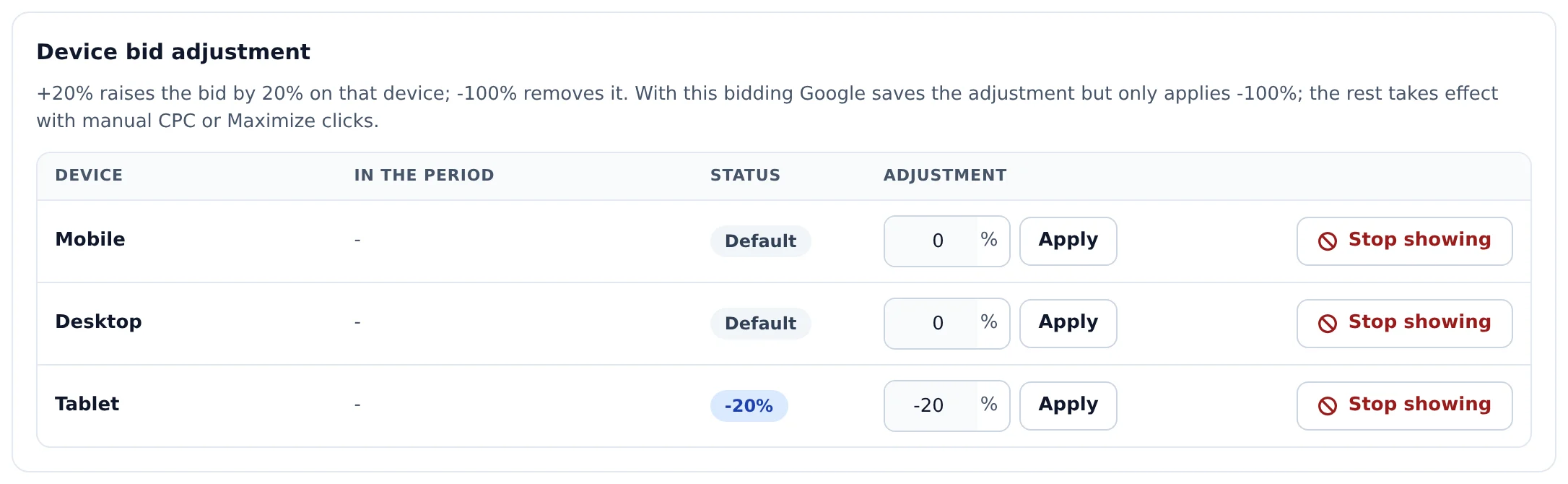
Below the grid, Device bid adjustment has one row for mobile, computer and tablet. Type the adjustment as a percentage and click Apply: plus 20% raises the bid on that device, minus 30% lowers it. Stop showing removes the device from the campaign. With automated bidding, the notice at the top says what Google applies.
 1
1- 1Device bid adjustment
Decide by the numbers
The Segments tab, next to Search Terms, shows cost, conversions and CPA by device, hour of the day and day of the week. Check the hours that perform and click Show only at these hours: the grid opens with the proposal already filled in.
How to tell it worked
- The notice in the corner confirms the schedule was saved.
- When you open the card again, the grid shows only the chosen hours in blue.
- The Schedule and devices card in Edit shows a summary of the schedule.
If something goes wrong
| Symptom | Likely cause | What to do |
|---|---|---|
| Save does not accept a grid that is all off | In Google, an empty schedule means all hours | Keep at least one slot on, or pause the campaign |
| The device adjustment disappeared | The campaign bid strategy is automated | Use the schedule, or minus 100% to remove the device |
| Google rejected the schedule | More than 6 slots in a day or overlapping slots | Merge the neighboring slots and save again |
Frequently asked questions
How do I schedule the days and times my Google ads appear?
In Google Ads, click Edit on the campaign and open Times and devices.
On the left are the time ranges (Every day, Monday to Friday, Saturday and Sunday, or a single day, with a start and end). On the right is a grid of 7 days by 24 hours: click or drag to turn hours on and off, and click a day name or an hour to turn on the whole row or column. Above the grid you see the conversions (or the spend with no conversions) for each hour of each day, so you can decide based on the numbers.
Shortcuts: All times, Monday to Friday 8am to 6pm and Only where it converts (asks for confirmation and shows the amount spent).
Google's rules: minutes 00, 15, 30 or 45, up to 6 ranges per day, no overlap. You can't save with the whole grid turned off, because on Google an empty schedule means all times. Saving replaces the campaign's entire schedule, and it always shows the before and after for each day before saving.
The schedule limits when ads run under any bidding strategy. Bid adjustments by time range, however, are only available with Manual CPC, Optimized CPC and Maximize Clicks (see the article on bid adjustments by time or device, which may not appear with automated strategies).
Why did the time or device bid adjustment disappear or not accept the value in my Google campaign?
The availability of schedule or device adjustments depends on the Google Ads bidding strategy. With compatible strategies, the field appears normally. With automated strategies, Google may hide the field, use the adjustment only for the strategy target, or allow only device exclusion.
When an adjustment is unavailable, use the schedule to turn off periods that do not convert or the option to stop delivery on a device. Check the strategy name shown on screen: Ads Editor displays only the options Google accepts for that campaign.
Where do I see performance by device, time of day, and day of week in Google Ads?
On the Google Ads page, open the Segments tab, next to Search Terms. It opens with the campaign that is open or selected, or with the whole account.
It has four views: Device, Time of day, Day of the week, and Landing page. Three cards appear at the top: In the period (cost, conversions, and average CPA), Top performer (the segment with the lowest CPA among those with enough volume), and Spend without conversions (how much, and in which segments). Each row shows cost, clicks, conversions, CPA, and the share of cost and conversions. CPA above or below average is written out, not just shown by color.
You can take action right there:
- Device: on each row, adjust the bid (or the CPA target) and choose Don't serve or Include again. At the account level, you choose one, several, or all campaigns, and the result comes back campaign by campaign.
- Time of day and Day of the week: select the rows and click Serve only at these times (or days). The schedule grid opens with the proposal already filled in, so you can review and save.
- The Audiences for this campaign shortcut opens the connected audiences.
Nothing is saved until you confirm, and you see the before and after first.