
Automation and AI
Create a metric alert
Get a notice in the bell (and on your phone, with the app) when CPA, spend or ROAS cross the limit, without changing anything in the campaigns.
Quick answer
Open Alerts and click New Alert. Pick the Alert level, the Metric, the Condition and the Threshold, the Ad Account and, if you want, the Campaign objectives. Click Save Alert.
Watch the walkthrough 0:30
Before you start
- An alert only notifies. To pause or change the budget on its own, use Automated rules.
- Alerts look at today’s numbers and check every 30 minutes. After it fires, the same alert waits 6 hours before notifying again.
- The notice arrives in the dashboard bell and, on an iPhone with the Ads Editor app, as a notification. It is not sent by email or WhatsApp.
Step by step
In this example, we ask for a notice when any sales campaign of a client goes above R$ 45 CPA.
- 1
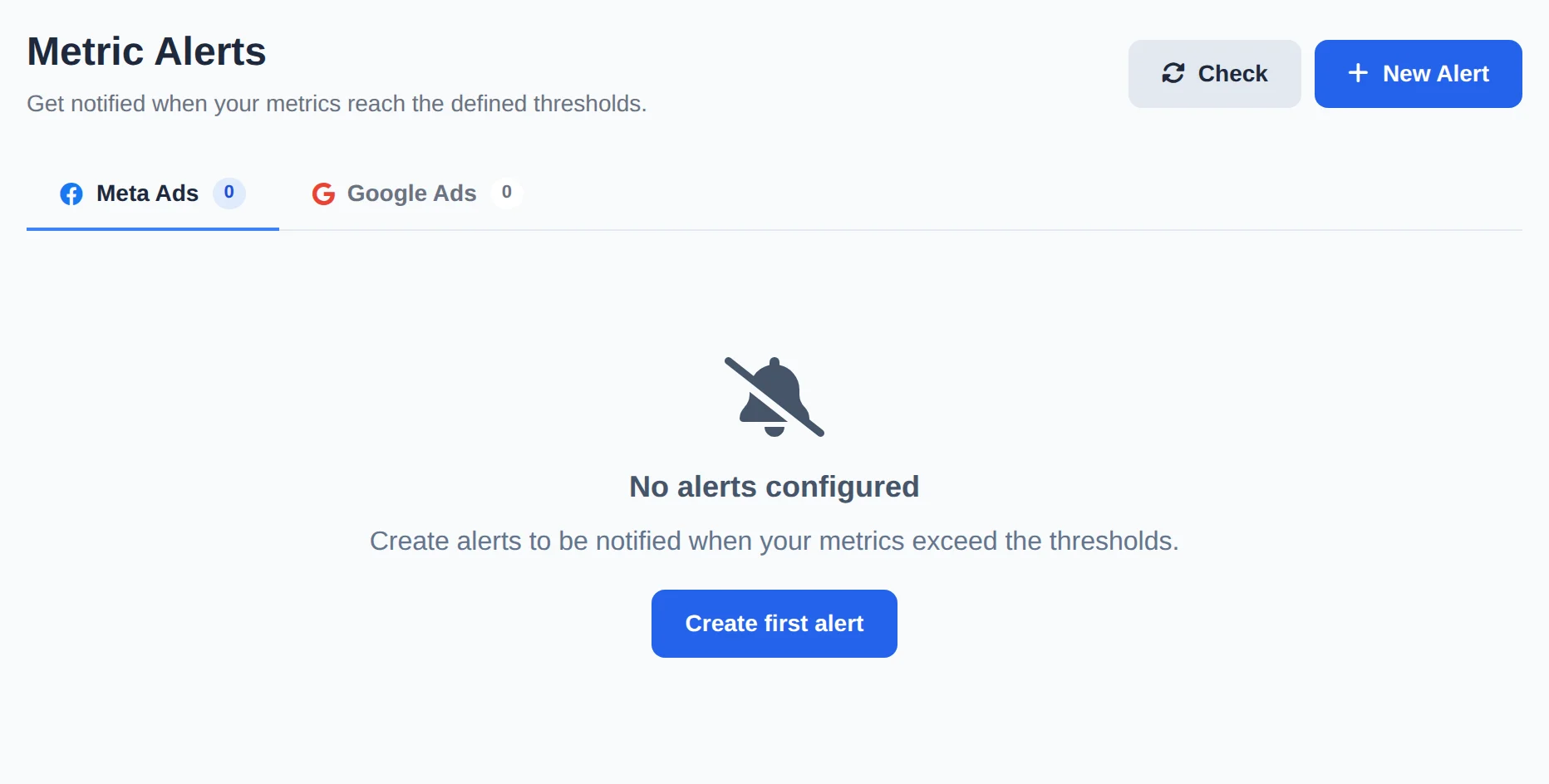
Open New Alert
In the side menu, click Alerts and then New Alert. Meta Ads and Google Ads alerts are in separate tabs.
 1
1- 1New Alert
- 2
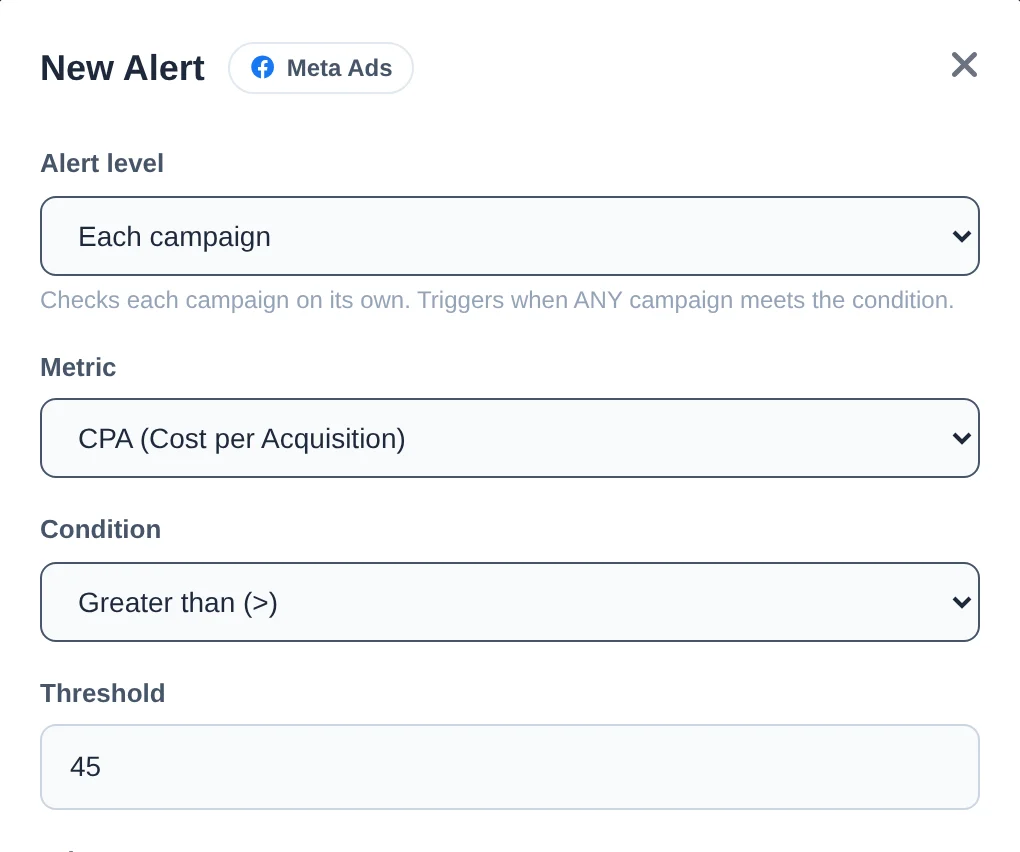
Choose what to watch
Under Alert level, Whole account adds everything up, and Each campaign, Each ad set or Each ad check them one by one and say which one fired. Pick the Metric (CPA, CPC, CPM, CTR, daily spend or ROAS), the Condition and the Threshold.
 123
123- 1Alert level
- 2Metric
- 3Threshold
- 3
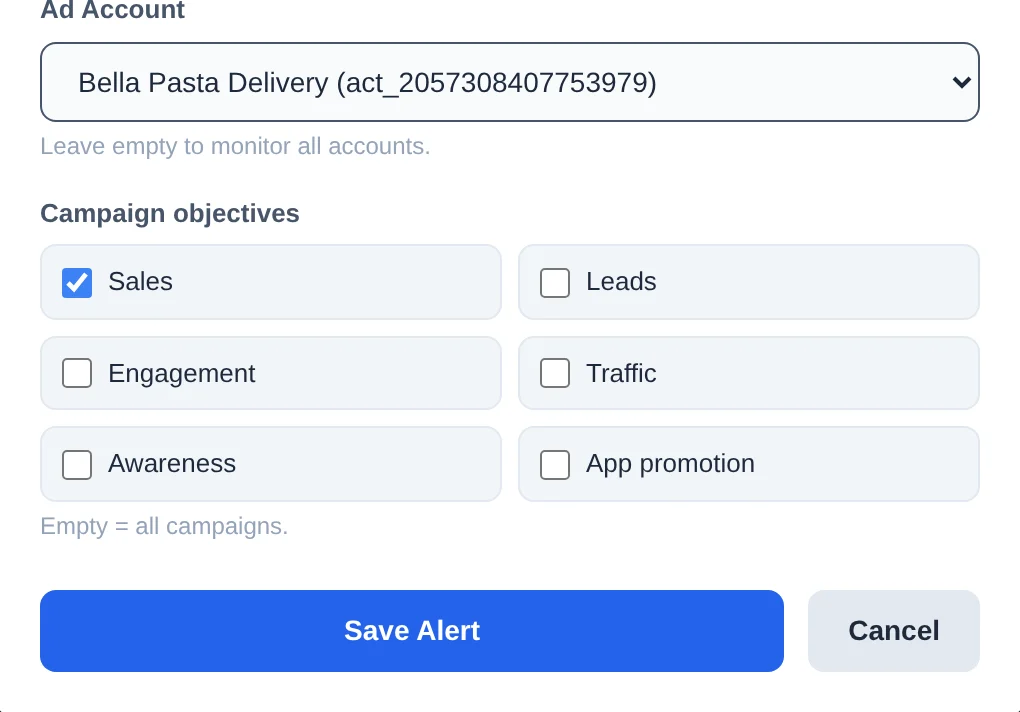
Narrow the account and objective
Under Ad Account, pick the client account. With All accounts, the numbers are added up, and a high CPA in a small account can disappear in the average. Check the Campaign objectives to look only at, for example, Sales campaigns. Click Save Alert.
 123
123- 1Ad Account
- 2Campaign objectives
- 3Save Alert
- 4
Follow the alert
The alert joins the list, turned on, with the condition, level, account and Last triggered. The switch turns it off and on, and the pencil edits it. Check, at the top, runs the check right away.
 1
1- 1The new alert
Notices away from the computer
Install the Ads Editor app on your iPhone and allow notifications: the same notice from the bell arrives on your phone.
How to tell it worked
- The alert shows up in the list with the switch on.
- When the condition is met, the notification brings the account and the current value of the metric.
If something goes wrong
| Symptom | Likely cause | What to do |
|---|---|---|
| The alert did not fire | Today’s metric has not crossed the limit yet, or the alert fired less than 6 hours ago | Check Last triggered and click Check |
| The ad set alert asks for an account | At the ad set and ad levels the account is required | Pick the ad account before saving |
| CPA does not show up | CPA uses pixel purchases, and the campaign has no purchases today | Use another metric, such as daily spend, for campaigns without purchases |
Frequently asked questions
What are Metric Alerts, and how do I create one?
Alerts are in the Alerts menu. They notify you when a metric crosses a threshold, without changing anything in your campaigns. Click New Alert and fill in: the Metric (CPA, CPC, CPM, CTR, Daily Spend or ROAS), the Condition (Greater than, Less than or Equal to), the threshold Value, the Ad Account (leave empty to monitor all of them) and, optionally, the Campaign objectives. Then click Save Alert. When the condition is met, a notification arrives in the dashboard bell with the metric's current value and the account. Alerts notify, Automated Rules act: if you want to pause campaigns or change budgets automatically, use Rules.
When you create the alert, also choose the level: account (default), campaign, ad set or ad. At levels below account, the condition is tested item by item, and the notification tells you exactly which item fired.
Where do I receive rule and alert notifications? Do they come by email or WhatsApp?
Notifications arrive in the notification bell on the Ads Editor dashboard itself and, if you use the Ads Editor app on your iPhone, also as push notifications on your phone. There is no email or WhatsApp delivery for metric alerts and rule executions. In the bell, you can mark notifications as read, mark all as read, or delete them. Clicking an alert notification opens the Alerts page, and clicking a rule notification opens the Automated Rules page. Tip: to avoid missing important notices when you're away from your computer, install the app on your iPhone and allow notifications.
Can I create an alert per campaign, ad set or ad instead of for the whole account?
Yes. When you create (or edit) a Metric Alert, you choose the level at which the condition is evaluated:
- Account (default): the condition applies to the account total.
- Campaign, Ad Set or Ad: the condition is tested item by item, and the notification tells you exactly which one fired. For example, "CPA > US$50" at the ad level lists the ads that went over, from worst to best.
Only items that had spend in the period are evaluated, so anything that didn't run doesn't trigger a false alert.
What metrics do Alerts monitor, and over what period are they calculated?
Alerts monitor six metrics: CPA (cost per acquisition, based on pixel purchases), CPC, CPM, CTR (click-through rate, in %), Daily Spend (US$) and ROAS (return on ad spend). They always evaluate the current day's data (today), which is why spend is called Daily Spend. On cards and in notifications, CTR appears as a percentage, ROAS appears in multiplier format (for example, 2.50x) and the other metrics appear in dollars. If you need to evaluate longer periods (the last 7 days, for example), use Automated Rules, which have a configurable Calculation Period.
What is the difference between creating an alert for a specific account and leaving it on All accounts?
With a specific account selected, the alert evaluates only that account's metrics, and the notification includes the account name, so it's easy to tell which account it's about. With All accounts, the alert evaluates the combined data of all the accounts you have selected in the dashboard: spend, clicks and impressions are added up, and cost and return metrics are calculated from those totals. This means a high CPA on a small account can get diluted in the total. If you want to monitor each account closely, create one alert per account. You need a connected Meta account and accounts selected in the dashboard for alerts to work.
How does the campaign objective filter work in Alerts?
The alert form has a Campaign Objectives field with options to select: Sales, Leads, Engagement, Traffic, Awareness and App Promotion. If you leave everything unselected, the alert considers all campaigns. If you select one or more objectives, the metric is calculated only on campaigns with those objectives, using values derived from the real totals of those campaigns. This solves the problem of mixing contexts: an acceptable CPA for a messaging campaign isn't the same as for a sales campaign. If there's no active campaign today with the filtered objective, the alert simply doesn't fire (this avoids false alarms in Less than conditions). The notification tells you which objectives were in the filter.
How often do alerts check metrics? Why doesn't the same alert fire again right away?
Automatic checks run every 30 minutes, always on the current day's data. After an alert fires, it enters a 6-hour cooldown before it can fire again, so your bell doesn't fill up with repeated warnings about the same situation. Each alert's card shows a Last trigger field so you can keep track. To check right away, use the Check button at the top of the Alerts page, which runs the check immediately. This button has a usage limit (about 5 checks every 5 minutes), so if a limit warning appears, wait a few minutes and try again.
My alert didn't fire even though the metric was outside the limit. What should I check?
Check in this order:
- Is the alert on? The toggle on the card must be turned on (the card shouldn't look faded).
- Cooldown: after firing, the same alert waits 6 hours before it can fire again. See the Last triggered field on the card.
- Alerts only evaluate today's data: if the metric went over the limit yesterday but today is normal, the alert won't fire.
- Objective filter: if you selected objectives and there are no active campaigns with those objectives today, the alert has nothing to evaluate.
- Accounts: your Meta account must be connected and accounts must be selected in the panel. If the connection has expired, reconnect under Connect Meta.
- Subscription: automatic checks only run for active subscriptions.
If everything looks right, click the Check button to force an immediate check and confirm.