
Reports
Create a client report
Build a page with your client's numbers, choosing the accounts, metrics and sections, and send the link. It updates on its own.
Quick answer
Open Reports and click New Report. Give it a name, add the account under Meta Ads Accounts (and Google Ads, if you want), pick the style, adjust metrics and sections in Advanced mode, set the Access and click Create report. Copy the link on the card and send it to your client.
Watch the walkthrough 1:15
Before you start
- The report is a live page: the numbers come from Meta and Google when your client opens it. No need to create a new one every month.
- A report can bring together several Meta accounts, an Instagram profile and Google Ads accounts.
- Your client does not need a login or an Ads Editor account.
Step by step
In this example, we build the monthly report of a restaurant that sells through delivery.
- 1
Click New Report
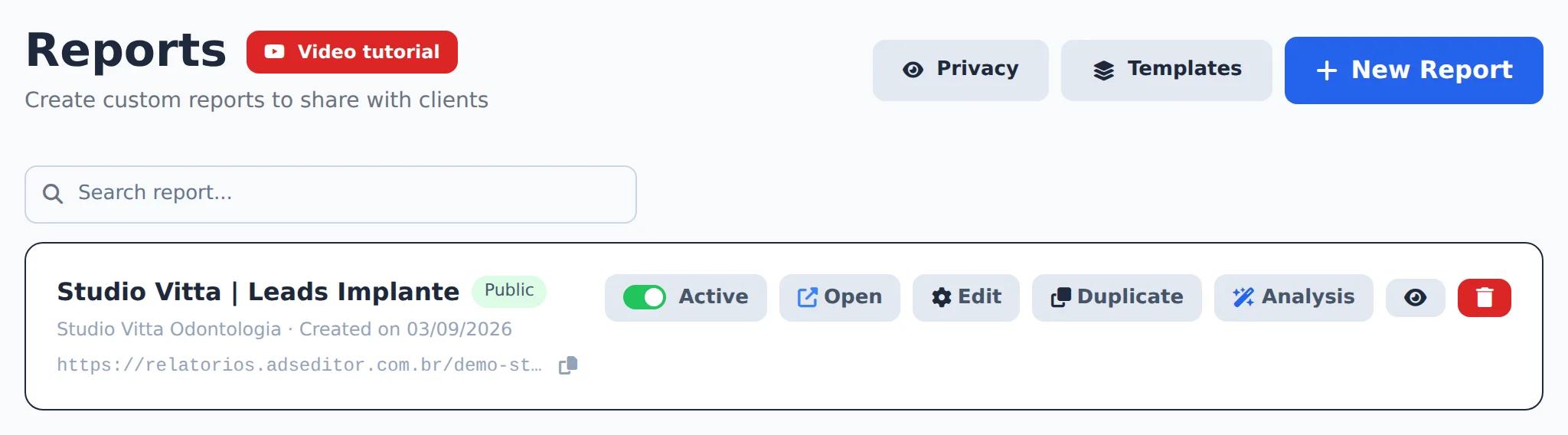
In the side menu, click Reports. The list shows the reports you have already created. Click New Report.
 12
12- 1New Report
- 2Your reports
- 2
Name it and pick the account
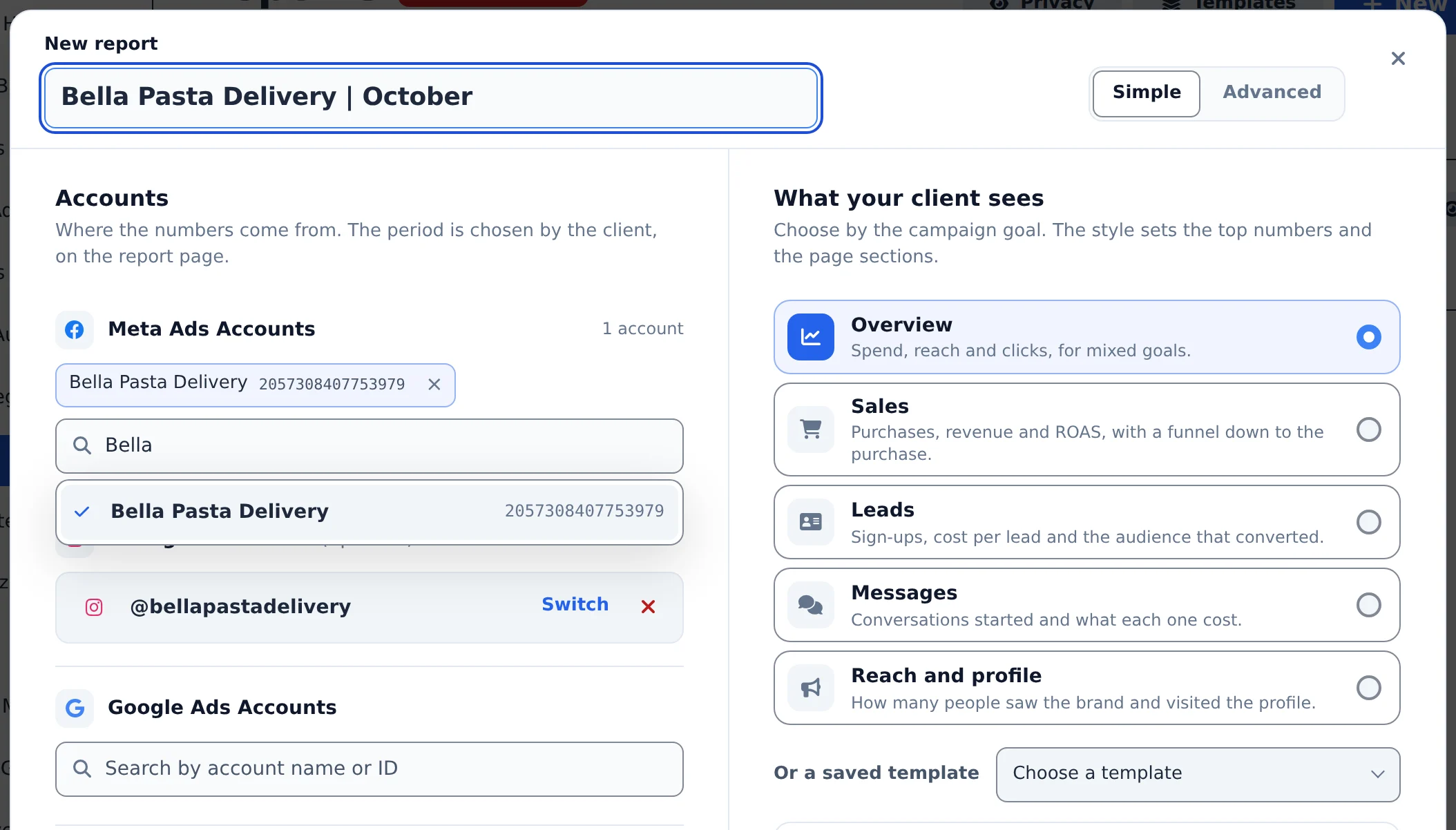
Give it a name your client recognizes. Under Meta Ads Accounts, search the account by name or ID and click it to add it. The Instagram used by the account is added on its own and brings the profile numbers.
 123
123- 1Report name
- 2Meta Ads Accounts
- 3Instagram
- 3
Choose what the client sees
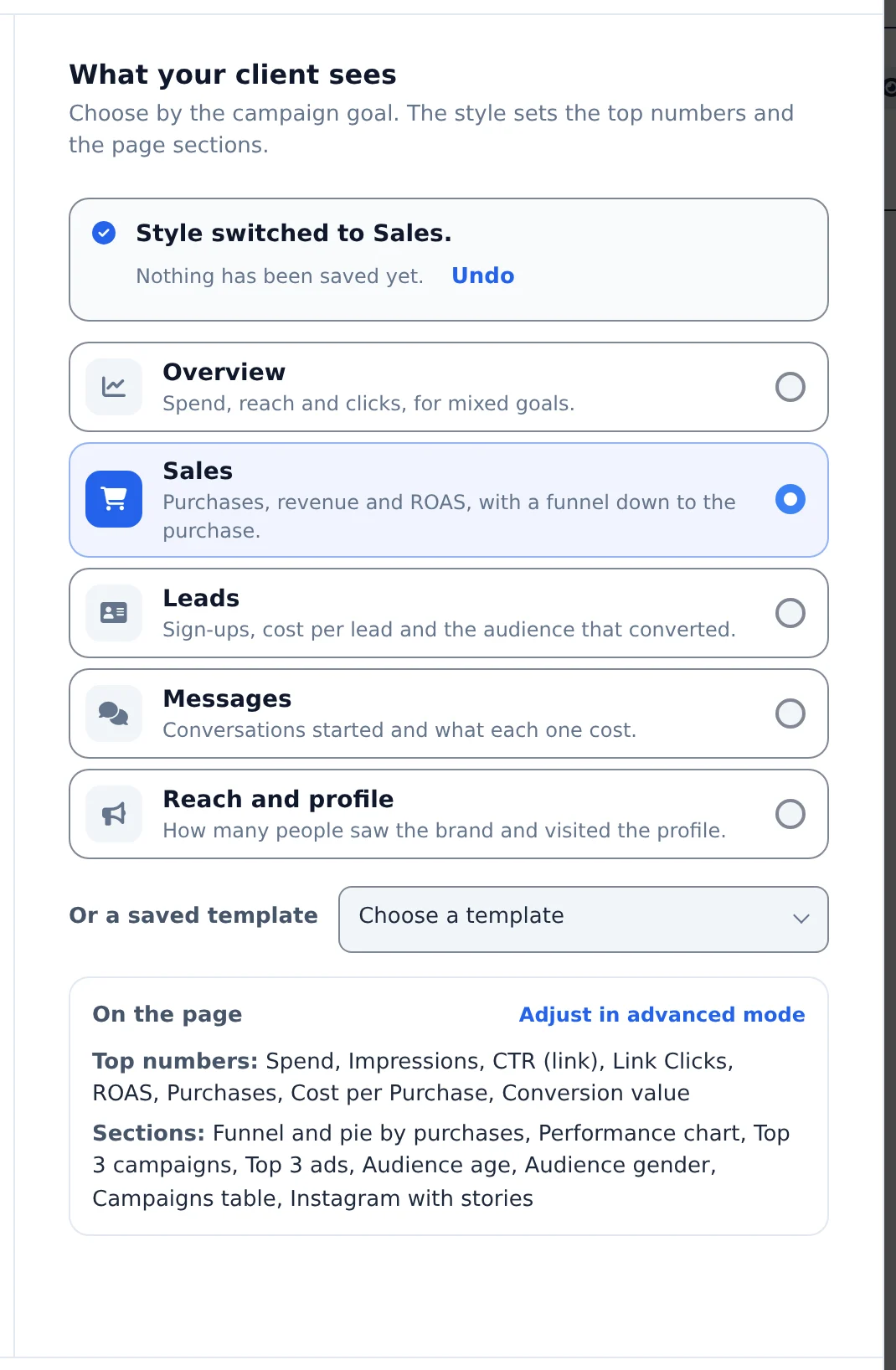
In Simple mode, pick the style by campaign objective: Overview, Sales, Leads, Messages or Reach and profile. Below you see what goes on the page: the top numbers and the sections.
 12
12- 1Style
- 2What goes in the report
- 4
Adjust metrics and sections
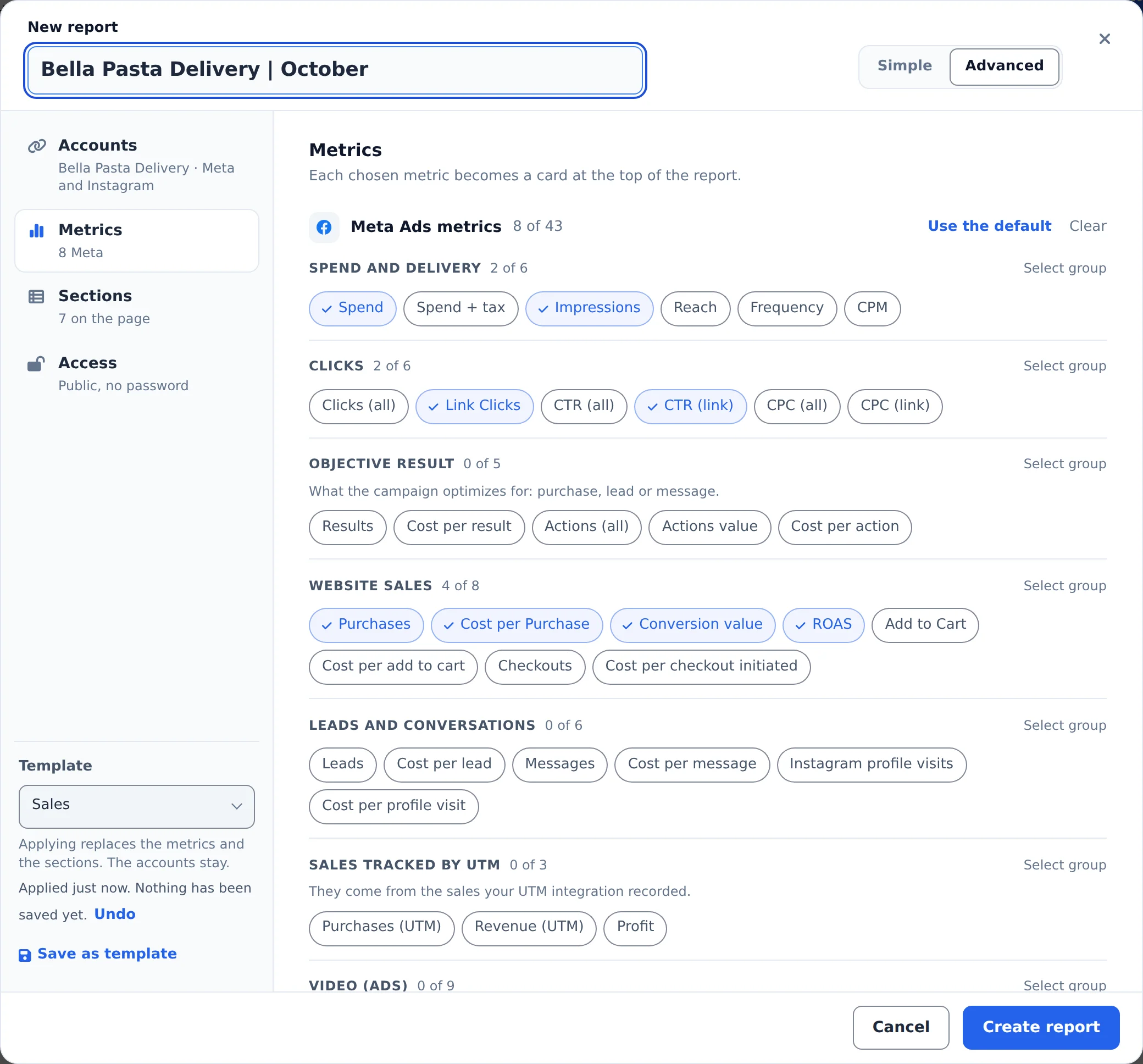
To pick them one by one, click Advanced. In Metrics, each checked metric becomes a card at the top, and Manual metrics brings numbers from outside the platforms. In Sections, turn each block on or off (campaigns, best ads, age, gender, states, hours) and drag to change the order.
 123
123- 1Advanced
- 2Metrics
- 3Sections
- 5
Set access and create it
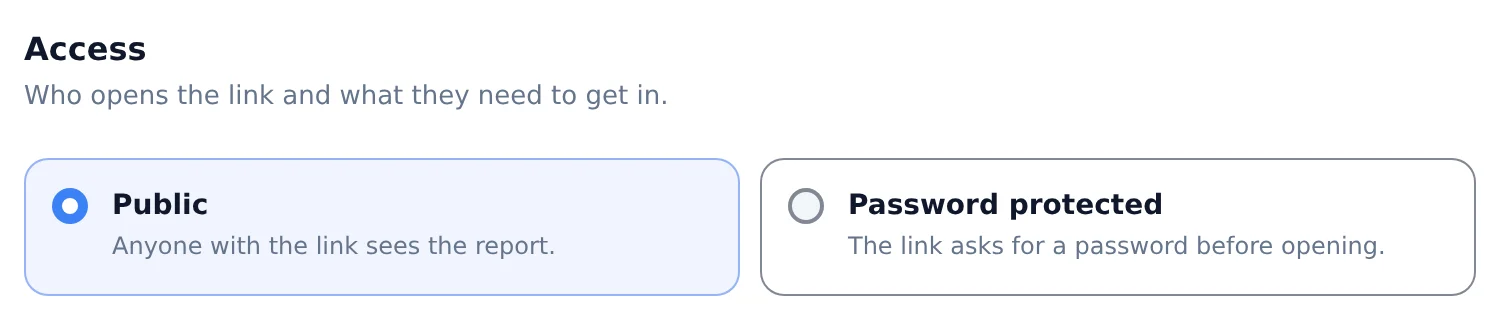
In Access, Public opens for anyone with the link and Password protected asks for a password first. Click Create report.
 12
12- 1Public
- 2Password protected
- 6
Send the link to your client
The report shows at the top of the list, with the link. Click the copy icon and send it to your client. Open shows the page the way your client sees it.
 123
123- 1Report link
- 2Copy link
- 3Open
- 7
The client report
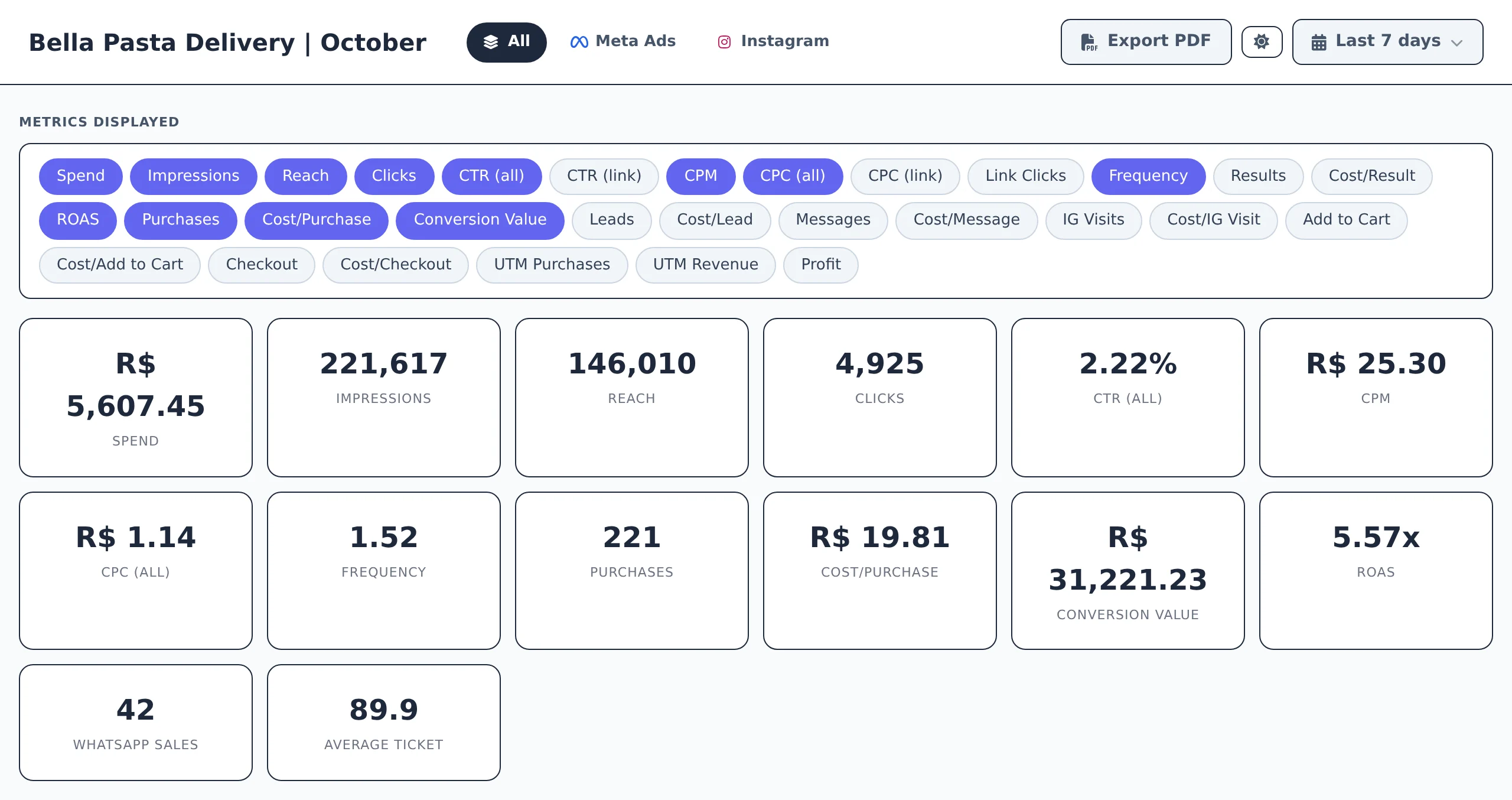
The top cards are the metrics you picked. Your client changes the period on the date button and the numbers update. Further down come the campaigns, the best ads and the sections you turned on.
 12
12- 1Chosen metrics
- 2Period
The same report for several clients
Set it up your way? Save it as a template and apply it to the next clients. See the Templates and agency logo guide.
How to tell it worked
- The report shows up in Reports with the link and the Active label.
- Opening the link in a private window, you see the same page as your client.
If something goes wrong
| Symptom | Likely cause | What to do |
|---|---|---|
| The account does not show up in the search | It is not turned on in Connect Meta | Turn the account on in Connect Meta and open the report again |
| The link says the Meta account is not connected | The connection of whoever created the report expired | The creator opens Connect Meta and reconnects. The link comes back on its own |
| A report limit notice appears | The plan reached its maximum number of reports | Delete reports you no longer use or change your plan |
Frequently asked questions
How do I create a report to send to my client?
Open the Reports page in the side menu and click New Report. Give the report a name (for example, Monthly Performance), add one or more Meta ad accounts in the Add account field and, if you want, an Instagram account and Google Ads accounts too. Choose the Data Level (Campaigns, Ad Sets or Ads), select the metrics you want to show, and turn the Report Sections on or off. Under Access, choose between Public (no password) or Password protected. Click Create Report: the sharing link is generated automatically and appears on the report card, ready to copy and send to your client.
The editor has two modes. In Simple, everything is on one screen: accounts, access and What the client sees, with ready-made styles (Overview, Sales, Leads, Messages, Reach and profile). Advanced has the Accounts, Metrics, Sections and Access tabs. If you close without saving, your changes are kept as a draft on your device, and the Discard draft button appears when you reopen it.
How do I create a full report I can share?
For the full report (the one the client opens and browses):
- Open the reports section and click Create full report.
- Choose the account. If you have a Google Ads account, connect it too.
- Select the metrics you want. You can also include Instagram account data, such as follower growth.
- Name the report.
- Click Create report. In under a minute it pulls Meta data, and Google data if connected, and the report is ready.
The report shows performance by campaign, top campaigns, top ads and, when Google Ads is connected, keywords.
How do I change the data period in the report?
At the top of the report there's a period button. Click it to open a selector with ready-made options: Today, Yesterday, This week, Last 7 days, Last 30 days, This month, Last month and Custom. With Custom, you pick the start and end dates on a dual calendar. When you click Apply, all sections reload with the new range: metrics, tables, charts, ads, Instagram and Google Ads. The default period when the report opens is Last 7 days. Your client can also change the period on their own, with no extra password and without affecting the report's setup.
What metrics can I show in the report and how do I choose?
In the editor, under Metrics to display (Meta Ads), select the metrics that appear by default: Spend, Impressions, Reach, Clicks, CTR, CPM, CPC, Frequency, Results, Cost per Result, ROAS, Purchases, Cost/Purchase, Conversion Value, Leads, Cost/Lead, Messages, Cost/Message, IG Visits, Cost/IG Visit, Cart, Checkout, UTM Purchases, UTM Revenue, Profit, and more. There is also a separate block of Google Ads Metrics (Spend, Conversions, Conversion Rate, ROAS, etc.). In the public report, the client can also click the metric chips to turn cards and columns on or off instantly. Changes made by the visitor apply only to that view. The default stays whatever you configured in the editor.
What sections does the report have and how do I change their order?
The report sections are: Conversion Funnel, Distribution (Pie), Campaign Table, Performance Chart, Best Campaigns (Top 3), Best Ads (Top 3), and Ad Grid. In the editor, each section has an on/off toggle to show or hide it, and you can drag sections by the drag handle to change the order in which they appear in the report. In the Conversion Funnel you can choose which steps to display (at least two), and in Distribution (Pie) you choose the chart metric (Spend, Results, Purchases, etc.). If the report has Instagram or Google Ads configured, those extra sections appear after the Meta Ads part.
Just below Distribution (Pie), there are also audience panels (Age, Gender, States with the most delivery, Placements, and Best days and times), plus the Period Analysis (AI) and the Manager's Notes. All of them are off by default. Turn them on in the report editor.
Can I include more than one ad account in the same report?
Yes. In the report editor, the accounts field accepts several Meta accounts. Each selected account becomes a chip, and the data is consolidated in the report. You can also add multiple Google Ads accounts in the Google Ads Accounts section. When a report has two or more Meta accounts, an ACCOUNT filter bar automatically appears at the top of the public report, where the client can view all accounts or pick a specific one. To remove an account, click the x on its chip.
How do I include Google Ads in the report? Do I also need a Meta account?
With your Google Ads account connected to Ads Editor, the report editor shows the Google Ads Accounts section: search for and add the accounts you want. You choose the metrics in the Google Ads Metrics block (Spend, Impressions, Clicks, CTR, CPC, CPM, Conversions, Conversion Rate, Cost per Conversion, Conversion Value, All Conversions and ROAS). The public report shows summary cards, a Google campaigns table with a status filter (the default is Serving), a Daily Performance chart, and the Keywords, Search Terms and PMAX Asset Performance sections. You don't need Meta accounts in the report: a Google Ads-only report works normally, and the Meta section is hidden automatically.
How do I show the audience's age, gender, states, placements and best times in the report?
The report has delivered-audience panels. They're off by default, so you turn on only the ones you want to show your client.
On the Reports page, open the report to edit it. Just below Distribution (Pizza), you'll see these panels:
- Age
- Gender
- States with the most deliveries
- Placements (e.g. Instagram · Reels, Facebook · Feed)
- Best days and times (a heat map with days of the week and hours of the day)
Turn each panel on with its on/off switch and save. On the shared link, each panel has chips to choose the metric (spend, impressions, reach, clicks, CTR, CPC, CPM, purchases, cost per purchase, purchase value, ROAS, leads, cost per lead, conversations started and cost per conversation) and a small arrow to collapse the panel.
Want to turn them on in several reports at once? Ask the AI Copilot or your MCP-connected assistant, for example: "turn on age, gender and states in all my reports."