
Get started
Connect your Meta account
Link your Facebook login to Ads Editor and turn on the ad accounts you will manage.
Quick answer
Open Connect Meta in the menu and click Connect Meta Ads. Log in to Facebook, choose All Pages and authorize. Back in Ads Editor, turn on the accounts you will use under Ad Accounts (Meta).
Watch the walkthrough 0:29
Before you start
- Use the Facebook login that has access to the ad accounts, directly or through Business Manager. You do not need your client’s password: ask them to give your profile access in their business.
- Your plan has a limit of active accounts. Meta and Google count separately.
- Team members only see Connect Meta if the owner allows that page for them.
Step by step
In this example, the agency connects its Facebook profile and turns on the accounts of two clients.
- 1
Connect the Facebook profile
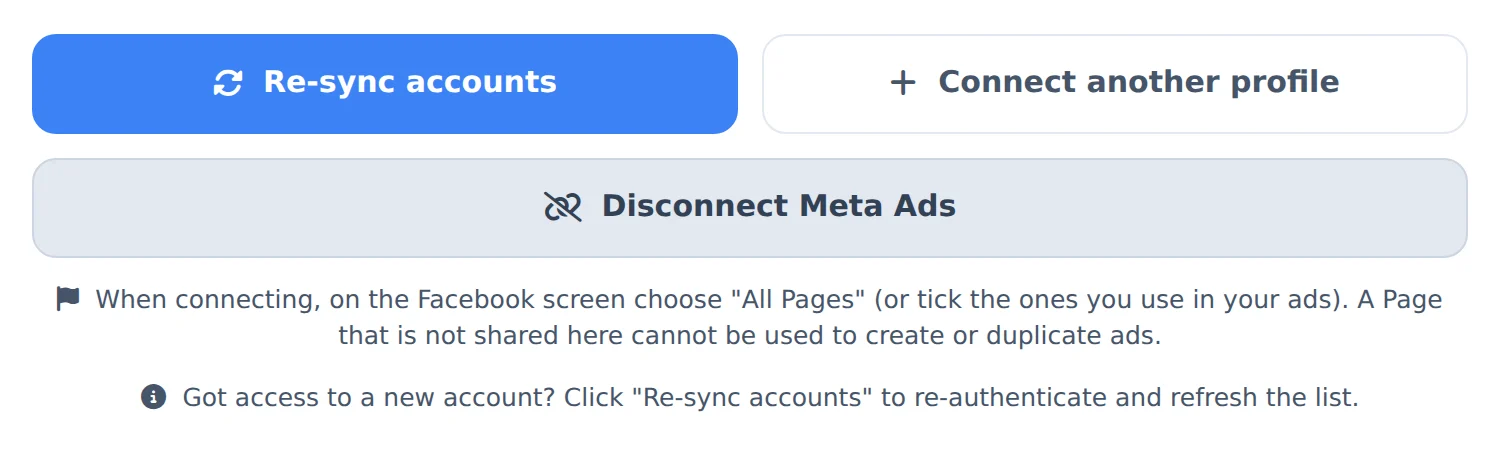
In the side menu, click Connect Meta and then Connect Meta Ads (with a profile already connected, the button is Connect another profile). The Facebook window opens: log in, choose All Pages (or check the ones you use in ads) and confirm. A Page not allowed there cannot be used to create or duplicate ads.
 12
12- 1Connect profile
- 2All Pages
- 2
Check the connected profiles
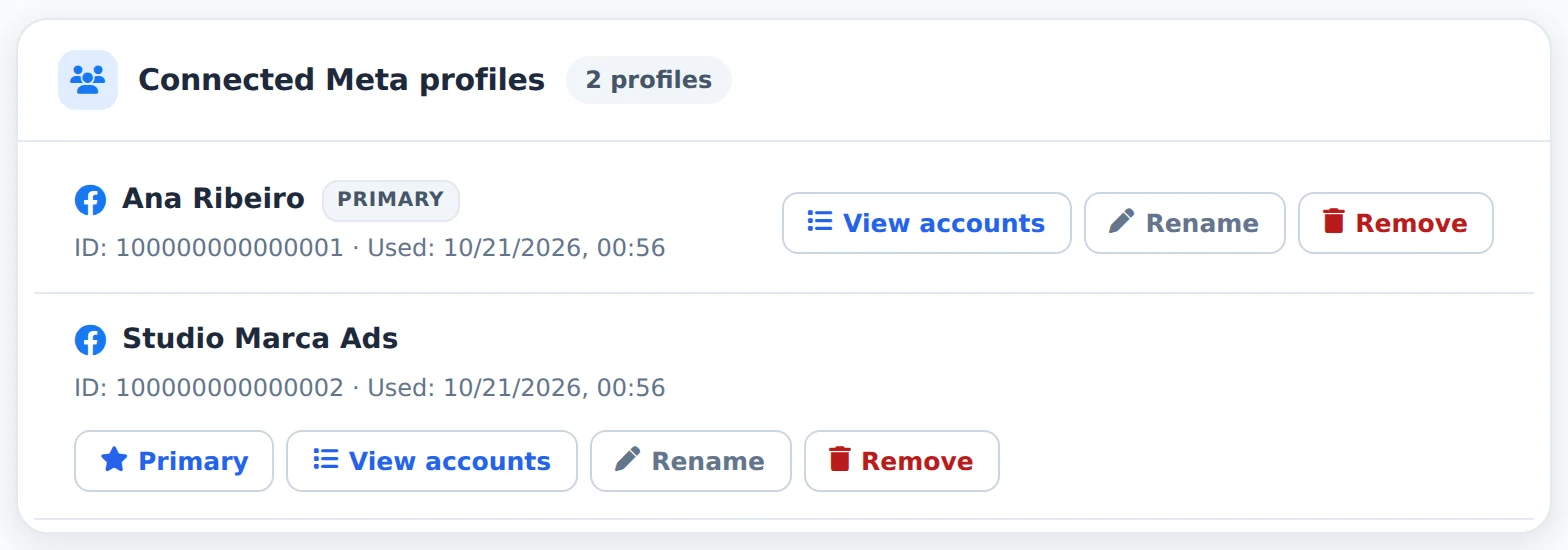
Each Facebook login becomes a profile under Connected Meta profiles. You can have several, one per Business Manager, for example. View accounts shows the accounts that profile can access.
 12
12- 1Connected profiles
- 2View accounts
- 3
Turn on the ad accounts
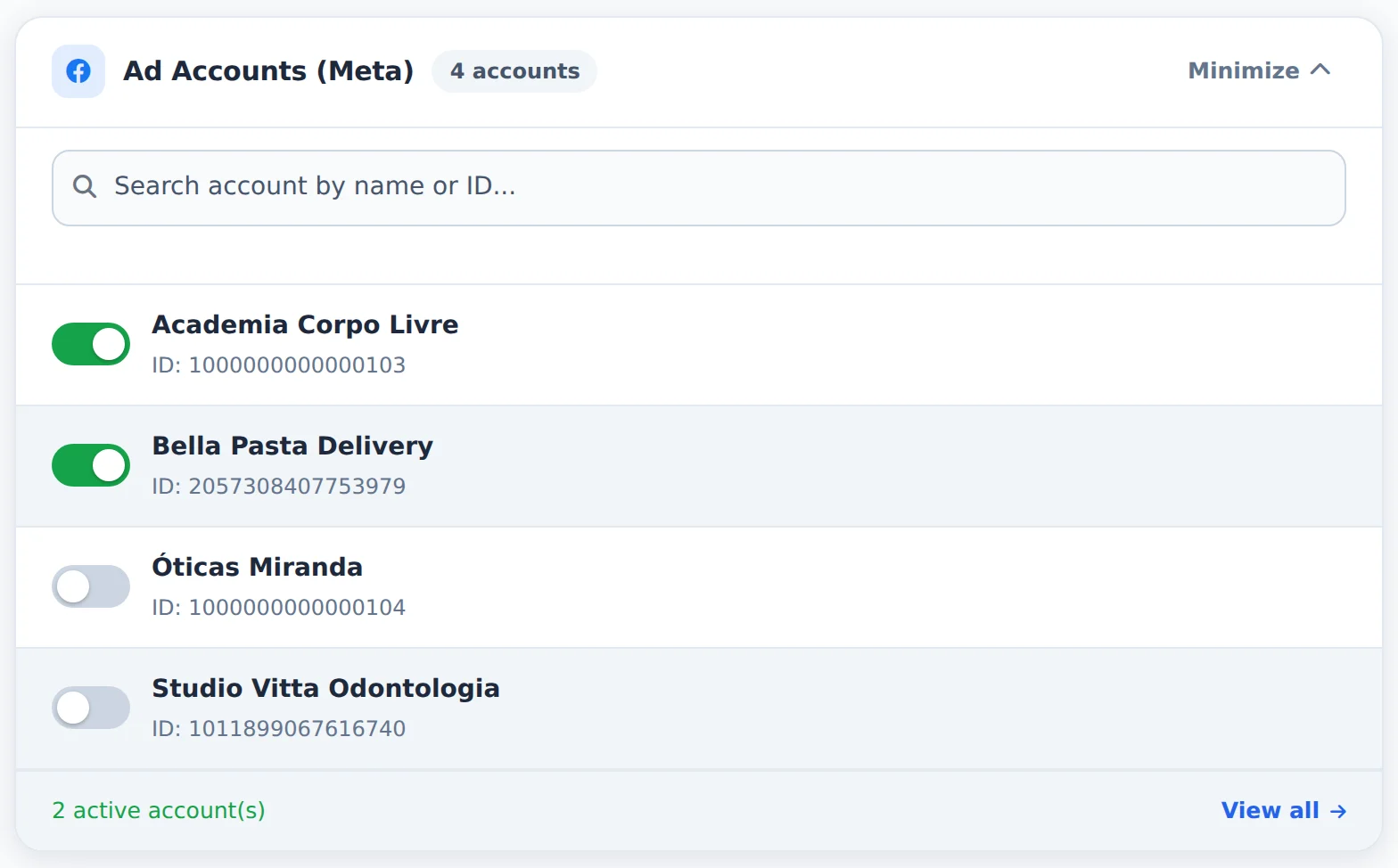
Under Ad Accounts (Meta), switch on the accounts you will manage. The search finds the account by name or ID. The footer shows how many are active: they start showing up across the app.
 123
123- 1Search account
- 2Ad accounts
- 3Active accounts
- 4
Re-sync when needed
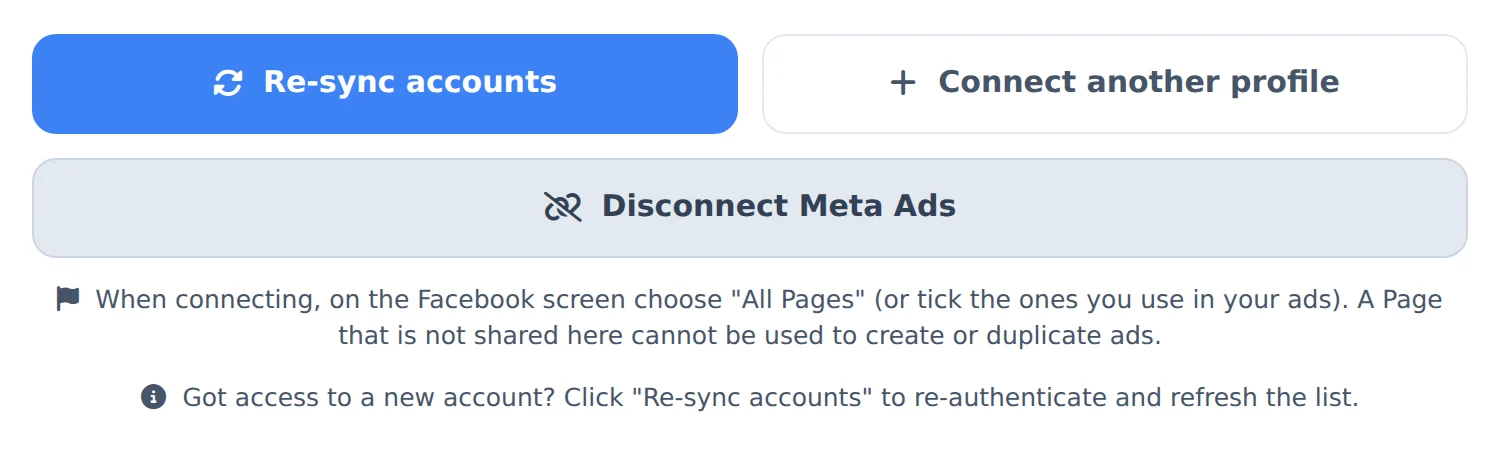
Got access to a new account on Facebook? Click Re-sync accounts: the list updates and the new account shows up for you to turn on.
 12
12- 1Re-sync accounts
- 2When to use it
At the plan limit
To swap one account for another, first turn off the one you will not use, wait for the counter to update, and only then turn on the new one.
How to tell it worked
- The Connected label shows at the top of the page.
- The accounts you turned on show up in the Account Hub and in the Meta Ads account picker.
If something goes wrong
| Symptom | Likely cause | What to do |
|---|---|---|
| The client account is not in the list | The connected profile has no access to it | Ask the client to give your profile access and click Re-sync accounts |
| An invalid or expired token error shows up | The Facebook connection dropped (password change, revoked access) | Click Connect Meta Ads again and accept every permission |
| The footer turns red when turning an account on | The plan account limit was reached | Turn off an account you do not use or change plans in My Subscription |
Frequently asked questions
How do I connect my Meta account in Ads Editor?
To connect your Meta account (Facebook/Instagram):
- In the side menu, click Connect Meta (on mobile: More → Connect Meta).
- Click Connect Meta Ads.
- Log in to Facebook and approve access to ads and Pages.
- When you come back, turn on the ad accounts you want in the Ad Accounts panel.
Ad accounts from the Business Managers on your profile appear in that list. To use another Facebook profile, click Connect another profile.
Connect Meta is visible to the account owner. A team member sees it only when the owner grants the Connect Meta permission under Team. The member can then open the page, click Connect profile, and add the profile to the owner's Ads Editor account. The owner chooses which ad accounts that member can access.
Can I connect multiple profiles or multiple ad accounts at the same time?
Yes.
If it is a Facebook or Google Ads profile: you can connect more than one profile in Ads Editor.
If it is an ad account: when connecting the profile, the system lists the ad accounts linked to it.
- Meta: after connecting Facebook, the ad accounts available to that login are added (including via Business Manager).
- Google Ads: after connecting the Google login, the system lists the accounts that this login accesses (including MCC); select the accounts you want to use.
The limit of active accounts at the same time depends on the plan. To connect and manage profiles, use Connect Meta or Connect Google in the side menu.
Do I need my client's Facebook password to create an ad account and run campaigns?
No. You never need your client's Facebook password, and they don't need to create anything from their own profile.
Here is how it works:
- Ad account: you create it yourself, inside one of your BMs that still has a free slot (a BM has an ad account limit), or by opening a new BM for this client.
- Facebook Page: you create the company's Page, or connect one that already exists.
- Instagram: this is the only step where the client comes in: they sign in to their own Instagram account to authorize linking it to the Facebook Page (you don't need their password). It's the only step that depends on them.
- Payment: add a card, or generate a Pix payment (Brazil's instant payment method) in the ad account to add funds, and your campaigns can run.
In other words, a client without a Facebook password doesn't block anything. You set everything up and leave only the Instagram link for when the client can authorize it.
How do I change which accounts are active or add more within my plan limit?
Active accounts are chosen in Connect Meta (Meta accounts) and Connect Google (Google accounts), in the Ad Accounts panel. Changes save automatically.
If you're already at your plan limit:
- First turn off the accounts you won't use and wait for the active accounts counter to update.
- Then turn on the new ones.
If your selection exceeds the limit, nothing is saved: the footer turns red and shows how many accounts your plan allows. Meta and Google are counted separately: if your plan allows 40 accounts, that means 40 Meta accounts and 40 Google accounts.
If you see This ad account is outside your plan, the account isn't among your active ones. Activate it on the same screen. Need more accounts than your plan allows? Then you need a different plan. On a monthly plan, you can upgrade yourself in My Subscription (Upgrade). On an annual plan, our team handles the change.
My ad account doesn't show up in Ads Editor. What should I do?
If an account isn't showing up:
- Confirm that you finished the connection in Connect Meta (or Connect Google) and authorized all the requested access (ad and Page management).
- In the Ad Accounts panel on that same screen, check whether the account is active. Only active accounts appear in the app, and your plan has a limit on active accounts.
- Check that the connected profile has access to the account in Business Manager. If the account belongs to another profile, use Connect another profile.
- In the Account Center, check that the account isn't hidden (Hidden button) and isn't outside the selected group.
If it still doesn't appear, contact support and include the account ID.
Error: Invalid or expired Meta token (code 190)
The Meta connection has expired or been invalidated (password change, app revoked, old session). Ads Editor can no longer act on Meta on behalf of the account.
How to fix it:
- In the side menu, open the Connect Meta page.
- Click the green Reconnect/Refresh button, sign in to Facebook, and accept all permissions.
- Go back and repeat the action that failed.
In public reports, the report owner must reconnect. After that, the link loads again on its own, without recreating anything.