
Audiences and UTM Integrations
Google Ads audiences
Create website remarketing, custom segments and combinations in the Google account, with suggestions from the account data, and link them to campaigns.
Quick answer
Open Create Audiences and click the Google tab. Pick the account: the website tag and the audience list show up. Under Create Google audience, pick Website remarketing, Custom segment or Combination, fill it in and click Create audience. To use it in a campaign, open the campaign Edit in Google Ads and pick Audiences.
Watch the walkthrough 0:37
Before you start
- Website remarketing needs the Google tag installed on the website. The screen shows whether it is recording visits and gives you the code to install.
- Customer list (Customer Match) is not available here.
- In Performance Max, the audience goes in as a signal of the asset group.
Step by step
In this example, the clinic creates the audience of people who visited the booking page.
- 1
Open the Google tab and pick the account
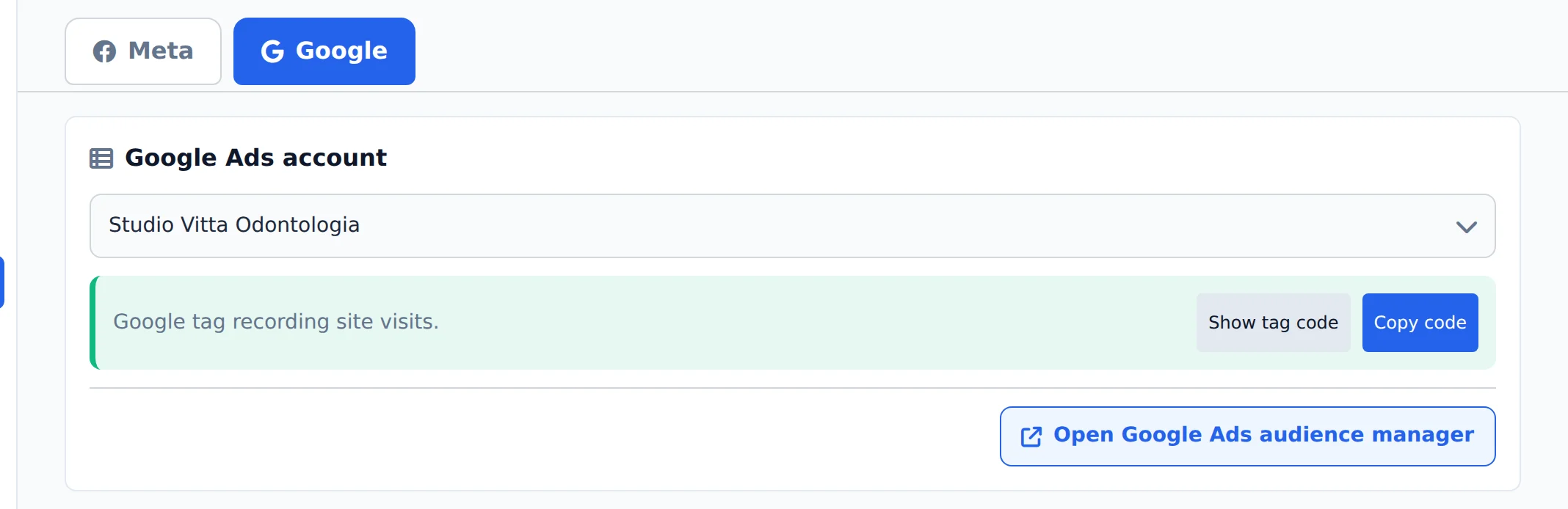
In the side menu, click Create Audiences and the Google tab. Under Google Ads account, pick the account. The green box confirms the Google tag is recording visits on the website; if it is not, it shows the code to install.
 123
123- 1Google tab
- 2Google Ads account
- 3Website tag status
- 2
Create the audience
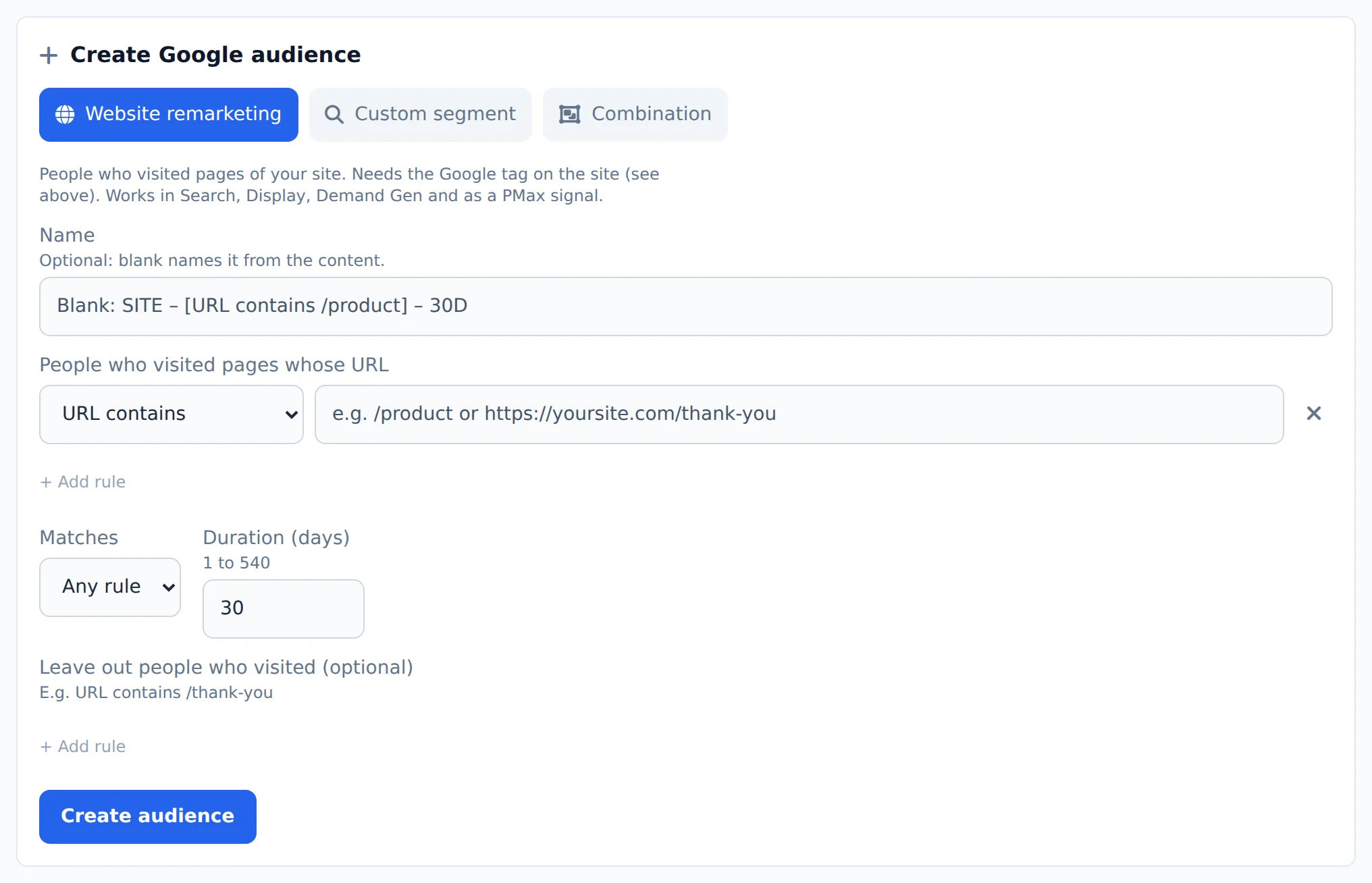
Under Create Google audience, pick the type. Website remarketing gathers people who visited pages whose URL contains, equals, starts or ends with a text, for 1 to 540 days. Custom segment gathers people who search certain terms or visit certain websites. Combination joins lists, such as "visited and did not book". Fill it in and click Create audience.
 123
123- 1Audience type
- 2Who visited pages whose URL
- 3Create audience
- 3
Let Ads Editor suggest
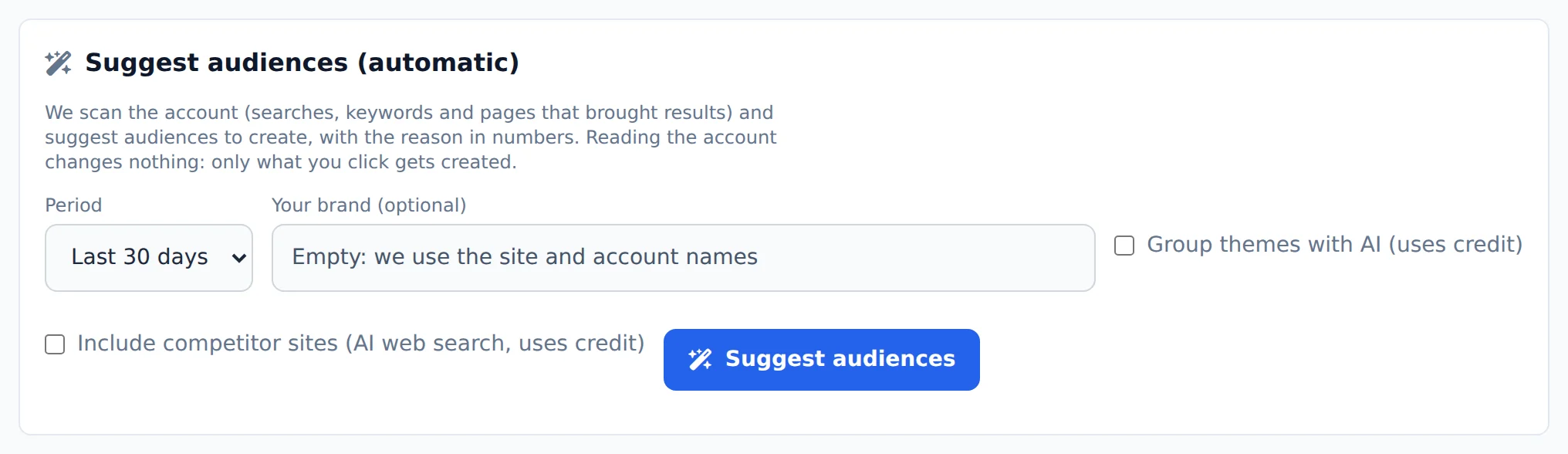
Suggest audiences (automatic) reads the searches and pages that converted in the account and proposes segments, remarketing by website section and the "visited and did not convert" combination, each with the reason in numbers. Check Include competitor sites to also bring in people who visit competitor websites. Nothing is created on its own.
 12
12- 1Include competitor sites
- 2Suggest audiences
- 4
Check the list
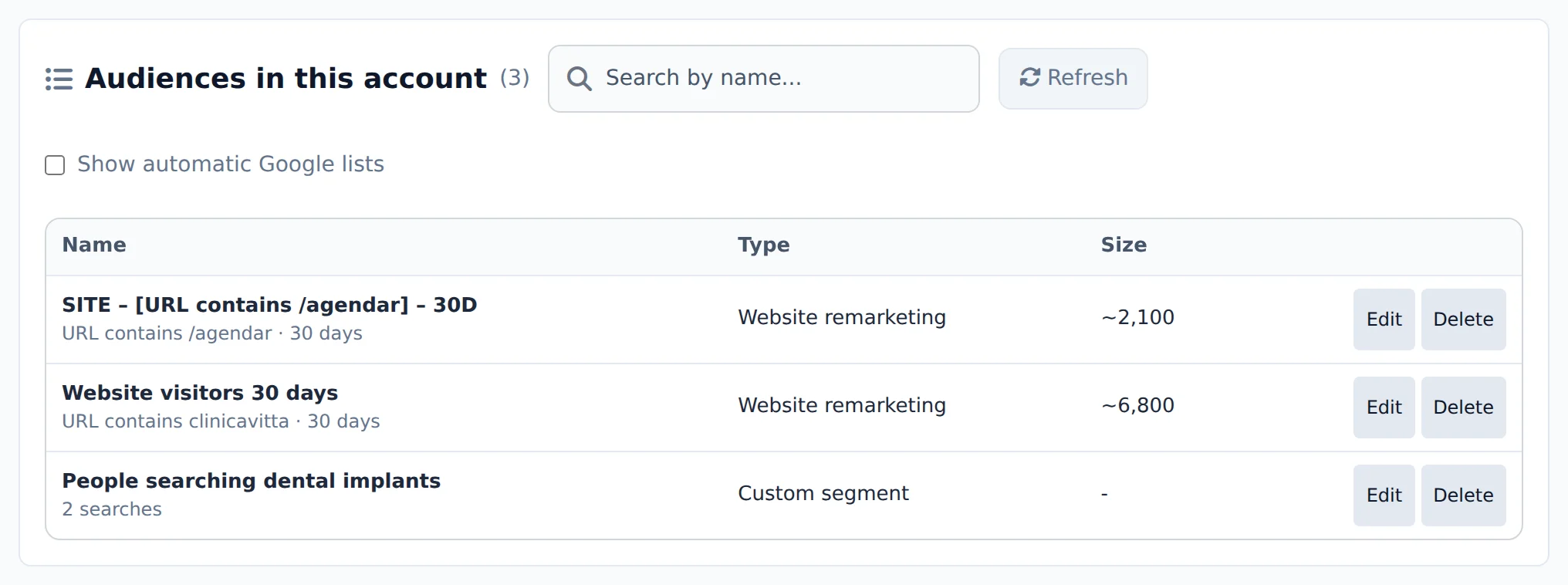
Under Audiences in this account you find the audiences with type and size. Edit changes the name, rules and duration; Delete removes it in Google.
 12
12- 1Search by name
- 2Edit
- 5
Link it to the campaign
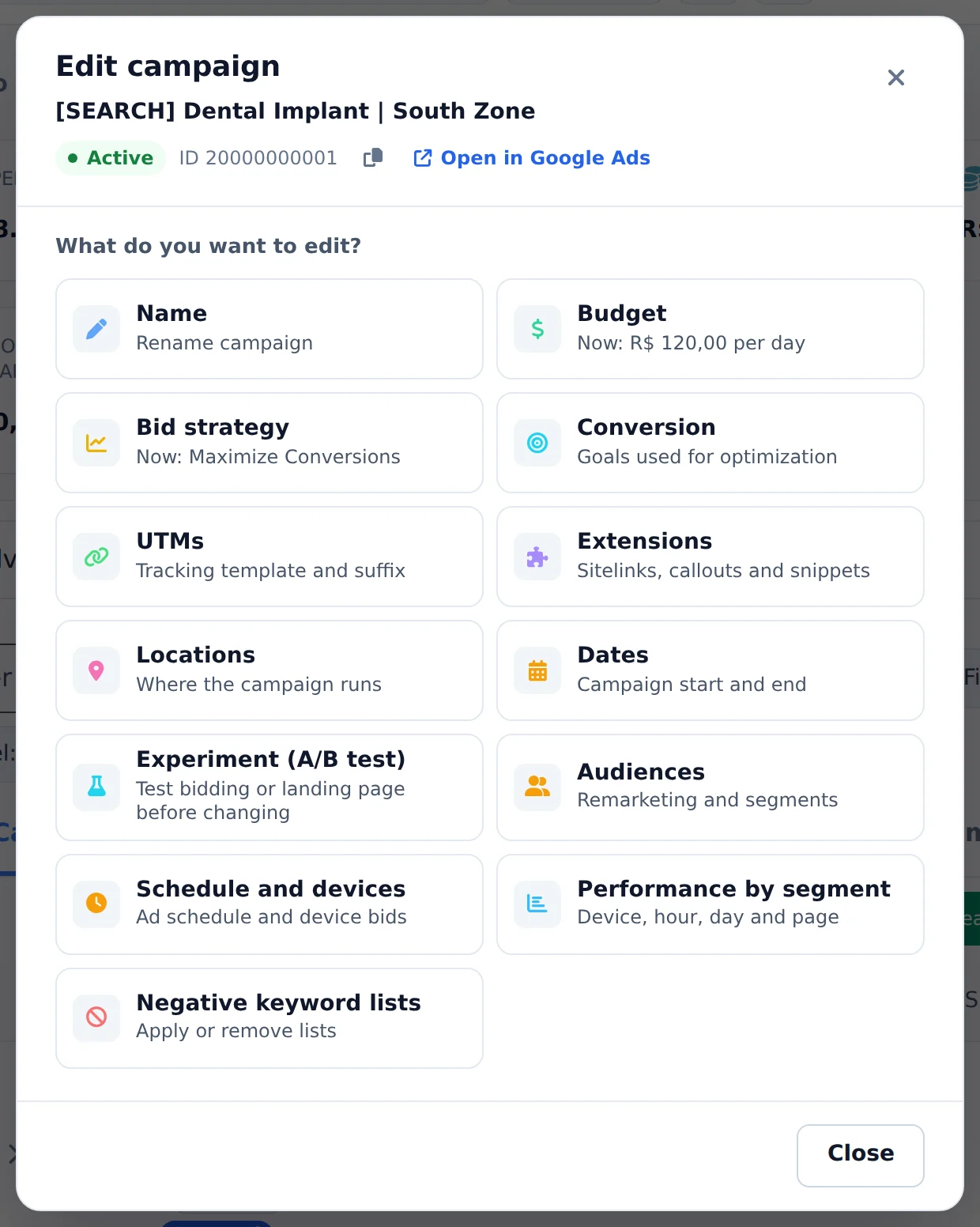
In Google Ads, click Edit on the campaign, ad group or asset group and pick Audiences. Observation shows the ads to everyone and only tracks the audience; Targeting shows them only to the audience; Exclude removes the audience from the campaign.
 1
1- 1Audiences
The classic: visited and did not buy
Create a remarketing of website visitors and another of people who reached the thank you page. Then make a Combination with the first one excluding the second: it is the warmest audience in the account.
How to tell it worked
- The audience shows under Audiences in this account with the right type.
- The size starts empty and grows as people visit the website.
- In the campaign, the audience shows in the Audiences card of Edit.
If something goes wrong
| Symptom | Likely cause | What to do |
|---|---|---|
| The tag box stays yellow | The Google tag is not on the website, or has not recorded visits yet | Click Show tag code, install it on the website and wait a few hours |
| The audience stays at size zero | Nobody visited the pages in the rule, or the rule is wrong | Check the rule URL in Edit |
| The campaign shrank after linking the audience | The audience was linked as Targeting | Switch to Observation if you only want to track the audience |
Frequently asked questions
How do I create and use Google Ads audiences (website remarketing, custom segment, combined) in Ads Editor?
On the Create Audiences page, Google tab (the Google Ads Audiences menu opens straight to it), choose the account. You will see the site's Google tag (with the install code if it isn't recording visits) and the list of audiences with the size of each.
You can create these types:
- Website remarketing: people who visited pages whose URL contains, equals, starts with, or ends with something, with exclusions and a duration of 1 to 540 days.
- Custom segment: people who search for certain terms, visit similar websites (or competitors' sites), or use certain apps.
- Combination: merges lists (all, any, exclude). The classic one is "visited but didn't buy".
To apply an audience to a campaign: in Google Ads, click Edit on the campaign, ad group, or asset group, then open Audiences. Observation shows your ads to everyone and only tracks the audience. Targeting shows ads only to the audience (switching asks for confirmation, because it narrows the campaign's reach). Exclude removes the audience. In Performance Max, the audience is added as a signal for the asset group. In Create campaign, you can also choose audiences, which are attached as soon as the campaign is created.
Customer lists (Customer Match) aren't available here.
Does Ads Editor suggest audiences for my Google Ads account?
Yes. In Create Audiences › Google tab, the Suggest audiences (automatic) card reads your account: searches and keywords that converted, landing pages that got clicks, lists of visitors and converters, and observed audiences that convert.
It suggests segments by theme, remarketing by site section, and the "visited but didn't convert" combination. Each suggestion comes with the reason, based on numbers from your account, and where to use it. Brand terms, terms already added as negatives, and anything that already exists are left out.
Nothing is created automatically: you can edit a suggestion, create one, create all the selected ones, or open it in the form. The Group themes with AI option uses AI credits; without it, grouping is automatic and free. If you select Include competitors' websites, the suggestion "Who visits competitors' websites" is added too.
How do I find competitor sites for a custom segment and view Google auction information?
In the Custom Segment form (Create Audiences › Google), below the Sites field, the Suggest competitors button uses AI with web search. It works from the searches that convert in your account (or the ones in the Searches field) and the region of your campaigns. It uses AI credits (about 2 per use). Each site comes with a reason (for example, "appears for sp facial harmonization" or "advertises on Google: 24 ads"). Select the ones you want and click Add selected, which adds them without deleting what is already in the field. Your own site, marketplaces, directories, social networks and portals are left out.
Auction information (who competes with you in the auction): Google doesn't release this report through the API, so it can't be pulled automatically. Instead, download the report in Google Ads (Campaigns › Insights and reports › Auction information, as CSV or Excel) and use the Import Auction Information button in the same form. Ads Editor shows each domain's impression share and overlap.
How do I adjust my bid by audience (remarketing list or segment) in Google Ads?
In Google Ads, click Edit on the campaign or ad group and open Audiences. When the strategy supports it, each connected audience displays a percentage adjustment field. After saving, Ads Editor shows the previous and new values. You can also reach it from the Segments tab under Audiences for this campaign.
With automated strategies and Performance Max campaigns, Google normally uses the audience as a signal and may not accept an adjustment. In that case, use Targeting to deliver only to that audience or exclude an audience you do not want to reach. The screen shows the actions supported by the current strategy.