
Audiences and UTM Integrations
Braip sales with UTMs
Create the Braip integration with the authentication key and register the return URL in Braip Postback.
Quick answer
In UTM Integrations, name the project, pick Braip under Platform and paste the Braip authentication key (Braip, Tools, Postback, Documentation). Pick the accounts and create the project. Then copy the webhook URL and register it in Braip under Tools, Postback, New configuration.
Watch the walkthrough 0:31
Before you start
- The key is in Braip under Tools, Postback, Documentation. It is not the API token.
- Old sales are not imported: only the ones Braip sends after setup come in.
- To change the key later, use Replace key on the project card.
Step by step
In this example, we link the sales of a kit sold through Braip to the Meta campaigns.
- 1
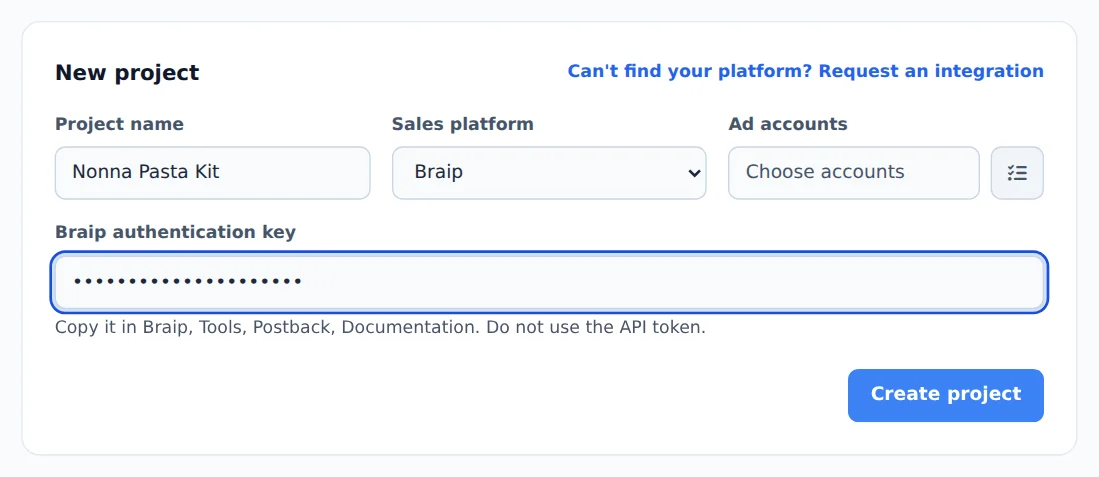
Name, platform and key
Name the project, pick Braip under Platform and paste the Braip authentication key in the field that shows up.
- 2
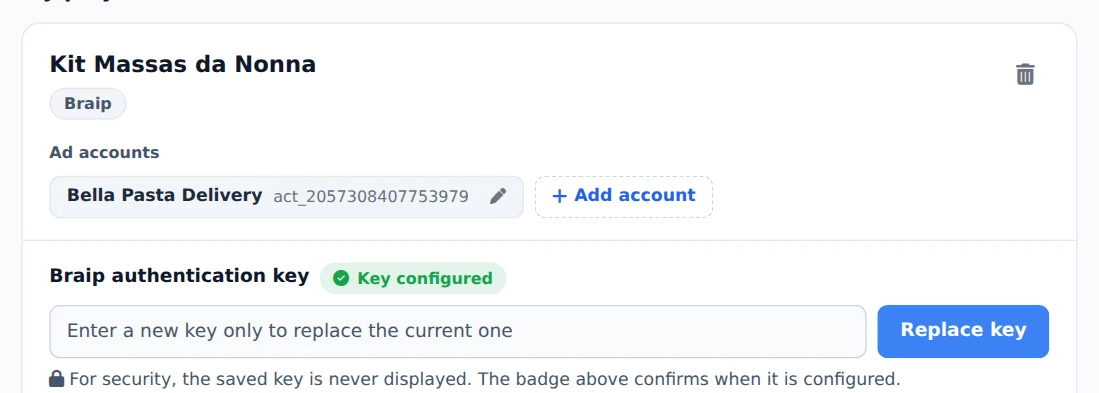
Accounts and creation
Pick the product ad accounts, confirm and click Create project.
- 3
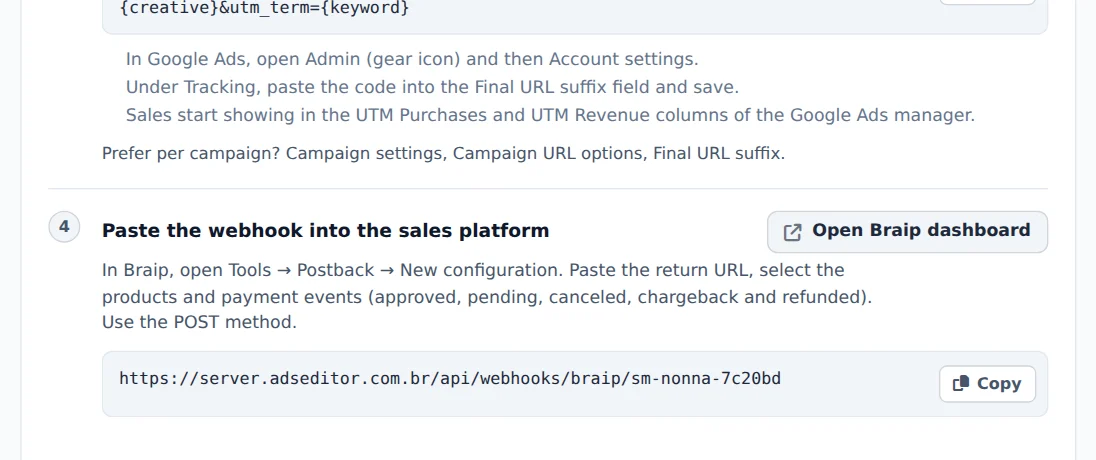
Copy the return URL
Open the project: the key shows as Key configured. Copy the webhook URL and, in Braip, under Tools, Postback, New configuration, paste the URL, pick the products, the payment events (approved, pending, canceled, chargeback and refunded) and the POST method.
Run a test
After setting it up, make a test sale in Braip and check that it arrives with the right campaign in the manager sales columns.
How to tell it worked
- The project card shows Key configured.
- The test sale shows in the UTM Purchases and UTM Revenue columns.
If something goes wrong
| Symptom | Likely cause | What to do |
|---|---|---|
| The sale did not arrive | The pasted key is the API token, not the Postback key | Copy the key from Tools, Postback, Documentation and use Replace key |
| The sale arrived without a campaign | The UTMs are not on the ads | Apply the UTMs to the campaigns with the Add to campaigns button |
Frequently asked questions
How do I integrate Braip sales with Ads Editor UTMs?
Use the UTM Integrations page:
- Create an integration, choose Braip under Platform, and select your ad accounts.
- In the Braip authentication key field, paste the key found in Braip → Tools → Postback → Documentation. It is not the API token.
- Open the project instructions and copy the callback URL.
- In Braip, go to Tools → Postback → New configuration. Paste the URL, select the products and the payment events (approved, pending, canceled, chargeback, and refunded), and set the method to POST.
- Apply the UTMs shown in the project to your ads.
- Make a test sale on Braip and check that it arrives with the right campaign.
Old sales are not imported: only sales that Braip sends after setup are recorded. To change the key, use Update key on the project card.
Which sales platforms does Ads Editor integrate with?
The UTM Integrations selector includes: Hotmart, Braip, Kiwify, Eduzz, Guru, Hubla, Kirvano, Cakto, Ticto, Perfect Pay, Monetizze, Greenn, Pepper, Lastlink, Payt, and CartPanda. Choose yours in the Platform field when you create the integration. If yours isn't on the list, click Request integration on the same page and tell us which platform you use: the team decides what to add based on requests.