
Get started
Getting to know the menu
A tour of the Ads Editor side menu: where each tool lives, the connections, your account and the shortcuts at the top.
Quick answer
The side menu has everything: at the top, theme, language and notifications; then the tools (Account Hub, Meta Ads, Google Ads, Meta Ads Editor, Reports, Rules, AI Optimization); next the connections and the team; and, at the bottom, tutorials, subscription, support and your account.
Watch the walkthrough 0:41
Before you start
- Team members only see the pages the owner allowed.
- The arrow at the bottom of the menu collapses it to icons only.
Step by step
A walk through the menu from top to bottom.
- 1
Theme, language and notifications
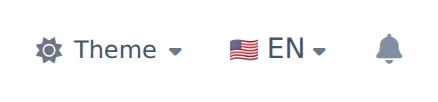
At the top of the menu, Theme switches between Clean, Dark and Black. EN switches the app language to Portuguese and back. The bell gathers the notices from rules, alerts and duplications.
 123
123- 1Theme
- 2Language
- 3Notifications
- 2
The everyday tools
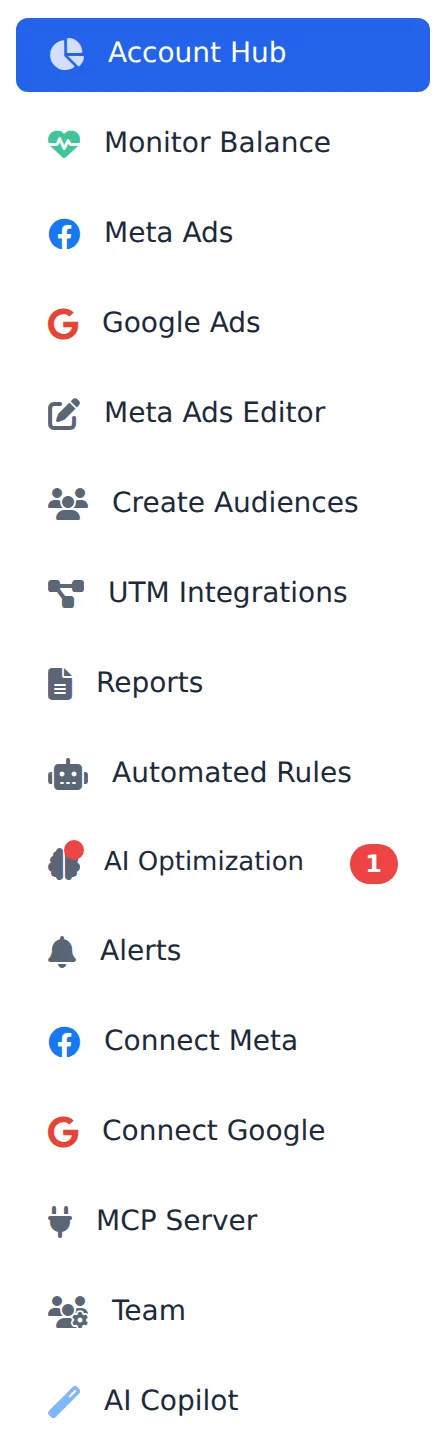
The Account Hub shows every client in one place. Meta Ads and Google Ads are the campaign managers. The Meta Ads Editor uploads ads in bulk. In Reports you build the link for your client, and AI Optimization looks after the budget on its own.
 1234
1234- 1Account Hub
- 2Meta Ads Editor
- 3Reports
- 4AI Optimization
- 3
Connections and team
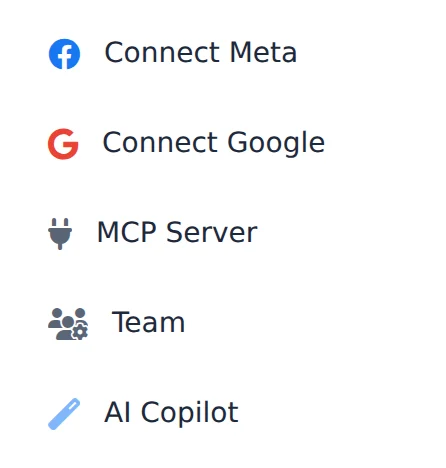
Connect Meta and Connect Google link the ad accounts. Team gives other people access, choosing the screens and accounts of each one.
 123
123- 1Connect Meta
- 2Connect Google
- 3Team
- 4
Help and your account
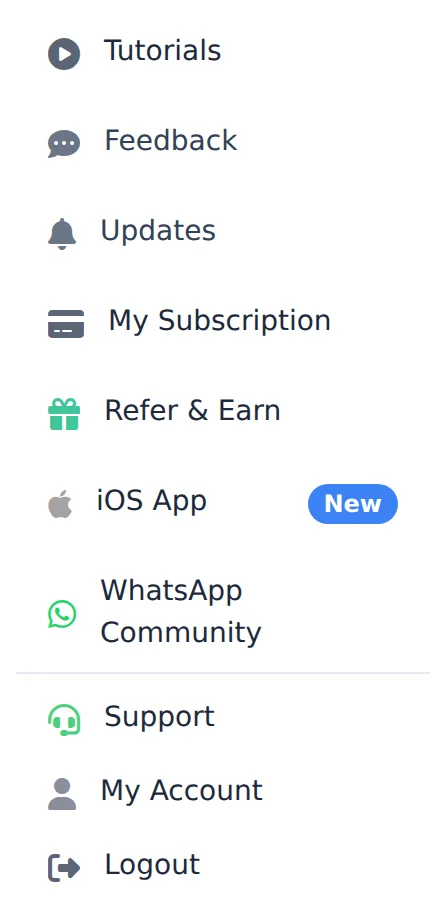
At the bottom are Tutorials (the videos), My Subscription (plan and invoices), Support and My Account (details, password and two-step verification).
 123
123- 1Tutorials
- 2My Subscription
- 3My Account
First time here?
Start by connecting Meta or Google: see the Connect your Meta account guide and then Ads Editor in 10 minutes.
How to tell it worked
- The open page is highlighted in blue in the menu.
If something goes wrong
| Symptom | Likely cause | What to do |
|---|---|---|
| A page is missing from the menu | You are a team member and the page was not allowed | Ask the account owner to allow the page in Team |
| The menu disappeared | It was collapsed | Click the arrow at the bottom of the bar to open it again |
Frequently asked questions
What is the Getting Started card that appears on the screen?
This is the new account setup checklist. In the first 30 days it appears on the welcome page (Start here), in the Account Center and in Meta Ads, with four steps that are checked off automatically as you use the product:
- Connect Meta or Google (Connect button).
- Choose ad accounts (Choose button).
- Create the first report (Create button).
- Meet the Copilot (Open button).
You don't need to mark anything by hand: the step is completed when the action happens. To hide the card, click the x (Dismiss); it also disappears on its own when the account is 30 days old or when the four steps are completed. Team members do not see this card: whoever connects and chooses the accounts is the owner.
How do I change the Ads Editor language to English?
At the top of the side menu, next to Theme, is the language selector (the flag with PT). Click it and choose English. To switch back, choose Português. On your phone, open More and tap the flag (PT or EN) at the top.
The page reloads in the language you chose. The choice is saved to your account, so it also applies when you sign in from another device.